
dsh-plugin-addir
Multi-root workspaces and dynamic context injection for DeepSeek Harness
Inspired by OpenAI Codex --add-dir and modern AI IDE multi-directory workspace designs



简体中文 | English
---
## 💡 Why addir?
By default, a [DeepSeek Harness](https://github.com/deepseek-ai/deepseek-harness) workspace is restricted to a single root directory (`cwd`). Real-world development, however, frequently spans across multiple directories:
- **Monorepos & Split Repositories**: Working across separate `frontend/` and `backend/` directories where the agent needs both interface definitions and server logic;
- **Shared Libraries & Utilities**: Consuming independent packages (e.g., `shared-ui/`, `core-lib/`) without copying code back and forth;
- **Read-Only Specifications & Docs**: Referencing design guidelines, OpenAPI contracts, or vendor code where the model should read but **must never modify**.
`dsh-plugin-addir` eliminates the single-workspace boundary! It enables you to **link arbitrary external directories** to your current workspace with intuitive graphical management, dynamic prompt context injection, and strict read-only protections.
---
## ✨ Features
- 📁 **Multi-Root Workspaces**
Associate multiple external folders with any workspace. Configure clean aliases, descriptions, and read-only flags for each.
- 🧠 **Dynamic Context Injection**
Automatically injects the active workspace directories into model prompt context on each turn. The agent recognizes paths like `[alias]/path` or `alias:path`.
- 🛡️ **Fine-Grained Read-Only Protection**
Intercepts `write` and `edit` file tool calls for directories marked `readOnly`, preventing accidental modifications to core libraries or specs.
- 🖥️ **Seamless Native GUI Integration**
Built directly into the DSH workspace action menu (`⋯` → Edit). The modal dialog invokes your system's native folder picker for a smooth experience.
- 💾 **Automatic Persistence**
Directory associations are keyed by normalized workspace root and persisted in local storage (`$DSH_HOME/storages/addir.json`), immediately restored across restarts.
- 🤖 **Agent Autonomy & Control**
Provides built-in tools (`addir_list`, `addir_add`, `addir_remove`) allowing agents to discover and link directories on demand, with a global kill-switch for full human control.
---
## 🖥️ UI Walkthrough
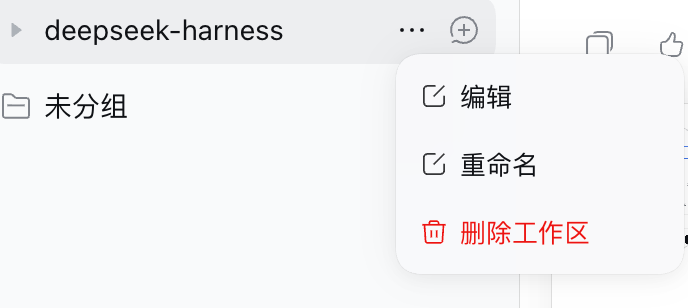
### 1. Workspace Menu Entry
Click the「`⋯`」menu button on any workspace row and select「**Edit**」:
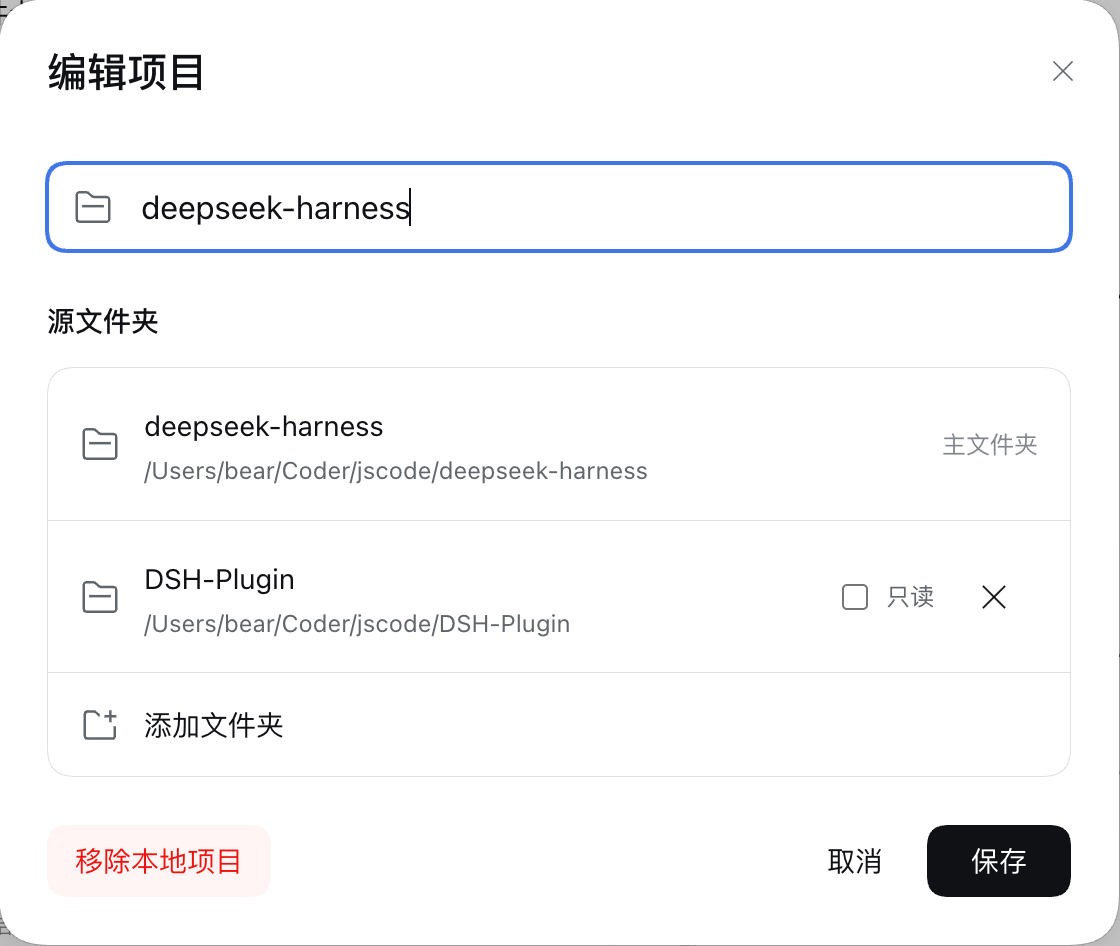
### 2. Multi-Directory Management Modal
Rename the workspace, select folders using the **system native directory picker**, assign custom aliases, and toggle read-only restrictions:
---
## Context Injected into the Model
When `enableContextInjection` is enabled, the plugin automatically appends active directory information to the model's system prompt:
```markdown
# Active Workspace Directories
- [primary] `/Users/dev/repo/frontend` (Primary root)
- [backend] `/Users/dev/repo/backend` - Core backend API services
- [specs] `/Users/dev/repo/api-specs` [Read-Only] - OpenAPI schema contracts
```
The model can now reference files using shorthand like `[backend]/src/app.ts` or directly using absolute paths.
---
## 🚀 Quick Start
1. **Install the plugin** (see [Installation](#-installation) below);
2. **Link directories**: Click「`⋯`」→「Edit」in the workspace list, click「**Add Folder**」to choose a local directory, enter an alias (e.g. `backend`), and click Save;
3. **Start chatting**: Ask your agent:
> *"Please read the routing definitions in [backend] and generate the corresponding API client methods for our frontend project."*
---
## 📦 Installation
### 1. Via DSH GUI Settings (Plugin Manager)
In DeepSeek Harness Desktop or Web UI, navigate to **Settings → Plugins**, search for `dsh-plugin-addir`, and click Install.
### 2. Via CLI (Recommended)
```sh
# For Web Profile
dsh plugin --profile web add dsh-plugin-addir
# For Desktop Profile
# Note: Launch the desktop app once first to initialize the profile. Quit it completely before running this command, then re-open the app.
dsh plugin --profile desktop add dsh-plugin-addir
# For Headless / Custom Profile
dsh plugin --profile headless add dsh-plugin-addir
```
> [!NOTE]
> This package includes a **bundle patch** (`cordis.patch.yml`). It automatically registers `id: addir` into your profile configuration upon installation — **no manual configuration required**.
### 3. From Source (Development)
```sh
# Clone repository
git clone https://github.com/keatsyh/dsh-plugin-addir.git
cd dsh-plugin-addir
# Install dependencies and build (prepare hook builds lib/)
pnpm install
# Link to your preferred profile
dsh plugin --profile web add "link:$PWD"
```
---
## ⚙️ Configuration
Sensible defaults are provided out of the box. You can adjust them directly in the DSH Plugin Settings page or override them in your profile's `cordis.patch.yml`:
| Option | Type | Default | Description |
|---|---|---|---|
| `enableTools` | `boolean` | `true` | Expose `addir_*` tools to the agent (permitting dynamic directory discovery/linking) |
| `enableContextInjection` | `boolean` | `true` | Inject active directories table into the prompt context before each turn |
| `enforceReadOnly` | `boolean` | `true` | Intercept write/edit operations inside directories marked as read-only |
| `defaultDirectories` | `Array` | `[]` | Static directories linked on startup (`path`, `alias`, `description`, `readOnly`) |
### YAML Configuration Example
```yaml
- id: addir
config:
enableTools: false # Manage directories via UI only; prevent agent self-linking
enableContextInjection: true # Keep prompt context injection active
enforceReadOnly: true # Enforce write protections
defaultDirectories:
- path: /data/docs/specs
alias: specs
description: API Specifications
readOnly: true
```
> [!TIP]
> All directory associations configured via the GUI are stored in `$DSH_HOME/storages/addir.json`, indexed by normalized workspace root paths, and persist across restarts.
---
## 🛠️ Agent Tools
When `enableTools` is `true`, the following tools are available to the agent:
| Tool Name | Parameters | Description |
|---|---|---|
| `addir_list` | — | List all directories currently linked to this workspace (roots, aliases, descriptions, and read-only flags) |
| `addir_add` | `path` (required)
`alias` (optional)
`description` (optional)
`readOnly` (optional) | Associate an additional directory with the workspace (supports absolute or relative paths) |
| `addir_remove` | `pathOrAlias` (required) | Unlink an associated directory by path or alias (primary root cannot be removed) |
If you prefer to manage linked directories strictly by hand, set `enableTools: false`.
---
## 🧩 Developer API
Other plugins and harness services can interact with `ctx.addir` directly:
```ts
import type { Context } from '@deepseek-ai/cordis'
export function apply(ctx: Context) {
// List directories for the current session
const dirs = ctx.addir.list(sessionId)
// Programmatically add a directory
ctx.addir.add({
path: '/path/to/shared-lib',
alias: 'shared',
description: 'Shared utilities',
readOnly: true,
}, sessionId)
// Resolve alias paths to absolute paths ('[shared]/utils.ts' -> '/path/to/shared-lib/utils.ts')
const resolved = ctx.addir.resolvePath('[shared]/utils.ts', sessionId)
// Check if a path belongs to the workspace or its linked directories
const isIncluded = ctx.addir.isUnderWorkspace('/path/to/file.ts', sessionId)
// Check if a path is protected by read-only rules
const isReadOnly = ctx.addir.isReadOnly('/path/to/file.ts', sessionId)
}
```
---
## ❓ FAQ
Q: Why doesn't the "Edit" menu option show up in Desktop after installation?
When installing plugins for the Desktop profile, ensure the desktop application process is completely terminated before running the install command (on macOS, use `Cmd + Q`; on Windows, quit from system tray / task manager), then restart the application to load the newly registered client bundle.
Q: Can the agent still read and search code in read-only directories?
Yes, absolutely. Read-only protection specifically intercepts mutating operations (`write`, `edit`). Read operations (`read`, `grep`, `glob`) function normally without restriction.
Q: Can different workspaces use the same alias name?
Yes. Directory configurations are isolated per workspace root path. An alias like `backend` in Workspace A will not conflict with Workspace B.
Q: How can I prevent the agent from adding directories on its own?
Disable **`enableTools`** in plugin settings (or set `enableTools: false` in your configuration). The agent tools will not be registered, while full manual management in the GUI remains available.
---
## 💻 Local Development
```sh
# Install dependencies
pnpm install
# Run unit and integration tests
pnpm test
# Type check
pnpm run typecheck
# Build (validates client bundle syntax & generates d.ts declarations)
pnpm run build
```
> **Architecture Note**: Client scripts are registered through classic runtime wrappers (`window.__ModuleLoader__.load`) and consume host-provided React instances. The workspace menu entry point is dynamically mounted via a resilient DOM adapter (`src/client/workspace-menu.ts`).
---
## 📄 License
Distributed under the [MIT License](LICENSE).