SQL Chat

 ## 启动参数
## TL;DR
- 如果是自用,选择不需要数据库的配置,参阅 [.env.nodb](https://github.com/sqlchat/sqlchat/blob/main/.env.nodb).
- 如果是希望提供类似于 [sqlchat.ai](https://sqlchat.ai) 的服务供多人使用, 那么需要数据库,参阅 [.env.usedb](https://github.com/sqlchat/sqlchat/blob/main/.env.usedb)。数据库用来保存用户以及使用信息。
### OpenAI 相关
- `OPENAI_API_KEY`: OpenAI API key. 您能从 [这里](https://beta.openai.com/docs/developer-quickstart/api-keys) 获得。
- `OPENAI_API_ENDPOINT`: OpenAI API endpoint. 默认 `https://api.openai.com`。使用 [Ollama](https://github.com/ollama/ollama) 来启动 self-host AI 模型,并且把 endpoint 指向它.
- `NEXT_PUBLIC_ALLOW_SELF_OPENAI_KEY`: 置为 `true` 以允许 SQL Chat 服务的用户使用自己的 key。
### 数据库相关
- `NEXT_PUBLIC_USE_DATABASE`: 置为 `true` 使得 SQL Chat 启动时使用数据库,这会开启如下功能:
1. 账号系统。
1. 用户额度。
1. 支付。
1. 使用数据收集。
- `DATABASE_URL`: 当 `NEXT_PUBLIC_USE_DATABASE` 是 `true` 时有效。用于保存数据的 Postgres 连接串 e.g. `postgresql://postgres:YOUR_PASSWORD@localhost:5432/sqlchat?schema=sqlchat`.
## 本地开发环境
1. 安装依赖项
```bash
pnpm i
```
1. 生成 `prisma` 客户端
```bash
pnpm prisma generate
```
1. 复制示例环境变量文件;
```bash
cp .env.usedb .env
```
1. 将您的 [API 密钥](https://platform.openai.com/account/api-keys) 和 `OpenAI API` 端点(可选)添加到新创建的 `.env` 文件;
### 配置数据库
1. 启动 Postgres 实例。对于 mac,您可以使用 [StackbBricks](https://stackbricks.app/), [DBngin](https://dbngin.com/) 或者 [Postgres.app](https://postgresapp.com/)。
1. 创建一个数据库:
```sql
CREATE DATABASE sqlchat;
```
在 `.env` 文件中, 将连接字符串分配给环境变量 `DATABASE_URL` 和 `DATABASE_DIRECT_URL`。至于需要两个 URL 的原因[见此](https://www.prisma.io/docs/data-platform/data-proxy/prisma-cli-with-data-proxy#set-a-direct-database-connection-url-in-your-prisma-schema).
1. 设置数据库 schema
```bash
pnpm prisma migrate dev
```
1. 初始化数据(可选)
```bash
pnpm prisma db seed
```
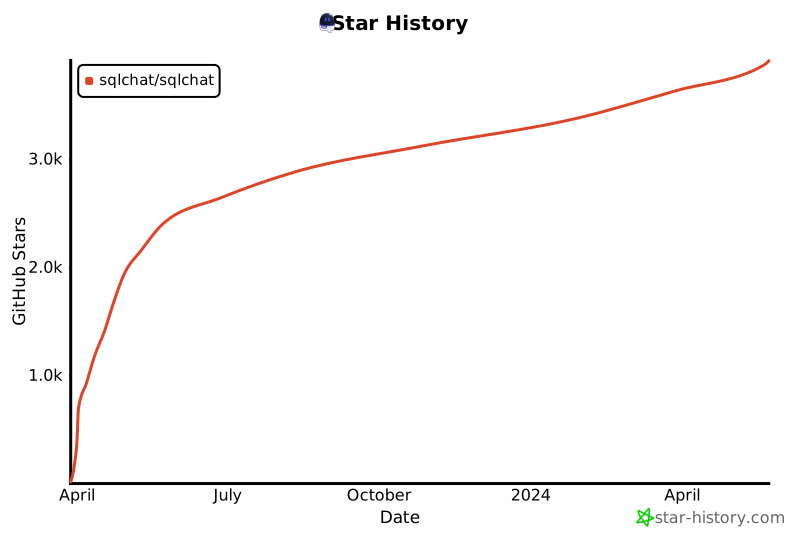
## Star 历史
[](https://star-history.com/#sqlchat/sqlchat&Date)
## 社区
[](https://twitter.com/Bytebase)
## 启动参数
## TL;DR
- 如果是自用,选择不需要数据库的配置,参阅 [.env.nodb](https://github.com/sqlchat/sqlchat/blob/main/.env.nodb).
- 如果是希望提供类似于 [sqlchat.ai](https://sqlchat.ai) 的服务供多人使用, 那么需要数据库,参阅 [.env.usedb](https://github.com/sqlchat/sqlchat/blob/main/.env.usedb)。数据库用来保存用户以及使用信息。
### OpenAI 相关
- `OPENAI_API_KEY`: OpenAI API key. 您能从 [这里](https://beta.openai.com/docs/developer-quickstart/api-keys) 获得。
- `OPENAI_API_ENDPOINT`: OpenAI API endpoint. 默认 `https://api.openai.com`。使用 [Ollama](https://github.com/ollama/ollama) 来启动 self-host AI 模型,并且把 endpoint 指向它.
- `NEXT_PUBLIC_ALLOW_SELF_OPENAI_KEY`: 置为 `true` 以允许 SQL Chat 服务的用户使用自己的 key。
### 数据库相关
- `NEXT_PUBLIC_USE_DATABASE`: 置为 `true` 使得 SQL Chat 启动时使用数据库,这会开启如下功能:
1. 账号系统。
1. 用户额度。
1. 支付。
1. 使用数据收集。
- `DATABASE_URL`: 当 `NEXT_PUBLIC_USE_DATABASE` 是 `true` 时有效。用于保存数据的 Postgres 连接串 e.g. `postgresql://postgres:YOUR_PASSWORD@localhost:5432/sqlchat?schema=sqlchat`.
## 本地开发环境
1. 安装依赖项
```bash
pnpm i
```
1. 生成 `prisma` 客户端
```bash
pnpm prisma generate
```
1. 复制示例环境变量文件;
```bash
cp .env.usedb .env
```
1. 将您的 [API 密钥](https://platform.openai.com/account/api-keys) 和 `OpenAI API` 端点(可选)添加到新创建的 `.env` 文件;
### 配置数据库
1. 启动 Postgres 实例。对于 mac,您可以使用 [StackbBricks](https://stackbricks.app/), [DBngin](https://dbngin.com/) 或者 [Postgres.app](https://postgresapp.com/)。
1. 创建一个数据库:
```sql
CREATE DATABASE sqlchat;
```
在 `.env` 文件中, 将连接字符串分配给环境变量 `DATABASE_URL` 和 `DATABASE_DIRECT_URL`。至于需要两个 URL 的原因[见此](https://www.prisma.io/docs/data-platform/data-proxy/prisma-cli-with-data-proxy#set-a-direct-database-connection-url-in-your-prisma-schema).
1. 设置数据库 schema
```bash
pnpm prisma migrate dev
```
1. 初始化数据(可选)
```bash
pnpm prisma db seed
```
## Star 历史
[](https://star-history.com/#sqlchat/sqlchat&Date)
## 社区
[](https://twitter.com/Bytebase)
 ## 赞助商

看这个 [issue](https://github.com/sqlchat/sqlchat/issues/141).
- 您可以一键将 `SQL Chat` 部署到 `Vercel`
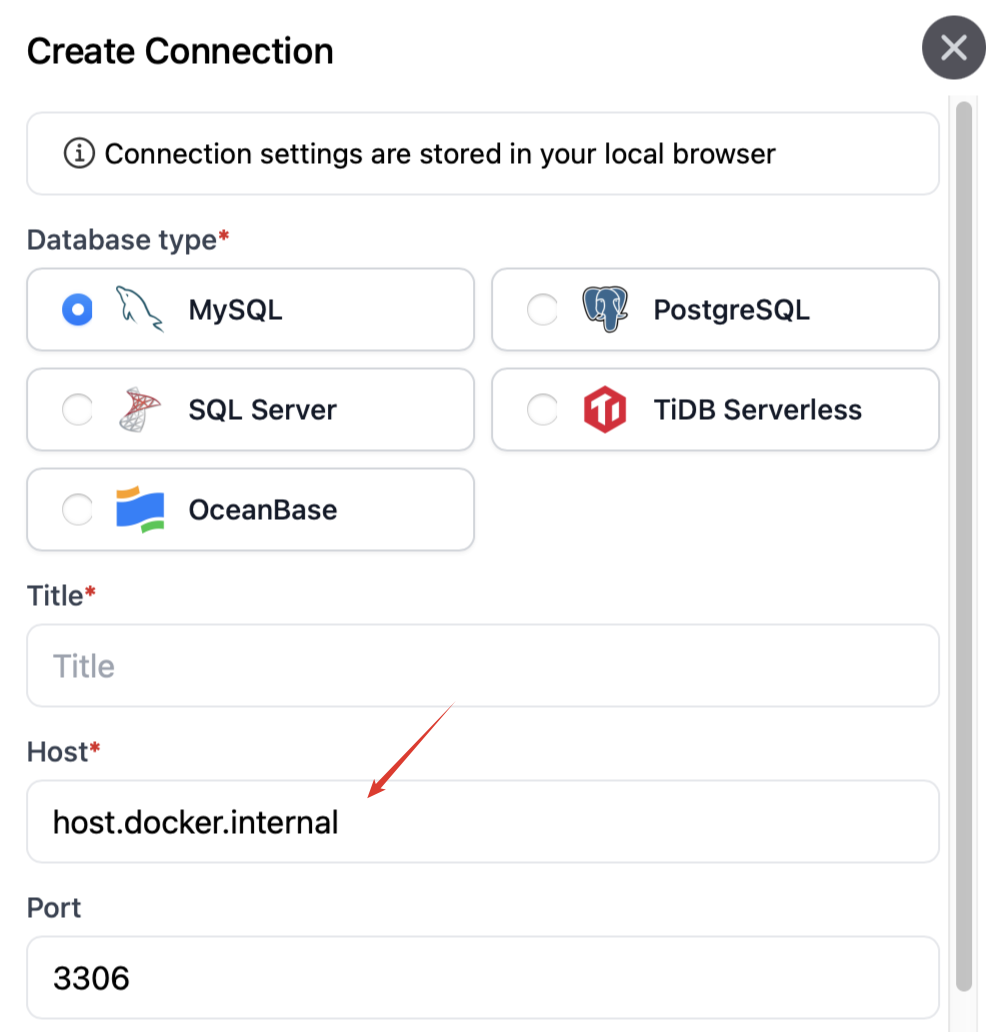
- 您可以在几秒钟内使用 `Docker` 部署 `SQL Chat`
```bash
docker run --name sqlchat --platform linux/amd64 -p 3000:3000 sqlchat/sqlchat
```
 这个表示你自己提供的 OpenAI Key 的 Quota 没有了。请查看自己的 [OpenAI 账号](https://platform.openai.com/account/api-keys)。
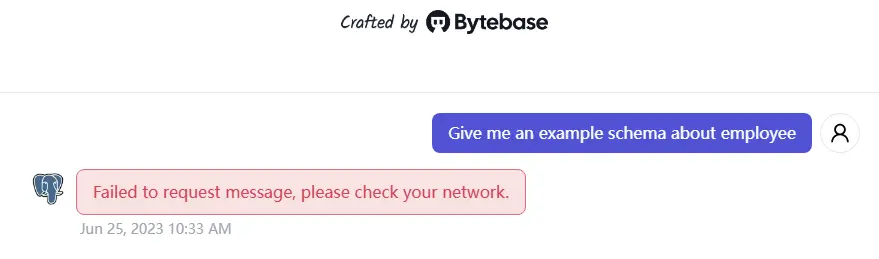 请确保您有一个稳定的网络连接,可以访问 OpenAI API 端点。 ```bash ping api.openai.com ``` 如果您无法访问 OpenAI API 端点,您可以尝试在 UI 或环境变量中设置 `OPENAI_API_ENDPOINT`。