[](https://waffle.io/iamthechad/syntaxhighlightermt)
[](https://insight.sensiolabs.com/projects/b3441f83-877b-4039-9853-2ca7e4835aee)
Provides a simple way to use the Syntax Highlighter tool from [http://alexgorbatchev.com/wiki/SyntaxHighlighter](http://alexgorbatchev.com/wiki/SyntaxHighlighter)
## Latest Info
* Verified to work with Wordpress 4.1.
## Description
This plugin works like many of the others that enable the use of the Syntax Highlighter tool. Dynamic plugin loading
is now available as part of the Syntax Highlighter tool, making brush configuration obsolete.
Available brushes are:
* applescript
* actionscript3 as3
* bash shell
* coldfusion cf
* cpp c
* c# c-sharp csharp
* css
* delphi pascal
* diff patch pas
* erl erlang
* groovy
* hive
* java
* jfx javafx
* js jscript javascript
* objc obj-c
* perl pl
* php
* pig
* text plain
* py python
* ruby rails ror rb
* sass scss
* scala
* sql
* vb vbnet
* xml xhtml xslt html
## Installation
### Recommended Method
1. Install the plugin from with Wordpress from "Plugins->Add New"
### Alternate Method
1. Unzip the `syntax-highlighter-mt` directory and upload it to `/wp-content/plugins/` directory
1. Activate the plugin through the 'Plugins' menu in WordPress
## Usage
### Highlighting code
The basic usage is: `...code...
` where `brush_name` is one of the available brushes.
### Changing display themes
The display theme can be changed by navigating to `Settings` -> `Syntax Highlighter MT`. The themes available are:
* Default
* Django
* Eclipse
* Emacs
* FadeToGrey
* MDUltra
* Midnight
* RDark
### Changing the appearance of code
There are many options that can be applied inline to control how your formatted code is displayed. These are appended to the class definition after the brush declaration.
#### `auto-links`
*Enabled* by default. Disabling this turns off link detection in the highlighted section, making URLs non-clickable.
String link = "http://www.megatome.com";
#### `class-name`
Use this to specify one or more classes that should be applied to the generated highlight element.
#### `collapse`
*False* by default. Forces the highlighted code to be collapsed by default.
#### `first-line`
1 by default. Change the starting line number for a section of highlighted code.
String link = "http://www.megatome.com";
#### `gutter`
*Enabled* by default. Turn the line numbers on and off.
String link = "http://www.megatome.com";
#### `highlight`
Specify one or more lines to be highlighted.
    String link = "http://www.megatome.com";
    System.out.println("Hello World");
    System.out.println("Goodbye World");
#### `toolbar`
*Enabled* by default. Toggle the toolbar.
String link = "http://www.megatome.com";
#### `title`
Allows a title to be set for a block of code. This is not in the class, but in the `` or `` tags.
String link = "http://www.megatome.com";
Take a look at [http://alexgorbatchev.com/wiki/SyntaxHighlighter](http://alexgorbatchev.com/wiki/SyntaxHighlighter) for the documentation on using the Syntax Highlighter tool.
## Frequently Asked Questions
### Why does my content containing “<” and “>” get messed up?
This is an issue with using the `` tags. Replace the `<` characters with their entity escape of `<` to get the desired result.
See [http://alexgorbatchev.com/SyntaxHighlighter/manual/installation.html](http://alexgorbatchev.com/SyntaxHighlighter/manual/installation.html) for more discussion.
(Note that this issue only happens if you are using the `` tags to surround the highlighted code.)
### I get an error saying "Can't find brush for: xxx"
The most likely issue is that the specified brush is not available as part of the plugin install.
### Why "Syntax Highlighter MT"?
There are several plugins already that are named Syntax Highlighter, or some variant. I added "MT" (for Megatome Technologies - my company) to the name to make it unique.
## Screenshots
1. Styled Groovy code.
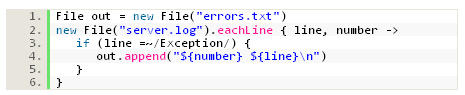
2. Styled Groovy code using the Django theme.

3. Styled Groovy code using the FadeToGrey theme.
<<<<<<< HEAD

=======

>>>>>>> master