ST Map WP
Documentation
- created: 10/01/2014
- by: beautiful-templates
- email: beautifultemplates@gmail.com
This documentation file helps you to understand whole plugin concept and how it works. You should read all sections of the file before start your work. After that you still can't find the solution yet, please leave a ticket on Support system then support agents help your issue.
Install & Update
1: Installing
If you do not have ST Google Map on your computer, you can download it here ↓
- Step 1: Upload the entire st-map-wp folder to the /wp-content/plugins/ directory.
- Step 2: Activate the plugin through the 'Plugins' menu in WordPress.
You will find 'ST Google Map' setting menu in your WordPress admin panel.
2: Update
If you have ST Google Map installed, check for updates and download latest version ↓
- Step 1: Reupload the entire st-google-map folder to the /wp-content/plugins/ directory. (override folder st-google-map)
- Step 2: Activate the plugin through the 'Plugins' menu in WordPress.
You will find 'ST Google Map' Setting menu in your WordPress admin panel.
3: User interface
This is the user interface after successfully installing the plugin.
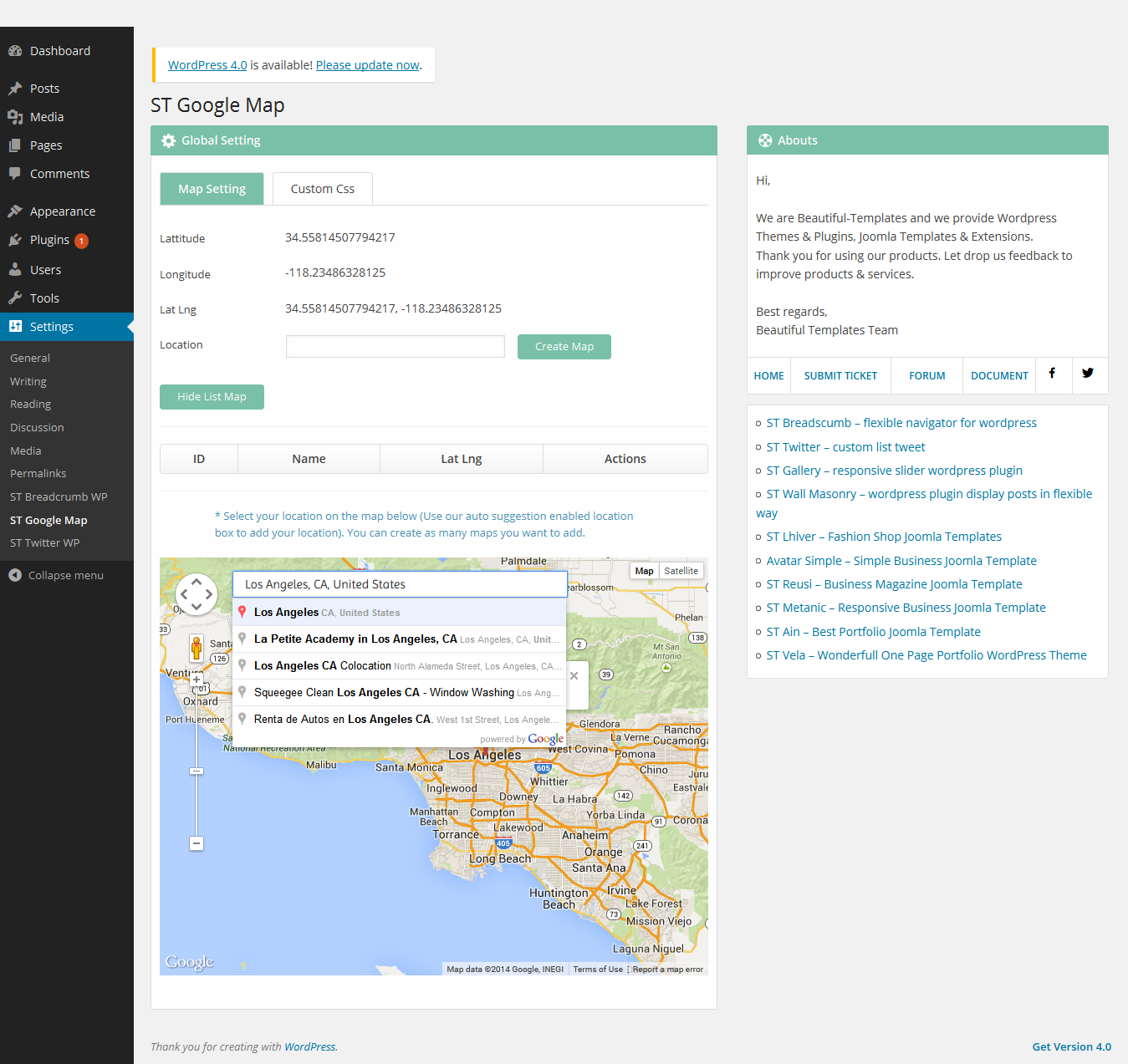
Map Setting
In this section, we will guide you to configure the plugin.
I: Create location
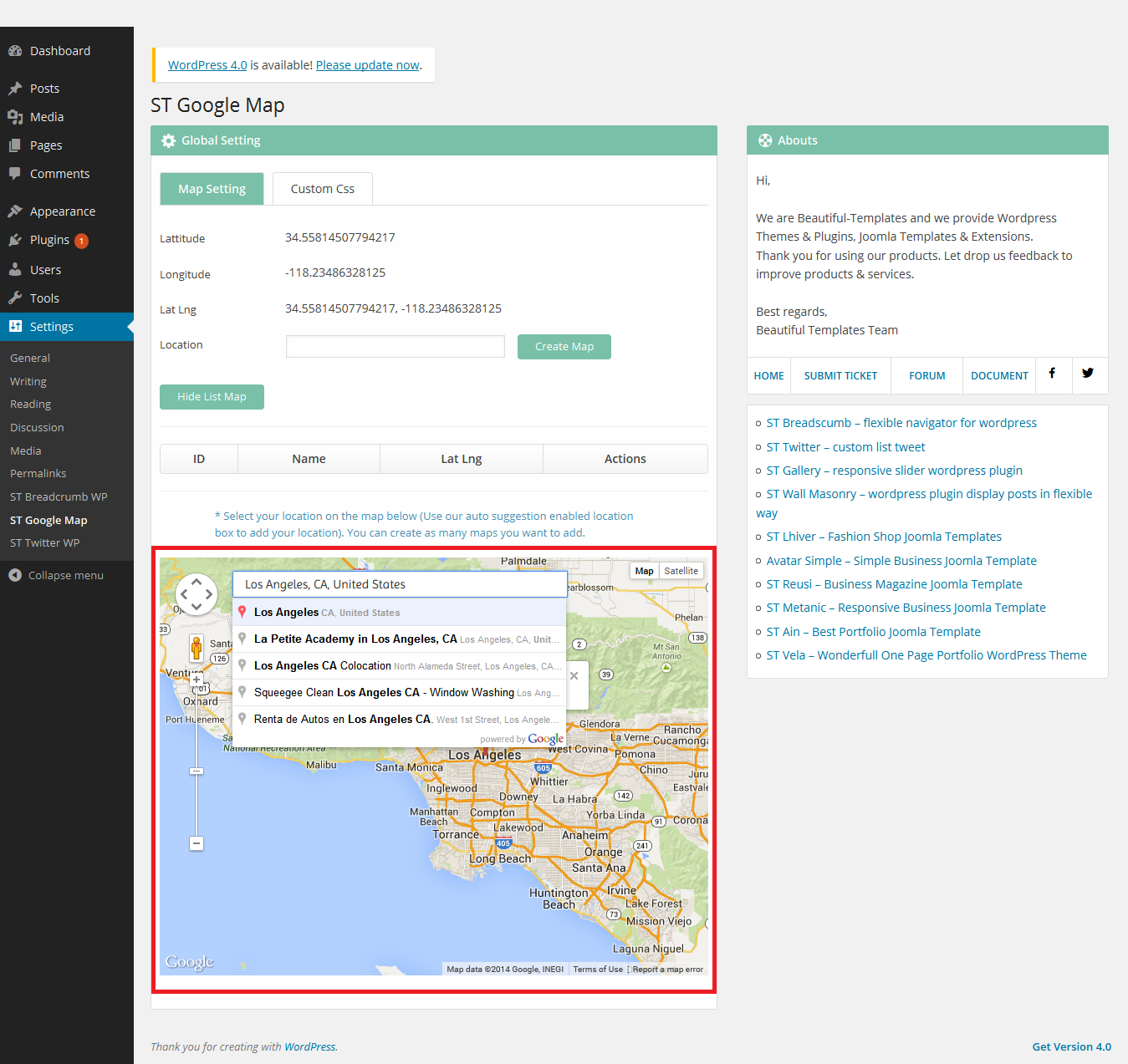
select your location on the map (Use our auto suggestion enabled location box to add your location). You can create as many maps you want to add:
-
Step 1: Use our auto suggestion enabled location box to find your location then click to that location to get Lat Lng
-
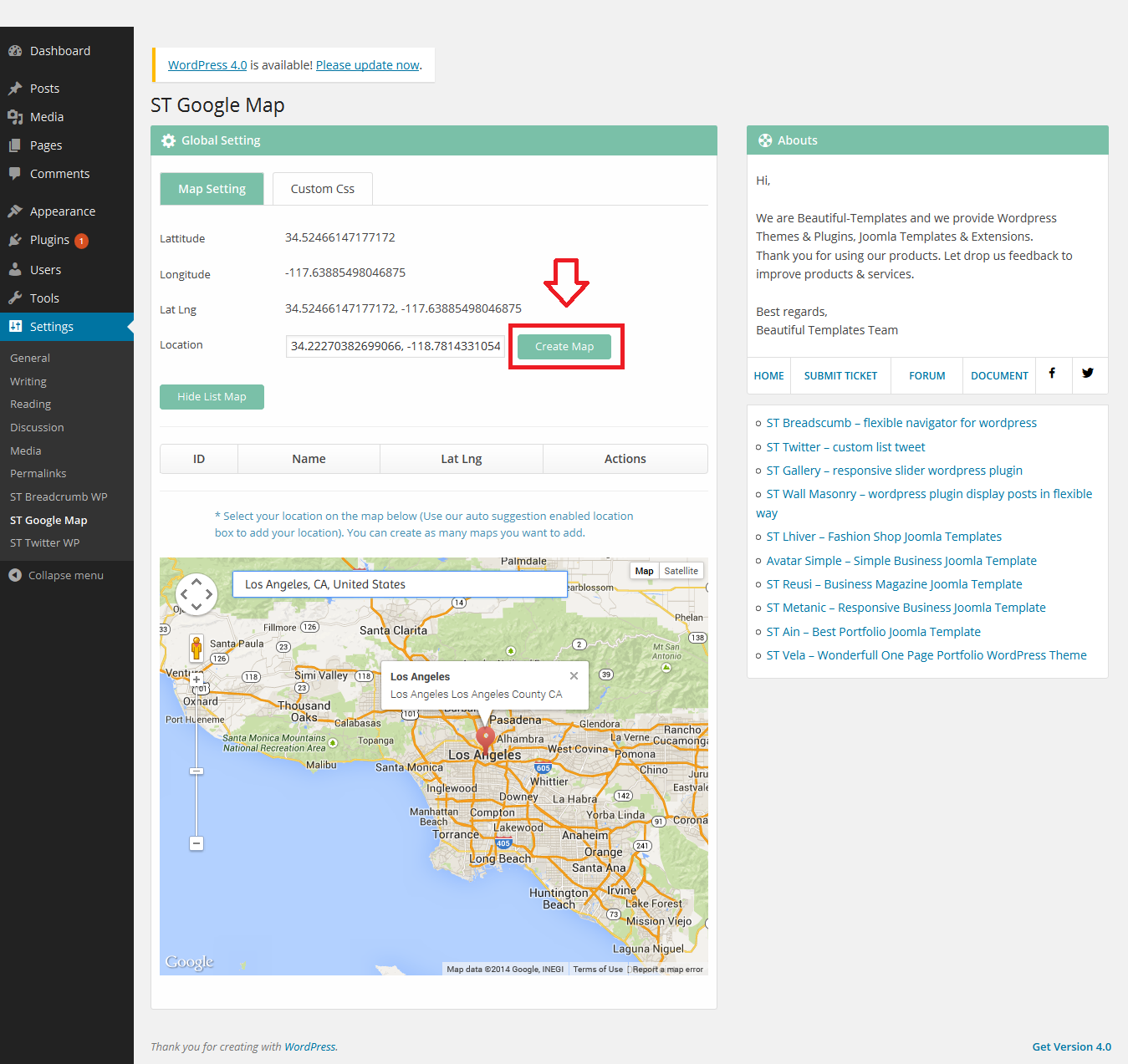
Step 2: Click to "save" button to save up your location
-
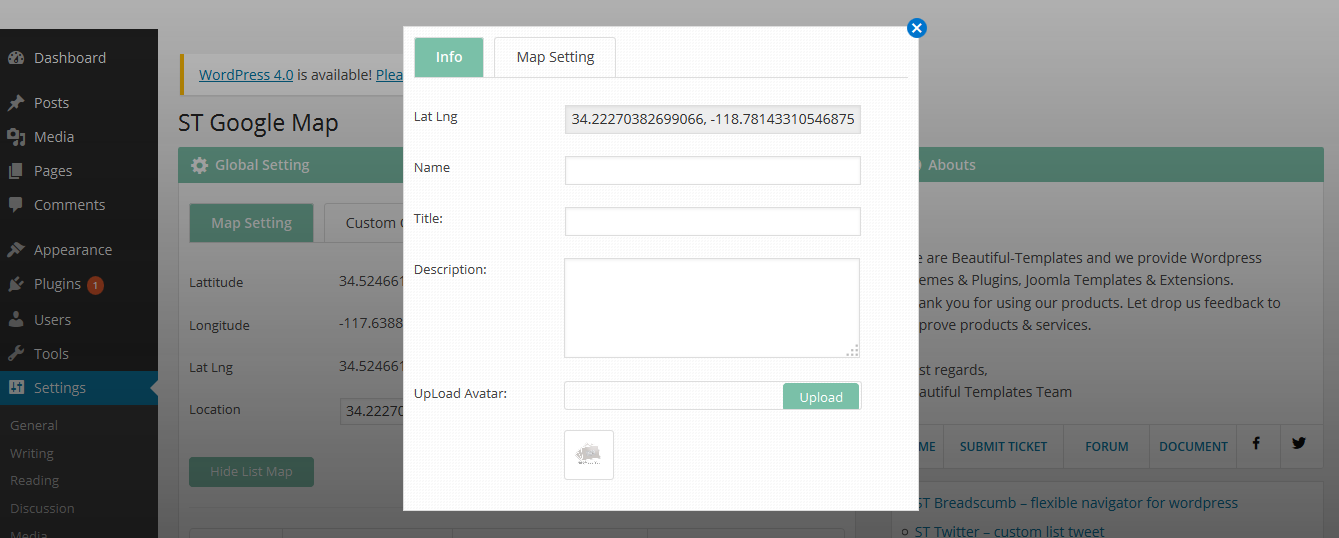
Step 3: add information for your location
II: Manage Locations
- Edit : click the pen icon to edit the location information that
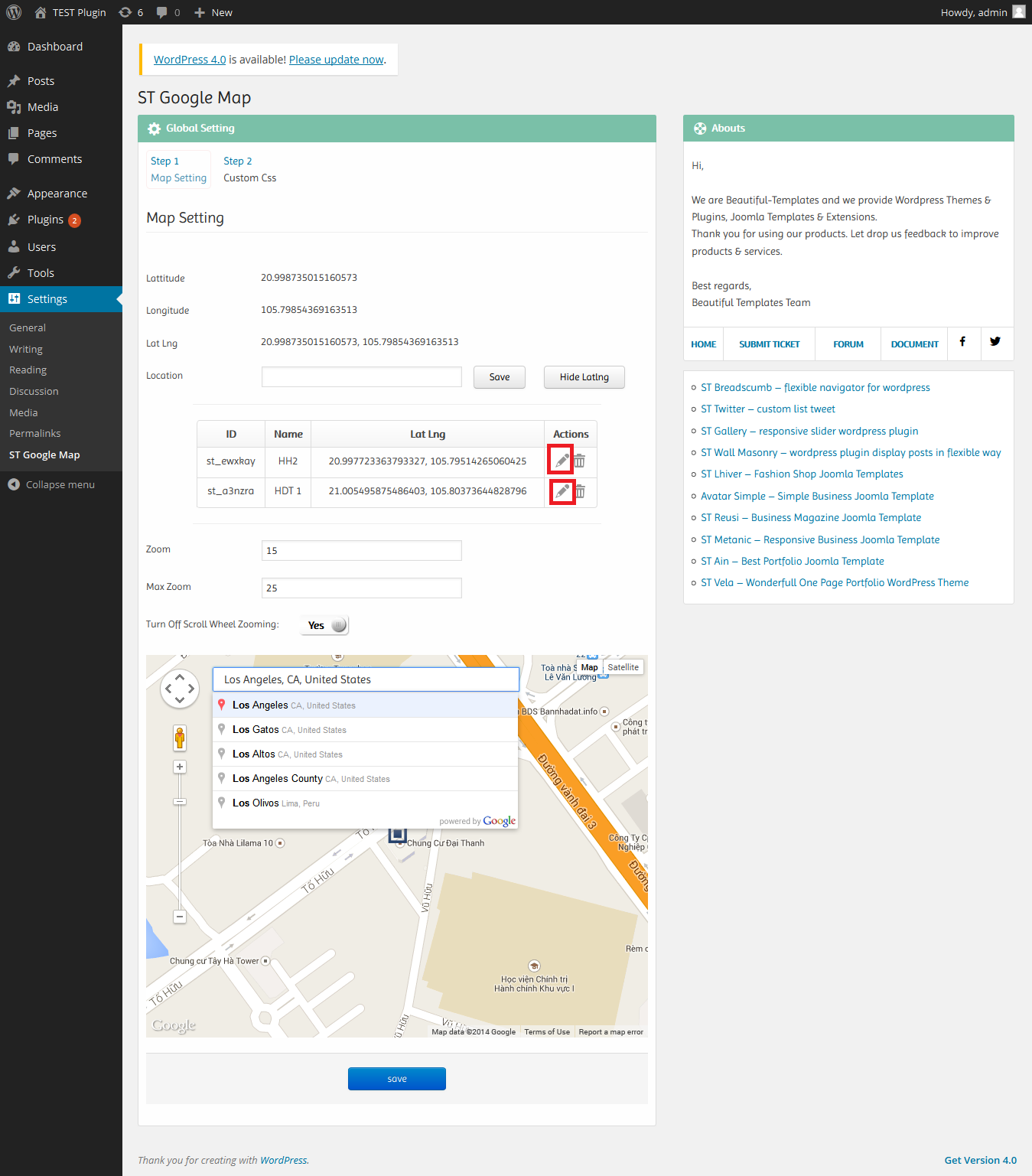
- Delete :click the trash icon to delete the location information that
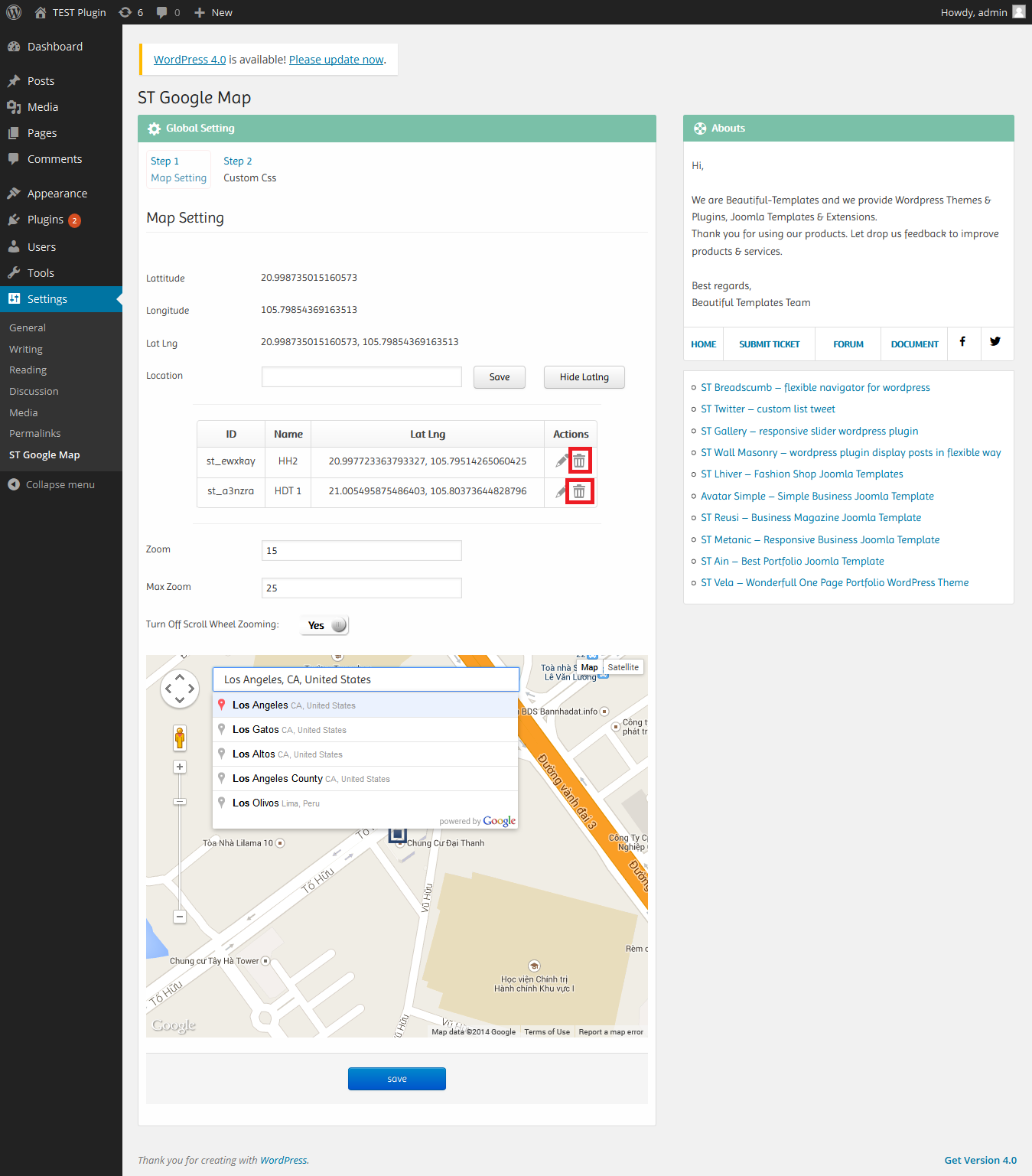
III: Custom Css
This allows the administrator to modify the Popups style. While the Popups HTML cannot be modified
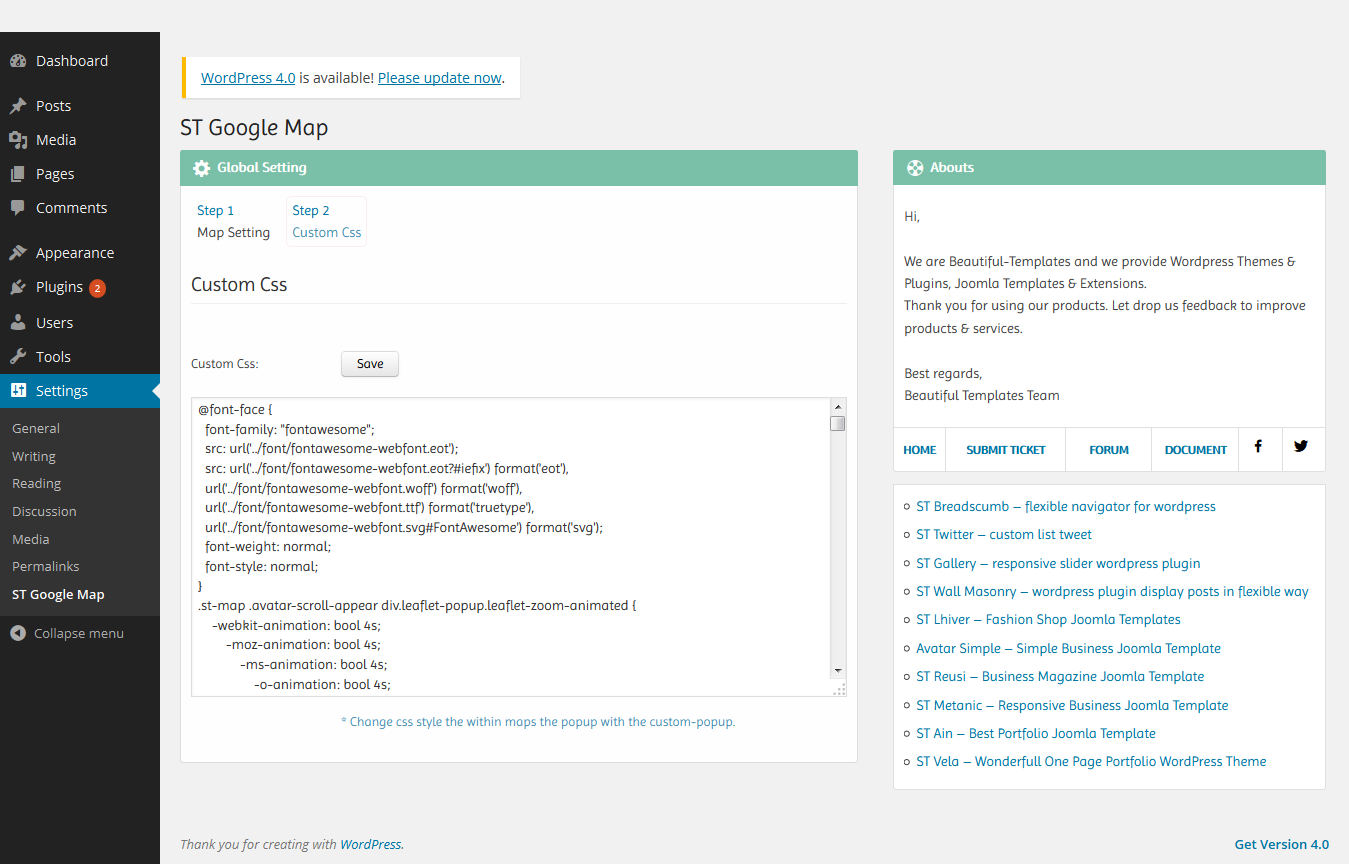
Questions & Answers
Questions 1: How to insert ST Map WP to post, page?
- Step 1: In post/page editor you click to button
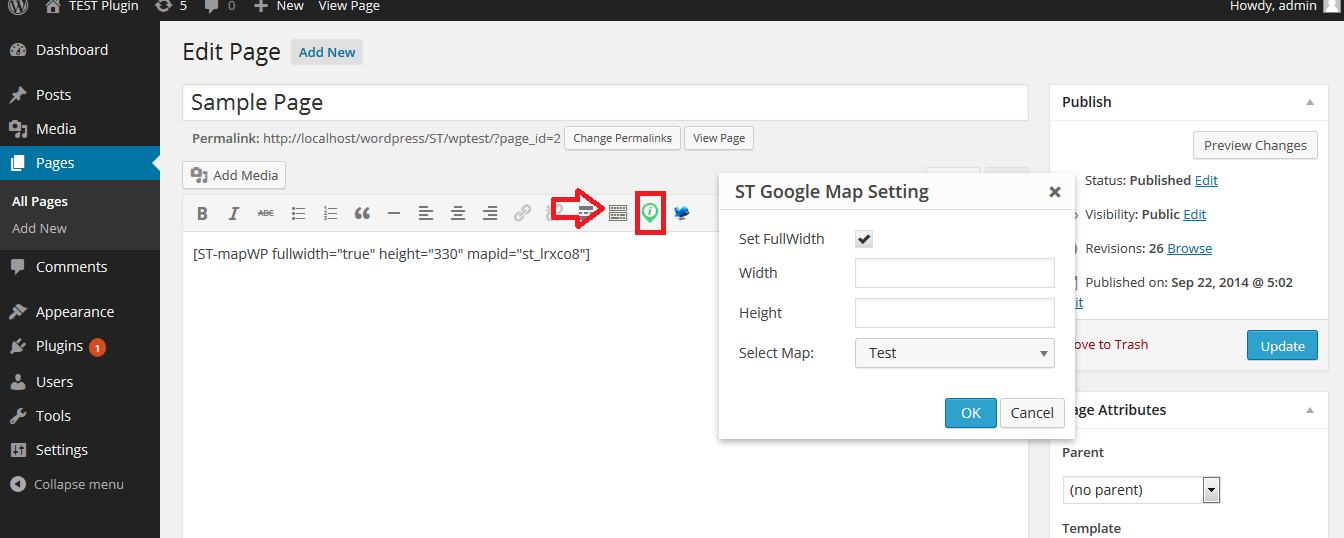
- Step 2: Settings and click to "OK"
Questions 2: How to insert ST Map WP to widget?
- Step 1: Select "ST Google Map" Widget
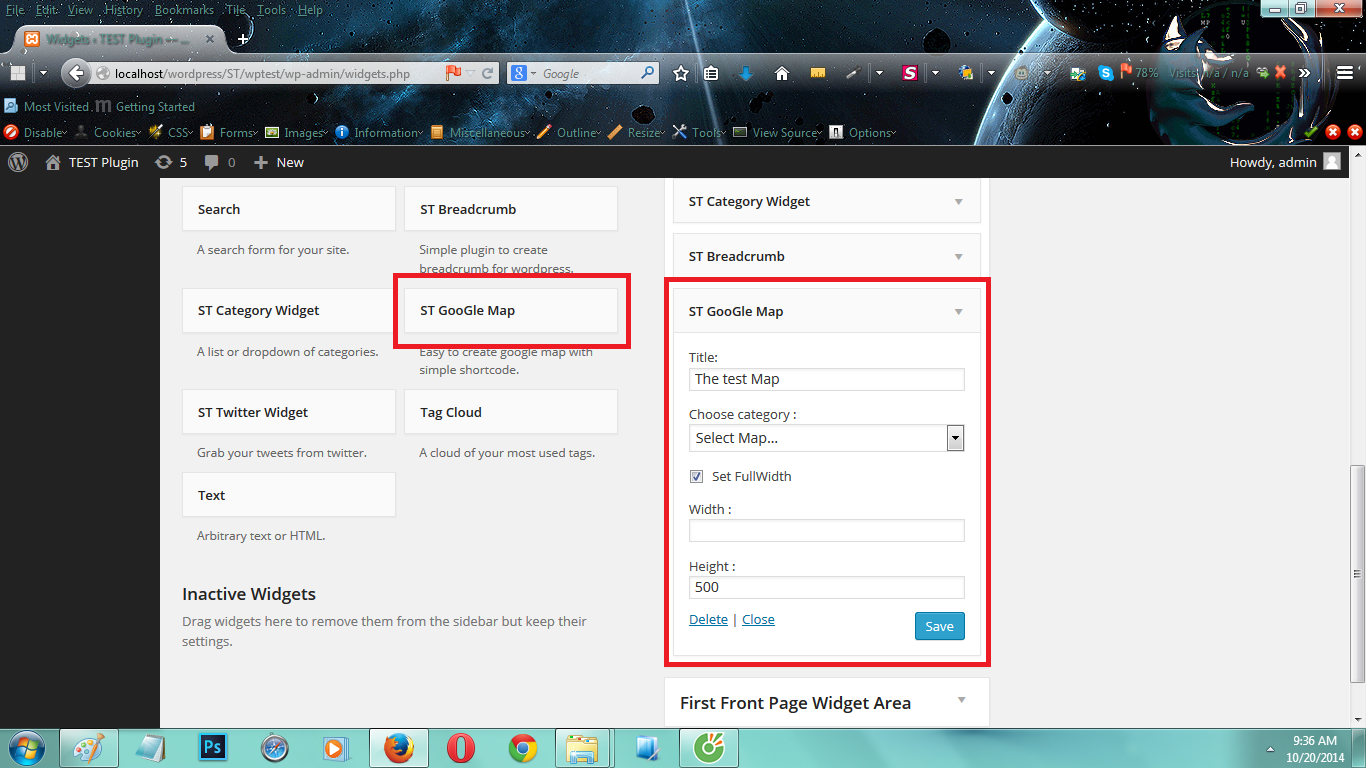
- Step 2: Settings and click to "Save"
Support
- Submit ticket: http://beautiful-templates.com/amember
- Forum: http://beautiful-templates.com/evo/forum