#  Screenshot Generator
Contributors: lassebunk
Tags: screenshot, screendump, phantomjs, social, preview
Requires at least: 4.0.0
Tested up to: 4.2.1
Stable tag: 0.1.7
License: GPLv2 or later
License URI: http://www.gnu.org/licenses/gpl-2.0.html
Screenshot Generator takes screenshots of posts and pages when they are updated. These screenshots can be used for e.g. previews in social media.
## Description
Screenshot Generator is a WordPress plugin that takes screenshots of posts for social media etc. when they are updated.
It uses [PhantomJS](http://phantomjs.org/) to do this.
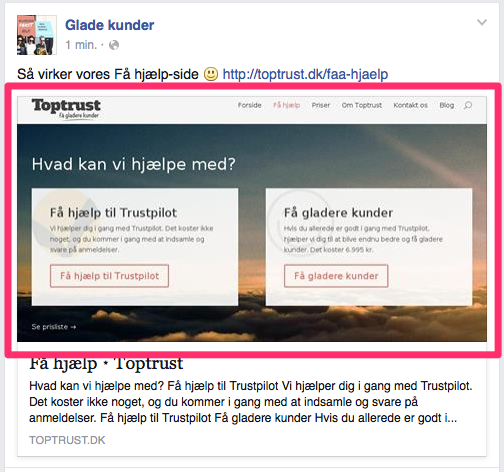
*Why?* When developing [Toptrust](http://toptrust.dk), I was tired of manually adding images of posts
when sharing on social media. This was especially true for pages that had no featured/thumbnail images.
I wanted screenshots to be taken automatically, and so Screenshot Generator was born.
### Usage
When you update a post or page, a screenshot is automatically taken in the background.
After a few seconds, the screenshot URL is saved to the post's meta key `_scrgen_screenshot`.
### Screenshots on social media
An `og:image` and `twitter:image:src` is automatically added to the meta tags
when viewing the post. These are only added if the post doesn't have a
thumbnail, in which case the plugin expects the thumbnail to be added by
you or another plugin. You can change this in the plugin settings page.
### Retrieving screenshots manually
If you want to retrieve the screenshot manually, you can do so inside a post:
`
Screenshot Generator
Contributors: lassebunk
Tags: screenshot, screendump, phantomjs, social, preview
Requires at least: 4.0.0
Tested up to: 4.2.1
Stable tag: 0.1.7
License: GPLv2 or later
License URI: http://www.gnu.org/licenses/gpl-2.0.html
Screenshot Generator takes screenshots of posts and pages when they are updated. These screenshots can be used for e.g. previews in social media.
## Description
Screenshot Generator is a WordPress plugin that takes screenshots of posts for social media etc. when they are updated.
It uses [PhantomJS](http://phantomjs.org/) to do this.

*Why?* When developing [Toptrust](http://toptrust.dk), I was tired of manually adding images of posts
when sharing on social media. This was especially true for pages that had no featured/thumbnail images.
I wanted screenshots to be taken automatically, and so Screenshot Generator was born.
### Usage
When you update a post or page, a screenshot is automatically taken in the background.
After a few seconds, the screenshot URL is saved to the post's meta key `_scrgen_screenshot`.
### Screenshots on social media
An `og:image` and `twitter:image:src` is automatically added to the meta tags
when viewing the post. These are only added if the post doesn't have a
thumbnail, in which case the plugin expects the thumbnail to be added by
you or another plugin. You can change this in the plugin settings page.
### Retrieving screenshots manually
If you want to retrieve the screenshot manually, you can do so inside a post:
`
; ?>) `
## Installation
1. Download the plugin to `wp-content/plugins`.
2. Install PhantomJS.
* **Mac:**
`
$ brew install phantomjs
`
Or if this fails, [download from here](https://github.com/eugene1g/phantomjs/releases).
* **Linux:**
`
$ apt-get install phantomjs fontconfig freetype*
`
3. Make sure the `phantomjs` binary is in your PHP's `PATH`.
If you can't modify your `PATH`, you can set the `PHANTOMJS` constant to the
binary's path and this will be used:
`
define('PHANTOMJS', '/usr/local/bin/phantomjs');
`
4. Create a folder called `wp-content/screenshots` and grant write permissions.
5. Update a post.
## Contributing
Contributions are appreciated and very welcome. You can contribute in the
plugin's [GitHub repository](https://github.com/lassebunk/screenshot-generator).
## Credits
The screenshot functionality is adapted from Microweber's
[Screen](https://github.com/microweber/screen) code.
## Screenshots
1. How the screenshot will look when shared in social media.
2. The settings page.
* **0.1.0**: Initial release.
`
## Installation
1. Download the plugin to `wp-content/plugins`.
2. Install PhantomJS.
* **Mac:**
`
$ brew install phantomjs
`
Or if this fails, [download from here](https://github.com/eugene1g/phantomjs/releases).
* **Linux:**
`
$ apt-get install phantomjs fontconfig freetype*
`
3. Make sure the `phantomjs` binary is in your PHP's `PATH`.
If you can't modify your `PATH`, you can set the `PHANTOMJS` constant to the
binary's path and this will be used:
`
define('PHANTOMJS', '/usr/local/bin/phantomjs');
`
4. Create a folder called `wp-content/screenshots` and grant write permissions.
5. Update a post.
## Contributing
Contributions are appreciated and very welcome. You can contribute in the
plugin's [GitHub repository](https://github.com/lassebunk/screenshot-generator).
## Credits
The screenshot functionality is adapted from Microweber's
[Screen](https://github.com/microweber/screen) code.
## Screenshots
1. How the screenshot will look when shared in social media.
2. The settings page.
* **0.1.0**: Initial release.