If you were collecting your data using NarraFirma as a surveying system, you would follow a process like this:
- Write your eliciting questions
- Write questions about the stories people will tell in response
- Write questions you will ask people about themselves
- Bring all the questions together into a story form
When you import data into NarraFirma, it works best to follow the same sequence.
Describe your eliciting questions
If you gave people a choice of questions to answer by telling a story, or if you asked people a series of questions (that they answered by telling stories),
you are likely to have in your data file a column that recorded which question they answered.
If you did not ask at least two eliciting questions, you can skip this step.
To enter your eliciting questions, go to the Write story eliciting questions page.
Under the table of questions, click Add. Then enter a question and a short name to describe an eliciting question represented in your data file.
Under the Import options header, type the corresponding text exactly as it appears in your data file.
For example, the "EQuestion" column of our example data file looks like this:
| EQuestion |
| Surprise |
| ReallyLike |
| Discovered |
The "ReallyLike" eliciting question looks like this when it is created in NarraFirma:
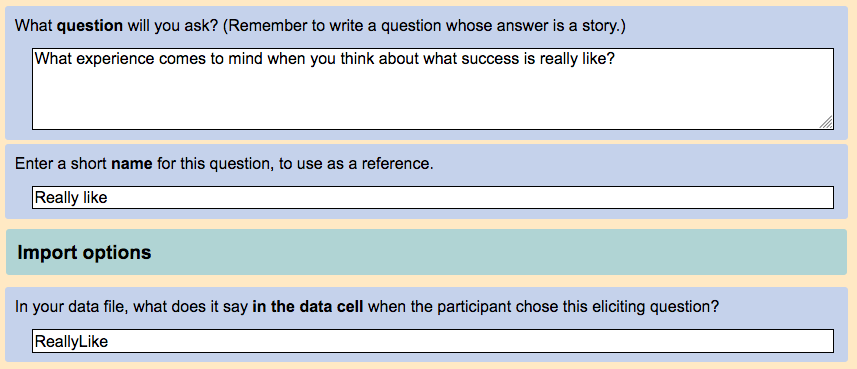
Do this for all of the eliciting questions referred to in your data. You will tell NarraFirma the heading of the column that describes
which eliciting question each person picked ("EQuestion" in our example) when you get to creating your story form.
Describe your questions about stories
Now look at your data file and go through all the questions that were asked about stories. Go to the
Write questions about stories page. For each story-related question in your data file, under the table of questions, click Add, then describe the question.
Create a NarrraFirma question
Let's try this with an example question from our data file: How long ago the story was told.
First, write out the full question, as you asked it in your survey. Then choose a question type. These are NarraFirma's internal question types,
so most of them don't apply to imported data. Choose one of these types:
- select: single-choice data
- slider: scale data
- checkboxes: multi-choice data
- text: things people said or typed in
Next, give the question a short name to be used on graphs.
Then enter the choices you want to display on your graphs.
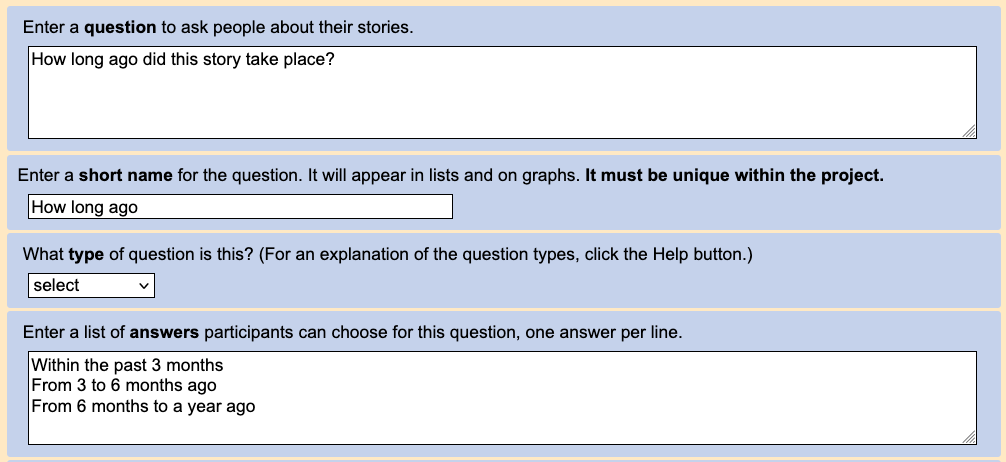
This is how the screen should look for the "LongAgo" single-choice question.
Add import information
Now scroll down to the Import options part of the question description.
(If you can't see the import options, click the "Show import options" button.)
This is where you need to tell NarraFirma
what to expect in your data file.
- Enter the exact header name, as you see it in your data file, for the question.
- Choose an import question type (see below for an explanation of these).
- If the question has a fixed list of answers, enter it here as it appears in your survey.
Make sure the list exactly matches the texts in the cells of your data file.
- If the question has write-in answers,
specify whether they are in their own column or mixed in with answers chosen from the fixed list you specified.
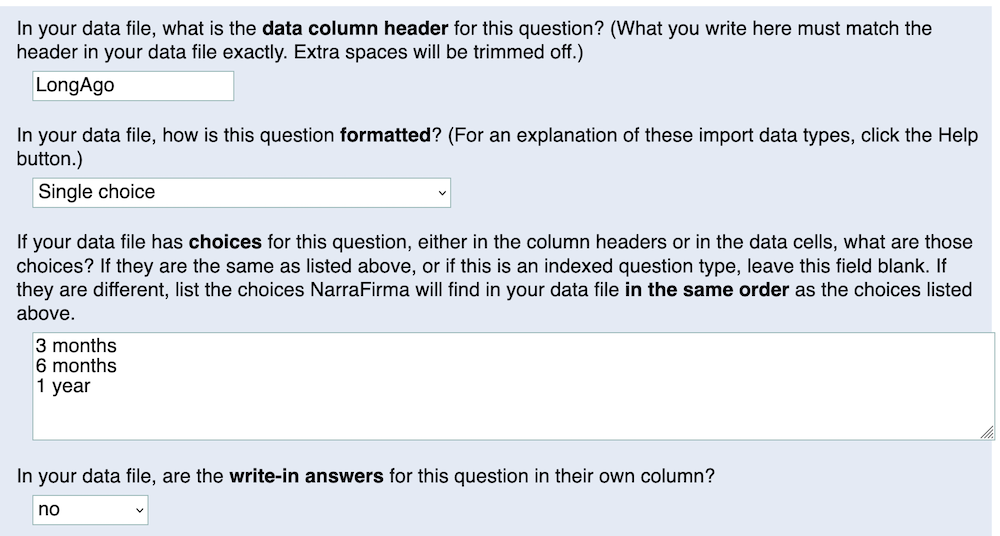
Here are the import options for the "LongAgo" question.
(Optionally) Improve your answer list
You may have noticed that questions with fixed lists of answers have two copies of the list:
- one in the NarraFirma question ("Enter a list of answers participants can choose")
- another in the import options ("If your data file has choices for this question")
These two entry fields are a translation device between the answer names in your data
file and the answer names you want to display on your graphs.
- If you don't want to change the names, you can leave the import-option list blank.
- If you do want to use the translation device, make sure that the order of answers
in the two lists is identical. Otherwise you may end up having graphs with the wrong labels on them.
(Optionally) Lump answers together
You can also use this answer translation device to consolidate answers. Any answers with the exact same name
in the first (display) list will be lumped together during the import process.
For example, let's say your data file has these answers for a question:
| happy | satisfied | relieved | content | angry | sad | disappointed |
And you would like to lump together all of the positive and negative answers. You can change your list from this:
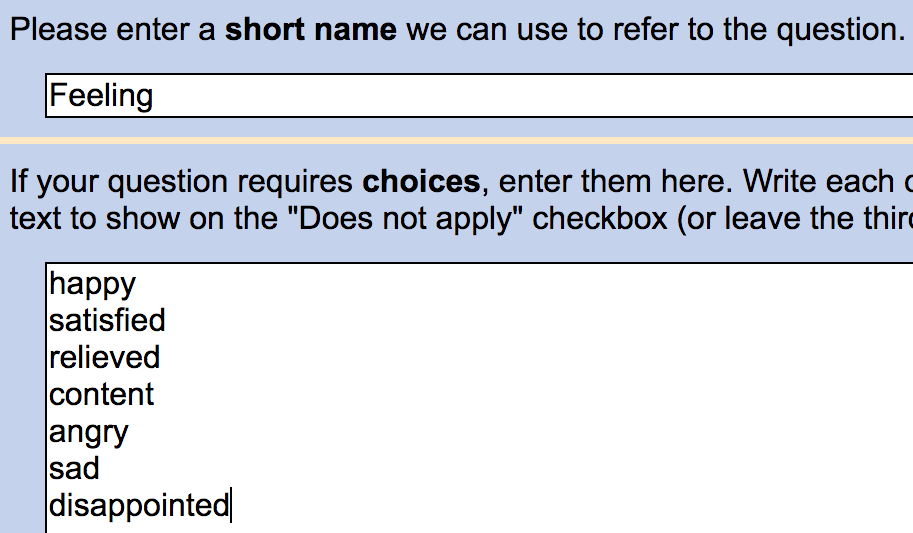
to this:
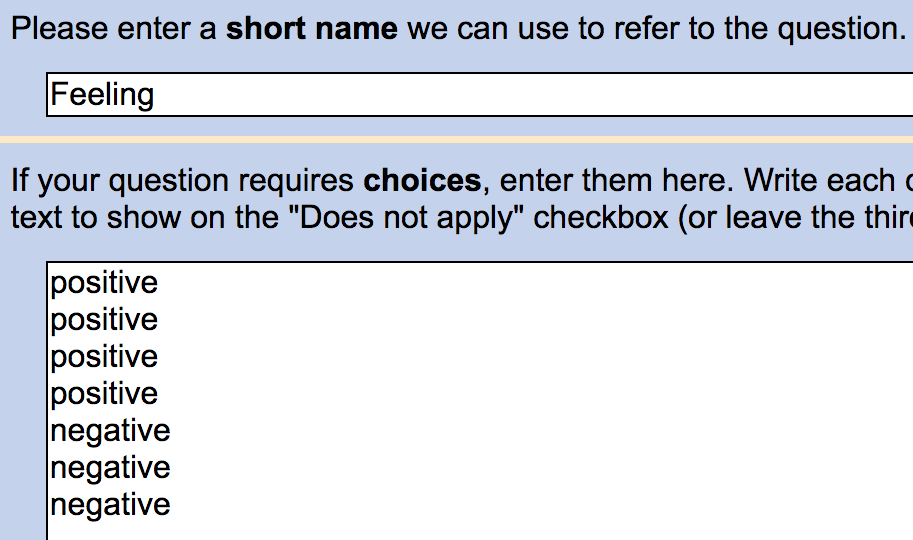
NarraFirma will translate your answers into only two answers:
- positive (formerly happy, satisfied, relieved, and/or content)
- negative (formerly angry, sad, and/or disappointed)
Be careful doing this. Consolidating answers during import changes how your data looks throughout NarraFirma, in all lists and graphs and story cards.
The original data is lost during import and is not retained. If you want to lump your data only in your graphs (preserving your original data),
use display lumping instead.
About the import data types
Now let's talk about those import data types. It is important to chose the right import type for each question in your data file,
because if you don't, the data will be garbled coming in.
Single choice questions
This type of question covers one column, each cell of which contains only one text answer. That answer exactly matches one of the options given for the question
(in the "Import options" part of the question definition).
In our example data file, the "LongAgo" question is of this type:
| LongAgo |
| 1 year |
| 3 months |
| Last week |
Single choice indexed questions
This type of question covers one column, each cell of which contains a number that corresponds to the option chosen for the question.
In our example data file, the "Source" question is of this type:
When you create such a question in NarraFirma, make sure the order in which you write the answers matches the order in which the
answers were presented in your survey. The answers under the "Import options" header are ignored for this type of question, because you would
just be entering 1, 2, 3, and so on.
Scale questions
This type of question covers one column, and its cells contain numbers that correspond to locations along a linear scale.
Scale values must be integers. NarraFirma does not accept floating-point (real) numbers for scales.
In our example data file, the "Remember" question is of this type:
The default NarraFirma scale goes from zero to 100.
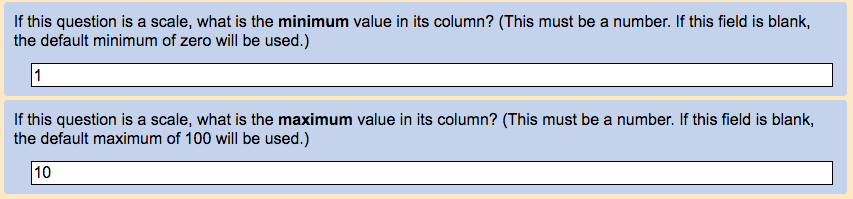
If your scale is not from zero to 100, you can set a custom scale range in either of two places:
for each question, or for the story form in general. If all of your scale questions use the same scale, it's easier to
set the range at the story
form level. However, if each scale question has its own minimum and maximum, you can set them in the
"Import options" for each question, like this:
Text questions
This type of question is just a bit of text somebody said or typed in.
There are no answers to list for this data type.
In our example data file, the "Comment" question is of this type:
| Comment |
| It's okay |
| Really upset about this |
| No comment! |
Multi-choice multi-column text questions
This type of question covers multiple columns, one per answer. The header for each column in the set is identical - it has just the name of the question in it.
The cell values of all the columns contain exact matches for the options given for the question.
In our example data file, the "Feel about" question is of this type:
| Feel about |
Feel about |
| happy |
|
|
sad |
| happy |
|
Multi-choice multi-column yes/no questions
This type of question covers multiple columns, one per answer. The column headers in such a set are not identical.
Each has in it the question name and the answer name for that column. The cell values themselves contain a binary
indicator, like "Yes" or "No," or "1" or "0."
In our example data file, the "Needed" question is of this type:
| Needed [help] |
Needed [understanding] |
| Yes |
No |
| No |
Yes |
| Yes |
No |
A story form with this type of question in it requires you to define three import options at the level of the story form:
"Yes no questions yes indicator," "Yes no questions Q-A separator," and "Yes no questions Q-A ending."
Multi-choice single-column delimited questions
This type of question covers one column. The cells contain all of the answers to the question (which exactly match those on the given list), separated by something (usually a comma).
In our example data file, the "Helped" question is of this type:
| Helped |
| manager, colleague |
| friend |
| colleague, friend |
A story form with this type of question in it requires you to define one import option at the level of the story form:
"Multi choice single column delimiter." If you do not specify a delimiter, a comma will be expected.
Multi-choice single-column delimited indexed questions
This type of question covers one column. The cells contain all of the answers to the question, but they are not the answer texts.
They are index numbers for the chosen answers. In our example data file, the "Surprised" question is of this type:
A story form with this type of question in it requires you to define one import option at the level of the story form:
"Multi choice single column delimiter." If you do not specify a delimiter, a comma will be expected
If your data doesn't match any of these types
If you are looking at a column of data in your file and you can't match it to any of these types,
you can usually fix the problem with some careful editing of your CSV file in a spreadsheet.
If you can't figure out what to do, find that friend or colleague who is a whiz at spreadsheets
and show them the problem. It is likely that you will find a solution. Remember to back up your work,
and keep multiple versions of your file, so you can fix mistakes.
Describe your questions about participants
When you have got through all the questions in your data file that have to do with stories, it is time to tell NarraFirma
about the questions you asked about people. Go to the Write participant questions page.
Under the table of questions, click Add. Then follow the same directions as given above for story questions. In summary, for each question:
- Enter a long text, a short name, and a NarraFirma question type (choosing from select, slider, checkboxes, and text).
- Enter the answers as you want to display them (and in the order you want to see them) in your graphs.
- Under the "Import options" header, enter the data column header name, the import data type,
and the answers as they appear in the file, in the same order.
And if the question has write-in answers mixed in, remember to tell NarraFirma about that.
- If it's a scale question, if you need to, enter a special scale range.
Once you have entered all of your eliciting questions, questions about stories, and questions about participants,
you need to enter some overall import options to help NarraFirma read your data.
Go to the Build story forms page.
Then click on Generate story form using all existing questions. Enter a name for the story form.
It will appear in the table of story forms. Select it and click Edit.
Now look over your generated story form.
The order in which the eliciting questions, story questions, and participant questions appear in the form
is the order in which they will appear in lists. If that order is fine with you, you can leave those lists alone;
or you can edit the order placements.
When you are satisfied with the order of your questions,
scroll down to the Import options section. Obviously you will want to pay a lot of attention to this section. Let's go through the options one at a time.
| Question |
What to do |
| In your data file, what is the data column header for the story title? |
Look at your data file and find the column with story titles in it. Copy and paste the exact header for that column here.
|
| What is the data column header for the story text? |
Copy the header for the column that has the stories in it.
|
| What is the data column header for the date of story collection? |
Look at your data file and find the column that has the date on which the story was collected.
Copy and paste the exact header for that column here.
Also, make sure your date data are in the ISO 8601 format (YYYY-MM-DD).
(If the data are not in that format, convert them to it using a spreadsheet program.)
Then, before you import your data file, make sure the correct format (month before day, or day before month)
is chosen on the "Project options" page.
|
| If you want to append additional text columns to your story text, enter the column names here, one per line. |
After someone has told a story, you might want to ask them for more details on it in a follow-up question, and you might want those details
to be included in the story text itself, instead of in a separate question. Use this box to tell NarraFirma the names of column
header to append to the story text. Make sure you copy the column headers exactly as they are in your data file, and place one per line in the text box.
Also, these additional columns must be located to the right of the story text in your data file.
Note that this option changes the story text during import. You can't take appended texts back out of the story after import.
|
| If you entered columns to append to story texts above, enter introductory texts to be written before each appended text. |
This list controls what is written in front of each piece of text appended to the story, to introduce it.
For example, if you asked people for more information about a particular aspect of their story,
you might want to explain that in your story cards.
The line order here must match exactly the line order in the question above it.
All entries will have spaces placed before and after them, so "[more]" will print as " [more] ".
If you don't want to specify introductory texts, leave this box blank, and answers will be preceded by " --- ".
Or, if you don't like that way of separating stories, enter anything else here and it will be used as a separator;
but you must include an entry for each appended column of text. So if, for example, you wanted to
introduce each of your three appended columns with a fancy unicode separator,
you would need to enter it in this list three times, on three separate lines.
|
| What is the data column header for the eliciting question? |
Copy the header for the eliciting question response here, if you have one. |
| What is the data column header for the participant ID field? |
If participants are identified in your data file, copy and paste
the header for that column of the file here. Remember that participant data must be repeated on every row of story data for that participant. |
| How many words should a row have in its story text field to be imported? |
If you collected a lot of partial responses to your survey, you might want to skip over rows in your data file with really short stories in them.
Choose a minimum number of "words" (characters separated by spaces) that must be in a story's text to keep that row during import.
You can find out how many stories have been skipped over by looking at the INFO messages you get when you check your stories.
|
| If your story data file has columns you want to ignore, enter the column headers here, one per line. |
Survey data often has lots of extra information in it, like the date and time the survey was taken. Enter
a list of headers for columns in your data file that you want NarraFirma to pass over.
To be clear, it would pass over them anyway, because you haven't specified them as questions to be imported.
But if you enter them here, they won't show up as errors when you are checking your stories.
|
| If your story data file has texts you need to remove from your column names, enter the texts here, one per line. |
If your survey system uses the same characters to mean different things in different columns, it can confuse NarraFirma.
You can avoid having to edit your data file by telling NarraFirma to remove conflict-creating texts from your headers.
Place each text you want to remove on a separate line.
Here is an example to illustrate. LimeSurvey uses the same syntax to denote a question type (e.g., "Remember[SLIDER]") and an answer name (e.g., "Feeling[happy]").
This confuses NarraFirma, because it thinks "SLIDER" is the answer to a question.
To fix this conflict, you can enter "[SLIDER]" here, and NarraFirma will remove that text from every column header before processing the column name.
|
| In your data file, what is the minimum value for your scale questions? |
If you have scale questions in your file, and they are all (or mostly)
the same, and their ranges do not go from zero to 100, enter the lowest number on your scales here.
Remember that all scale values must be integers. |
| What is the maximum value for your scale questions? |
Enter the highest possible number for all scales. |
| If you have any questions of the type "Multi-choice single-column delimited" or "Multi-choice single-column delimited indexed", what text separates the items within each cell? |
This is about data columns in which multiple answers look like lists (e.g., "happy, enthused, inspired"). If you have data like that, you need to tell NarraFirma
how to separate the items in each list. The most common separator is a comma, but it could be lots of other things.
Note that the same delimiter is used for both regular and indexed (1,2,3) data (which you are rarely going to have in the same file).
If your delimiter is an actual space, do not enter a space here. Enter the word "space." If you do not specify a delimiter, a comma will be expected. |
| If you have any questions of the type "Multi-choice multi-column yes/no", what text indicates a "Yes" answer? |
For the question type where the cell contents are "Yes" or "No,"
this is what signifies a "Yes" answer. Look in your data file and see what it says in the cells for that type of question.
Sometimes it will literally say "Yes," but some survey systems use other values, like "1" or "yes" (and case matters - it has to be exact). |
| If you have any questions of the type "Multi-choice multi-column yes/no" ... What is the text between the question name and the answer name in each column header? |
The headers for those yes/no choice columns describe both the question and the answer for that column.
But different surveying systems put together the question and answer names in different ways. NarraFirma assumes that yes/no headers will look like this:
- the name of the question
- something in the middle
- the name of the answer
- (maybe) something at the end
You need to tell NarraFirma what the "something in the middle" and the "something at the end" are so it can find the question and answer names.
Look at your column headers and figure out what lies between the question name and the answer name. Some common separators are a square bracket ([)
and a colon (:). Don't worry about extra spaces; they will be trimmed out.
If it is impossible to pull apart your column headers by specifying
things to find between the question and answer names (for example, if the "something in the middle" changes from one column to another),
you will need to edit your column headers using a spreadsheet program to make them fit this scheme.
Also note that if any other column header has this separator in it, that column header won't be read correctly.
For example, if you have yes/no columns with headers like "Feel about[happy]", and you also have a column
with the header "Source[slider]", NarraFirma will think "Source" is the question name, not "Source[slider]".
If this collision takes place, remove the specified separator from any non-yes/no columns (e.g., change "Source[slider]" to "Source(slider)").
|
| If you have any questions of the type "Multi-choice multi-column yes/no", what is the text after the answer name in each column header? |
This is the "something at the end" from the previous question. |
And that's it, you have described your data file to NarraFirma. You can now check your story data, then import your stories.
To describe your data to NarraFirma by importing a CSV file, the first thing you should do is create a new, empty spreadsheet file.
In the first row of the new spreadsheet, type (or paste in) these header column names:
| Data column name |
Type |
About |
Short name |
Long name |
Options |
Answers |
Then go back to your data file and take a good long look at its header (first) row.
Look at each column name and think about the data in that column so you can describe it to NarraFirma.
These are the data types you can specify in your story form CSV file:
| Data type | Link | Explanation |
|---|
| Single choice | go | one column, one choice, text |
| Single choice indexed | go | one column, one choice, index |
| Scale | go | one column, one answer, integer on linear scale |
| Text | go | one column, plain text |
| Multi-choice multi-column texts | go | multiple columns, multiple choices, texts |
| Multi-choice multi-column yes/no | go | multiple columns, multiple choices, yes/no |
| Multi-choice single-column delimited | go | one column, multiple choices, texts |
| Multi-choice single-column delimited indexed | go | one column, multiple choices, index |
Let's pretend to import a data file that contains all of the question types NarraFirma can read. It looks like this:
| Respondent |
EQuestion |
SText |
STitle |
LongAgo |
Source |
Remember |
Feel about |
Feel about |
Needed [help] |
Needed [understanding] |
Helped |
Surprised |
Comment |
| 2554 |
Surprise |
I was surprised one day when... |
Never would have guessed |
1 year |
1 |
3 |
happy |
|
Yes |
No |
manager, colleague |
1 4 |
It's okay |
| 1543 |
ReallyLike |
It was on my last day at work... |
Finally |
3 months |
3 |
7 |
|
sad |
No |
Yes |
friend |
2 |
Really upset about this |
| 532 |
Discovered |
I never knew before that... |
Never knew |
Last week |
2 |
9 |
happy |
|
Yes |
No |
colleague, friend |
2 3 |
No comment! |
The question types in the example file are:
| Respondent |
EQuestion |
SText |
STitle |
LongAgo |
Source |
Remember |
Feel about |
Feel about |
Needed [help] |
Needed [understanding] |
Helped |
Surprised |
Comment |
| Participant identifier |
Eliciting question |
Story texts |
Story titles |
Single choice |
Single choice indexed |
Scale |
Multi-choice multi-column texts |
Multi-choice multi-column yes/no |
Multi-choice single-column delimited |
Multi-choice single-column delimited indexed |
Text |
Now let's go through the columns in our example data file one at a time.
Basic story information
Participant identifier
Your data file may identify participants by a name or number or unique ID. In our example data file, the participant IDs look like this:
If you have participant IDs in your data file, tell NarraFirma about them by creating a row in your story form CSV file that looks like this:
| Data column name |
Type |
About |
Short name |
Long name |
Options |
Answers |
|
Participant ID column name |
import |
|
|
|
Respondent |
This will tell NarraFirma that the cells in the column marked "Respondent" will group
stories together by who told them. It does not matter what you have in that column, as long as each participant's identifier
is unique.
Eliciting question
In our example data file, the "EQuestion" column tells NarraFirma which question people answered by telling a story. It looks like this:
| EQuestion |
| Surprise |
| ReallyLike |
| Discovered |
We can tell NarraFirma about this column by filling out a row in our story form CSV file like this:
| Data column name |
Type |
About |
Short name |
Long name |
Options |
Answers |
|
|
| EQuestion |
eliciting |
eliciting |
Eliciting question |
Please choose a question to which you would like to respond. |
|
Surprise|Surprise|What has been your biggest surprise in the past year? |
ReallyLike|Really like|What experience comes to mind when you think about what success is really like? |
Discovered|Discovery|What was your biggest discovery at work in the past year? |
The "Type" and "About" fields for the eliciting question must say "eliciting."
The "Short name" field sets the name of the graph used to display the choice of eliciting question.
The "Long name" field controls the actual question asked on the survey in NarraFirma.
Starting at the first column labeled "Answers," write your eliciting questions, one question per column. Within each column,
specify how NarraFirma should read and display the question, in three parts, separated by pipe characters (|):
- The text NarraFirma will find in the data cell when a participant answered that question (e.g., "ReallyLike")
- The short name you want to use to label this answer in graphs (e.g., "Really like")
- The long text for this question (e.g., "What experience comes to mind when you think about what success is really like?")
If you only enter one name (without any pipes), it will be used as all three things (the data cell name, the graph name, and the question text).
If you enter two names here, the first will be used as the data cell name and the graph name, and the second will be used as the question text.
If your data file has no column that says which eliciting question people answered, you can leave this row out of your story form file.
NarraFirma will create a generic eliciting question ("What happened?") and assign it to all of your stories.
Story texts
In our example data file, the "SText" column holds the story texts.
| SText |
| I was surprised one day when... |
| It was on my last day at work... |
| I never knew before that... |
Because there is no actual question being asked here,
you must use an import option to tell NarraFirma how to read this column. Enter a row like this:
| Data column name |
Type |
About |
Short name |
Long name |
Options |
Answers |
|
Story text column name |
import |
|
|
|
SText |
This tells NarraFirma that it can find your story texts in a column labeled with the header "SText".
Story titles
In our example data file, the "STitle" column holds the story titles.
| STitle |
| Never would have guessed |
| Finally |
| Never knew |
Use an import option to tell NarraFirma how to read this column.
| Data column name |
Type |
About |
Short name |
Long name |
Options |
Answers |
|
Story title column name |
import |
|
|
|
STitle |
Story collection dates
If the data from your survey system includes the date of each survey submission, you can read that data into NarraFirma and use it to create graphs.
Date information must be in the ISO 8601 format (YYYY-MM-DD), and anything that comes after the first ten characters (usually a time stamp) will be ignored.
If your dates aren't in ISO 8601 format, use a spreadsheet program to convert them.
You will need to tell NarraFirma where to find the date column
with the story form import option "Story collection date column name," like this.
| Data column name |
Type |
About |
Short name |
Long name |
Options |
Answers |
|
Story collection date column name |
import |
|
|
|
Submitdate |
Story collection languages
If the data from your survey system includes the language of each survey, you can read that data into NarraFirma and use it to create graphs.
You will need to tell NarraFirma where to find the date column
with the story form import option "Language column name," like this.
| Data column name |
Type |
About |
Short name |
Long name |
Options |
Answers |
|
Language column name |
import |
|
|
|
Language |
Import data types
Single choice questions
In our example data file, the column labeled "LongAgo" describes how long ago the events of the story happened.
The participant could choose only one of these answers. The answer chosen is listed in the cell.
| LongAgo |
| 1 year |
| 3 months |
| Last week |
To describe this type of question to NarraFirma, write a row in your story form CSV file like this:
| Data column name |
Type |
About |
Short name |
Long name |
Options |
Answers |
|
|
|
| LongAgo |
Single choice |
story |
How long ago |
How long ago did this story take place? |
|
Last week|In the past week |
3 months|Within the past 3 months |
6 months|From 3 to 6 months ago |
1 year|From 6 months to a year ago |
With this question type (and any other type that has fixed, prepared answers), you can give your answers nicer names (for graphs)
by writing first the name to be found in the data file (e.g., "Last week"), followed by a pipe symbol (|), followed by the
name to write on graphs (e.g., "In the past week"). If you don't want to use different names on your graphs, you can just
write the answer name once (without a pipe symbol). (But watch out for too-long names on graphs! Short names should be no longer than 20 characters or so.)
Note that you can use this fancy-naming facility to consolidate answers. Any answers (for any question type that has a list of answers) with the exact same name
in the graph-name spot will be lumped together. For example, if your data file has these answers for a question:
| happy | satisfied | relieved | content | angry | sad | disappointed |
And you would like to lump together all of the positive and negative answers, you can enter your answers in the story form CSV file like this:
| happy|positive | satisfied|positive | relieved|positive | content|positive | angry|negative | sad|negative | disappointed|negative |
And NarraFirma will translate your answers into only these two:
Be careful! Consolidating answers during import changes how your data looks throughout NarraFirma, in all lists and graphs and story cards.
The original data is lost during import and is not retained. If you want to lump your data only in your graphs (preserving your original data),
use display lumping instead.
Single choice indexed questions
Some survey systems don't write the actual choice the person picked in the data file. Instead, they write the index number
of the choice - that is, its place in the list of choices. For example, if the choices for "Favorite fruit" are "apple, pear, banana",
and I chose "banana," that cell in the data file will say "3", not "banana". In our example data file, the column labeled "Source"
is of this type.
Tell NarraFirma how to read a question of this type like this:
| Data column name |
Type |
About |
Short name |
Long name |
Options |
Answers |
|
|
|
| Source |
Single choice indexed |
story |
Where story came from |
Where did this story come from? |
|
first-person |
second-hand |
rumor and I believe it |
rumor and I don't believe it |
In this case you don't need separate data and graph names for the answers, because the "names" in the data file are digits.
Scale questions
In our example data file, the column labeled "Remember" has a series of numbers that represent locations along a linear scale.
Let's say I happen to know that I asked this question on an integer scale from one to ten.
NarraFirma's default scale runs from zero to 100, so I will need to tell NarraFirma that I want a custom scale range for this question.
I need to do that after I specify the left-side label, the right-side label, and the "does not apply" label.
| Data column name |
Type |
About |
Short name |
Long name |
Options |
Answers |
|
|
|
| Remember |
Scale |
story |
How long remember |
How long do you think you will remember this story? |
|
for a few minutes |
for the rest of my life |
I don't know |
1 |
10 |
The first two columns under "Answers" label the left and right sides of the scale. The third and fourth columns give the minimum and maximum values for the scale.
If all of the scales in your data file have the same range, you can leave the last two columns off and instead use an import option that applies to all the scales in the file:
| Data column name |
Type |
About |
Short name |
Long name |
Options |
Answers |
|
|
Scale range |
import |
|
|
|
1 |
10 |
If you specify the scale range in both places, the question scale range will take precedence (so you can set a general scale range, plus a special one for only one or a few questions).
Text questions
The "Text" question type is simple: the cell in your data file should contain the text of the answer. In our example data file, the "Comment"
question is like this.
| Comment |
| It's okay |
| Really upset about this |
| No comment! |
Specify a text question like this, with the "Answers" column left blank:
| Data column name |
Type |
About |
Short name |
Long name |
Options |
Answers |
| Comment |
Text |
story |
Comment |
If you would like to say anything else, please type it here. |
|
|
Multi-choice multi-column text questions
The next two columns to consider in our example data file are both called "Feel about." The cells in these two columns
have texts in them that correspond to the available answers for that question.
If someone chose an answer, that text is in the cell.
| Feel about |
Feel about |
| happy |
|
|
sad |
| happy |
|
Specify this type of column thus:
| Data column name |
Type |
About |
Short name |
Long name |
Options |
Answers |
|
| Feel about |
Multi-choice multi-column texts |
story |
Feel about |
How do you feel about this story? |
|
happy|positive |
sad|negative |
In the "Answers" column, and to the right, enter one answer per column, in the order you would like them displayed in your graphs.
If you want to use a different name for the answer in your graphs, use
a pipe separator to specify two sets of names. First write what it says in your data file, then a pipe, then what you want it to say on the graphs.
If you gathered your stories outside NarraFirma, you can ignore the "Options" column.
It is only used within NarraFirma.
Why is there an "Options" column?
Because you might want to export a story form from one NarraFirma project and import it into another one.
Multi-choice multi-column yes/no questions
In our example data file, the cells in the next two columns, "Needed [help]" and "Needed [understanding]," do not have answer texts in them.
Instead, they have the words "Yes" and "No," like this:
| Needed [help] |
Needed [understanding] |
| Yes |
No |
| No |
Yes |
| Yes |
No |
If your data looks like this, you can describe it to NarraFirma thus:
| Data column name |
Type |
About |
Short name |
Long name |
Options |
Answers |
|
| Needed |
Multi-choice multi-column yes/no |
story |
Needed |
What did the people in this story need? |
|
help|to be helped |
understanding|to be understood |
As with any other kind of question with preset answers, you can specify what the answers look like in the column headers, then a pipe, then what you want them to look like in
your graphs. If you don't want to change the names of your answers in your graphs, you can leave out the pipe and the alternate wording, and
NarraFirma will use the same texts for both.
If you have this kind of data in your story file, you will need to specify a few import options to help NarraFirma read it correctly.
You do not have to do this for each question. Just do it once, anywhere in the file, like this:
| Data column name |
Type |
About |
Short name |
Long name |
Options |
Answers |
|
Yes no questions yes indicator |
import |
|
|
|
Yes |
|
Yes no questions Q-A separator |
import |
|
|
|
[ |
|
Yes no questions Q-A ending |
import |
|
|
|
] |
Let's go through these three import options. First, you need to tell NarraFirma
how to recognize a "yes" answer. It could be "yes," but it could also be "1" or "true" or lots of things.
Case matters, so make sure you enter here exactly what it says in the column
when someone picked an answer.
Next you need to tell NarraFirma how to read the header of a column of this type. NarraFirma assumes that you must have
column headers for this type of question that look like this:
- the name of the question
- something in the middle
- the name of the answer
- (maybe) something at the end
The import option "Yes no questions Q-A separator" tells NarraFirma what to look for between the question name and the answer name.
The import option "Yes no questions Q-A ending" tells NarraFirma what to discard after the answer name. Spaces will be automatically trimmed, so you don't need to specify them.
If your "something in the middle" is a space, don't put a space in your spreadsheet; NarraFirma will disregard it. Put the actual word "space."
In the unlikely event that your column headers cannot be parsed with this something-between-something-after system, you will need to
edit your headers (for this type of question) in a spreadsheet program.
Multi-choice single-column delimited questions
In our example data file, the column labeled "Helped" has data in which there are multiple answers separated by commas. It looks like this:
| Helped |
| manager, colleague |
| friend |
| colleague, friend |
Tell NarraFirma about this kind of question like this:
| Data column name |
Type |
About |
Short name |
Long name |
Options |
Answers |
|
|
|
|
| Helped |
Multi-choice single-column delimited |
story |
People who helped |
Who helped the main person in this story get what they needed? |
|
manager|A manager |
colleague|A colleague |
friend|A friend |
family|A family member |
self|They helped themselves |
For this data type you need to tell NarraFirma how the answers in your data cells are to be separated. Do that with this import option:
| Data column name |
Type |
About |
Short name |
Long name |
Options |
Answers |
|
Multi choice single column delimiter |
import |
|
|
|
, |
Often this separator will be a comma. If your answer separator is a space, do not put a space in the column. Put the word "space."
Multi-choice single-column delimited indexed questions
In our example data file, the column labeled "Surprised" has data in which there are multiple numerical answers. It looks like this:
This question type is just like the "Single choice indexed" question type, except that multiple answers are allowed. Describe it to NarraFirma thus:
| Data column name |
Type |
About |
Short name |
Long name |
Options |
Answers |
|
|
|
|
| Surprised |
Multi-choice single-column delimited indexed |
story |
Who would be surprised |
Who be surprised to hear this story? |
|
the people at the head office |
our customers |
the people I work with |
our competitors |
our shareholders |
You don't need to specify both ugly and pretty names, since the ugly names are numbers.
For this data type you need to tell NarraFirma how the answers in your data cells are to be separated. Do that with this import option:
| Data column name |
Type |
About |
Short name |
Long name |
Options |
Answers |
|
Multi choice single column delimiter |
import |
|
|
|
space |
If (as in this case) your answer separator is a space, do not put a space in the column. Put the word "space."
Note that this global import option is the same one used for the "Multi-choice single column delimited" data type.
If you happened to have both types of data in one file and they were delimited differently, that could be a problem;
but that is very unlikely to happen. If it did happen, you could change the delimiter in the questions of one type
using a spreadsheet program.
Lesser-known question types
Technically, there are four other question types NarraFirma uses internally and could read during import:
- Radiobuttons: same as Single choice
- Boolean: data cell must read either "yes" or anything else (and has no "answers")
- Checkbox: has only one "answer" (specified in the "Answers" column); data cell must read exactly that (or it will count as a "no")
- Textarea: just a longer text (which means nothing at all during import)
You are not likely to need any of these obscure types when you import data from another system. Even if you did have data that
technically matched them, you could handle the same data using the types described above. So it's probably best to ignore them.
In your CSV story form file, you can also specify messages to participants, to be shown at the start and end of your story form.
This is not really for importing data, but you can use it to (for example) copy the same story form to several projects.
To set form options, create one row per specified message, each with the "About" cell reading "form" and a "Type" cell reading one of:
- Title: a short title to be shown at the top of the story form
- Start text: introductory text to be shown after the title
- Image: a valid web link (URL) to be shown at the top of the form (must be a full web address, starting with "http://www.")
- About you text: header for the questions about participants
- Thank you text: what to say in the popup dialog after the form is submitted
- End text: what to say on the page after the form is submitted
- Enter story text: what to say other than "Please enter your response in the box below."
- Name story text: what to say other than "Please give your story a name."
- Tell another story text: what to say other than "Would you like to tell another story?"
- Tell another story button: what the button should say other than "Yes, I'd like to tell another story."
- Max num stories: how many stories people can tell (before the "tell another story" page element stops appearing)
- Max number of answers prompt: a message telling people how many checkboxes they can check (for questions that have a limit)
- Custom CSS: text that changes the formatting of elements on the page
- Custom CSS for Printing: text that changes the formatting of elements in the printed story form
For any of these form options, in the first "Answers" column, place the text to be shown in the specified area.
These HTML tags are allowed: b, big, em, i, s, small, sup, sub, strong, strike, u. If you enter custom CSS text,
make sure it is fully contained within the spreadsheet cell and doesn't spill over to other cells.
There are some other import options you can (and should) specify about your story form in your CSV file.
Some form-level options have been addressed above in relation to the data types they support, but there
are a few others that apply to the whole story form, as follows.
Scale range. If all of your scales use a custom range (not zero to 100, which is NarraFirma's default range), enter it using this form option:
| Data column name |
Type |
About |
Short name |
Long name |
Options |
Answers |
|
|
Scale range |
import |
|
|
|
1 |
10 |
Story title column name. The names of the stories in your data file should be found in a column, and you need to tell NarraFirma
what that column is called. Specify it thus.
| Data column name |
Type |
About |
Short name |
Long name |
Options |
Answers |
|
Story title column name |
import |
|
|
|
SName |
Story text column name. Tell NarraFirma in which column to find your story texts.
| Data column name |
Type |
About |
Short name |
Long name |
Options |
Answers |
|
Story text column name |
import |
|
|
|
TStory |
Participant ID column name. Sometimes when people can tell more than one story,
you can find some interestingly different patterns between people who had more or less to say.
If you want NarraFirma to count how many stories people told and compare their stories,
you need to tell it who told what story. You can do this by designating a column in your data
file to identify each participant (identical for each story they told).
This identifier can be anything -- a name, a number, whatever -- as long as each participant's identifier
is unique. Specify it thus.
| Data column name |
Type |
About |
Short name |
Long name |
Options |
Answers |
|
Participant ID column name |
import |
|
|
|
Participant |
Special problems and solutions
These are some problems or special situations you might encounter when importing data.
Your story texts cover more than one question.
Sometimes it's a good idea to give people an opportunity to say more about a story later on in the survey or interview.
In that case, you might want to append those additional texts to the story. You can tell NarraFirma to do this
with the "Data columns to append to story text" import option. Note that these additional columns must be located to the right
of the story text in your data file. In your CSV story form file, enter the data columns like this:
| Data column name |
Type |
About |
Short name |
Long name |
Options |
Answers |
|
|
Data columns to append to story text |
import |
|
|
|
More|[More about the story] |
Advice|[Advice to people who have stories like this one] |
In that example, two additional questions ("Would you like to say more about the story you told?" and "What advice do you have for people
in similar situations?") are enough about the story that you want them to be merged with it. They will not be considered
separate questions, but parts of the story text.
Optionally, you can specify introductory texts to write before each additional answer.
Do this by adding a pipe character (|), followed by the introductory text, to the column name.
In the example here, a story might read something like this:
I went to the doctor's office this morning, and they kept me waiting for half an hour,
and then when I got in there, the doctor said I didn't need to come in at all, I could
have got the help I needed over the phone. Why didn't they tell me that up front?
[More about the story] Well, I just wish they had some way of, you know, finding out what you need
up front, so everybody doesn't have to wait every time. [Advice to people who have stories like this one] I guess get ready
to wait, because probably there's nothing anybody can do about it.
If you don't specify introductory texts, all appended texts will have " --- " in front of them.
Note that introductory texts will be surrounded by one space on each side. So if you have
"Advice|Advice to other parents" your story will actually include the introductory text
" Advice to other parents ".
Your single- or multi-choice answers include "other" write-in answers.
In many surveying packages, you can display an "other" write-in answer field in which a participant
can fill in their own answer to the question, like this:
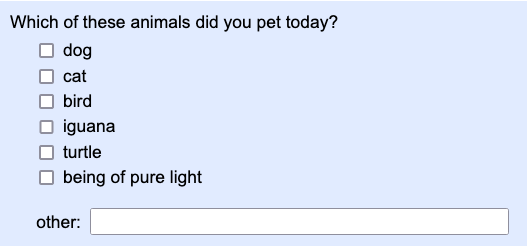
Surveying packages export write-in answers in one of two ways:
- in their own separate column
- in the same column, mixed in with answers people chose from a list
You can import either kind of write-in answers into NarraFirma.
To begin with, in either case, you need to tell NarraFirma that the question has write-in answers.
In your story form CSV file,
go to the "Options" column of that question's row and type (exactly) writeInTextBoxLabel=other.
Do this for every question that allows write-in answers.
(If there are already options listed in that cell, use a pipe character (|) to separate them.)
Next:
-
For write-in answers in a separate column:
In your data file, edit the header for the write-in answers column for that question
so it starts with WRITEIN_.
Make sure that the prefix is exactly as shown here,
that there are no spaces before or after the underscore,
and that the question name (after the underscore) exactly matches the question name in its other (non-write-in) column.
For example:
| Needed |
WRITEIN_Needed |
| Help, Support |
i wanted more donuts |
| Support, Information |
maybe an example would have helped |
-
For write-in answers in the same column:
In your story form file,
go to the "Options" column of that question's row and type (exactly) writeInTextsAreInSeparateColumn=no.
NarraFirma will treat anything it finds in that column that does not match the list of answers you provided
as a write-in answer (and will not flag it as an error).
| Needed |
| Help, Support, i wanted more donuts |
| Support, Information, maybe an example would have helped |
You have a lot of incomplete survey results you want to ignore.
Sometimes you end up with a lot of survey results where people didn't tell stories, or they just typed in a few words and then quit. You can
deal with this (without having to delete data rows by hand) by setting a minimum number of words per story. By "words" we mean "things separated
by spaces," because that's how NarraFirma counts them. You can specify this option thus:
| Data column name |
Type |
About |
Short name |
Long name |
Options |
Answers |
|
Minimum words to include story |
import |
|
|
|
10 |
In this case any story text field with fewer than ten words will be skipped over during import.
(This does not include any fields appended to the story text.)
You have a lot of extra columns you want to ignore.
Most survey systems add in a lot of extra columns with information like when the person took the survey and how long it took them to do it.
That's all nice information, but if you don't care about it, it's in your way. You can delete these columns by hand, but if you don't want to,
you can tell NarraFirma to ignore them, like this:
| Data column name |
Type |
About |
Short name |
Long name |
Options |
Answers |
|
|
|
Data columns to ignore |
import |
|
|
|
Start date |
time |
ip |
Of course, NarraFirma will ignore any column you haven't described to it in some way (as a question or as having some other form-specific meaning).
So it is not necessary to specify columns to ignore. Doing this just keeps you from being annoyed with a lot of ERROR messages
when you check your stories.
The naming schemes in your column names conflict.
Here's another possible problem. LimeSurvey uses the same syntax to denote a question type
(e.g., "Remember[SLIDER]") and an answer name (e.g., "Feeling[happy]").
This confuses NarraFirma, because if you said "Feeling" was a multi-column yes/no question, it is going to think that "SLIDER" is also the answer to a question.
To avoid this and other syntax conflicts, you can give NarraFirma a list of texts to strip out of column headers as it reads them.
In the LimeSurvey example, you would ask NarraFirma to strip out "[SLIDER]" and act as if that bit of text never appeared in a column header. Do this as follows:
| Data column name |
Type |
About |
Short name |
Long name |
Options |
Answers |
|
Texts to remove from column headers |
import |
|
|
|
[SLIDER] |
Be careful with this option. Remember that these texts will be removed from every header. Make sure you aren't garbling any headers by doing this.
You wrote some test stories, and now you want to ignore them.
This isn't an option you can specify, but if the story title or story text on any row in your data file consists of exactly the text "testing123" (capitalized or not),
NarraFirma will ignore that row of data.
Importing your story form CSV file into NarraFirma
Once you have finished writing your CSV file, go to the Build story forms page.
On that page, click Import CSV story form file. Choose the file name you saved. If NarraFirma has any problems reading the file, it will give you some
error messages. If not, look over the story form in the NarraFirma interface. (Use the instructions above to make sure everything looks the way it should.)
Then you will be ready to create a story collection and import your stories to it.
This is what the completed story form CSV file looks like for our example data set.
| Data column name |
Type |
About |
Short name |
Long name |
Options |
Answers |
|
|
|
|
|
Participant ID column name |
import |
|
|
|
Respondent |
|
|
|
|
| EQuestion |
eliciting |
eliciting |
Eliciting question |
Please choose a question to which you would like to respond. |
|
Surprise|Surprise|What has been your biggest surprise in the past year? |
ReallyLike|Really like|What experience comes to mind when you think about what success is really like? |
Discovered|Discovery|What was your biggest discovery at work in the past year? |
|
|
|
Story text column name |
import |
|
|
|
SText |
|
|
|
|
|
Story title column name |
import |
|
|
|
STitle |
|
|
|
|
| LongAgo |
Single choice |
story |
How long ago |
How long ago did this story take place? |
|
Last week|In the past week |
3 months|Within the past 3 months |
6 months|From 3 to 6 months ago |
1 year|From 6 months to a year ago |
|
| Source |
Single choice indexed |
story |
Where story came from |
Where did this story come from? |
|
first-person |
second-hand |
rumor and I believe it |
rumor and I don't believe it |
|
| Remember |
Scale |
story |
How long remember |
How long do you think you will remember this story? |
|
for a few minutes |
for the rest of my life |
1 |
10 |
|
|
Scale range |
import |
|
|
|
1 |
10 |
|
|
|
| Feel about |
Multi-choice multi-column texts |
story |
Feel about |
How do you feel about this story? |
|
happy|positive |
sad|negative |
|
|
|
| Needed |
Multi-choice multi-column yes/no |
story |
Needed |
What did the people in this story need? |
|
help|to be helped |
understanding|to be understood |
|
|
|
|
Yes no questions yes indicator |
import |
|
|
|
Yes |
|
|
|
|
|
Yes no questions Q-A separator |
import |
|
|
|
[ |
|
|
|
|
|
Yes no questions Q-A ending |
import |
|
|
|
] |
|
|
|
|
| Helped |
Multi-choice single-column delimited |
story |
People who helped |
Who helped the main person in this story get what they needed? |
|
manager|A manager |
colleague|A colleague |
friend|A friend |
family|A family member |
self|They helped themselves |
|
Multi choice single column delimiter |
import |
|
|
|
, |
|
|
|
|
| Surprised |
Multi-choice single-column delimited indexed |
story |
Who would be surprised |
Who be surprised to hear this story? |
|
the people at the head office |
our customers |
the people I work with |
our competitors |
our shareholders |
| Comment |
Text |
participant |
Comment |
If you would like to say anything else, please type it here. |
|
|
|
|
|
|
Some final notes on the story form CSV file format
These are some other technical details you might find useful about the CSV story form file format.
- The order in which you list the questions in your story form file will be the order in which questions are shown
on the story form and in lists. (Actually, this is true only within the subsets of questions about stories
and questions about participants. Questions about participants are always shown after questions about stories.)
- You can include comment lines in your story form file. Place a semicolon (;) as the very first character on the line. Everything else on that line
will be ignored. Empty lines will also be ignored.
- You can include extra or comment columns in your story form CSV file. Any columns with names other than Data column name, Type, About,
Short name, Long name, Options, and Answers will be ignored. However, place your extra columns to the left of
the Answers column. All texts in cells to the right of that column will be treated as answers.
- Watch out for encoding problems. If you import a CSV file and then have problems reading your story data, look for special characters
that are different in the story form CSV file and data CSV file. Make sure both files are being saved using UTF-8 encoding.
- Remember that a CSV file is not the same thing as a spreadsheet file. You can work in a spreadsheet format (like XLSX), but be aware that any
special formatting will be lost when you convert the file to CSV. It's usually better to edit the file directly in the CSV format
so you don't put anything into it that will be lost when you convert to CSV.
- The "Options" column was added to the story-form CSV format in NarraFirma 1.5.0.
It is backward compatible (newer versions of NarraFirma do not require the "Options" column to appear in older data)
and forward compatible (older versions of NarraFirma ignore the "Options" column when they find it in newer data).
- Example story form CSV files can be found in the samples folder in your NarraFirma installation.