User Manual – Links Analysis Page
This document details the Links Analysis page in Internal Link Visualizer. It lets you explore your content by inbound links, outbound links, or orphan status so you can plan targeted actions.
General overview
The Links Analysis page focuses on a tabular view of links rather than the graph visualization. You will find totals, advanced filters, and an interactive table to inspect every piece of content.

Tab navigation
Three tabs below the title let you switch between analyses:
- Inbound Links – content ranked by number of inbound links.
- Outbound Links – highlights pages that distribute the most internal links.
- Orphan Pages – lists content with no internal inbound links.

Tip: the counters to the right of each tab update based on the active filters and pagination.
Filters and search
The filter panel helps you quickly isolate a specific content segment:
- Content Type – select posts, pages, or taxonomies.
- Search – filter by title or URL.
- Inbound / Outbound range – adjust minimum and maximum thresholds based on the active tab.
- Apply Filters – refresh the table according to your criteria.
- Reset – reset all filters.

Tip: combine a content type with a link range to target priority pages (e.g., pages with 0 to 1 inbound link).
Results table
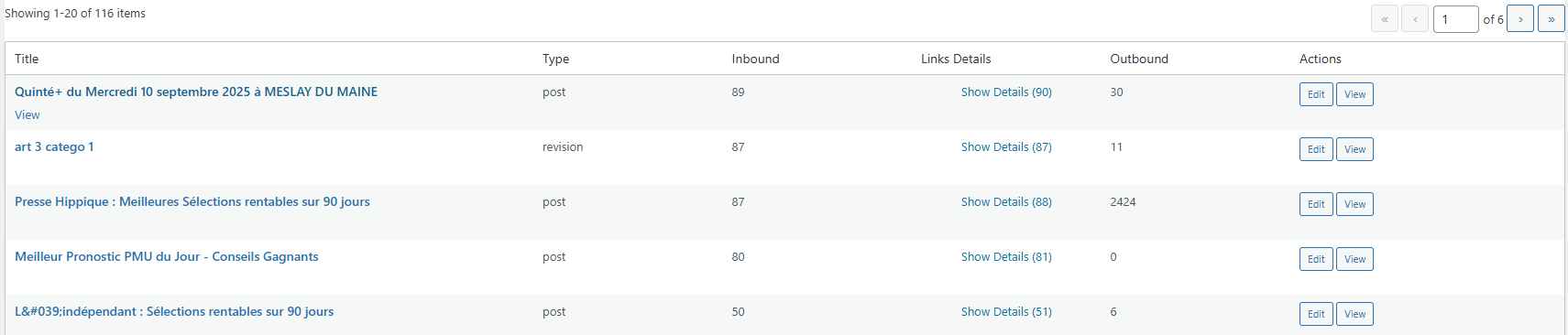
The central table displays the main columns:
- Title – content name, clickable to open the WordPress editor.
- Type – post, page, or term.
- Inbound / Outbound – totals based on the current tab.
- Links Details – summarizes source or target URLs.
- Actions – buttons to open the editor or view the page.
Important: if no results appear, review the active filters or rerun a scan from the main page.
Link details panel
Each row can display additional details:
- Links Details – click to expand the list of anchors and corresponding URLs.
- Actions – quick access to the WordPress editor or front-end preview.
- Expand toggles – collapse the link lists again to save space.
Pagination and navigation
Two navigation bars (top and bottom of the table) make it easy to browse the results:
- « « and » » buttons – jump to the first or last page.
- ‹ and › buttons – move to the previous or next page.
- “Current page” field – type a number to skip directly to another page.
- Results info – shows how many items are displayed on the current page.

Analysis best practices
- Diagnose – start with the “Orphan Pages” tab to find unsupported content.
- Strengthen – switch to “Inbound Links” to identify pages worth promoting from your hubs.
- Balance – use “Outbound Links” to ensure your pages provide enough outbound links.
- Track – record your observations in your SEO reports after each analysis session.