Domain Mirror Plugin Help
Plugin Homepage | Author Homepage
If you have more than one domain and want to point both of them at the same Wordpress installation, you’ll find that it doesn’t really work very well. Wordpress creates it’s own internal URLs based on the settings in General Options. This Plugin allows multiple domains to be configured within Wordpress and updates the Weblog Title, Wordpress Address URL and Blog Address URL on-the-fly based on the value of $_SERVER[’SERVER_NAME’].
This allows one installation to show different URL paths, tagline and blog title for each domain.
What it won’t do is make one domain appear to be two, or change your domain configuration. You need to do that yourself, or have your hosting provider do it for you.
To see it in action, you can access this site via http://McAleavy.org or http://LightPainting.org. Both point to a single Wordpress installation, running on a single database.
New in v1.1
- You can now have a separate tagline on each domain.
- The Admin screen has a button to copy in the current Wordpress configuration to save on typing.
- The Admin screen has buttons to clear content from whole domains and indivudual lines.
Installation
- Download and unpack the archive. If you downloaded the plugin from my site it will unpack to a directory named “AA-DomainMirror”, but if you got it from the Wordpress plugin repository it will unpack to the direcotory “domain-mirror”. Either will work, but you may need to rename the latter to “AA-DomainMirror” if you have problems with some other plugins not seeing the changes. See below.
- Copy the whole AA-DomainMirror directory to wp-content/plugins/ If possible, don’t change the name of the directory, as the AA- at the start is a horrible hack to ensure that Wordpress loads this plugin first. This is required as any plugin loaded before it won’t be able to see the changes it makes, so will behave as if it’s still on the default domain. This puzzled me for quite a while.
- Go to your Plugins page and activate Domain Mirror.
- Go to the Options -> Domain Mirror page and configure as outlined below.
Upgrade
Overwrite the old version with the new version.
Usage
When enabled, Domain Mirror will change the values of Weblog Title, Tagline, Wordpress Address and Blog Address automatically. Where you have hard-coded the site name or a site URL into a post or page you should replace that entry with one of the tags provided. See below.
Configuration
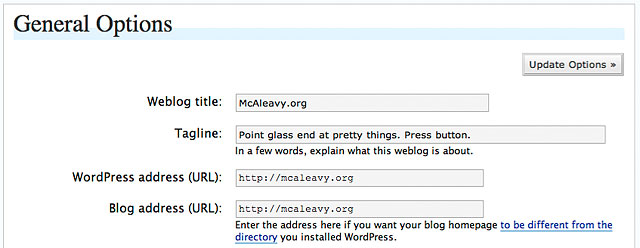
Your existing Wordpress configuration should be left as it is. This will not be changed unless you press Save on this page when viewed from a domain other than the default. See below.

On initial activation, the Domain Mirror options screen will display a default blank entry. This default is defined in conf.inc.php - which can be edited to set different defaults. The post tags used to display the current setting of these fields in posts or pages are shown to the right. Add this text to a post or page and it will be replaced by it’s value for the current domain. This allows such posts to display properly from any configured domain.
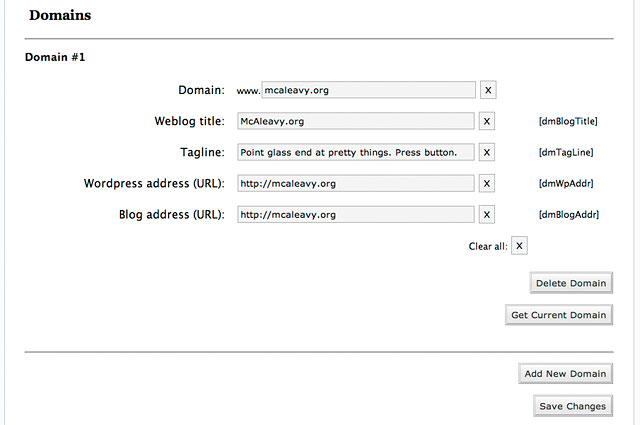
Fill in the settings for the current domain, or press the Get Current Domain button to get the values from the database. This is recommended because the General Options page will show the Domain Mirror configured settings when accessed from another domain. If you then press Save on that page those options will be written to the Wordpress settings, overwriting the original settings. If you don’t have those settings in Domain Mirror, they will be lost and the original domain will not function properly until they are re-entered. If Save is not pressed, the original values will be retained and will be used again when the plugin is disabled.
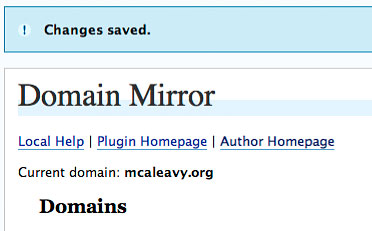
Click the Save button to record the changes. The screen will reload and display the Changes Saved banner.

To add another domain, click the Add New Domain button. The page will refersh with a 2nd blank domain.
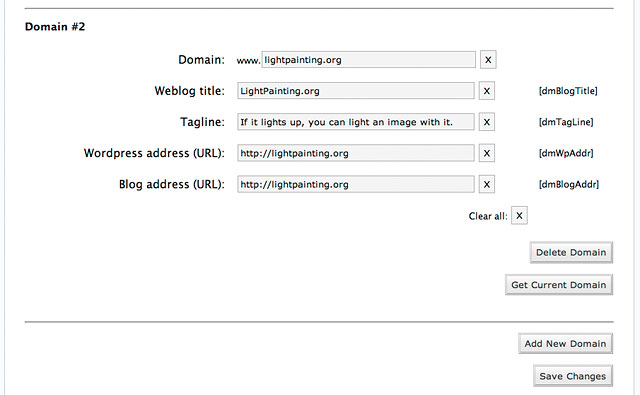
Fill in the details for the 2nd domain, and click Save Changes.

Now, when viewed using the first domain, the site remains unchanged.

When viewed using the second domain, the site appears as if configured for that domain.
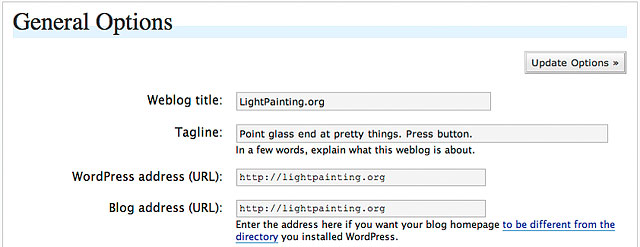
The General Options screen, when accessed from the new domain, now displays the details for that domain. These options, however, are coming from the Domain Mirror configuration and not from the Wordpress settings. As noted before, if save is pressed on this page these options will be written to the Wordpress settings, overwriting the original settings. If you don’t have those settings in Domain Mirror, they will be lost and the original domain will not function properly until they are re-entered.
DaveMc, April 2007.