# ZooMove | jQuery Zoom Image
[](http://thompsonemerson.github.io/zoomove)
[](http://thompsonemerson.mit-license.org/)
[](https://travis-ci.org/thompsonemerson/zoomove)
[](https://badge.fury.io/gh/thompsonemerson%2Fzoomove)
[](https://badge.fury.io/bo/zoomove)
[](http://badge.fury.io/js/zoomove)
[](https://cdnjs.com/libraries/zoomove)
> It's a plugin developed with jQuery, that allows to dynamically zoom images with mouseover, and view details with mouse move.
## Table of Contents
- [Install](#install)
- [Setup](#setup)
- [How to Use](#how-to-use)
- [Examples](#examples)
- [Browser Support](#browser-support)
- [Contributing](#contributing)
- [History](#history)
- [License](#license)
## Install
Get with npm
```bash
$ npm install zoomove --save
```
bower
```bash
$ bower install zoomove --save
```
yarn
```bash
$ yarn install zoomove
```
Or CDN (by [cdnjs](https://cdnjs.com/))
```html
```
If you prefer you can just [download a ZIP](https://github.com/thompsonemerson/zoomove/archive/master.zip) file.
## Setup
First, include the script located on the `dist` folder.
```html
```
Now need to prepare our(s) image(s) and show to the ZooMove.
```html
```
Ready, prepared environment, now is hour of our plugin take action and prepare all remaining process.
Now says it is not easy?! ;)
## How to Use
| Property | Default | Description |
| :------------ |:---------------:| :-----|
| data-zoo-image | - | The url of the photo to be displayed. |
| data-zoo-scale | 1.5 (150%) | Sets the zoom size that should be applied to the image. |
| data-zoo-move | true | Choose whether the image should move with the mouse move. |
| data-zoo-over | false | With 'over' it is possible to define whether the image may be above. |
| data-zoo-cursor | false | Define the cursor pointer or default. |
| data-zoo-autosize | true | sets the size of the automatic image. |
```html
```
```html
```
## Examples
> Images by [lorempixel](http://lorempixel.com).
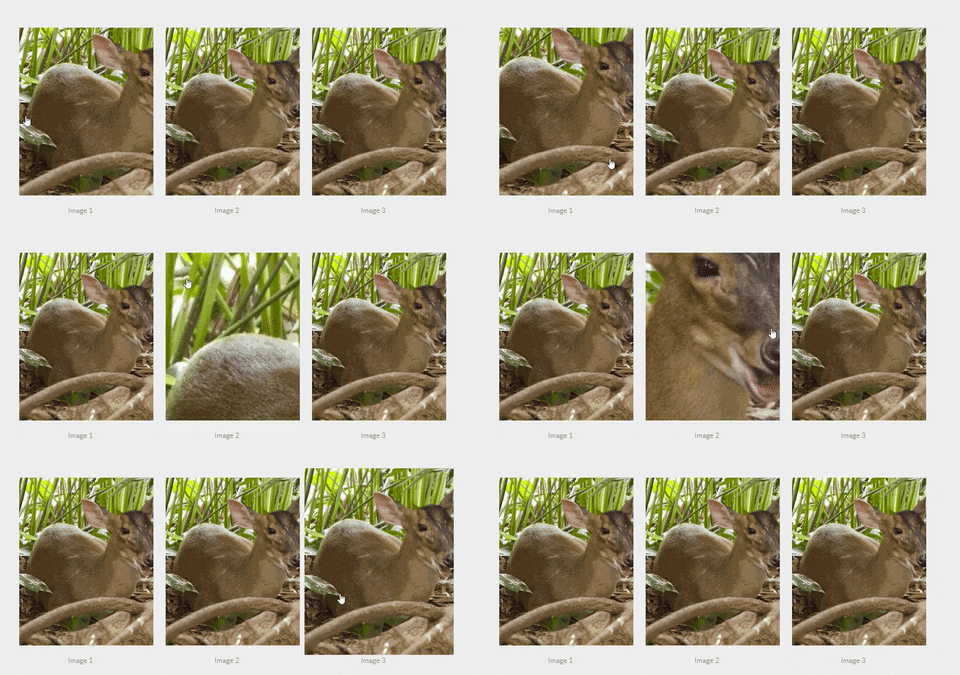
### Image 1
> Default
```html
```
### Image 2
> Scale value `3` (`300%`)
```html
```
### Image 3
> Over `true` and Move `false`
```html
```
## Browser Support
|  |
|  |
|  |
|  |
|  |
|  |
|:---:|:---:|:---:|:---:|:---:|:---:|
| 42+ ✔ | 41+ ✔ | 9+ ✔ | 29+ ✔ | 9+ ✔ | 12+ ✔ |
## Contributing
Help improve these docs. Open an [issue](https://github.com/thompsonemerson/zoomove/issues/new) or submit a pull request.
1. Navigate to the main page of the repository
1. [Fork it!](https://github.com/thompsonemerson/zoomove#fork-destination-box)
1. Create your feature branch: `git checkout -b my-new-feature`
1. Commit your changes: `git commit -m 'Add some feature'`
1. Push to the branch: `git push origin my-new-feature`
1. Submit a pull request =D
## History
See [Releases](https://github.com/thompsonemerson/zoomove/releases) for detailed changelog.
## License
[MIT License](http://thompsonemerson.mit-license.org/) © Emerson Thompson
|
|:---:|:---:|:---:|:---:|:---:|:---:|
| 42+ ✔ | 41+ ✔ | 9+ ✔ | 29+ ✔ | 9+ ✔ | 12+ ✔ |
## Contributing
Help improve these docs. Open an [issue](https://github.com/thompsonemerson/zoomove/issues/new) or submit a pull request.
1. Navigate to the main page of the repository
1. [Fork it!](https://github.com/thompsonemerson/zoomove#fork-destination-box)
1. Create your feature branch: `git checkout -b my-new-feature`
1. Commit your changes: `git commit -m 'Add some feature'`
1. Push to the branch: `git push origin my-new-feature`
1. Submit a pull request =D
## History
See [Releases](https://github.com/thompsonemerson/zoomove/releases) for detailed changelog.
## License
[MIT License](http://thompsonemerson.mit-license.org/) © Emerson Thompson