/**
* @desc A {@link Viewer} plugin that provides an HTML tree view to navigate the IFC elements in models.
*
*
* 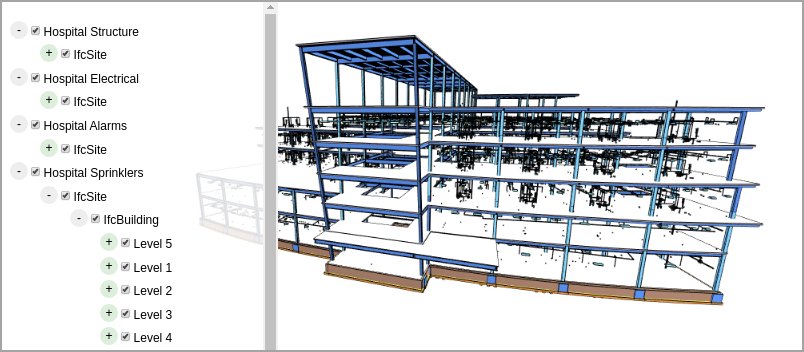 *
* [[Run this example](https://xeokit.github.io/xeokit-sdk/examples/#BIMOffline_XKT_WestRiverSideHospital)]
*
* ## Overview
*
* * A fast HTML tree view, with zero external dependencies, that works with huge numbers of objects.
* * Each tree node has a checkbox to control the visibility of its object.
* * Has three hierarchy modes: "containment", "types" and "storeys".
* * Automatically contains all models (that have metadata) that are currently in the {@link Scene}.
* * Sorts tree nodes by default - spatially, from top-to-bottom for ````IfcBuildingStorey```` nodes, and alphanumerically for other nodes.
* * Allows custom CSS styling.
* * Use {@link ContextMenu} to create a context menu for the tree nodes.
*
* ## Credits
*
* TreeViewPlugin is based on techniques described in [*Super Fast Tree View in JavaScript*](https://chrissmith.xyz/super-fast-tree-view-in-javascript/) by [Chris Smith](https://twitter.com/chris22smith).
*
* ## Usage
*
* In the example below, we'll add a TreeViewPlugin which, by default, will automatically show the structural
* hierarchy of the IFC elements in each model we load.
*
* Then we'll use an {@link XKTLoaderPlugin} to load the Schependomlaan model from an
* [.xkt file](https://github.com/xeokit/xeokit-sdk/tree/master/examples/models/xkt/schependomlaan), along
* with an accompanying JSON [IFC metadata file](https://github.com/xeokit/xeokit-sdk/tree/master/examples/metaModels/schependomlaan).
*
* [[Run this example](https://xeokit.github.io/xeokit-sdk/examples/#BIMOffline_XKT_Schependomlaan)]
*
* ````javascript
* import {Viewer, XKTLoaderPlugin, TreeViewPlugin} from "xeokit-sdk.es.js";
*
* const viewer = new Viewer({
* canvasId: "myCanvas",
* transparent: true
* });
*
* viewer.camera.eye = [-2.56, 8.38, 8.27];
* viewer.camera.look = [13.44, 3.31, -14.83];
* viewer.camera.up = [0.10, 0.98, -0.14];
*
* const treeView = new TreeViewPlugin(viewer, {
* containerElement: document.getElementById("myTreeViewContainer")
* });
*
* const xktLoader = new XKTLoaderPlugin(viewer);
*
* const model = xktLoader.load({
* id: "myModel",
* src: "./models/xkt/Schependomlaan.xkt",
* edges: true
* });
* ````
*
* ## Manually Adding Models
*
* Instead of adding models automatically, we can control which models appear in our TreeViewPlugin by adding them manually.
*
* In the next example, we'll configure the TreeViewPlugin to not add models automatically. Then, once the model
* has loaded, we'll add it manually using {@link TreeViewPlugin#addModel}.
*
* ````javascript
* const treeView = new TreeViewPlugin(viewer, {
* containerElement: document.getElementById("myTreeViewContainer"),
* autoAddModels: false // <<---------------- Don't auto-add models
* });
*
* const xktLoader = new XKTLoaderPlugin(viewer);
*
* const model = xktLoader.load({
* id: "myModel",
* src: "./models/xkt/Schependomlaan.xkt",
* edges: true
* });
*
* model.on("loaded", () => {
* treeView.addModel(model.id);
* });
* ````
*
* Adding models manually also allows us to set some options for the model. For example, the ````rootName```` option allows us to provide a custom name for
* the root node, which is sometimes desirable when the model's "IfcProject" element's name is not suitable:
*
* ````javascript
* model.on("loaded", () => {
* treeView.addModel(model.id, {
* rootName: "Schependomlaan Model"
* });
* });
* ````
*
* ## Initially Expanding the Hierarchy
*
* We can also configure TreeViewPlugin to initially expand each model's nodes to a given depth.
*
* Let's automatically expand the first three nodes from the root, for every model added:
*
* ````javascript
* const treeView = new TreeViewPlugin(viewer, {
* containerElement: document.getElementById("myTreeViewContainer"),
* autoExpandDepth: 3
* });
* ````
*
* ## Showing a Node by ID
*
* We can show a given node using its ID. This causes the TreeViewPlugin to collapse, then expand and scroll the node into view, then highlight the node.
*
* See the documentation for the {@link TreeViewPlugin#showNode} method for more information, including how to define a custom highlighted appearance for the node using CSS.
*
* Let's make the TreeViewPlugin show the node corresponding to whatever object {@link Entity} that we pick:
*
* ````javascript
* viewer.cameraControl.on("picked", function (e) {
* var objectId = e.entity.id;
* treeView.showNode(objectId);
* });
* ````
*
* This will de-highlight any node that was previously shown by this method.
*
* Note that this method only works if the picked {@link Entity} is an object that belongs to a model that's represented in the TreeViewPlugin.
*
* ## Customizing Appearance
*
* We can customize the appearance of our TreeViewPlugin by defining custom CSS for its HTML
* elements. See our example's [source code](https://github.com/xeokit/xeokit-sdk/blob/master/examples/BIMOffline_XKT_Schependomlaan.html)
* for an example of custom CSS rules.
*
* ## Model Hierarchies
*
* TreeViewPlugin has three hierarchies for organizing its nodes:
*
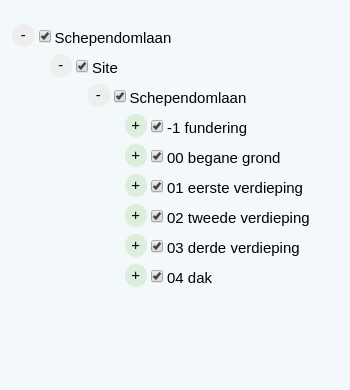
* * "containment" - organizes the tree nodes to indicate the containment hierarchy of the {@link MetaObject}s.
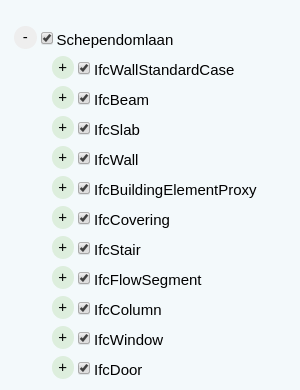
* * "types" - groups nodes by their IFC types.
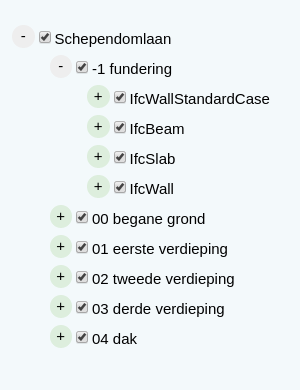
* * "storeys" - groups nodes within their ````IfcBuildingStoreys````, and sub-groups them by their IFC types.
*
*
*
* [[Run this example](https://xeokit.github.io/xeokit-sdk/examples/#BIMOffline_XKT_WestRiverSideHospital)]
*
* ## Overview
*
* * A fast HTML tree view, with zero external dependencies, that works with huge numbers of objects.
* * Each tree node has a checkbox to control the visibility of its object.
* * Has three hierarchy modes: "containment", "types" and "storeys".
* * Automatically contains all models (that have metadata) that are currently in the {@link Scene}.
* * Sorts tree nodes by default - spatially, from top-to-bottom for ````IfcBuildingStorey```` nodes, and alphanumerically for other nodes.
* * Allows custom CSS styling.
* * Use {@link ContextMenu} to create a context menu for the tree nodes.
*
* ## Credits
*
* TreeViewPlugin is based on techniques described in [*Super Fast Tree View in JavaScript*](https://chrissmith.xyz/super-fast-tree-view-in-javascript/) by [Chris Smith](https://twitter.com/chris22smith).
*
* ## Usage
*
* In the example below, we'll add a TreeViewPlugin which, by default, will automatically show the structural
* hierarchy of the IFC elements in each model we load.
*
* Then we'll use an {@link XKTLoaderPlugin} to load the Schependomlaan model from an
* [.xkt file](https://github.com/xeokit/xeokit-sdk/tree/master/examples/models/xkt/schependomlaan), along
* with an accompanying JSON [IFC metadata file](https://github.com/xeokit/xeokit-sdk/tree/master/examples/metaModels/schependomlaan).
*
* [[Run this example](https://xeokit.github.io/xeokit-sdk/examples/#BIMOffline_XKT_Schependomlaan)]
*
* ````javascript
* import {Viewer, XKTLoaderPlugin, TreeViewPlugin} from "xeokit-sdk.es.js";
*
* const viewer = new Viewer({
* canvasId: "myCanvas",
* transparent: true
* });
*
* viewer.camera.eye = [-2.56, 8.38, 8.27];
* viewer.camera.look = [13.44, 3.31, -14.83];
* viewer.camera.up = [0.10, 0.98, -0.14];
*
* const treeView = new TreeViewPlugin(viewer, {
* containerElement: document.getElementById("myTreeViewContainer")
* });
*
* const xktLoader = new XKTLoaderPlugin(viewer);
*
* const model = xktLoader.load({
* id: "myModel",
* src: "./models/xkt/Schependomlaan.xkt",
* edges: true
* });
* ````
*
* ## Manually Adding Models
*
* Instead of adding models automatically, we can control which models appear in our TreeViewPlugin by adding them manually.
*
* In the next example, we'll configure the TreeViewPlugin to not add models automatically. Then, once the model
* has loaded, we'll add it manually using {@link TreeViewPlugin#addModel}.
*
* ````javascript
* const treeView = new TreeViewPlugin(viewer, {
* containerElement: document.getElementById("myTreeViewContainer"),
* autoAddModels: false // <<---------------- Don't auto-add models
* });
*
* const xktLoader = new XKTLoaderPlugin(viewer);
*
* const model = xktLoader.load({
* id: "myModel",
* src: "./models/xkt/Schependomlaan.xkt",
* edges: true
* });
*
* model.on("loaded", () => {
* treeView.addModel(model.id);
* });
* ````
*
* Adding models manually also allows us to set some options for the model. For example, the ````rootName```` option allows us to provide a custom name for
* the root node, which is sometimes desirable when the model's "IfcProject" element's name is not suitable:
*
* ````javascript
* model.on("loaded", () => {
* treeView.addModel(model.id, {
* rootName: "Schependomlaan Model"
* });
* });
* ````
*
* ## Initially Expanding the Hierarchy
*
* We can also configure TreeViewPlugin to initially expand each model's nodes to a given depth.
*
* Let's automatically expand the first three nodes from the root, for every model added:
*
* ````javascript
* const treeView = new TreeViewPlugin(viewer, {
* containerElement: document.getElementById("myTreeViewContainer"),
* autoExpandDepth: 3
* });
* ````
*
* ## Showing a Node by ID
*
* We can show a given node using its ID. This causes the TreeViewPlugin to collapse, then expand and scroll the node into view, then highlight the node.
*
* See the documentation for the {@link TreeViewPlugin#showNode} method for more information, including how to define a custom highlighted appearance for the node using CSS.
*
* Let's make the TreeViewPlugin show the node corresponding to whatever object {@link Entity} that we pick:
*
* ````javascript
* viewer.cameraControl.on("picked", function (e) {
* var objectId = e.entity.id;
* treeView.showNode(objectId);
* });
* ````
*
* This will de-highlight any node that was previously shown by this method.
*
* Note that this method only works if the picked {@link Entity} is an object that belongs to a model that's represented in the TreeViewPlugin.
*
* ## Customizing Appearance
*
* We can customize the appearance of our TreeViewPlugin by defining custom CSS for its HTML
* elements. See our example's [source code](https://github.com/xeokit/xeokit-sdk/blob/master/examples/BIMOffline_XKT_Schependomlaan.html)
* for an example of custom CSS rules.
*
* ## Model Hierarchies
*
* TreeViewPlugin has three hierarchies for organizing its nodes:
*
* * "containment" - organizes the tree nodes to indicate the containment hierarchy of the {@link MetaObject}s.
* * "types" - groups nodes by their IFC types.
* * "storeys" - groups nodes within their ````IfcBuildingStoreys````, and sub-groups them by their IFC types.
*
*
* The table below shows what the hierarchies look like:
*
*
* | 1. Containment Hierarchy | 2. Types Hierarchy | 3. Storeys Hierarchy |
* |---|---|---|
* |  |
|  |
|  |
*
|
*
*
* Let's create a TreeViewPlugin that groups nodes by their building stories and IFC types:
*
* ````javascript
* const treeView = new TreeViewPlugin(viewer, {
* containerElement: document.getElementById("myTreeViewContainer"),
* hierarchy: "stories"
* });
* ````
*
* ## Sorting Nodes
*
* TreeViewPlugin sorts its tree nodes by default. For a "storeys" hierarchy, it orders ````IfcBuildingStorey```` nodes
* spatially, with the node for the highest story at the top, down to the lowest at the bottom.
*
* For all the hierarchy types ("containment", "classes" and "storeys"), TreeViewPlugin sorts the other node types
* alphanumerically on their titles.
*
* If for some reason you need to prevent sorting, create your TreeViewPlugin with the option disabled, like so:
*
* ````javascript
* const treeView = new TreeViewPlugin(viewer, {
* containerElement: document.getElementById("myTreeViewContainer"),
* hierarchy: "stories",
* sortNodes: false // <<------ Disable node sorting
* });
* ````
*
* Note that, for all hierarchy modes, node sorting is only done for each model at the time that it is added to the TreeViewPlugin, and will not
* update dynamically if we later transform the {@link Entity}s corresponding to the nodes.
*
* ## Pruning empty nodes
*
* Sometimes a model contains subtrees of objects that don't have any geometry. These are models whose
* {@link MetaModel} contains trees of {@link MetaObject}s that don't have any {@link Entity}s in the {@link Scene}.
*
* For these models, the tree view would contain nodes that don't do anything in the Scene when we interact with them,
* which is undesirable.
*
* By default, TreeViewPlugin will not create nodes for those objects. However, we can override that behaviour if we want
* to have nodes for those objects (perhaps for debugging the model):
*
* ````javascript
* const treeView = new TreeViewPlugin(viewer, {
* containerElement: document.getElementById("myTreeViewContainer"),
* hierarchy: "stories",
* pruneEmptyNodes: false // <<------ Create nodes for object subtrees without geometry
* });
* ````
*
* ## Context Menu
*
* TreeViewPlugin fires a "contextmenu" event whenever we right-click on a tree node.
*
* The event contains:
*
* * ````event```` - the original [contextmenu](https://developer.mozilla.org/en-US/docs/Web/API/Element/contextmenu_event) [MouseEvent](https://developer.mozilla.org/en-US/docs/Web/API/MouseEvent)
* * ````viewer```` - the {@link Viewer}
* * ````treeViewPlugin```` - the TreeViewPlugin
* * ````treeViewNode```` - the {@link TreeViewNode} representing the tree node
*
*
* Let's use {@link ContextMenu} to show a simple context menu for the node we clicked.
*
* [[Run an example](https://xeokit.github.io/xeokit-sdk/examples/#ContextMenu_Canvas_TreeViewPlugin_Custom)]
*
* ````javascript
* import {ContextMenu} from "../src/extras/ContextMenu/ContextMenu.js";
*
* const treeViewContextMenu = new ContextMenu({
* items: [
* [
* [
* {
* title: "Hide",
* doAction: function (context) {
* context.treeViewPlugin.withNodeTree(context.treeViewNode, (treeViewNode) => {
* if (treeViewNode.objectId) {
* const entity = context.viewer.scene.objects[treeViewNode.objectId];
* if (entity) {
* entity.visible = false;
* }
* }
* });
* }
* },
* {
* title: "Hide all",
* doAction: function (context) {
* context.viewer.scene.setObjectsVisible(context.viewer.scene.visibleObjectIds, false);
* }
* }
* ],
* [
* {
* title: "Show",
* doAction: function (context) {
* context.treeViewPlugin.withNodeTree(context.treeViewNode, (treeViewNode) => {
* if (treeViewNode.objectId) {
* const entity = context.viewer.scene.objects[treeViewNode.objectId];
* if (entity) {
* entity.visible = true;
* entity.xrayed = false;
* entity.selected = false;
* }
* }
* });
* }
* },
* {
* title: "Show all",
* doAction: function (context) {
* const scene = context.viewer.scene;
* scene.setObjectsVisible(scene.objectIds, true);
* scene.setObjectsXRayed(scene.xrayedObjectIds, false);
* scene.setObjectsSelected(scene.selectedObjectIds, false);
* }
* }
* ]
* ]
* ]
* });
*
* treeView.on("contextmenu", (e) => {
*
* const event = e.event; // MouseEvent
* const viewer = e.viewer; // Viewer
* const treeViewPlugin = e.treeViewPlugin; // TreeViewPlugin
* const treeViewNode = e.treeViewNode; // TreeViewNode
*
* treeViewContextMenu.show(e.event.pageX, e.event.pageY);
*
* treeViewContextMenu.context = {
* viewer: e.viewer,
* treeViewPlugin: e.treeViewPlugin,
* treeViewNode: e.treeViewNode
* };
* });
* ````
*
* ## Clicking Node Titles
*
* TreeViewPlugin fires a "nodeTitleClicked" event whenever we left-click on a tree node.
*
* Like the "contextmenu" event, this event contains:
*
* * ````event```` - the original [click](https://developer.mozilla.org/en-US/docs/Web/API/Element/click_event) [MouseEvent](https://developer.mozilla.org/en-US/docs/Web/API/MouseEvent)
* * ````viewer```` - the {@link Viewer}
* * ````treeViewPlugin```` - the TreeViewPlugin
* * ````treeViewNode```` - the {@link TreeViewNode} representing the tree node
*
*
* Let's register a callback to isolate and fit-to-view the {@link Entity}(s) represented by the node. This callback is
* going to X-ray all the other Entitys, fly the camera to fit the Entity(s) for the clicked node, then hide the other Entitys.
*
* [[Run an example](https://xeokit.github.io/xeokit-sdk/examples/#ContextMenu_Canvas_TreeViewPlugin_Custom)]
*
* ````javascript
* treeView.on("nodeTitleClicked", (e) => {
* const scene = viewer.scene;
* const objectIds = [];
* e.treeViewPlugin.withNodeTree(e.treeViewNode, (treeViewNode) => {
* if (treeViewNode.objectId) {
* objectIds.push(treeViewNode.objectId);
* }
* });
* scene.setObjectsXRayed(scene.objectIds, true);
* scene.setObjectsVisible(scene.objectIds, true);
* scene.setObjectsXRayed(objectIds, false);
* viewer.cameraFlight.flyTo({
* aabb: scene.getAABB(objectIds),
* duration: 0.5
* }, () => {
* setTimeout(function () {
* scene.setObjectsVisible(scene.xrayedObjectIds, false);
* scene.setObjectsXRayed(scene.xrayedObjectIds, false);
* }, 500);
* });
* });
* ````
*
* To make the cursor change to a pointer when we hover over the node titles, and also to make the titles change to blue, we'll also define this CSS for the ```````` elements
* that represent the titles of our TreeViewPlugin nodes:
*
* ````css
* #treeViewContainer ul li span:hover {
* color: blue;
* cursor: pointer;
* }
* ````
*
* @class TreeViewPlugin
*/
export class TreeViewPlugin extends Plugin {
/**
* @constructor
*
* @param {Viewer} viewer The Viewer.
* @param {*} cfg Plugin configuration.
* @param {HTMLElement} cfg.containerElement DOM element to contain the TreeViewPlugin.
* @param {Boolean} [cfg.autoAddModels=true] When ````true```` (default), will automatically add each model as it's created. Set this ````false```` if you want to manually add models using {@link TreeViewPlugin#addModel} instead.
* @param {Number} [cfg.autoExpandDepth] Optional depth to which to initially expand the tree.
* @param {String} [cfg.hierarchy="containment"] How to organize the tree nodes: "containment", "storeys" or "types". See the class documentation for details.
* @param {Boolean} [cfg.sortNodes=true] When true, will sort the children of each node. For a "storeys" hierarchy, the
* ````IfcBuildingStorey```` nodes will be ordered spatially, from the highest storey down to the lowest, on the
* vertical World axis. For all hierarchy types, other node types will be ordered in the ascending alphanumeric order of their titles.
* @param {Boolean} [cfg.pruneEmptyNodes=true] When true, will not contain nodes that don't have content in the {@link Scene}. These are nodes whose {@link MetaObject}s don't have {@link Entity}s.
*/
constructor(viewer: any, cfg?: any);
_containerElement: any;
_modelTreeViews: {};
_autoAddModels: boolean;
_autoExpandDepth: any;
_sortNodes: boolean;
_pruneEmptyNodes: boolean;
/**
* Sets how the nodes are organized within this tree view.
*
* Accepted values are:
*
* * "containment" - organizes the nodes to indicate the containment hierarchy of the IFC objects.
* * "types" - groups the nodes within their IFC types.
* * "storeys" - groups the nodes within ````IfcBuildingStoreys```` and sub-groups them by their IFC types.
*
*
* This can be updated dynamically.
*
* Default value is "containment".
*
* @type {String}
*/
set hierarchy(arg: string);
/**
* Gets how the nodes are organized within this tree view.
*
* @type {String}
*/
get hierarchy(): string;
/**
* Returns the map of {@link ModelTreeView}s.
*
* Each ModelTreeView is mapped to the ID of its model.
*
* @return {*|{}}
*/
get modelTreeViews(): any;
_hierarchy: string;
/**
* Adds a model to this tree view.
*
* The model will be automatically removed when destroyed.
*
* To automatically add each model as it's created, instead of manually calling this method each time,
* provide a ````autoAddModels: true```` to the TreeViewPlugin constructor.
*
* @param {String} modelId ID of a model {@link Entity} in {@link Scene#models}.
* @param {Object} [options] Options for model in the tree view.
* @param {String} [options.rootName] Optional display name for the root node. Ordinary, for "containment"
* and "storeys" hierarchy types, the tree would derive the root node name from the model's "IfcProject" element
* name. This option allows to override that name when it is not suitable as a display name.
* @returns {ModelTreeView} ModelTreeView for the newly-added model. If this method succeeded in adding the model,
* then {@link ModelTreeView#valid} will equal ````true````. Otherwise, that property will be ````false````
* and {@link ModelTreeView#errors} will contain error messages.
*/
addModel(modelId: string, options?: {
rootName?: string;
}): ModelTreeView;
/**
* Removes a model from this tree view.
*
* @param {String} modelId ID of a model {@link Entity} in {@link Scene#models}.
*/
removeModel(modelId: string): void;
/**
* Collapses all trees within this tree view.
*/
collapse(): void;
/**
* Highlights the tree view node that represents the given object {@link Entity}.
*
* This causes the tree view to collapse, then expand to reveal the node, then highlight the node.
*
* If a node is previously highlighted, de-highlights that node and collapses the tree first.
*
* Note that if the TreeViewPlugin was configured with ````pruneEmptyNodes: true```` (default configuration), then the
* node won't exist in the tree if it has no Entitys in the {@link Scene}. in that case, nothing will happen.
*
* Within the DOM, the node is represented by an ```````` element. This method will add a ````.highlighted-node```` class to
* the element to make it appear highlighted, removing that class when de-highlighting it again. See the CSS rules
* in the TreeViewPlugin examples for an example of that class.
*
* @param {String} objectId ID of the {@link Entity}.
*/
showNode(objectId: string): void;
/**
* De-highlights the node previously shown with {@link TreeViewPlugin#showNode}.
*
* Does nothing if no node is currently shown.
*
* If the node is currently scrolled into view, keeps the node in view.
*/
unShowNode(): void;
/**
* Expands the tree to the given depth.
*
* Collapses the tree first.
*
* @param {Number} depth Depth to expand to.
*/
expandToDepth(depth: number): void;
/**
* Iterates over a subtree of the tree view's {@link TreeViewNode}s, calling the given callback for each
* node in depth-first pre-order.
*
* @param {TreeViewNode} node Root of the subtree.
* @param {Function} callback Callback called at each {@link TreeViewNode}, with the TreeViewNode given as the argument.
*/
withNodeTree(node: any, callback: Function): void;
}
import { Plugin } from "../../viewer/Plugin.js";
import { ModelTreeView } from "./ModelTreeView.js";