# Wix Rich Content

[![lerna](https://img.shields.io/badge/maintained%20with-lerna-cc00ff.svg)](https://lernajs.io/) [![Build Status](https://travis-ci.org/wix-incubator/rich-content.svg?branch=master)](https://travis-ci.org/wix-incubator/rich-content)

## A React based, super charged rich text editor with an extensible plugin system
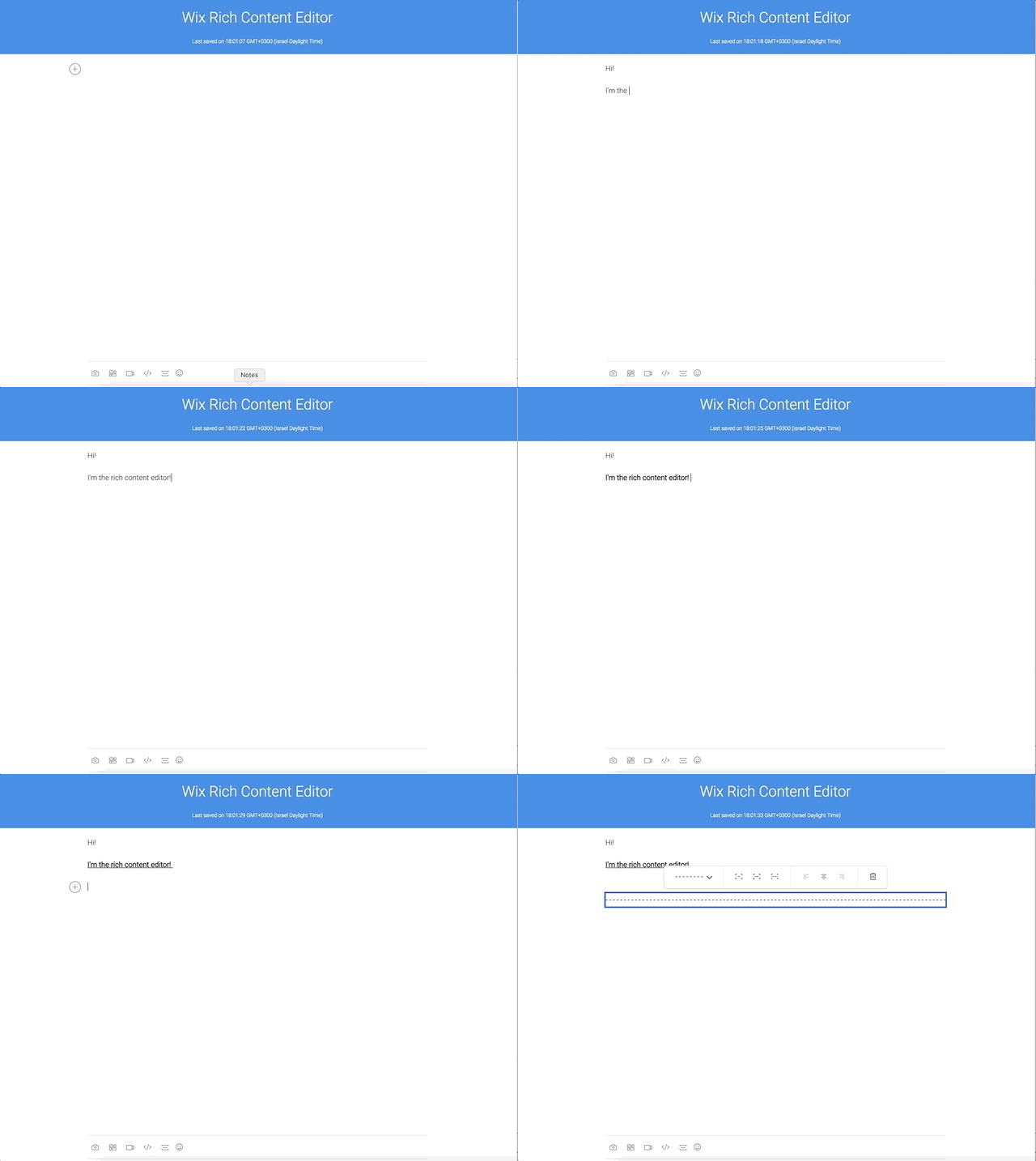
![Demo](https://media.giphy.com/media/2rAwp4zLCrtGn2Tlbq/giphy.gif)

You can try it here: [https://wix-rich-content.herokuapp.com/](https://wix-rich-content.herokuapp.com/)

## Installation

To install this package as editor, use the following command ([draft-js version](https://github.com/wix-incubator/rich-content/blob/master/packages/editor/web/package.json#L49)):

```bash
npm install --save wix-rich-content-editor draft-js
```

To install this package as viewer, use the following command:

```bash
npm install --save wix-rich-content-viewer
```

To use the editor with `<script>` tag, consume the following JS file: `dist/EditorCommon.js` and `dist/Editor.js` from the bundle, and load the matching CSS files:

```html
<html>
  <head>
    <script src="https://unpkg.com/wix-rich-content-editor-common/dist/EditorCommon.js"></script>
    <script src="https://unpkg.com/wix-rich-content-editor/dist/Editor.js"></script>
    <link rel="stylesheet" href="https://unpkg.com/wix-rich-content-editor-common/dist/styles.min.css" />
    <link rel="stylesheet" href="https://unpkg.com/wix-rich-content-editor/dist/styles.min.css" />
  </head>
  <body>
    <script>
      const { RichContentEditor, EditorState } = window.WixRichContentEditor;
    </script>

    <!-- ...rest of your app code... -->
  </body>
</html>
```

## Getting Started

### 1. Basic Editor

To get started with the editor, create a simple `React.Component`, and import the editor component:

```jsx
import { EditorState, RichContentEditor } from 'wix-rich-content-editor';
```

Then, create an empty `editorState` in your state:

```jsx
export class MyApp extends React.Component {
  state = {
    editorState: EditorState.createEmpty(),
  };
}
```

Use the `RichContentEditor` component in your `render` function, and implement `onChange` function:

```jsx
import React from 'react';
import { EditorState, RichContentEditor } from 'wix-rich-content-editor';

export class MyApp extends React.Component {
  state = {
    editorState: EditorState.createEmpty(),
  };

  onChange = editorState => {
    this.setState({
      editorState,
    });
  };

  render() {
    return (
      <div>
        <RichContentEditor onChange={this.onChange} editorState={this.state.editorState} />
      </div>
    );
  }
}
```

Now, to make sure you are getting the most of the rich-content editor, include the compiled CSS files in your app's main file:

`app.js`

```jsx
import 'wix-rich-content-editor-common/dist/styles.min.css';
import 'wix-rich-content-editor/dist/styles.min.css';
import 'wix-rich-content-plugin-...'/dist/styles.min.css';
```

> You can also import the CSS files using `@import '~...`;` from a SCSS file.

### 2. Add Plugins

To add plugins to your editor, choose one of the implemented plugins from [the list of available plugins](https://github.com/wix-incubator/rich-content/tree/master/packages).

Install the plugin you wish use from NPM:

```bash
npm install wix-rich-content-plugin-divider
```

Import the plugin's stylesheet file in your main app's file:

```jsx
import 'wix-rich-content-plugin-divider/dist/styles.min.css';
```

Then, add `plugins` prop with the plugin's creation method:

```jsx
import React from 'react';
import { EditorState, RichContentEditor } from 'wix-rich-content-editor';
import { createDividerPlugin } from 'wix-rich-content-plugin-divider';

const PLUGINS = [createDividerPlugin];

export class MyApp extends React.Component {
  state = {
    editorState: EditorState.createEmpty(),
  };

  onChange = editorState => {
    this.setState({
      editorState,
    });
  };

  render() {
    return (
      <div>
        <RichContentEditor
          plugins={PLUGINS}
          onChange={this.onChange}
          editorState={this.state.editorState}
        />
      </div>
    );
  }
}
```

### 3. Theme and Custom Styling

To customize the look and feel of the editor, you can use `theme` prop, and override the styles as you wish.

Use the style's `className` to override. It also support css-modules imports.

`my-style.css`

```css
.divider {
  backgorund-color: red;
}

.divider-container {
  border: 1px blue solid;
}
```

```jsx
import React from 'react';
import { EditorState, RichContentEditor } from 'wix-rich-content-editor';
import { createDividerPlugin } from 'wix-rich-content-plugin-divider';
import dividerTheme from './my-style.css';

const PLUGINS = [createDividerPlugin];

const THEME = {
  ...dividerTheme,
};

export class MyApp extends React.Component {
  state = {
    editorState: EditorState.createEmpty(),
  };

  onChange = editorState => {
    this.setState({
      editorState,
    });
  };

  render() {
    return (
      <div>
        <RichContentEditor
          theme={THEME}
          plugins={PLUGINS}
          onChange={this.onChange}
          editorState={this.state.editorState}
        />
      </div>
    );
  }
}
```

You can find a full list of classes you can override in [here](./examples/main/src/theme).

#### Plugins

[wix-rich-content-plugin-divider](./packages/plugin-divider) add dividers to your content

[wix-rich-content-plugin-emoji](./packages/plugin-emoji) add emojis to your content

[wix-rich-content-plugin-hashtag](./packages/plugin-hashtag) convert plain text #hastags into dynamic elements

[wix-rich-content-plugin-html](./packages/plugin-html) embed html code or sites in your content

[wix-rich-content-plugin-link](./packages/plugin-link) convert plain text URLs into `<a>` tags

[wix-rich-content-plugin-video](./packages/plugin-video) add videos to your content

[wix-rich-content-plugin-mentions](./packages/plugin-mentions) mention users in your content

[wix-rich-content-plugin-code-block](./packages/plugin-code-block) displays code block

[wix-rich-content-plugin-image](./packages/plugin-image) embed images in your content

[wix-rich-content-plugin-gallery](./packages/plugin-gallery) embed Wix `pro-gallery` component in your content

### Usage with [Yoshi](https://github.com/wix/yoshi)

To use the editor with Yoshi, you should do the same bootstrapping process, but make sure to include the package's `.css` files from a `.global.scss` file.  For example, create a file named `rich-content.global.scss` with the following content (make sure to import styles from any plugins you are using as well):

```scss
@import '~wix-rich-content-editor-common/dist/styles.min.css';
@import '~wix-rich-content-editor/dist/styles.min.css';
```

> This workaround is required because Yoshi re-compiles CSS files, and applies css-modules again.

### SSR support

The compiled package also contains a CommonJS bundle, which you can consume if you are using SSR.

## Development

### Run Locally

1. `cd rich-content`
2. `npm i` - installs all dependencies and links any cross-dependencies.
3. Build the modules by running one of the following:
   1. `npm run build` - build once and bundles
   2. `npm run watch` - rebuild on changes
4. Choose an [example](./examples/) and run:
   1. `npm start`

#### Examples

[rich-content-editor-example](./examples/main) to see how to consume the Component as:
- [editor](./examples/main/shared/editor/Editor.jsx)
- [viewer](./examples/main/shared/viewer/Viewer.jsx)


[rich-content-viewer-ssr](./examples/viewer-ssr) to see how to consume the Component as a viewer within a Yoshi-based SSR Application.

### Modules

[wix-rich-content-editor](./packages/editor) is the rich content editor React Component.

[wix-rich-content-viewer](./packages/viewer) is the rich content viewer React Component.

[wix-rich-content-editor-common](./packages/editor-common) is a shared library utilized by the rest of the modules.
