<p align="center">
  <a href="https://avwo.github.io/whistle/">
    <img alt="whistle logo" src="https://user-images.githubusercontent.com/11450939/168828068-99e38862-d5fc-42bc-b5ab-6262b2ca27d6.png">
  </a>
</p>

# whistle
[![NPM version](https://img.shields.io/npm/v/whistle.svg?style=flat-square)](https://npmjs.org/package/whistle)
[![node version](https://img.shields.io/badge/node.js-%3E=_8-green.svg?style=flat-square)](http://nodejs.org/download/)
[![build status](https://img.shields.io/travis/avwo/whistle.svg?style=flat-square)](https://travis-ci.org/avwo/whistle)
[![Test coverage](https://codecov.io/gh/avwo/whistle/branch/master/graph/badge.svg?style=flat-square)](https://codecov.io/gh/avwo/whistle)
[![npm download](https://img.shields.io/npm/dm/whistle.svg?style=flat-square)](https://npmjs.org/package/whistle)
[![NPM count](https://img.shields.io/npm/dt/whistle.svg?style=flat-square)](https://www.npmjs.com/package/whistle)
[![License](https://img.shields.io/npm/l/whistle.svg?style=flat-square)](https://www.npmjs.com/package/whistle)

Whistle 是基于 Node 实现的跨平台抓包调试工具，其主要特点：
1. **完全跨平台**：支持 Mac、Windows 等桌面系统，且支持服务端等命令行系统
2. **功能强大（理论上可以对请求做任意修改）**：
	* 支持作为 HTTP、HTTPS、SOCKS 代理及反向代理
	* 支持抓包及修改 HTTP、HTTPS、HTTP2、WebSocket、TCP 请求
	* 支持重放及构造 HTTP、HTTPS、HTTP2、WebSocket、TCP 请求
	* 支持设置上游代理、PAC 脚本、Hosts、延迟（限速）请求响应等
	* 支持查看远程页面的 console 日志及 DOM 节点
	* 支持用 Node 开发插件扩展功能，也可以作为独立 npm 包引用
3. **操作简单**：
	* 直接通过浏览器查看抓包、修改请求
	* 所有修改操作都可以通过配置方式实现（类似系统 Hosts），并支持分组管理
	* 项目可以自带代理规则配置并一键设置到本地 Whistle 代理，也可以通过定制插件简化操作

# 一键安装
> 已安装 `brew` 的 PC，可以省略以下 1、2 步骤，直接通过以下方式一键安装：`brew install whistle && w2 start --init`（arm64 平台尝试用 `brew install node && npm i -g whistle && w2 start --init`）
1. 安装 Node（建议安装**最新的 LTS 版本**，如已安装忽略此步骤）：https://nodejs.org/
2. 一键安装，在命令行执行以下命令：
	``` sh
	npm i -g whistle && w2 start --init
	```
	> 上述命令会先全局安装 Whistle 的 npm 包后，启动 Whistle 并设置系统全局代理，以及安装系统根证书，目前一键安装只支持 Mac & Windows 系统，其它系统按照下面 **手动安装** 的方式操作。
3. 一键安装过程中注意事项：
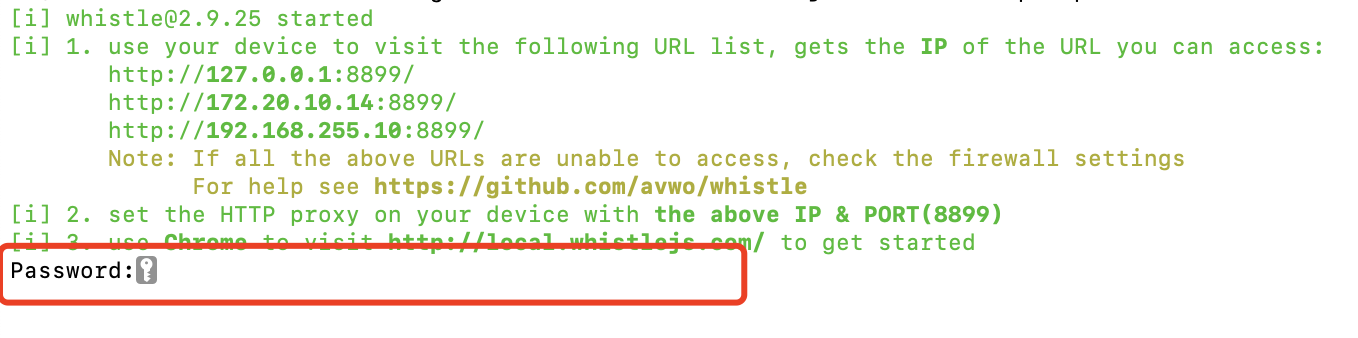
	* Mac 需要两次输入开机密码或指纹验证
		<p>
			<img alt="输入开机密码" width="330" src="https://user-images.githubusercontent.com/11450939/176977027-4a7b06a0-64f6-4580-b983-312515e9cd4e.png">
		</p>
		<img alt="输入指纹" width="330" src="https://user-images.githubusercontent.com/11450939/168847123-e66845d0-6002-4f24-874f-b6943f7f376b.png">

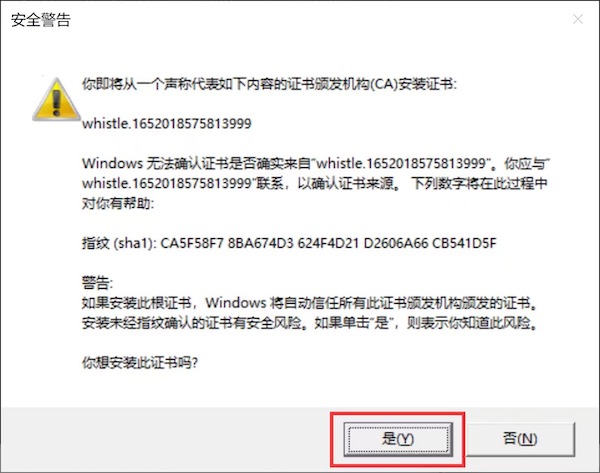
	* Windows 需要最后点击 “是(Y)” 确认

		<img alt="点击 是(Y)" width="420" src="https://user-images.githubusercontent.com/11450939/168846905-384e0540-e02f-46de-81d7-e395a496f032.jpeg">

如果需要自定义代理配置或根证书（如设置其它代理，根证书或代理白名单等）可以通过以下命令实现：
1. `w2 proxy` 设置系统全局代理：https://wproxy.org/whistle/proxy.html
2. `w2 ca` 设置系统根证书：https://wproxy.org/whistle/proxy.html

也可以用下面 **手动安装** 方式。
### 手动安装
非 Mac & Windows 系统或一键安装失败可以按下面方式设置代理和安装根证书：

1. 设置代理：https://wproxy.org/whistle/install.html
2. 安装根证书：https://wproxy.org/whistle/webui/https.html

# 快速上手
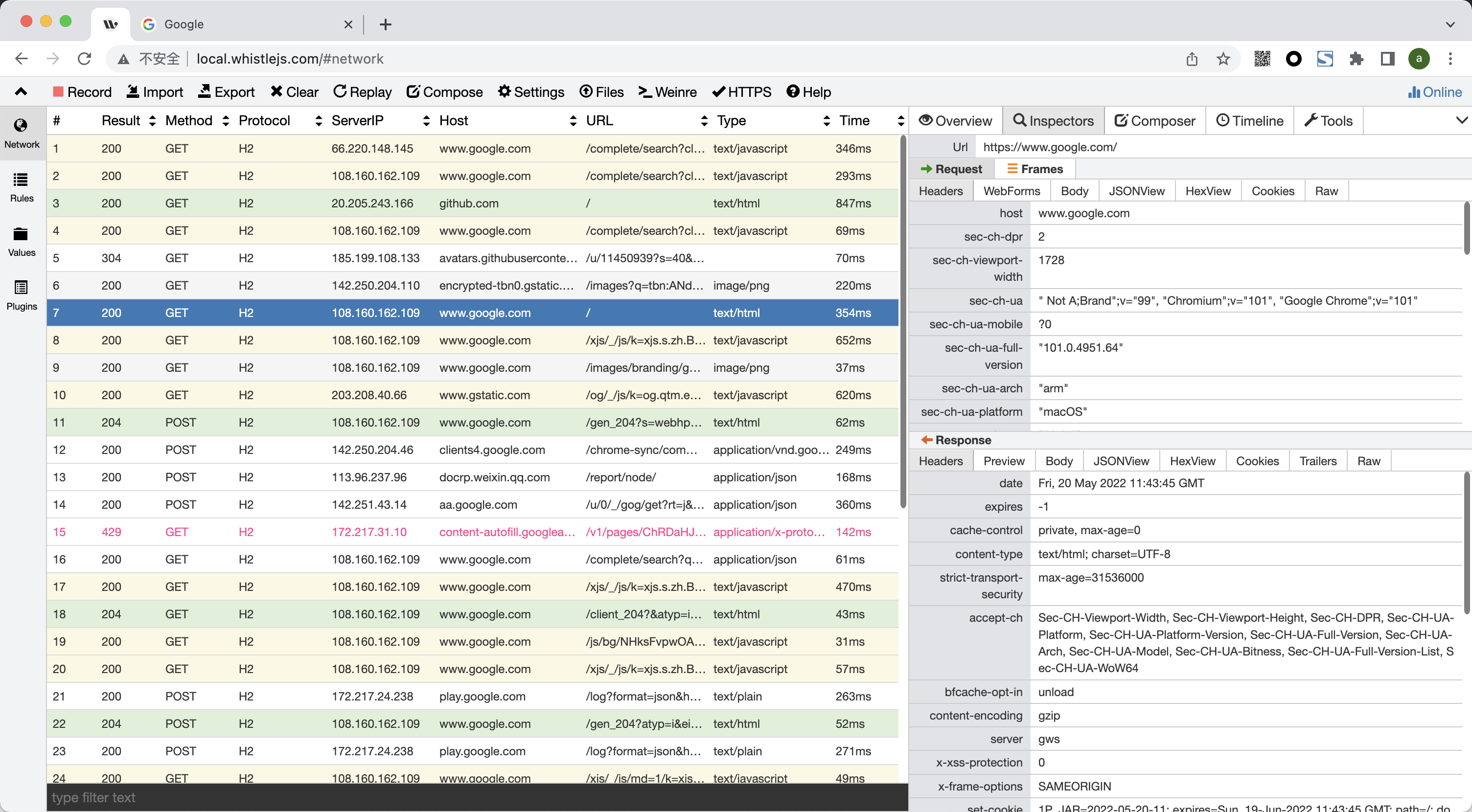
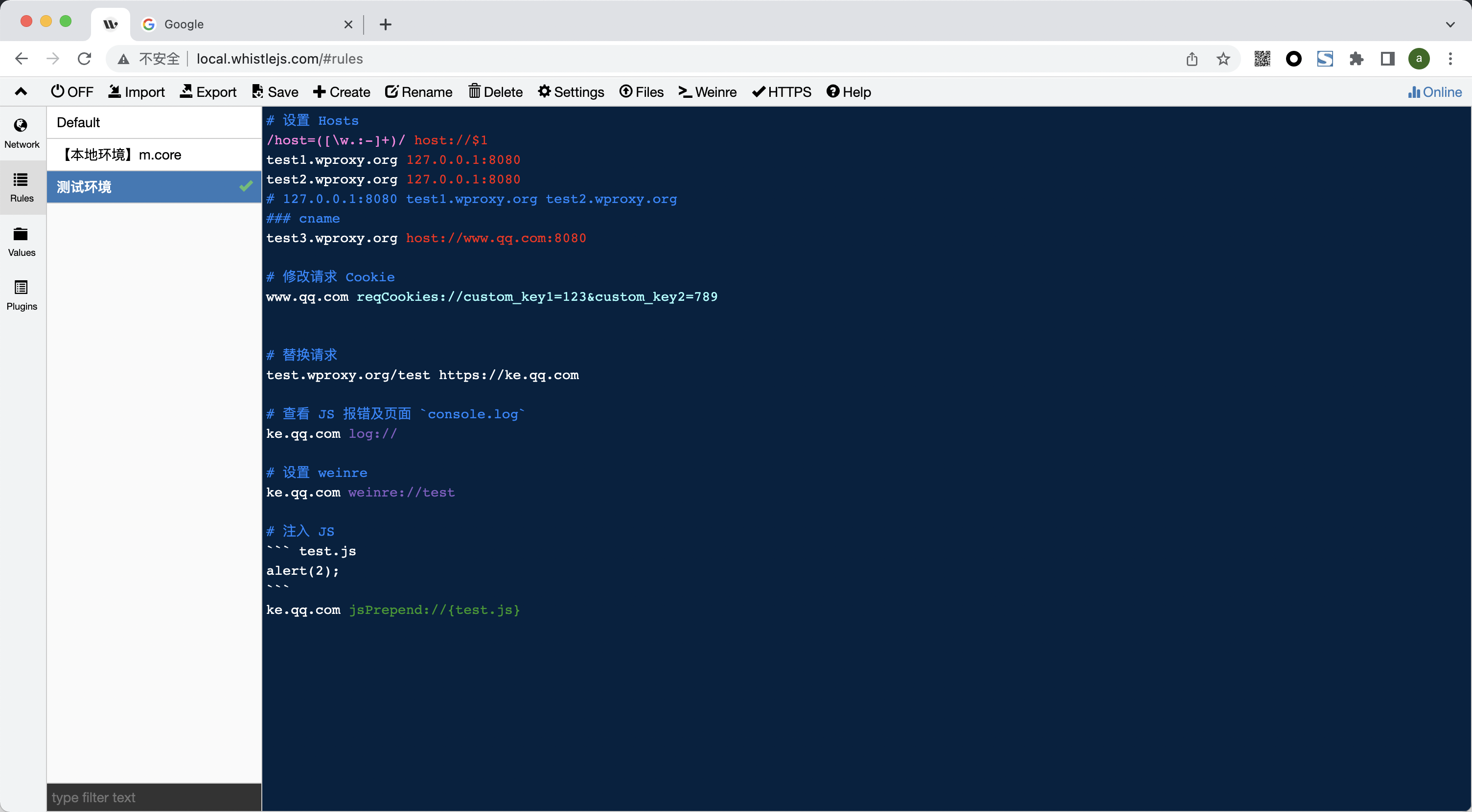
安装成功后，用 Chrome 打开链接 http://local.whistlejs.com 即可看到 Whistle 的抓包配置界面：

<img width="800" alt="抓包界面" src="https://user-images.githubusercontent.com/11450939/169521501-58e59e1b-1970-477c-a213-f28234628e4b.png">

<img width="800" alt="image" src="https://user-images.githubusercontent.com/11450939/169634452-64e7bf4b-4cb1-4289-9ba2-3c1913d6c2dd.png">


### 详细用法参见：[Whistle 帮助文档](https://wproxy.org/whistle/quickstart.html)

# 通过 SwitchyOmega 设置代理
全局代理如果会影响到某些客户端的请求（客户端设置了 ssl pinning），也可以使用 Chrome 插件设置代理（只对 Chrome 生效）：
> 可以通过 `w2 proxy off` 关闭全局代理

1. 设置 Whistle 代理

    <img src="https://user-images.githubusercontent.com/11450939/36636618-132bb09e-1a05-11e8-8514-813fd34a5454.png" width="800" />
2. 选择 Whistle 代理

    <img width="180" alt="image" src="https://user-images.githubusercontent.com/11450939/173984519-143615b2-2a99-4486-a22a-fec71fe00423.png">


# License
[MIT](./LICENSE)