# vue-svg-map
[](https://badge.fury.io/js/vue-svg-map)
[](https://travis-ci.com/VictorCazanave/vue-svg-map)
[](https://codecov.io/gh/VictorCazanave/vue-svg-map)
[](https://david-dm.org/VictorCazanave/vue-svg-map)
[](https://david-dm.org/VictorCazanave/vue-svg-map?type=peer)
_A set of Vue.js components to display an interactive SVG map._
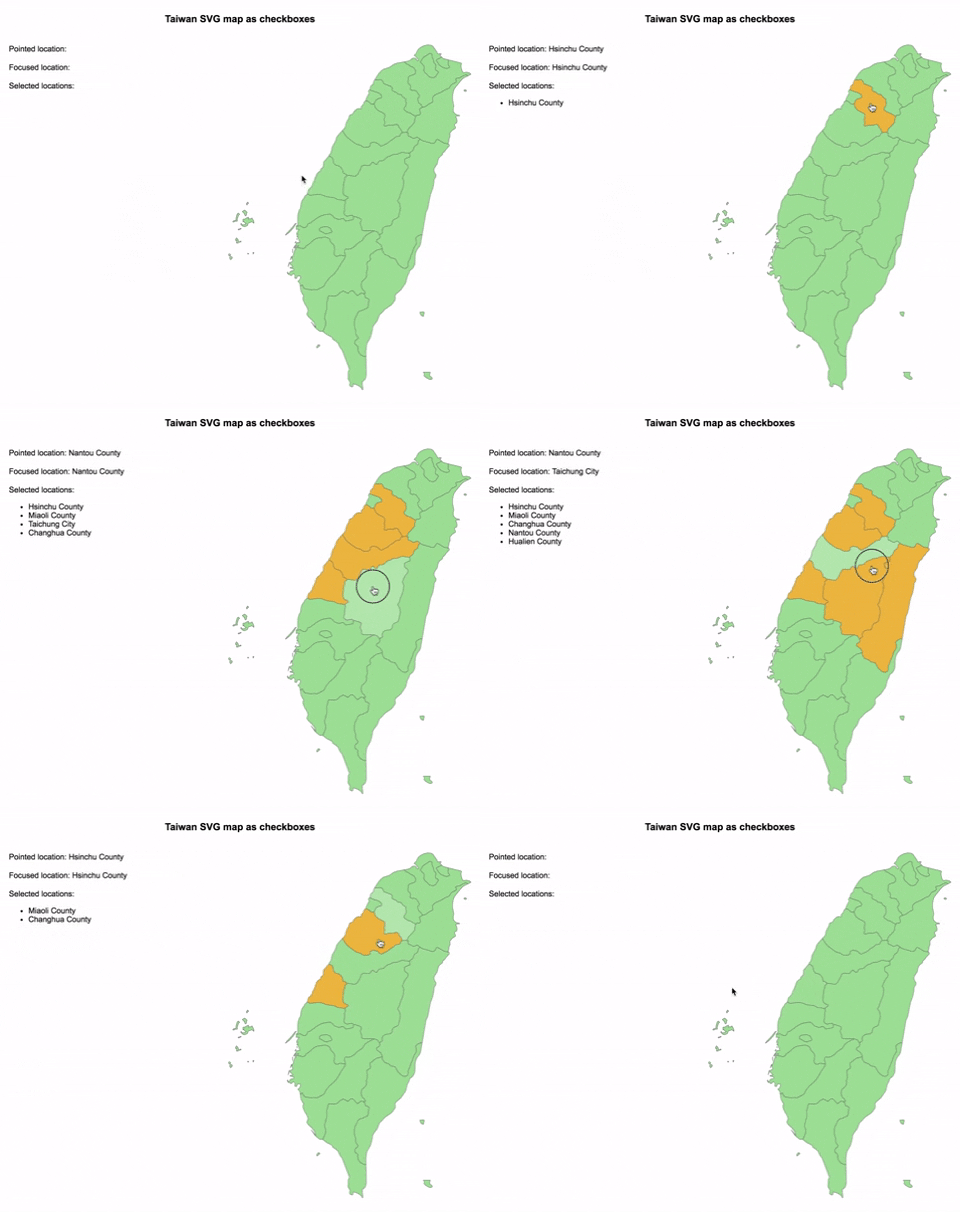
## Demo
[Take a look at the live demo!](https://victorcazanave.github.io/vue-svg-map/)
## Installation
### npm
`npm install --save vue-svg-map`
### yarn
`yarn add vue-svg-map`
## Usage
Install the map you need from [svg-maps](https://github.com/VictorCazanave/svg-maps) or use your own map. See [maps section](#maps) for more details.
### :earth_africa: Simple SVG Map
This is the base component to display an SVG map.
In a SFC (Single File Component):
- Import `SvgMap` component from `vue-svg-map`
- Import the map you want
- Optionally, import `vue-svg-map/dist/index.css` if you want to apply the default styles
```vue
```
#### Props
| Prop | Type | Default | Description |
| -------------------- | ---------------- | ------------ | ---------------------------------------------------------------------------------------------------------------- |
| map | Object | **required** | Describe SVG map to display. See [maps section](#maps) for more details. |
| location-class | String\|Function | `null` | CSS class of each ``. The function parameters are the location object and the location index. |
| location-tabindex | String\|Function | `null` | Tabindex each ``. The function parameters are the location object and the location index. |
| location-role | String | `null` | ARIA role of each ``. |
| is-location-selected | Function | `null` | Executed to determine if a location is selected. This property is used to set the `aria-checked` HTML attribute. |
#### Events
All the listeners (click, keypress...) are applied to each location.
#### Slots
There are 2 named slots:
* `before` which is before the locations
* `after` which is after the locations
### :ballot_box_with_check: Checkbox SVG Map
This is an implementation of `SvgMap` that behaves like a group of checkboxes.
It is based on this [WAI-ARIA example](https://www.w3.org/TR/wai-aria-practices/examples/checkbox/checkbox-1/checkbox-1.html) to support keyboard navigation and be accessible.
- Import `CheckboxSvgMap` component from `vue-svg-map`
- Import the map you want
- Optionally, import `vue-svg-map/dist/index.css` if you want to apply the default styles
```vue
```
#### Props
| Prop | Type | Default | Description |
| -------------- | ---------------- | ------------ | --------------------------------------------------------------------------------------------------- |
| map | Object | **required** | Describe SVG map to display. See [maps section](#maps) for more details. |
| value | String[] | `[]` | List of ids of selected locations. Used for `v-model`. |
| location-class | String\|Function | `null` | CSS class of each ``. The function parameters are the location object and the location index. |
#### Events
Like for `SvgMap` all the listeners (click, keypress...) are applied to each location.
| Event | Output | Description |
| ------ | -------- | ------------------------------------------------------------------------------------- |
| change | String[] | Emits the new list of ids when a location is selected/unselected. Used for `v-model`. |
#### Slots
Like in `SvgMap` there are 2 named slots:
* `before` which is before the locations
* `after` which is after the locations
**Note:** inserting focusable elements may break the checkboxes' behaviour.
### :radio_button: Radio SVG Map
This is an implementation of `SvgMap` that behaves like a group of radio buttons.
It is based on this [WAI-ARIA example](https://www.w3.org/TR/wai-aria-practices/examples/radio/radio-1/radio-1.html) to support keyboard navigation and be accessible.
- Import `RadioSvgMap` component from `vue-svg-map`
- Import the map you want
- Optionally, import `vue-svg-map/dist/index.css` if you want to apply the default styles
```vue
```
#### Props
| Prop | Type | Default | Description |
| -------------- | ---------------- | ------------ | --------------------------------------------------------------------------------------------------- |
| map | Object | **required** | Describe SVG map to display. See [maps section](#maps) for more details. |
| value | String | `null` | Id of selected location. Used for `v-model`. |
| location-class | String\|Function | `null` | CSS class of each ``. The function parameters are the location object and the location index. |
#### Events
Like for `SvgMap` all the listeners (click, keypress...) are applied to each location.
| Event | Output | Description |
| ------ | ------ | ----------------------------------------------------------------- |
| change | String | Emits the new id when a location is selected. Used for `v-model`. |
#### Slots
Like in `SvgMap` there are 2 named slots:
* `before` which is before the locations
* `after` which is after the locations
**Note:** inserting focusable elements may break the radio buttons' behaviour.
## Maps
### Existing maps
All the existing maps are in an independant [svg-maps](https://github.com/VictorCazanave/svg-maps) project because they may be useful for other components/projects.
### Custom maps
You can modify existing maps or create your own.
#### Modify a map
1. Import the map to modify
1. Create a new object from this map
1. Pass this new object as `map` prop of the component
```vue
```
It is recommended to not modify the SVG properties (viewBox, path), because it may break the map's display.
#### Create a map
If you create a new map (other country, city...), feel free to [contribute to svg-maps project](https://github.com/VictorCazanave/svg-maps/blob/master/CONTRIBUTING.md)!
## License
MIT