# Vue Prism Editor

[![Bundle size (minified + gzip)][bundle-size-badge]][bundle-size]
[![NPM Downloads][downloads-badge]][downloads]
[![Build Status][build-badge]][build]
![Codecov][covarage-badge]
[![Version][version-badge]][package]
[![MIT License][license-badge]][license]

> A dead simple code editor with syntax highlighting and line numbers. 3kb/z
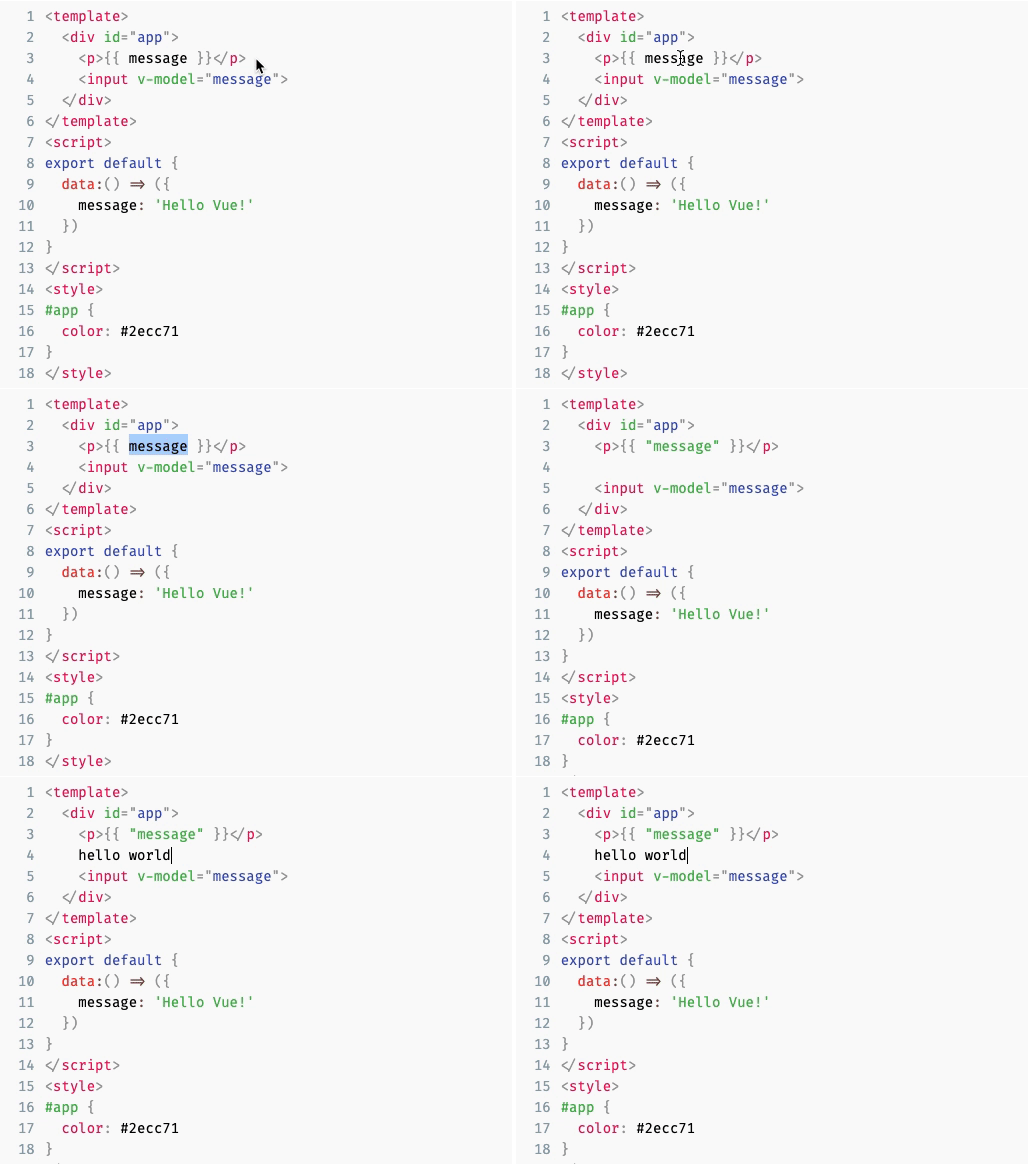
![prism-editor](https://user-images.githubusercontent.com/342666/89706560-82f65380-d96f-11ea-94f9-e0fbf3220047.gif)


## Demo

[prism-editor.netlify.com](https://prism-editor.netlify.com/)

## Examples

- Vue Example Codesandbox: [https://codesandbox.io/s/61yrlnlnmn](https://codesandbox.io/s/61yrlnlnmn)
- Nuxt Example Codesandbox: [https://codesandbox.io/s/nuxt-vue-prism-editor-62e06](https://codesandbox.io/s/nuxt-vue-prism-editor-62e06)
- Codepen: [https://codepen.io/koca/pen/QVgqyR](https://codepen.io/koca/pen/QVgqyR)

## Features

- Code Editing
- Modular syntax highlighting with third party library (not limited to prismjs)
- Indent line or selected text by pressing tab key, with customizable indentation
- Automatic indent on new lines
- Wrap selected text in parens, brackets, or quotes
- Undo / Redo whole words instead of letter by letter
- Accessible, use Ctrl+Shift+M (Mac) / Ctrl+M to toggle capturing tab key
- Works on mobile (thanks to textarea)
- Auto resize
- Line numbers
- Match line numbers styles to the theme(optional)

## Use Case

Several browser based code editors such as Ace, CodeMirror, Monaco etc. provide the ability to embed a full-featured code editor in your web page. However, if you just need a simple editor with syntax highlighting without any of the extra features, they can be overkill as they don't usually have a small bundle size footprint. This library aims to provide a simple code editor with syntax highlighting support without any of the extra features, perfect for simple embeds and forms where users can submit code.

## Install

```sh
npm install vue-prism-editor
```

or

```sh
yarn add vue-prism-editor
```

## Usage

You need to use the editor with a third party library which provides syntax highlighting. For example, it'll look like following with prismjs:

Register the component locally and use it (recommended)

```html
<template>
  <prism-editor class="my-editor" v-model="code" :highlight="highlighter" line-numbers></prism-editor>
</template>

<script>
  // import Prism Editor
  import { PrismEditor } from 'vue-prism-editor';
  import 'vue-prism-editor/dist/prismeditor.min.css'; // import the styles somewhere

  // import highlighting library (you can use any library you want just return html string)
  import { highlight, languages } from 'prismjs/components/prism-core';
  import 'prismjs/components/prism-clike';
  import 'prismjs/components/prism-javascript';
  import 'prismjs/themes/prism-tomorrow.css'; // import syntax highlighting styles

  export default {
    components: {
      PrismEditor,
    },
    data: () => ({ code: 'console.log("Hello World")' }),
    methods: {
      highlighter(code) {
        return highlight(code, languages.js); //returns html
      },
    },
  };
</script>

<style>
  /* required class */
  .my-editor {
    /* we dont use `language-` classes anymore so thats why we need to add background and text color manually */
    background: #2d2d2d;
    color: #ccc;

    /* you must provide font-family font-size line-height. Example: */
    font-family: Fira code, Fira Mono, Consolas, Menlo, Courier, monospace;
    font-size: 14px;
    line-height: 1.5;
    padding: 5px;
  }

  /* optional class for removing the outline */
  .prism-editor__textarea:focus {
    outline: none;
  }
</style>
```

> Note that depending on your syntax highlighter, you might have to include additional CSS for syntax highlighting to work.

Or register the component globally

```js
import { PrismEditor } from 'vue-prism-editor';
import 'vue-prism-editor/dist/prismeditor.min.css'; // import the styles
Vue.component('PrismEditor', PrismEditor);
```

Browser usage (for codepen etc.):

```html
<script src="https://unpkg.com/vue@2.6.*"></script>

<!-- Prism Editor -->
<script src="https://unpkg.com/vue-prism-editor"></script>
<link rel="stylesheet" href="https://unpkg.com/vue-prism-editor/dist/prismeditor.min.css" />

<!-- custom highlighter: -->
<script src="https://unpkg.com/prismjs/prism.js"></script>
<link rel="stylesheet" href="https://unpkg.com/prismjs/themes/prism-tomorrow.css" />

<style>
  .height-200{
    height: 200px  
  }
  
  .my-editor {
    /* we dont use `language-` classes anymore so thats why we need to add background and text color manually */
    background: #2d2d2d;
    color: #ccc;

    /* you must provide font-family font-size line-height. Example:*/
    font-family: Fira code, Fira Mono, Consolas, Menlo, Courier, monospace;
    font-size: 14px;
    line-height: 1.5;
    padding: 5px;
  }

  /* optional class for removing the outline */
  .prism-editor__textarea:focus {
    outline: none;
  }
</style>

<div id="app">
  <prism-editor class="my-editor height-200" v-model="code" :highlight="highlighter" line-numbers></prism-editor>
</div>

<script>
  new Vue({
    el: "#app",
    data: () => ({
      code: "console.log('hello world')"
    }),
    methods: {
      highlighter(code) {
        // js highlight example
        return Prism.highlight(code, Prism.languages.js, "js");
      }
    },
  })
</script>
```

## Props

| Name                 | Type               | Default | Options | Description                                                                                                                                                  |
| -------------------- | ------------------ | ------- | ------- | ------------------------------------------------------------------------------------------------------------------------------------------------------------ |
| v-model `value`      | `string`           | `""`    | -       | Current value of the editor i.e. the code to display                                                                                                         |
| highlight            | `string => string` | -       | -       | Callback which will receive text to highlight. You'll need to return an HTML string with syntax highlighting using a library such as prismjs.                |
| readonly             | `Boolean`          | `false` | -       | Readonly                                                                                                                                                     |
| lineNumbers          | `Boolean`          | `false` | -       | Whether to show line numbers. Default `false`                                                                                                                                |
| autoStyleLineNumbers | `Boolean`          | `true`  | -       | Match line numbers text color to the theme. Default `true`                                                                                                                  |
| tabSize              | `number`           | `2`       | -       | The number of characters to insert when pressing tab key. For example, for 4 space indentation, `tabSize` will be `4` and `insertSpaces` will be `true`. Default: `2` |
| insertSpaces              | `boolean`           | `true`       | -       | Whether to use spaces for indentation. Default: `true`. If you set it to `false`, you might also want to set `tabSize` to `1` |
| ignoreTabKey              | `boolean`           | `false`       | -       | Whether the editor should ignore tab key presses so that keyboard users can tab past the editor. Users can toggle this behaviour using `Ctrl+Shift+M` (Mac) / `Ctrl+M` manually when this is `false`. Default: `false` |

## Events

| Name    | Parameters | Description                                                  |
| ------- | ---------- | ------------------------------------------------------------ |
| input   | `(code)`   | Fires when the code is changed.                              |
| keydown | `(event)`  | This event is emitted when a keydown event happens in editor |
| keyup   | `(event)`  | This event is emitted when a keyup event happens in editor   |
| click   | `(event)`  | This event is emitted when clicking anywhere in the editor   |
| focus   | `(event)`  | This event is emitted when focus                             |
| blur    | `(event)`  | This event is emitted when blur                              |

## How it works

_This part is taken from [react-simple-code-editor](https://github.com/satya164/react-simple-code-editor)_

It works by overlaying a syntax highlighted `<pre>` block over a `<textarea>`. When you type, select, copy text etc., you interact with the underlying `<textarea>`, so the experience feels native. This is a very simple approach compared to other editors which re-implement the behaviour.

The syntax highlighting can be done by any third party library as long as it returns HTML and is fully controllable by the user.

The vanilla `<textarea>` doesn't support inserting tab characters for indentation, so we re-implement it by listening to `keydown` events and programmatically updating the text. One caveat with programmatically updating the text is that we lose the undo stack, so we need to maintain our own undo stack. As a result, we can also implement improved undo behaviour such as undoing whole words similar to editors like VSCode.

## Limitations

Due to the way it works, it has certain limitations:

- The syntax highlighted code cannot have different font family, font weight, font style, line height etc. for its content. Since the editor works by aligning the highlighted code over a `<textarea>`, changing anything that affects the layout can misalign it.
- The custom undo stack is incompatible with undo/redo items browser's context menu. However, other full featured editors don't support browser's undo/redo menu items either.
- The editor is not optimized for performance and large documents can affect the typing speed.
- We hide text in the textarea using `-webkit-text-fill-color: transparent`, which works in all modern browsers (even non-webkit ones such as Firefox and Edge). On IE 10+, we use `color: transparent` which doesn't hide the cursor. Text may appear bolder in unsupported browsers.

## Thanks

[react-simple-code-editor](https://github.com/satya164/react-simple-code-editor)

## License

MIT

[build-badge]: https://img.shields.io/circleci/project/github/koca/vue-prism-editor/master.svg?style=flat-square
[build]: https://circleci.com/gh/koca/vue-prism-editor
[downloads-badge]: https://img.shields.io/npm/dt/vue-prism-editor.svg?style=flat-square
[downloads]: https://npmjs.com/package/vue-prism-editor
[build-badge]: https://img.shields.io/npm/dm/vue-client-only.svg?style=flat
[license-badge]: https://img.shields.io/npm/l/vue-prism-editor.svg?style=flat-square
[license]: https://opensource.org/licenses/MIT
[version-badge]: https://img.shields.io/npm/v/vue-prism-editor.svg?style=flat-square
[package]: https://www.npmjs.com/package/vue-prism-editor
[bundle-size-badge]: https://img.shields.io/bundlephobia/minzip/vue-prism-editor@1.x.x.svg?style=flat-square
[bundle-size]: https://bundlephobia.com/result?p=vue-prism-editor
[covarage-badge]: https://img.shields.io/codecov/c/github/koca/vue-prism-editor?style=flat-square
