# Playlist
The Vidiun Player exposes several APIs that are used for loading, configuring, and manipulating playlists.
## Table of Contents
- [Load A Playlist](#load-a-playlist)
- [By Playlist ID](#by-playlist-id-ovp-only)
- [By Entry List](#by-entry-list)
- [By Configuration](#by-configuration)
- [Configure the Playlist](#configure-the-playlist)
- [Switching Items](#switching-items)
- [Change Playlist](#change-playlist)
### Load A Playlist
Before loading a playlist, you'll need to set up a Vidiun Player instance as follows.
```javascript
const config = PLAYER_CONFIG;
const vidiunPlayer = VidiunPlayer.setup(config);
```
To learn how to set up a Vidiun Player, see [Player Setup](./player-setup.md).
Once you have a Vidiun Player instance, you can load a playlist using one of the following methods:
#### By Playlist ID (OVP Only)
To load a playlist by ID, use [`loadPlaylist`](./api.md#loadplaylist) method.
```javascript
vidiunPlayer.loadPlaylist({playlistId: '123456'});
```
#### By Entry List
To load a playlist by entry list, use the [`loadPlaylistByEntryList`](./api.md#loadplaylistbyentrylist) method.
This method creates a playlist according to the given entries.
```javascript
vidiunPlayer.loadPlaylistByEntryList({entries: [{entryId: '01234'}, {entryId: '56789'}]});
```
#### By Configuration
You can load a playlist by configuring the playlist data and items explicitly using the [`configure`](./api.md#configure-3) method.
```javascript
vidiunPlayer.configure({
playlist: {
metadata: {
name: 'my playlist name',
description: 'my playlist desc'
},
items: [
{
sources: {
poster: 'poster_1_url',
hls: [
{
id: 'id1',
mimetype: 'application/x-mpegURL',
url: 'source_1_url'
}
]
}
},
{
sources: {
poster: 'poster_2_url',
hls: [
{
id: 'id2',
mimetype: 'application/x-mpegURL',
url: 'source_2_url'
}
]
}
}
]
}
});
```
For all playlist options, see [`VPPlaylistObject`](./api.md#vpplaylistobject).
## Configure the Playlist
### Auto Continue
By default, once the current item is ended, the playlist continues to the next item automatically.
To change this behavior, configure the [`options`](./api.md#vpplaylistoptions) under [`VPPlaylistConfigObject`](./api.md#vpplaylistconfigobject) using one of the following methods:
Via the API:
```javascript
vidiunPlayer.loadPlaylist({playlistId: '123456'}, {options: {autoContinue: false}});
```
```javascript
vidiunPlayer.loadPlaylistByEntryList({entries: [{entryId: '01234'}, {entryId: '56789'}]}, {options: {autoContinue: false}});
```
By configuration:
```javascript
vidiunPlayer.configure({
playlist: {
options: {autoContinue: false}
}
});
```
> Note: The `autoContinue` property is relevant only for the second item onwards.
>
To play the first entry automatically, use the [`autoplay`](https://github.com/vidiun/pakhshkit-js/blob/master/docs/autoplay.md) configuration.
For full playlist options see [`VPPlaylistOptions`](./api.md#vpplaylistoptions).
### Countdown
When the current item is about to end and the playlist is set to continue automatically, the user will see a countdown displayed. The user can then skip to the next item immediately or cancel the switching.
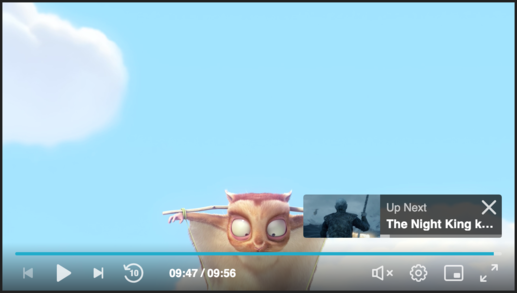
By default, the countdown is displayed for 10 seconds until the end.
To change this behavior, configure the [`countdown`](./api.md#vpplaylistcountdownoptions) under [`VPPlaylistConfigObject`](./api.md#vpplaylistconfigobject):
For example, to show the countdown for 20 seconds until the end, configure:
Via the API:
```javascript
vidiunPlayer.loadPlaylist({playlistId: '123456'}, {countdown: {duration: 20}});
```
```javascript
vidiunPlayer.loadPlaylistByEntryList({entries: [{entryId: '01234'}, {entryId: '56789'}]}, {countdown: {duration: 20}});
```
By configuration:
```javascript
vidiunPlayer.configure({
playlist: {
countdown: {
duration: 20
}
}
});
```
To show the countdown in a specific moment (usually to enable the user to skip the end subtitles) configure:
```javascript
vidiunPlayer.loadPlaylist({playlistId: '123456'}, {countdown: {timeToShow: 600}});
```
In this case the countdown will display at the 600th second for 10 seconds, and then will skip to the next item.
For full countdown options see [`VPPlaylistCountdownOptions`](./api.md#vpplaylistcountdownoptions).
## Switching Items
Using the [`playlist`](./api.md#playlist) API, you can get the playlist data and then switch between the items.
```javascript
// switch to the next item
vidiunPlayer.playlist.playNext();
// switch to the previous item
vidiunPlayer.playlist.playPrev();
// switch to a specific item by index
const lastItemIndex = vidiunPlayer.playlist.items.length - 1;
vidiunPlayer.playlist.playItem(lastItemIndex);
```
For the complete `playlist` API, see [PlaylistManager](./api.md#playlistmanager).
## Change Playlist
To clean the playlist data, you'll need to call the [`playlist.reset`](./api.md#reset-2) method.
Here is an example how to change the playlist using the [`playlist events`](./api.md#playlisteventtype) and [`playlist.reset`](./api.md#reset-2) method.
```javascript
vidiunPlayer.loadPlaylist({playlistId: '01234'});
vidiunPlayer.addEventListener(VidiunPlayer.playlist.PlaylistEventType.PLAYLIST_ENDED, () => {
vidiunPlayer.playlist.reset();
vidiunPlayer.loadPlaylist({playlistId: '56789'});
});
```
> Note: The playlist [config](./api.md#VPPlaylistConfigObject) is not removed on reset.
```javascript
vidiunPlayer.loadPlaylist({playlistId: '01234'}, {options: {autoContinue: false}});
vidiunPlayer.playlist.reset();
vidiunPlayer.loadPlaylist({playlistId: '56789'}).then(() => {
console.log(vidiunPlayer.playlist.options.autoContinue); // false
});
```
> To change this behavior, you'll need to override the configuration as follows:
```javascript
vidiunPlayer.loadPlaylist({playlistId: '01234'}, {options: {autoContinue: false}});
vidiunPlayer.playlist.reset();
vidiunPlayer.loadPlaylist({playlistId: '56789'}, {options: {autoContinue: true}}).then(() => {
console.log(vidiunPlayer.playlist.options.autoContinue); // true
});
```