```markdown
# Ultron AI SDK
```
## Installation
### Via npm
```bash
npm install ultron-ai-sdk
```
## Quick Start
```javascript
// Import the SDK
import {SceneCanvas, Character} from 'ultron-ai-sdk';
let sceneCanvas
let character
const init = async() => {
sceneCanvas = new SceneCanvas('target-html-element-id')
const initializationSetting= {
avatarId: "AVATAR_ID", // AvatarId and Request Id are same
config:{
apiKey: "YOUR_ULTRON_API_KEY"
},
options:{
alwaysListen: false // For Push to talk conversation
}
}
await sceneCanvas.init(initializationSetting)
character = sceneCanvas.character
}
init()
```
### In HTML Via CDN like [jsDelivr](https://www.jsdelivr.com/).
```html
```
#### Quick Demo
Check out our website for demo at: [🔗Talk to Avatar in metabrix website](https://dev-website.ultronai.me)
---
#### Sample App with React
Check out the sample app git repository: [🔗React SDK Sample](https://github.com/METABRIX-ORG/react-sdk-sample)
---
## Target HTML Element
```html
```
## API Reference
### Initialization
```javascript
let sceneCanvas = new SceneCanvas('target-html-element-id')
await sceneCanvas.init({
avatarId: "AVATAR_ID",
config:{
sessionId: "SESSION_ID_FOR_CURRENT_USER"} // Recomended method for Secure access
apiKey: YOUR_API_KEY // Only for quick testing (Not recommended for production)
})
let character = sceneCanvas.character
// Use Either sessionId or apiKey (Not Both)
```
---
### Configuration Options
| Option | Description |
|-------------|--------------|
| `sessionId` (optional) | Session Id obtained using API key |
| `apiKey` | You ultron key which can be found in your profile in Ultron App |
#### API key (apiKey)
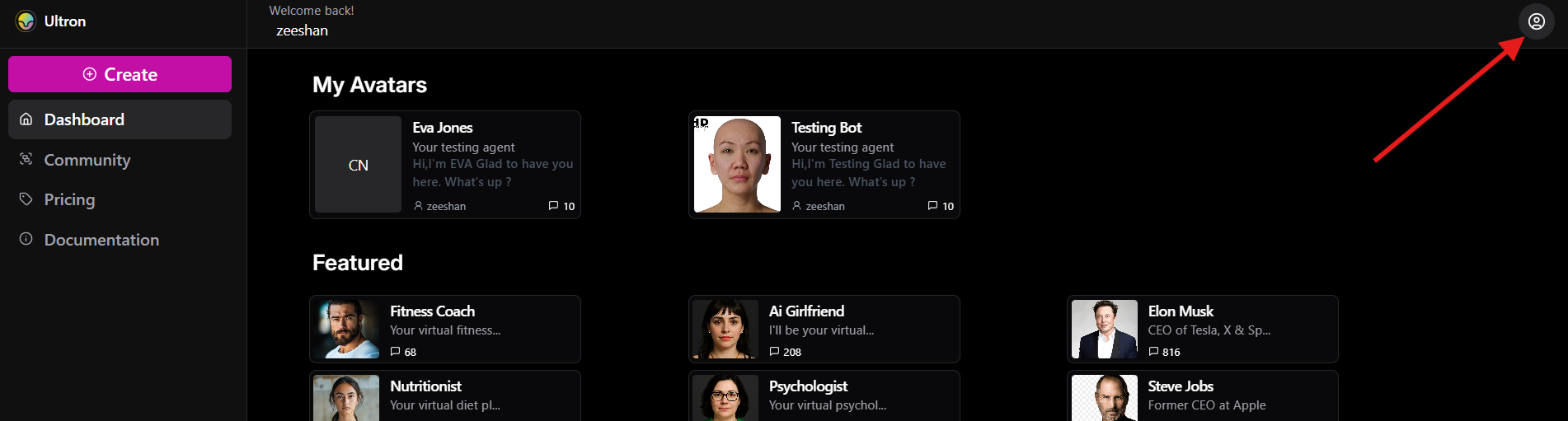
To get API key of your ultron account follow the steps below
### STEP 1: Click on account at top right corner
### STEP 2: Select API key from dropdown

### STEP 3: Copy your API key

#### Session Id (sessionId)
## 🔑 Create Session API
This API allows you to create a new session.
### 📌 Endpoint
**POST** `/session/create`
### 🔧 Headers:
| Key | Value |
|-----------|-----------------|
| `x-api-key` | your_api_key |
| `Content-Type` | application/json |
### 📤 Request Body:
```json
{
"expiresIn": "100",
"requestID": "xxxxx"
}
```
### Response:
```json
{
"sessionId": "string",
"status": "string"
}
```
```javascript
async function createSession(apiKey, AvatarId, expireDuration) {
const response = await fetch('https://api.ultronai.me/session/create', {
method: 'POST',
headers: {
'x-api-key': apiKey,
'Content-Type': 'application/json'
},
body: JSON.stringify({ requestID: AvatarId, expiresIn })
});
const data = await response.json();
console.log('Session Created:', data);
}
const response = await createSession('YOUR_API_KEY', 'AVATAR_ID', 500);
// Use this sessionId in the SDK in your Web App
// Call this method on your server side for security and avoid exposing your API key
```
Note: Please use the method above to get session id on your server side for a secure workflow
---
## Options
## Always listen
Makes the character listen all the time once click for continous conversation (voice to voice)
- `alwaysListen`: **Boolean**
## Hide default click message
Hides the default text message on the avatar to prompt user to click as an initial click is required for any audio to play in any browser
- `hideClickMessage`: **Boolean**
## High Fidelity mode
Enables very high quality renders with better lighting and details, but it will require more performance
- `highFidelityMode`: **Boolean**
## Hide Mic button
Hide the default mic button, This can be use if want to add your own buttons
- `hideMicButton`: **Boolean**
## Show background model
Use this only if you want show a existing background 3D Modal assigned on Ultron Portal
- `showBackgroundModel`: **Boolean**
# Core Methods
### loadAvatar(avatarId)
Loads a specific avatar into the container.
- `avatarId`: **String** - The unique identifier for the avatar
### AvatarId
To get avatarId follow the steps below
### Step 1: Open the dashboard and hover the pointer on the desired Avatar (app.ultronai.me)
You can see different Avatars in different sections and you can copy the Avatar ID of any avatar from here
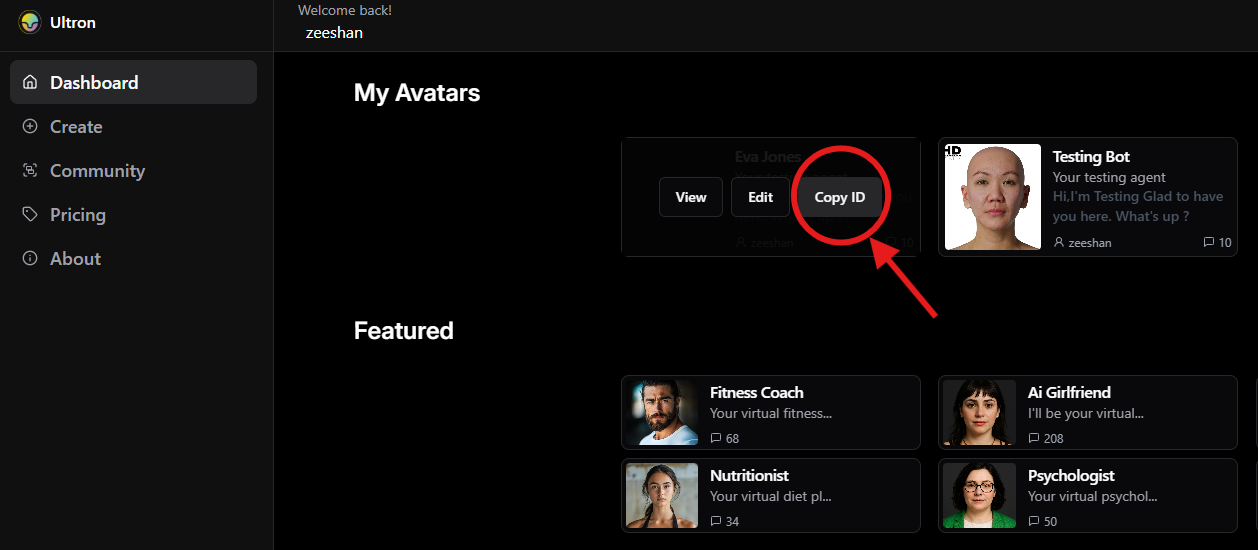
### Step 2: Click on Copy ID
The Avatar ID will be copied and can be used in SDK
---
## Audio Input Device Settings
```javascript
// to get all microphone input devices
const devices = ultronSDK.getAudioInputDevices()
// You can also use the devices to allow user to choose from the list
let myDevice = devices.find(device=> device.label.includes("My_preffered_device_name"))
// to set the desired Audio input device
if(myDevice)
ultronSDK.setAudioInputDevice(myDevice.deviceId)
```
## Browser Support
✅ Chrome (latest)
✅ Firefox (latest)
✅ Safari (latest)
✅ Edge (latest)
---
## Requirements
- WebGL-enabled browser
- JavaScript enabled
- Minimum screen resolution: 800x600
---
## Best Practices
- Always initialize the SDK with a valid SessionId
- Implement error handling for load failures
- Clean up resources when removing the avatar
- Optimize container size for better performance
- Test across different browsers and devices
---
## Examples
### Basic Implementation
```javascript
import {SceneCanvas, Character} from 'ultron-ai-sdk';
let sceneCanvas
let character
const init = async() => {
sceneCanvas = new SceneCanvas('target-html-element-id')
const initializationSetting= {
avatarId: "AVATAR_ID/REQUEST_ID",
config:{
sessionId: "xxxxxxx-xxxx-xxxx-xxxx-xxxxxxx"
},
options:{
alwaysListen: false // For Push to talk conversation
}
}
await sceneCanvas.init(initializationSetting)
character = sceneCanvas.character
}
init()
```
---
### Chat with character using AI
```javascript
// once you have the "character" object from sceneCanvas after init() you can use it to chat
character.chat("your text query to AI")
//This will generate a response from AI as per Avatar backstory and character will speak the response
```
### Make the character say
```javascript
character.say("your text that character will speak")
// This will simply make the character speak the text you provide
```
### Adjust camera
```javascript
//Switch camera to potrait (closer to face)
sceneCanvas.switchCameraToPotrait()
//Switch camera to normal position (full body view)
sceneCanvas.switchCameraToNormal()
//Set camera position at X, Y and Z cordinate from the origin which is at the bottom most point of character
sceneCanvas.setCameraPosition(X,Y,Z)
```
### Set custom background image
Set the background image of target html block in which the character is present.
```javascript
sceneCanvas.setBackgroundImage('IMAGE_URL')
```
Note: If `showBackgroundModel` is set to `true` background image will not be visible
---
### Stop Character
`stopCurrentSpeaking()` This method stops all the ongoing speaking activity of the Character.
```javascript
charcater.stopCurrentSpeaking()
```
---
### Detect speech completion
`onSpeakComplete()` this function is called when the character stops speaking.
```javascript
charcater.onSpeakComplete=()=>{
//Do something when character stops speaking
}
```
---
## 🔁 Voice-to-Voice AI Wrapper Mode (`AIWrapperMode`)
Your SDK can be used as a **seamless voice interface** for any AI system that accepts **text input and returns text responses**. By enabling `AIWrapperMode`, your SDK will:
1. Listen to the user's **voice input**
2. Automatically transcribe the speech to **text**
3. Allow the developer to **forward that text to any AI API**
4. Speak back the **AI-generated text** response using the character's voice
This makes your character a complete **voice-controlled AI interface** with just a few lines of code.
---
### ✨ Getting Started
Enable the wrapper mode:
```js
character.AIWrapperMode = true;
```
Then add a handler to process transcribed speech:
```js
character.onSpeechTranscribed = async (text) => {
console.log("User said:", text);
/////////////////////////// Your AI Workflow ///////////////////////////////////////
// The section below can be any API which chats with AI like openai or your own agentic API (Text to text)
// Send the transcribed text to your AI API
const response = await fetch("https://your-ai-api.com/endpoint", {
method: "POST",
headers: { "Content-Type": "application/json" },
body: JSON.stringify({ prompt: text }),
});
const data = await response.json();
const AIResponseText = data.responseText
//////////////////////////////////////////////////////////////////////////////////
// Speak the AI response using the character
character.say(AIResponseText);
};
```
---
### 🧠 Example Use Cases
* Wrap OpenAI's GPT API, Cohere, or any custom chatbot backend
* Create hands-free, conversational assistants
* Build AI-powered characters for education, sales, or support
---
### 🗣️ Notes
* Ensure the character has voice input and output properly configured
* You can use `character.mute()` or `character.listen()` as needed to control flow
* `onSpeechTranscribed` only fires when speech input has been successfully captured and transcribed
---
Let me know if you'd like me to include a full working example with a specific API like OpenAI or Hugging Face.
### Support
For technical support or questions, please contact our support team or visit our documentation portal.
### License
This SDK is provided under the terms of our software license agreement.
This README.md provides comprehensive documentation for your Ultron AI SDK. You can save this content directly to your project's README.md file. The documentation includes:
1. Basic introduction
2. Feature list
3. Installation instructions
4. Quick start guide
5. Detailed API reference
6. Usage examples
7. Browser support
8. Requirements
9. Best practices
10. Support information
11. License information
Would you like me to modify any section or add more specific details about certain features?