# ui-scaler
Your best ally for easily building responsive web applications:
Build your interface in one single resolution, and let the package take care of the rest, scaling your `sizes`, `paddings`, `margins`, `font-sizes`, and more for all desktop resolutions
It works with a single line of execution, and has great synergy with any library or framework that uses the **rem unit**
## Demo
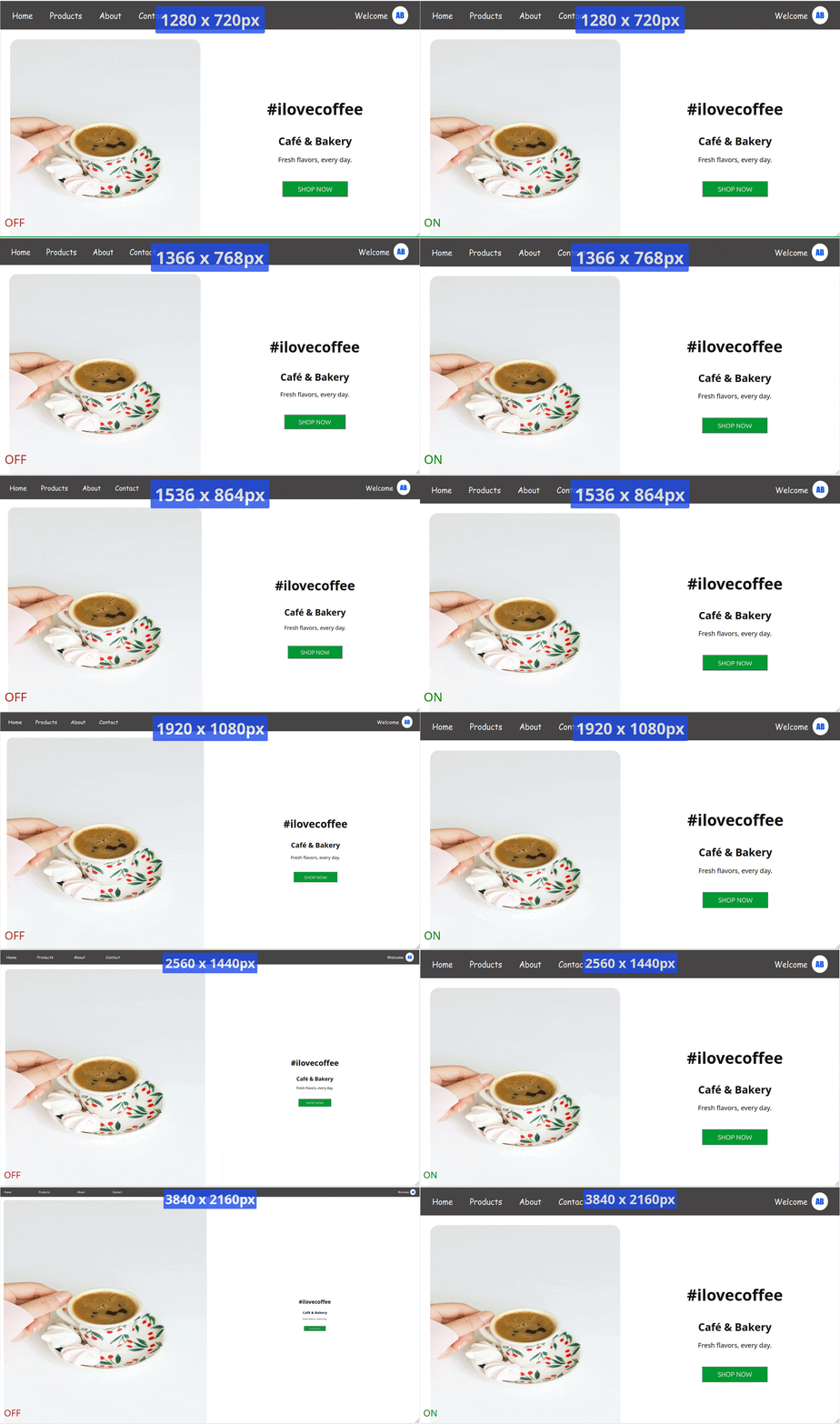
**ui-scaler** will make sure your app proportions and relative sizes are the same across all desktop resolutions. The effect is most recognized in higher screen resolutions:
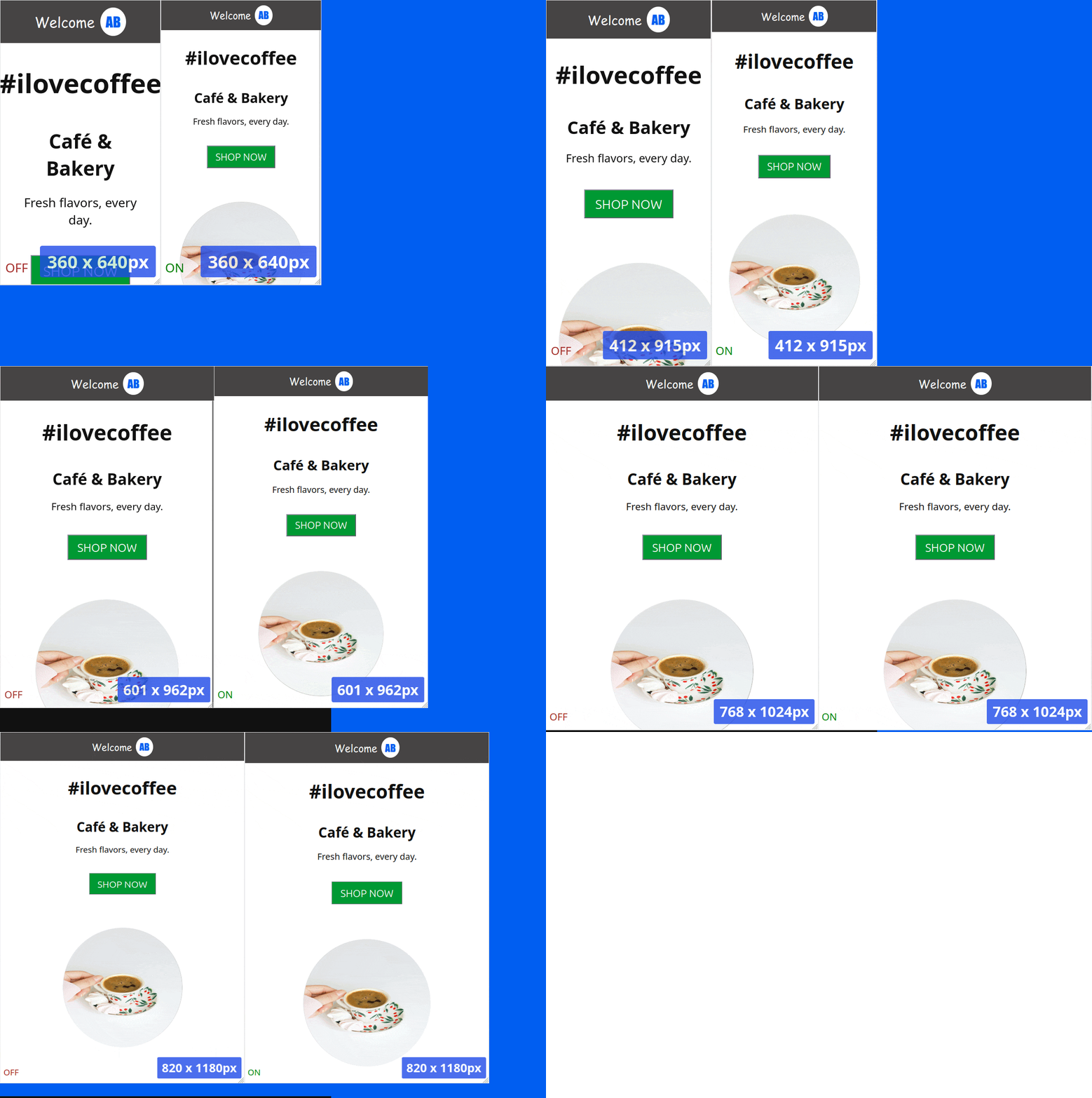
You will also notice an easier experience when adjusting the UI for portrait or mobile resolutions, since all elements proportions will look good, leaving to you just the effort of repositioning and realigning the elements
## Advantage
You don’t need to waste time checking or adjusting your interface across different desktop screen resolutions — it will look virtually the same on all of them.
## Usage
There are two usage methods:
#### 1. NPM
```
npm i ui-scaler
```
Then in your app entry point:
```JavaScript
// main.js|ts
import scaleUI from 'ui-scaler'
...
// last line
scaleUI()
```
#### 2. Script tag (CDN or local file)
Add to your `index.html`:
```HTML
```
## How it's done
#### [A script](https://github.com/arthursb2016/ui-scaler/blob/master/src/script.ts) will be added to your app, which:
1. Has 8kb
2. Runs once the document is ready
3. Adds a window resize event listener that updates the HTML element font-size, based on the screen resolution, and the browser font-size
4. Optionally, adds styles transformation logic that convert pixel values to rem values (see how to activate below)
Notice your app HTML font-size to be different in each screen resolution
All properties with **rem values** will respond, and adjust accordingly
Font-size styles take in consideration the user browser font-size definition, so we have a web accessible compliant solution
## Parameters (optional)
## 1) Transform pixels:
The first argument to the `scaleUI(boolean | TransformPixelsOptions)` method, instructs the script to convert styles pixel values to rem:
#### Default transform options example
The script will try to convert all document pixel styles to the respective rem definition
```JavaScript
// main.ts
import scaleUI from 'ui-scaler'
...
scaleUI(true)
```
#### Custom transform options example
You can exclude given attributes and/or selectors from this transformation, by passing an object.
In below example, `border-radius` styles and elements with `#myCustomId` id will keep their styles in pixels.
```JavaScript
// main.ts
import scaleUI from 'ui-scaler'
...
scaleUI({
excludeAttributes: ['border-radius'],
excludeSelectors: ['#myCustomId']
})
```
#### Bypassing transformations
When using the `TransformPixelsOptions` argument, you can also add a `ignore-ui-scaler` class to any HTML element so the script transformations do not affect it. Example:
```HTML
My width will remain in pixels!
```
## 2) Base font size:
The second argument to the `scaleUI(..., number)` method adjusts the base font size used in the script math.
This is useful if your elements are looking either too big or too small after applying the package.
The default value is `16`, so if your elements are looking too big, try using `14` or `12`. In case they are too small, try using larger values such as `18` or `20`. Fine adjust this value until you get your perfect UI.
Example:
```JavaScript
import scaleUI from 'ui-scaler'
...
scaleUI(false, 14)
```
## HTML options binding
In case you are using the `` installation method, and you want pass any customization options to the script, add the attributes below to your html element:
1) `data-ui-scaler-transform-opts`
2) `data-ui-scaler-base-font-size`
```
...
```
or
```
...
```