TimeWidget
A tool that summarizes and explores temporal data sets with quantitative values
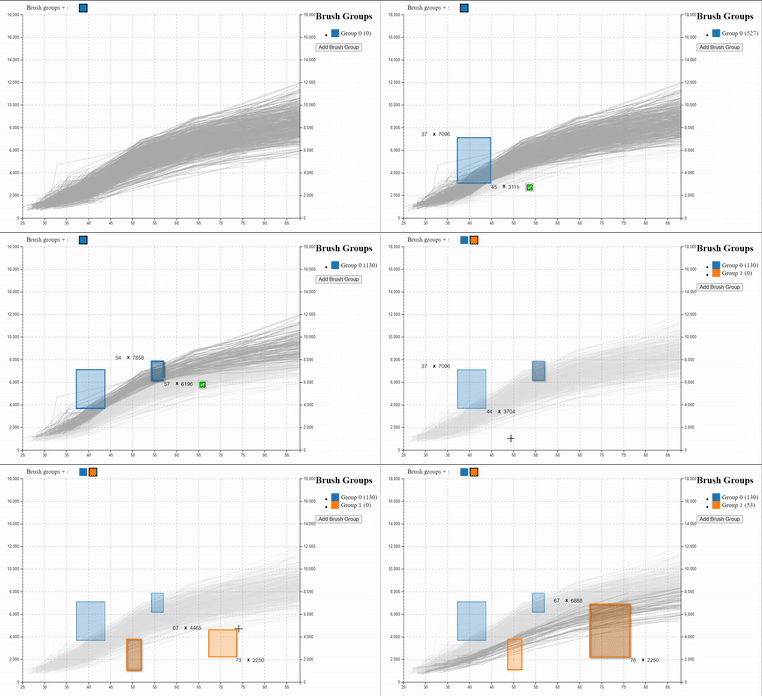
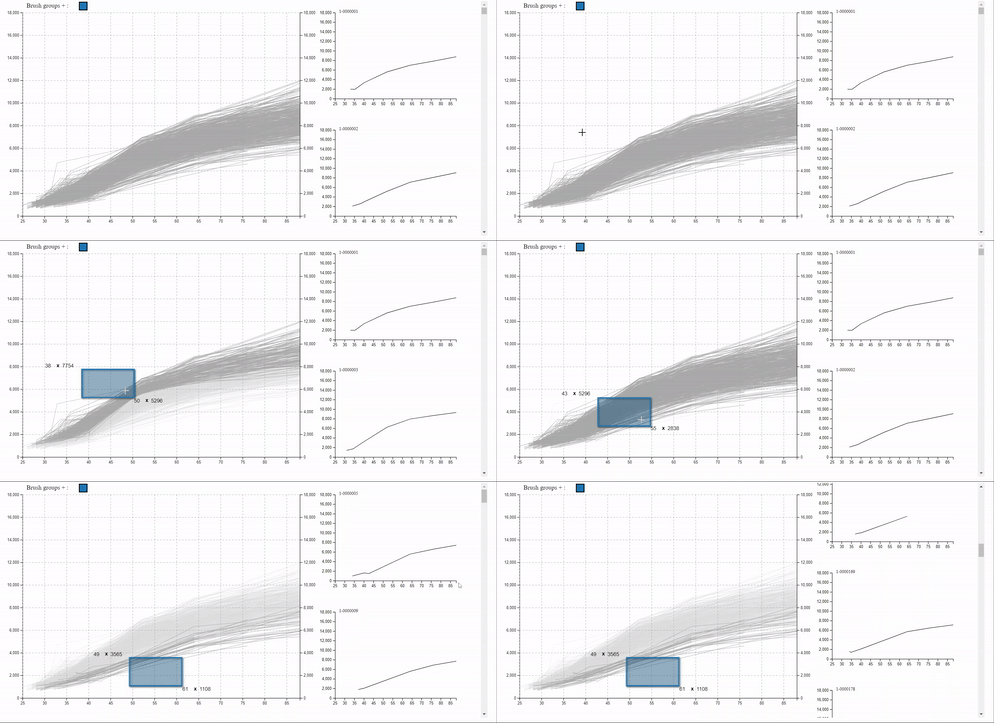
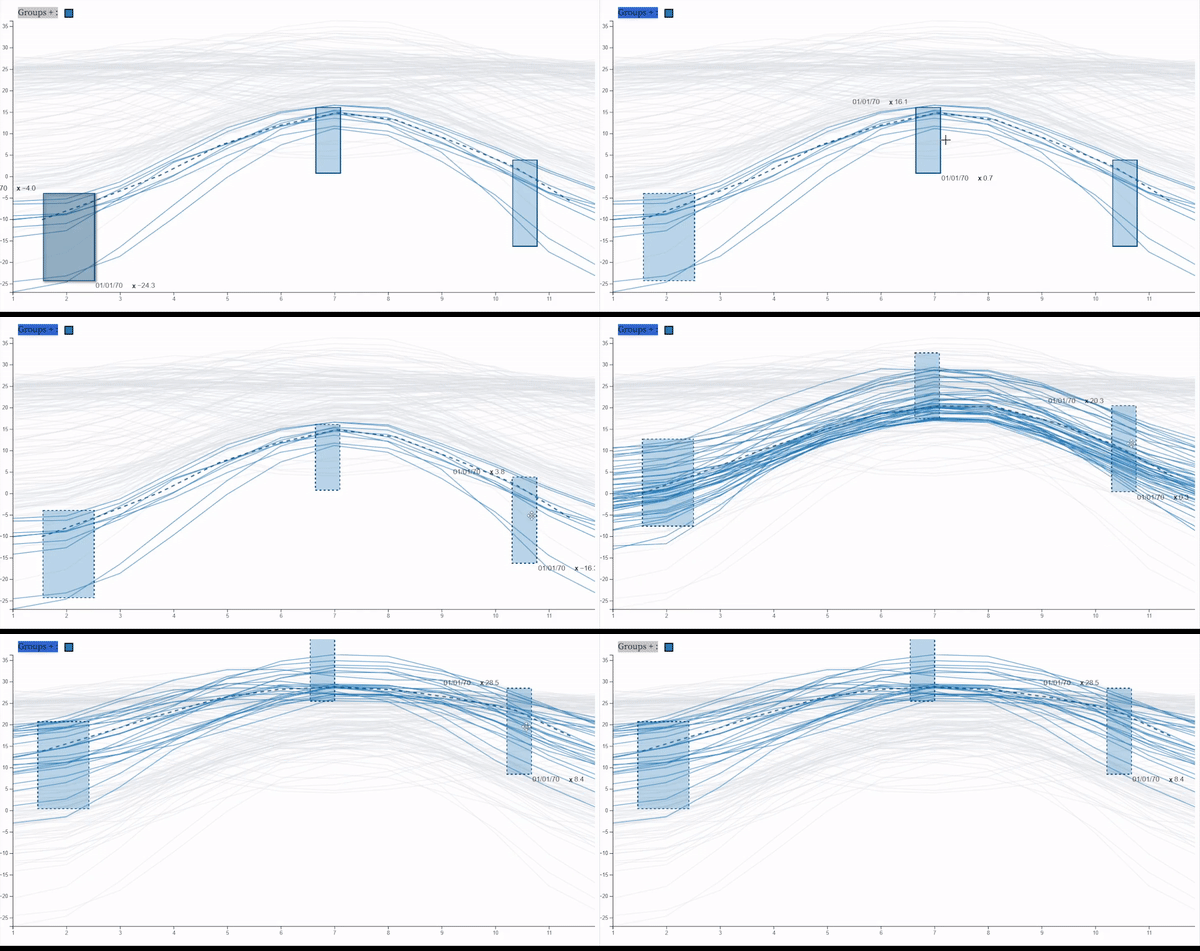
You can use it to visualize thousands of time series, and select multiple groups by direct manipulation. In addition, it
works as a reactive widget that can be added to other applications, returning the selected groups in real time.
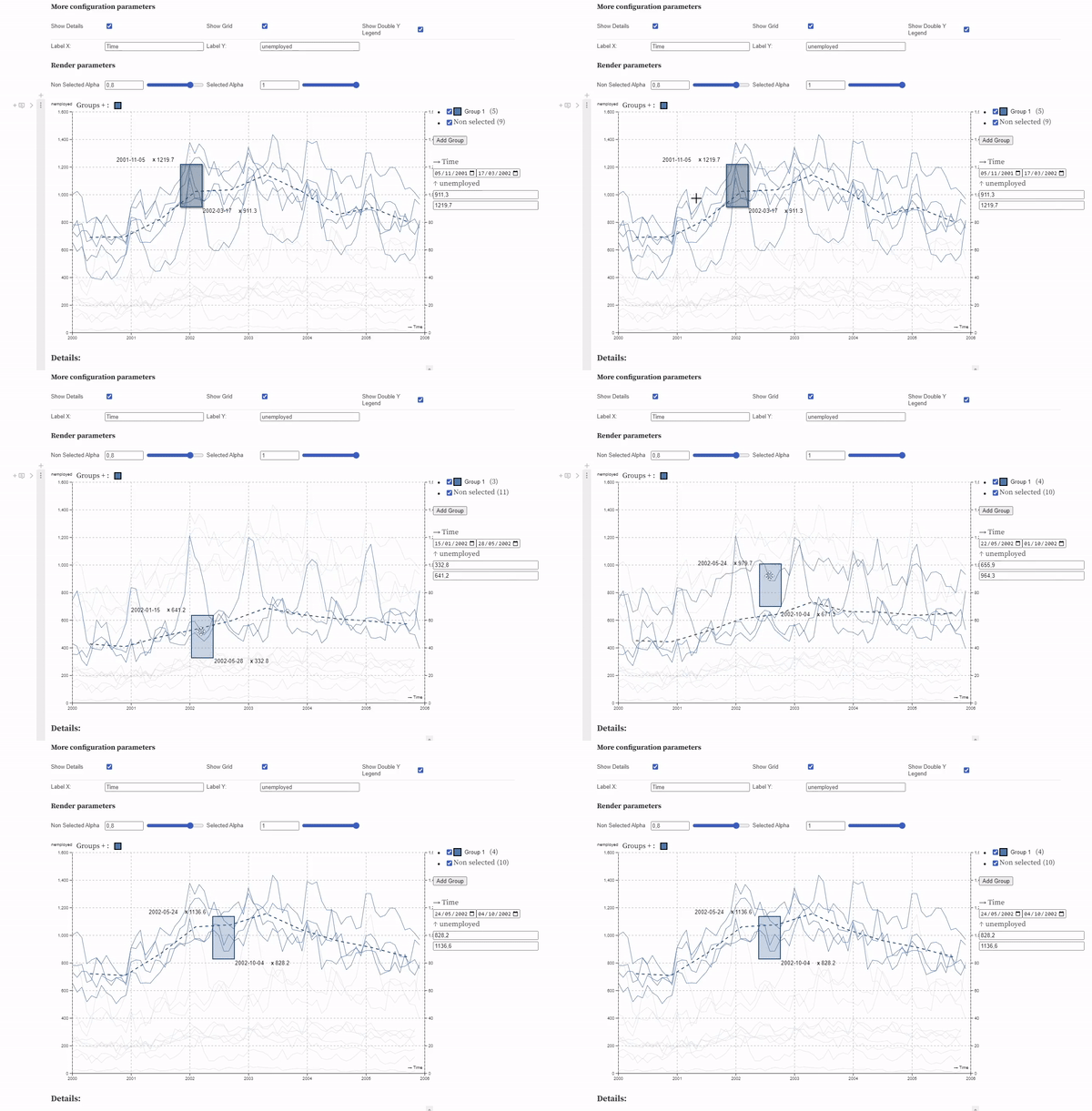
| Group Selection | Detailed View |
|:--------------------------------------------------------------------------------------------------------------:|:-----------------------------------------------------------------------------------------------------------------------:|
|  |
|  |
| **Moving Patterns** | **Reference Lines** |
|
|
| **Moving Patterns** | **Reference Lines** |
|  |
|  |
## Try it!
You can test TimeWidget right now with your **own CSV data** (less than 200MB), using:
| Observable Notebook |
|-----------------------------------------------------------------------------------------------------------------------------------------------------------------------|
|
|
## Try it!
You can test TimeWidget right now with your **own CSV data** (less than 200MB), using:
| Observable Notebook |
|-----------------------------------------------------------------------------------------------------------------------------------------------------------------------|
|  |
## Examples of functionalities.
- [Basic Example](https://observablehq.com/d/ff2f8dc4992114e2?collection=@ivelascog/timesearcherplus)
- [Moving Patterns, Predefined TimeBoxes, Invert Queries](https://observablehq.com/d/29228e86855505e2?collection=@ivelascog/timesearcherplus)
- [References Curves](https://observablehq.com/d/249a32b214a2684d?collection=@ivelascog/timesearcherplus)
- [Make custom layouts](https://observablehq.com/@ivelascog/timewidget-make-a-custom-layout?collection=@ivelascog/timesearcherplus)
- [Maintaining the state](https://observablehq.com/d/9f28a6538b332cd3?collection=@ivelascog/timesearcherplus)
- [Aggregation and Selection modes](https://observablehq.com/d/e7e7b8a69f571200?collection=@ivelascog/timesearcherplus)
- [Custom Scales](https://observablehq.com/d/e7e7b8a69f571200?collection=@ivelascog/timesearcherplus)
## Real World Examples.
- [Tweets](https://observablehq.com/@john-guerra/timesearcher-tweets-example)
- [Global Temperatures by Country](https://observablehq.com/@john-guerra/global-temperatures-by-country)
- [Unemployment](https://observablehq.com/@john-guerra/timesearcher-example)
- [Rent prices in Spain](https://observablehq.com/d/12800330b7979627)
- [Pollution of Madrid](https://observablehq.com/d/f55385d1ad171003)
## Install
```
npm install time-widget
```
Requires [^popper.js@2.11.6](https://github.com/FezVrasta/popper.js/), [^d3@7.8.2](http://d3js.org) and [^htl@0.3.1](https://github.com/observablehq/htl).
```html
Document
|
## Examples of functionalities.
- [Basic Example](https://observablehq.com/d/ff2f8dc4992114e2?collection=@ivelascog/timesearcherplus)
- [Moving Patterns, Predefined TimeBoxes, Invert Queries](https://observablehq.com/d/29228e86855505e2?collection=@ivelascog/timesearcherplus)
- [References Curves](https://observablehq.com/d/249a32b214a2684d?collection=@ivelascog/timesearcherplus)
- [Make custom layouts](https://observablehq.com/@ivelascog/timewidget-make-a-custom-layout?collection=@ivelascog/timesearcherplus)
- [Maintaining the state](https://observablehq.com/d/9f28a6538b332cd3?collection=@ivelascog/timesearcherplus)
- [Aggregation and Selection modes](https://observablehq.com/d/e7e7b8a69f571200?collection=@ivelascog/timesearcherplus)
- [Custom Scales](https://observablehq.com/d/e7e7b8a69f571200?collection=@ivelascog/timesearcherplus)
## Real World Examples.
- [Tweets](https://observablehq.com/@john-guerra/timesearcher-tweets-example)
- [Global Temperatures by Country](https://observablehq.com/@john-guerra/global-temperatures-by-country)
- [Unemployment](https://observablehq.com/@john-guerra/timesearcher-example)
- [Rent prices in Spain](https://observablehq.com/d/12800330b7979627)
- [Pollution of Madrid](https://observablehq.com/d/f55385d1ad171003)
## Install
```
npm install time-widget
```
Requires [^popper.js@2.11.6](https://github.com/FezVrasta/popper.js/), [^d3@7.8.2](http://d3js.org) and [^htl@0.3.1](https://github.com/observablehq/htl).
```html
Document
Stock Prices
```
### Step by step
1. **HTML**. Start with this template
```html
Document
```
2. **Import TimeWidget**. Create and import a new JavaScript file below the scripts (d3, and TimeWidget)
or right in the html like in the example below.
```html
```
3. **Create a TimeWidget Instance**
```js
let data = [
{ Date: "01/01/2023", Open: 250, id: "Apple", group: "Technology" },
{ Date: "01/02/2023", Open: 240, id: "Apple", group: "Technology" },
{ Date: "01/03/2023", Open: 260, id: "Apple", group: "Technology" },
];
let target = TimeWidget(data, {
x: "Date", // Atribute to show in the X axis (Note that it also supports functions)
y: "Open", // Atribute to show in the Y axis (Note that it also supports functions)
id: "stock", // Atribute to group the input data (Note that it also supports functions)
color: "Group", // (Optional) Attribute to color by
});
target.addEventListener("input", () => {console.log("Selected", target.value.selectedIds)})
```
4. [Optional] **Configure TimeWidget render**
You have two options: add them at initialization:
```js
let target = TimeWidget(data, {
x: "Date", // Atribute to show in the X axis (Note that it also supports functions)
y: "Open", // Atribute to show in the Y axis (Note that it also supports functions)
id: "stock", // Atribute to group the input data (Note that it also supports functions)
color: "Group", // (Optional) Attribute to color by
xPartitions: 10, // Partitions performed on the X-axis for the collision acceleration algorithm.
yPartitions: 10, // Partitions performed on the Y-axis for the collision acceleration algorithm.
defaultAlpha: 0.8, // Default transparency (when no selection is active) of drawn lines
selectedAlpha: 1, // Transparency of selected lines
noSelectedAlpha: 0.4, // Transparency of unselected lines
backgroundColor: "#ffffff"
});
```
Or as a subsequent step after initialization
```js
// Default Parameters
target.ts.xPartitions = 10; // Partitions performed on the X-axis for the collision acceleration algorithm.
target.ts.yPartitions = 10; // Partitions performed on the Y-axis for the collision acceleration algorithm.
target.ts.defaultAlpha = 0.8; // Default transparency (when no selection is active) of drawn lines
target.ts.selectedAlpha = 1; // Transparency of selected lines
target.ts.noSelectedAlpha = 0.4; // Transparency of unselected lines
target.ts.backgroundColor = "#ffffff";
```
5. **[Optional] Add the references lines
```js
target.ts.addReferenceCurves(myReferenceCurves)
```
For the definition of the reference lines, see the [custom formats](#reference-lines) section.
## Options
This section will show all possible options grouped by categories.
### Elements
- **target**: pass a html element where you want to render
- **showBrushesControls**:If true, the brush control is displayed in the default location. If false you can still use brushesControlsElement to show the control on a different element on your app. For this use the exported value "groups"
- **showBrushTooltip**: Allows to display a tooltip on the brushes containing its coordinates.
- **showBrushesCoordinates**: If false you can still use brushesCoordinatesElement to show the control on a different element on your app. For this use the exported value "brushesCoordinates"
- **showDataCategories**: If false you can still use dataCategoryElement to show the control on a different element on your app. For this use the exported value "dataCategories"
- **showDetails**: If false and with hasDetails = true, you can still use detailsElement to show the control on a different element on your app. For this use the exported value "details"
### Data
- **x**: Attribute to show in the X axis (Note that it also supports functions)
- **y**: Attribute to show in the Y axis (Note that it also supports functions)
- **id**: Attribute to group the input data (Note that it also supports functions)
- **color**: Specifies the attribute to be used to discriminate the groups (Note that it also supports functions).
- **xScale**: It allows to pass a scale of d3 with its parameters, except for the domain which is defined by the xDomain parameter.
- **yScale**: It allows to pass a scale of d3 with its parameters, except for the domain which is defined by the yDomain parameter.
- **xDomain**: Defines the domain to be used in the x scale.
- **yDomain**: Defines the domain to be used in the y scale.
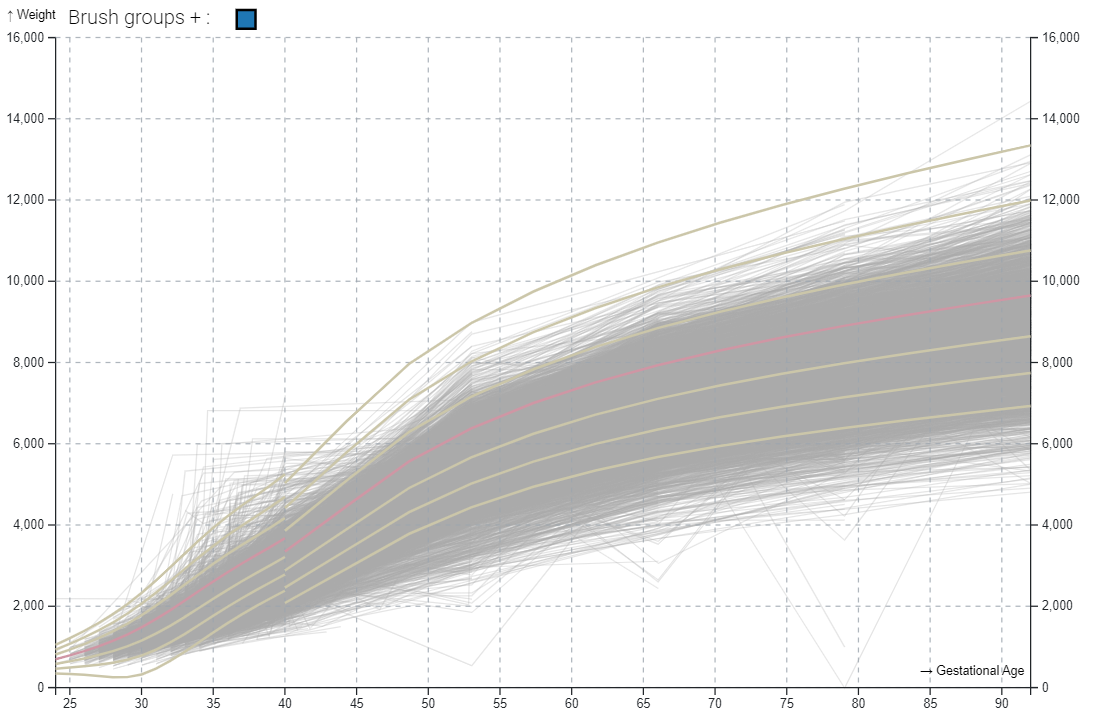
- **referenceCurves**: Specifies a Json object with the information of the reference lines.
- **fmtX**: Function, how to format x points in the tooltip. Note that it must conform to the data type provided in X.
- **fmtY**: Function, how to format x points in the tooltip. Note that it must conform to the data type provided in Y.
- **snapX**: Optional positive interval in X domain units to which both horizontal brush edges are snapped. For time scales, use a single-unit date-fns Duration such as `{ months: 1 }` or `{ days: 7 }`, or a number of milliseconds. Calendar durations are applied from the lower X-domain boundary with date-fns, so months and years preserve their real calendar boundaries. The visible upper domain boundary is expanded when necessary so the domain width is an exact multiple of the interval.
- **snapY**: Optional positive interval in Y domain units to which both vertical brush edges are snapped. The grid starts at the lower Y-domain boundary, and the visible upper boundary is expanded to the next interval when necessary.
- **stepX**: Step used by the coordinate spinboxes and arrow controls on the X axis. Use X domain units for numeric scales (default: `1`), or a date-fns Duration (default: `{ days: 10 }`) or milliseconds for time scales. If `snapX` is larger, the effective step is set to `snapX`; calendar durations are compared from the lower visible domain boundary.
- **stepY**: Step used by the coordinate spinboxes and arrow controls on the Y axis, in Y domain units (default: `1`). If `snapY` is larger, the effective step is set to `snapY`.
- **xLabel**: Label to show in the X axis
- **yLabel**: Label to show in the Y axis
- **xTicks**: Allows to use custom strings as ticks on the X-axis independently of the X-scale. A vector of [xValue,Label] pairs is expected. Note that only the defined elements are displayed and xValue must belong to the domain of X.
- **yTicks**: Allows to use custom strings as ticks on the y-axis independently of the y-scale. A vector of [yValue,Label] pairs is expected. Note that only the defined elements are displayed and yValue must belong to the domain of X.
- **filters**: Array of predefined TimeGroups and TimeBoxes. [Example](https://observablehq.com/d/29228e86855505e2?collection=@ivelascog/timesearcherplus)
### Color Configuration
- **defaultAlpha**: Default transparency (when no selection is active) of drawn lines
- **selectedAlpha**: Transparency of selected lines
- **noSelectedAlpha**: Transparency of unselected lines
- **alphaScale**: A scale to adjust the alpha by the number of rendering elements
- **backgroundColor**:
- **defaultColor**: Default color (when no selection is active) of the drawn lines. It only has effect when "color" is not defined.
- **selectedColor**: Color of selected lines. It only has effect when "color" is not defined.
- **noSelectedColor**: Color of unselected lines. It only has effect when "color" is not defined.
- **colorScale**: The color scale to be used to display the different groups defined by the "color" attribute. Typically, a [categorical scale of D3](https://observablehq.com/@d3/color-schemes)
- **brushesColorScale**: The color scale to be used to display the brushes typically a [categorical scale of D3](https://observablehq.com/@d3/color-schemes)
- **selectedColorTransform**: Function to be applied to the color of the selected group. It only has effect when "color" is defined.
### size Configuration
- **width**: Set the desired width of the overview Widget
- **height**: Set the desired height of the overview Widget
- **detailsContainerHeight**: Set the desired height of the details container Widget
- **detailsWidth**: Set the desired width of the individual details visualization
- **detailsHeight**: Set the desired height of the individual details visualization
- **margin**: Set the desired margin for overview Widget, d3 common format ( ```{ left: 50, top: 30, bottom: 50, right: 20 }```)
- **detailsMargin**: Margin options for details view, d3 common format, leave null for using the overview margin
### CallBacks
- **updateCallback**: (data) => doSomethingWithData
- **statusCallback**: (status) => doSomethingWithStatus
### Rendering
- **brushShadow**: Determines how the shadow will be applied to the TimeBoxes belonging to the active TimeGroup.
- **showGroupMedian**: If active show a line with the median of the enabled groups.
- **hasDetails**: Determines whether detail data will be displayed or not. Disabling it saves preprocessing time if detail data is not to be displayed.
- **doubleYlegend**: Allows the y-axis legend to be displayed on both sides of the chart.
- **showGrid**: If active, a reference grid is displayed.
- **brushGroupSize**: Controls the size of the colored rectangles used to select the different brushGroups.
### Performance
- **maxDetailsRecords**: How many results to show in the detail view
- **maxTimelines**: Set to a value to limit the number of distinct timelines to show
- **xPartitions**: Partitions performed on the X-axis for the collision acceleration algorithm.
- **yPartitions**: Partitions performed on the Y-axis for the collision acceleration algorithm.
### Options
- **medianNumBins**: Number of bins used to compute the group median.
- **medianLineDash**: Selected group median line dash pattern canvas style
- **medianLineAlpha**: Selected group median line opacity
- **medianLineWidth**: Selected group median line width
- **medianFn**: Function to use when showing the median
- **medianMinRecordsPerBin**: Min number of records each bin must have to be considered
- **autoUpdate**: Allows to decide whether changes in brushes are processed while moving, or only at the end of the movement.
- **_this**: pass the object this in order to be able to maintain the state in case of changes in the input
- **fixAxis**: When active, the axes will not change when modifying the data.
## Custom Formats
This section details the different formats used by the application for some parameters. Note that the fields marked as optional are not mandatory and if not provided a default value will be used.
### Reference lines
```js
[
{
"name": "Line1",
"color": "yellow", // Color in css format
"opacity": 1, // opacity level of the line
"data": [[p1x,p1y],[p2x,p2y],...]
},
{
"name": "Line2",
"color": "red", // Color in css format
"opacity": 0.5, // opacity level of the line
"data": [[p1x,p1y],[p2x,p2y],...]
}
]
```
### Filters
```js
filters: [
{
name: "Group 1",
IsEnable: true, /*Optional*/
isActive: false, /*Optional*/
brushes: [
{
selectionDomain: [
[1.5,-7], /*[x0,y0]*/
[2.5, -17] /*[x1,y1]*/
],
mode: "intersect", /* or "contains". Optional*/
aggregation: "and", /* or "or". Optional */
}
]
},
{
Another BrushGroup
}
]
```
## Performance measurements
Enable the lightweight monitor and move a brush as usual to measure internal
CPU work. Every `reportEvery` completed measurements it reports the mean and
p50/p95/p99 percentiles for collision detection (`collisionMs`), issuing draw
commands (`renderMs`) and total CPU processing (`totalCpuMs`), in milliseconds.
Reports are synchronous and do not wait for frame presentation. Frame times,
FPS and GPU work are measured externally by the benchmark in `bench/`; see
[bench/README.md](bench/README.md).
```js
const target = TimeWidget(data, {
x: "Date",
y: "Open",
id: "stock",
performanceMonitoring: {
maxSamples: 300,
reportEvery: 60,
log: true,
},
});
target.ts.performance.reset(); // start a clean experimental run
const report = target.ts.performance.report(); // JSON-serializable results
// Or run 300 rendering frames automatically and receive the final report:
const automaticReport = await target.ts.performance.run({ frames: 300 });
// Include selection/collision work by moving a brush automatically:
const brushReport = await target.ts.performance.runBrush({
frames: 300,
warmupFrames: 60,
cycles: 3,
brushHeight: 0.25,
});
```
Use `performanceMonitoring: false` to disable the instrumentation. An
`onReport(report)` callback can be supplied instead of (or in addition to) the
console output. `runBrush()` replaces the current filters with a deterministic
brush and moves it horizontally, so its report also includes selection and
collision timings without user interaction. The first `warmupFrames` frames
are executed but discarded from all metrics (60 by default).
## Contributing
```bash
npm ci
npm run build # rollup -> dist/{TimeWidget.js,.esm.js,.min.js}
npm run test:all # unit tests -> build -> e2e. The full gate.
```
To try a change in a browser, serve the **repository root** — the examples load
`../dist/TimeWidget.js`, so serving `example/` on its own gives you a 404:
```bash
npm run build
npx http-server . -p 8099 -c-1 -a 127.0.0.1
# then open http://localhost:8099/example/stocks.html
```
`example/stocks.html` is the most complete demo (real data, brushes, group
medians, reference curves). `npm run dev` is a rollup watch build, not a server.
Working with an AI coding agent? [`CLAUDE.md`](./CLAUDE.md) documents the
architecture, conventions, and the non-obvious traps in this codebase.
### Testing
Two tiers, because they catch different things:
| Command | What it covers |
|---|---|
| `npm test` | Jest unit tests over the pure logic in `src/utils.js`, `src/BVH.js` |
| `npm run test:e2e` | Playwright, real browser, driving the built bundle |
**Put a test at the tier that can actually observe the bug.** Pure-logic bug →
unit test. Anything involving construction, rendering, the DOM, or two widgets
on one page → e2e; those bugs are invisible to the unit suite, which has been
fully green while exactly that class of bug was live.
Run `npm run build` before `npm run test:e2e` — the e2e suite drives `dist/`,
so an un-built source change simply isn't there.
**Prove a new test fails without its fix.** Revert the fix, watch the test go
red, then restore it. A test that has never failed proves nothing, and it is
easy to write an assertion that quietly holds either way.
Both tiers run in CI on every pull request.
## License
TimeWidget.js is licensed under the MIT license. (http://opensource.org/licenses/MIT)
## Contributors
These research tools are the result of a collaboration between:
* Universidad Rey Juan Carlos in Madrid (Iván Velasco, Sofía Bayona and Luis Pastor)
* The Kangaroo Foundation in Colombia (Nathalie Charpak, José Tiberio Hernández)
* Norhteastern University in Sillicon Valley ([John Alexis Guerra Gomez](https://johnguerra.co))
### Active and selected TimeBoxes
The **active TimeBox** has keyboard focus, appears darker, and receives keyboard
commands and coordinate edits.
**Selected TimeBoxes** are those included in the multiple selection with Shift
(`isSelected`); selection and activation are separate states.