# GCanvas Weex Bridge iOS Guide
If your project use Weex, and want to integrate GCanvas, or you want to see how to run Weex sample with GCanvas. This guide is just for you.
## Integrate GCanvas
#### Requirement
* Make sure that you have installed the [iOS development environment](https://help.apple.com/xcode/mac/current/#/dev60b6fbbc7) and [CocoaPods](https://guides.cocoapods.org/using/getting-started.html).
* Make sure that you have integrate [WeexSDK](https://github.com/apache/incubator-weex#ios) >= 0.16.X
* Make sure that you have insalled the [weex-toolkit](https://www.npmjs.com/package/weex-toolkit) in [Nodejs](https://nodejs.org/en/) 4.0+ for running case
#### Installation with CocoaPods
Add these pods to your Podfile and run `pod install` to install:
```objective-c
pod 'WeexGcanvas'
pod 'WeexPluginLoader'
```
`WeexPluginLoader` would dynamic register Weex `Module` and `Component` of GCanvas, so we do not need to register manually. dd
Now, you can use official sample to test GCanvas, `sample.vue` file in path `./examples/2d/sammple.vue`.
You can also write a sample by youself.
## Write Weex Sample
Before write a Weex sample, you should learn [Weex Tutorial](http://weex.apache.org/guide/#overview).
There is a simple page below, find this in path `./bridges/weex-bridge/examples/2d/simple.vue`.
```javascript
```
## Run Weex Sample
* **Fisrt**, Use `weex-toolkit`to create Weex Javascript bundle.
```shell
weex preview sample.vue
```
There would be lanuch a default browser(Chrome) , and generate Javascript bundle show as qrcode.
* **Second**,Install `GCanvasPlayground` app
run `pod install` in `ios/playground` path, and then install `GCanvasPlayground` app on your iPhone device.
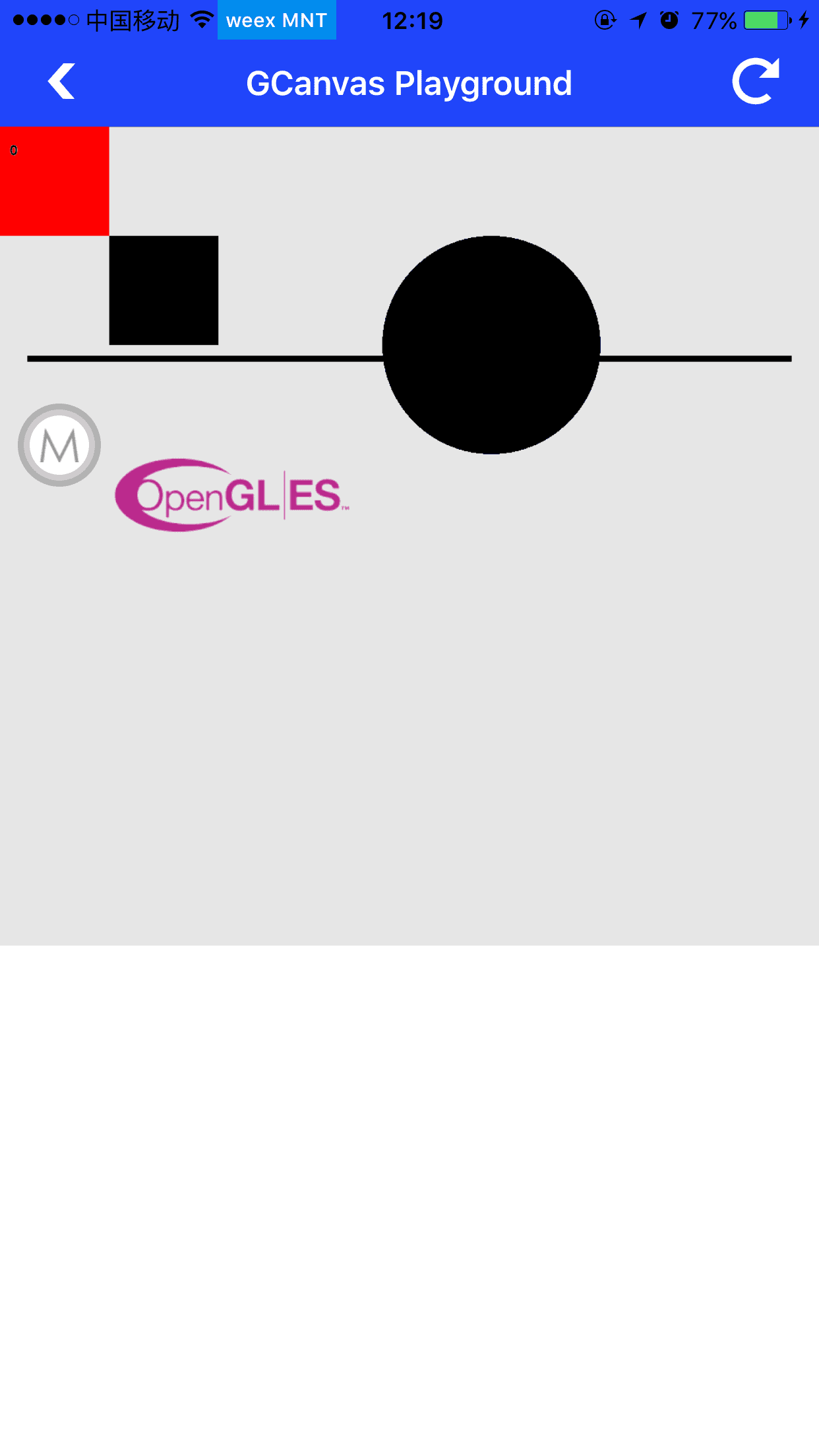
* **Finally**, Run `GCanvasPlayground` app, scan qrcode created at first setp. If you get reuslt same as below, congratuation.