# GCanvas Android Guide
### Integrate to Android
Tip: The following documents assume that you already hava a certain Android development experience.
### Prerequisites
Make sure the following configuration is completed:
* [JDK](http://www.oracle.com/technetwork/java/javase/downloads/jdk8-downloads-2133151.html) >= 1.7 , and configure the environment variable
* Android SDK installed and configure the environment variable
* Android SDK version 23 (compileSdkVersion in build.gradle)
* SDK build tools version 21.1.2 (buildToolsVersion in build.gradle)
* Android Support Repository >= 17 (for Android Support Library)
* [Weex SDK](https://weex.apache.org/) >= 0.16.X
* [Android NDK](https://developer.android.com/ndk/downloads) >=18
### Quick to use
The steps are as follows:
1. Create an Android project. There is nothing to be specified, according to your habits to.
2. At this moment, our publication is being reviewed by Maven. Once published, source code dependency will be changed to AAR dependency. .If you want to use the GCanvas On Android,�You Can
download source code, update build.gradle by adding the following dependencies. The Method is include the weex-brigdes project in your setting.gradle. Like this
```groovy
include ':app'
include 'weex_bridge'
project(':weex_bridge').projectDir = new File('path to gcanvas/GCanvas/brgides/weex-bridge/android/weex-brigde')
```
When you include the weex-brigde to your project,you can add the dependency config to the weex-brigde
```groovy
dependencies {
implementation project ':bridges:weex-bridge:android:weex_bridge'// include gcanvas-weex-brigde
}
```
3. Maybe there are some error when you use source code dependency.You can copy the this config to your root project build.gradle
```
rootProject.extensions.sdks = [
'Gradle' : '3.0.1',
'CompileSDK' : 28,
'BuildTool' : '28.0.3',
'MinSDK' : 16,
'TargetSDK' : 28,
'Fresco' : '1.8.0',
'Picasso' : '2.5.2',
'JUnit' : '4.12',
'Support' : '26.0.2',
'Weex' : '0.18.18.17',
'WeexAnnotation': '1.3',
'ReactNative' : '+',
'ABIs' : ["armeabi-v7a","arm64-v8a"],
'EXCLUDE_CPP_SHARED' : false
]
// PLEASE DO NOT MODIFY ARTIFACT IDS LIST BELOW.
// Group names
rootProject.extensions.groups = [
'Main' : 'com.taobao.gcanvas',
'Bridge' : 'com.taobao.gcanvas.bridges',
'Adapter': 'com.taobao.gcanvas.adapters',
]
// Artifact IDs
rootProject.extensions.artifacts = [
'BridgeSpec' : 'spec',
'Core' : 'core',
'WeexBridge' : 'weex',
'ReactNative' : 'rn',
'ImageAdapter' : 'img',
'FrescoAdapter' : 'img_fresco',
'PicassoAdapter': 'img_picasso',
]
```
You also can find the above configuration information in file of the GCanvas source code root directory --- build.gradle.
4. Register GCanvas Module and Component to your Weex Application.
```java
WXSDKEngine.registerModule("gcanvas", GCanvasWeexModule.class);
WXSDKEngine.registerComponent("gcanvas", WXGCanvasWeexComponent.class);
```
5. Modify AndroidManifest.xml, add below line to acquire OpenGL ES features.
```xml
```
6. You can also build the weex-playground to preview the GCanvas result.The location of weex-playground is
GCanvas/android/brigdes/weex-bridge/android/weex-playground
## Write Weex Sample
Before write a Weex sample, you should learn [Weex Tutorial](http://weex.apache.org/guide/#overview).
There is a simple page below, find this in path `./bridges/weex-bridge/examples/2d/simple.vue`.
```javascript
```
## Run Weex Sample
* **Fisrt**, Use `weex-toolkit`to create Weex Javascript bundle.
```shell
weex preview sample.vue
```
There would be lanuch a default browser(Chrome) , and generate Javascript bundle show as qrcode.
* **Second**,Install `GCanvasPlayground` app
run `pod install` in `ios/playground` path, and then install `GCanvasPlayground` app on your iPhone device.
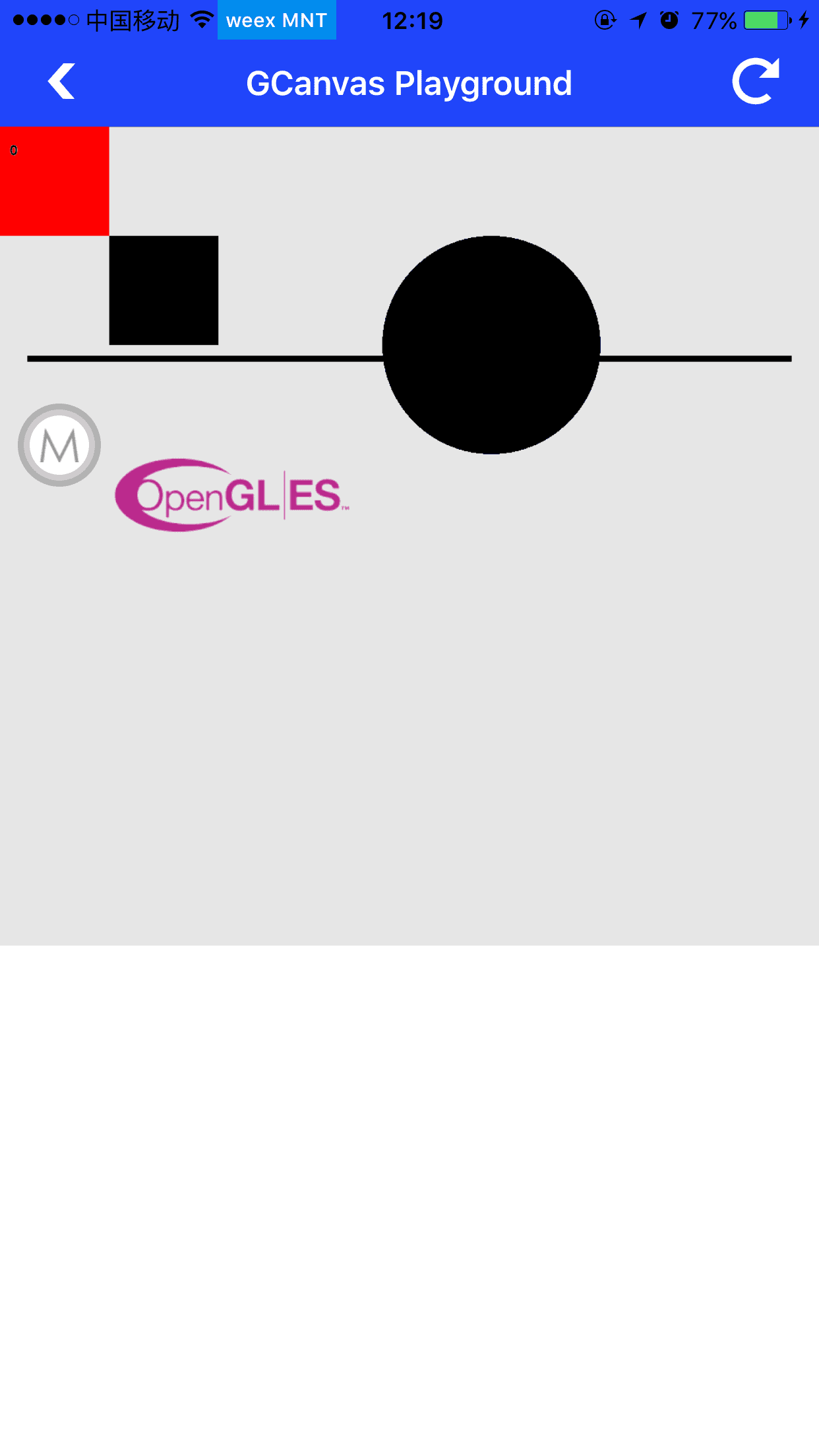
* **Finally**, Run `GCanvasPlayground` app, scan qrcode created at first setp. If you get reuslt same as below, congratuation.