## Command-line interface reference
Create, run, and manage Swagger projects from the command line.
* [swagger](#swagger)
* [project create](#create)
* [project start](#start)
* [project verify](#verify)
* [project edit](#edit)
* [project open](#open)
* [project test](#test)
* [docs](#docs)
#### swagger
Options:
* -h, --help: Outputs usage information.
* -V, --version: Outputs the swagger cli version number.
Example:
swagger -V
0.2.0
#### swagger project create [options] [name]
Creates a folder with the specified [name] containing a new Swagger project. A project skeleton is downloaded from GitHub and installed in the new folder.
Options:
* -h, --help: Outputs usage information.
* -f, --framework : Specifies an API framework to use with the project. Choices are connect, express, hapi, restify, or sails.
Example:
swagger project create -f express sn-express
ls sn-express
README.md api app.js config node_modules package.json test
#### swagger project start [options] [directory]
Starts the Swagger project in the current (or specified) directory. The server automatically restarts when you make changes to the project. You can also force a restart by typing `rs` on the server command line.
Options:
* -h, --help: Outputs usage information.
* -d, --debug : Start in remote debug mode so you can connect to it with a debugger.
* -b, --debug-brk : Start in remote debug mode, wait for debugger.
* -m, --mock: Start in mock mode. For more information, see [Running in mock mode](./mock-mode.md).
* -o, --open: Open the default browser as a client to the project.
* -n, --node-args : Pass extra arguments to node. E.g. `swagger project start --node-args "--harmony"` will run node with [ES6 a.k.a harmony features](https://github.com/joyent/node/wiki/ES6-%28a.k.a.-Harmony%29-Features-Implemented-in-V8-and-Available-in-Node) enabled.
Example:
cd ./myproject
swagger -m project start
#### swagger project verify [options] [project root directory]
Verifies that the project in the current (or specified) directory is correct. Reports errors and warnings from the Swagger model, project configuration, etc.
Options:
* -h, --help: Outputs usage information.
* -j, --json: Output information in JSON format.
Example:
cd ./myproject
swagger project verify
Project Errors
--------------
#/: Missing required property: paths
#/: Additional properties not allowed: aths
Results: 2 errors, 0 warnings
#### swagger project edit [options] [directory]
Opens the project in the current (or specified) directory in the [Swagger Editor](https://github.com/swagger-api/swagger-editor).
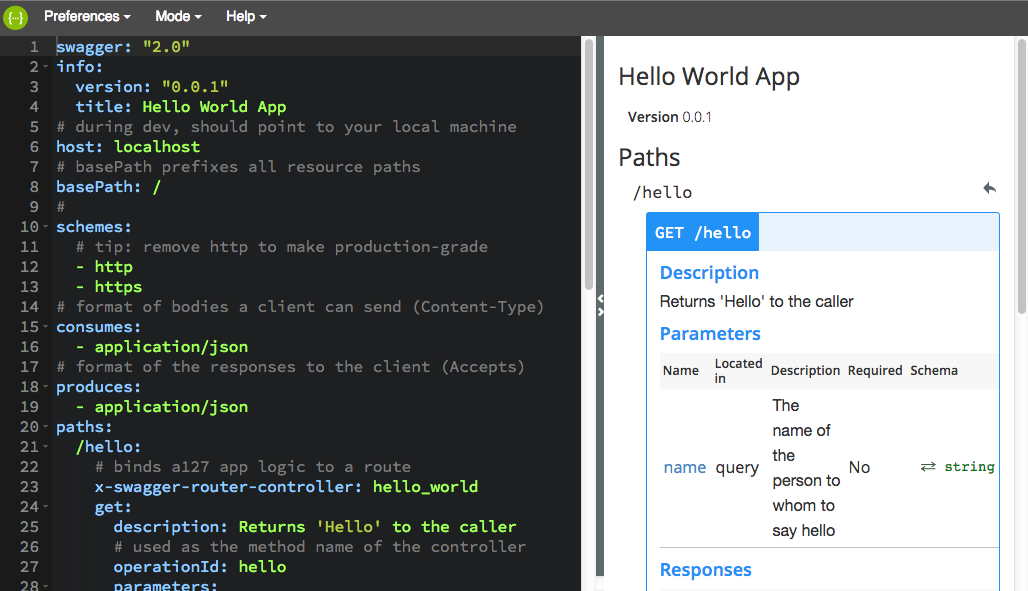
Options:
* -h, --help: Outputs usage information.
* -s, --silent: Do not open the browser.
* --host : The hostname the editor is served from (default: 127.0.0.1).
* -p, --port : The port the editor is served from (default: random port).
Example:
cd ./myproject
swagger project edit
#### swagger project open [directory]
Opens the browser as a client to the current or specified project.
Options:
* -h, --help: Outputs usage information.
Example:
`swagger project open ./myproject`
#### swagger project test [options] [directory-or-file]
Runs project tests.
Options:
* -h, --help: Outputs usage information.
* -d, --debug : Start in remote debug mode so you can connect to it with a debugger.
* -b, --debug-brk : Start in remote debug mode, wait for debugger.
* -m, --mock: Start in mock mode. For more information, see [Running in mock mode](./mock-mode.md).
Example:
`swagger project test`
controllers
hello_world
GET /hello
✓ should return a default string
✓ should accept a name parameter
2 passing (27ms)
##### swagger docs
Opens the Swagger 2.0 specification in your browser.
Example:
swagger docs