- [日本語](Documents/README_JP.md)
# star-io10-web
`star-io10-web`is a library for supporting application development for Star Micronics devices.
This library is included in StarXpand SDK.
## Documentation
Please refer [here](Documents/Manual.md) for StarXpand SDK documentation.
Documentation includes an overview of the SDK, how to build a sample application, how to use the API, and a API reference.
## Requirements
| OS | OS Version | Browser | Browser Version |
| --------- | ---------- | ------- | --------------- |
| Windows11 | 25H2 | Chrome | 144 |
| Windows11 | 25H2 | Edge | 144 |
| macOS | 26.2 | Chrome | 144 |
| ChromeOS | 143 | Chrome | 143 |
| Ubuntu | 24.04 | Chrome | 144 |
| Android | 16 | Chrome | 144 |
Sample application included in SDK has been confirmed to work with above environments.
Firefox,Safari are not supported because they do not support WebUSB API as of February, 2026.
## Installation
```
npm install star-io10-web --save
```
## Examples
StarXpand SDK includes [an example application](./example) that can be used in combination with devices to check its operation. Please build and run it by following steps.
1. React development environment preparation
Prepare a React development environment to build the sample application.
https://react.dev/learn/setup
2. Move to example directory
```bash
cd example
```
3. Install dependencies
```bash
npm install
```
4. Run the development server
```bash
npm start
```
5. Preparation USB Drivers
Please refer to [here](Documents/Manual.md#About-replacing-USB-drivers) for USB driver replacement procedure for Windows and Ubuntu.
6. Access http://localhost:3000 in your browser
7. Discover a device
1. Click on `Discovery` button on your browser, then access http://localhost:3000/discovery
2. Connect your device to your host device with USB cable
3. Click on `Discover` button
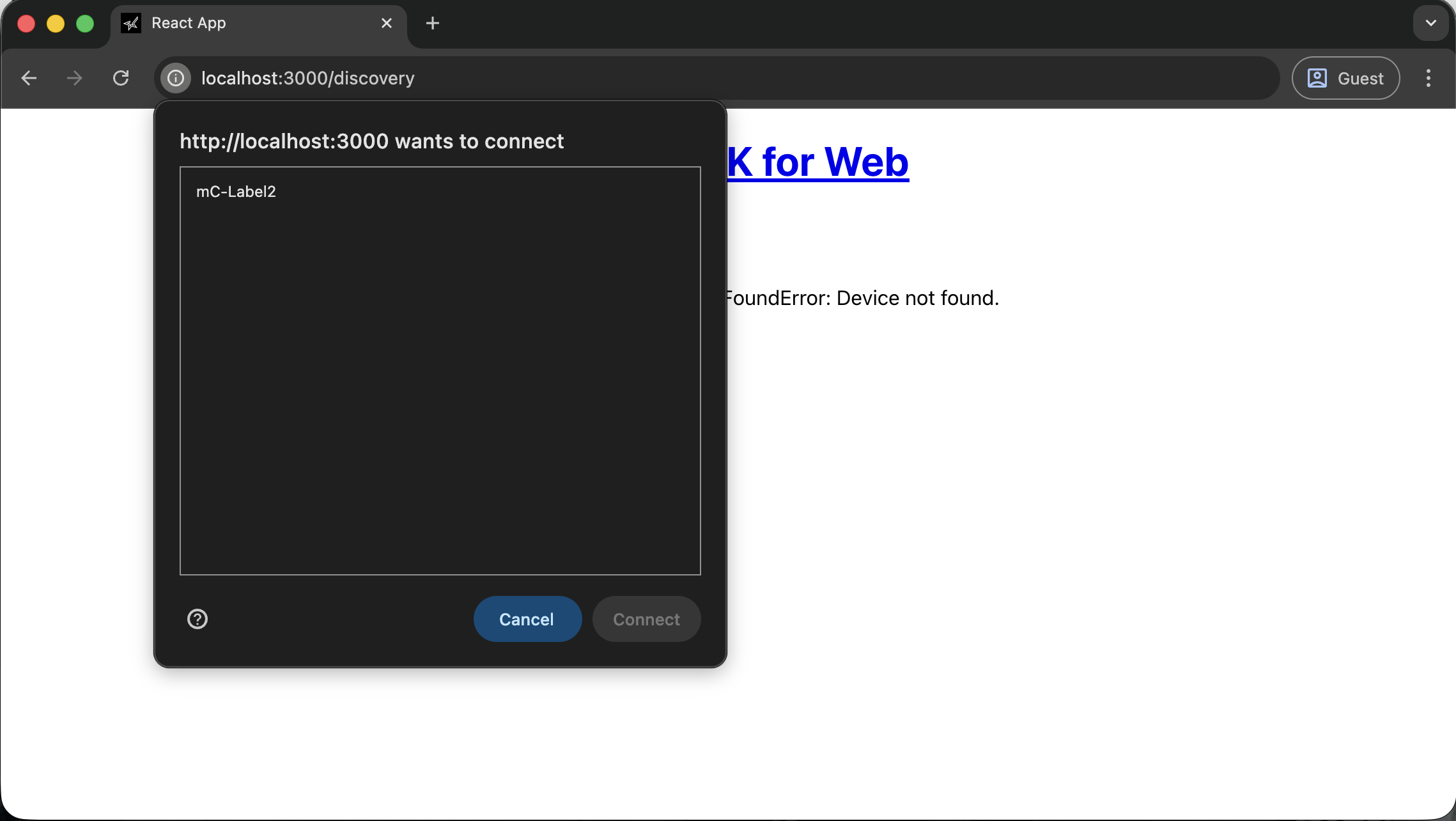
4. A pop-up appears
5. Select a device you want to connect
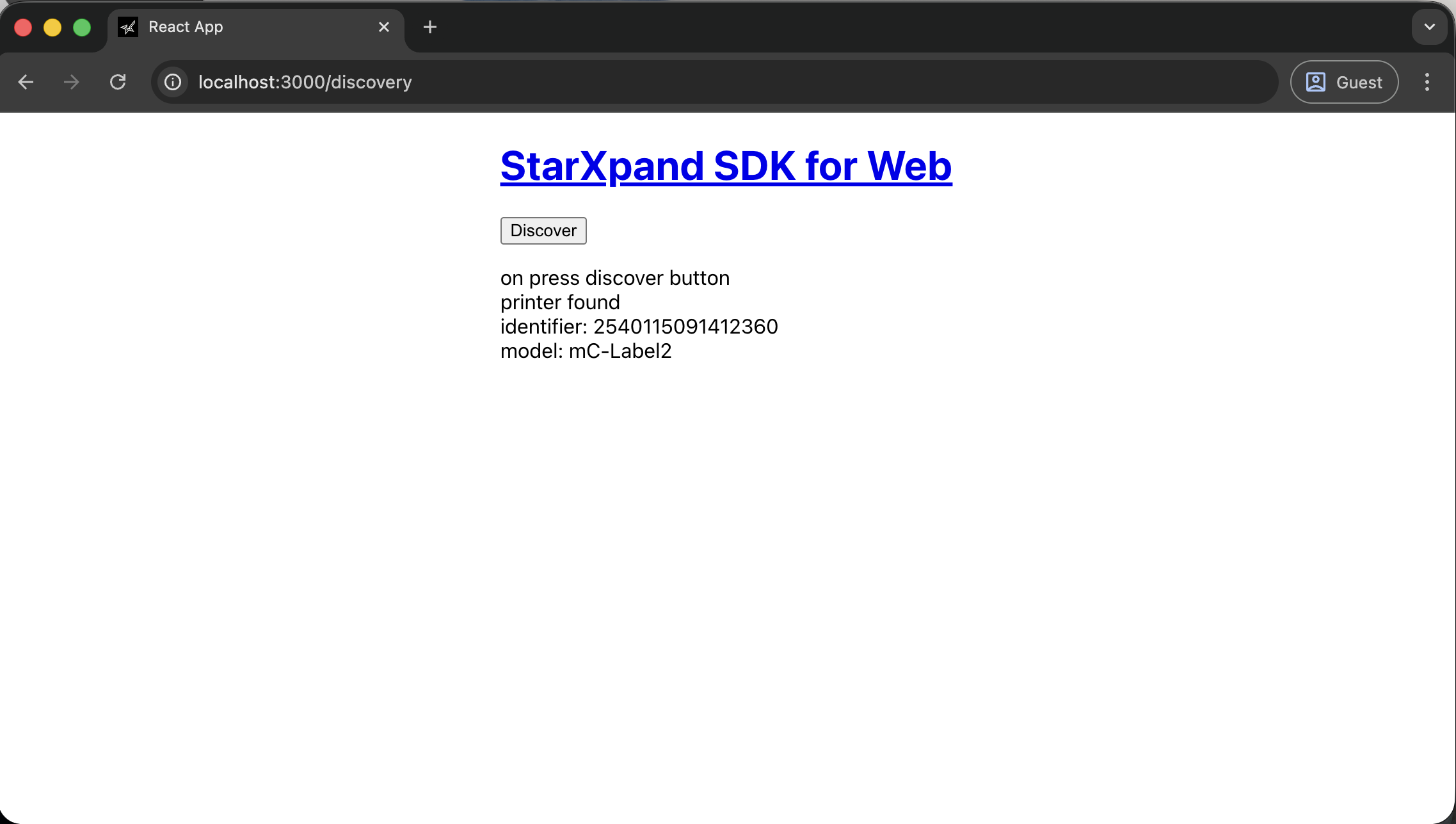
6. It allows your browser to communicate with your device and displays its identifier and model.
7. Clicking on `StarXpand SDK for Web` bring you back to http://localhost:3000
8. Print
1. Click on `Printing` button, and access http://localhost:3000/printing
2. Click on `Print`, then execute printing
## Copyright
Copyright 2025 Star Micronics Co., Ltd. All rights reserved.