rn-sketch-canvas
===================
Forked form @terrylinla/react-native-sketch-canvas
A React Native component for drawing by touching on both iOS and Android.
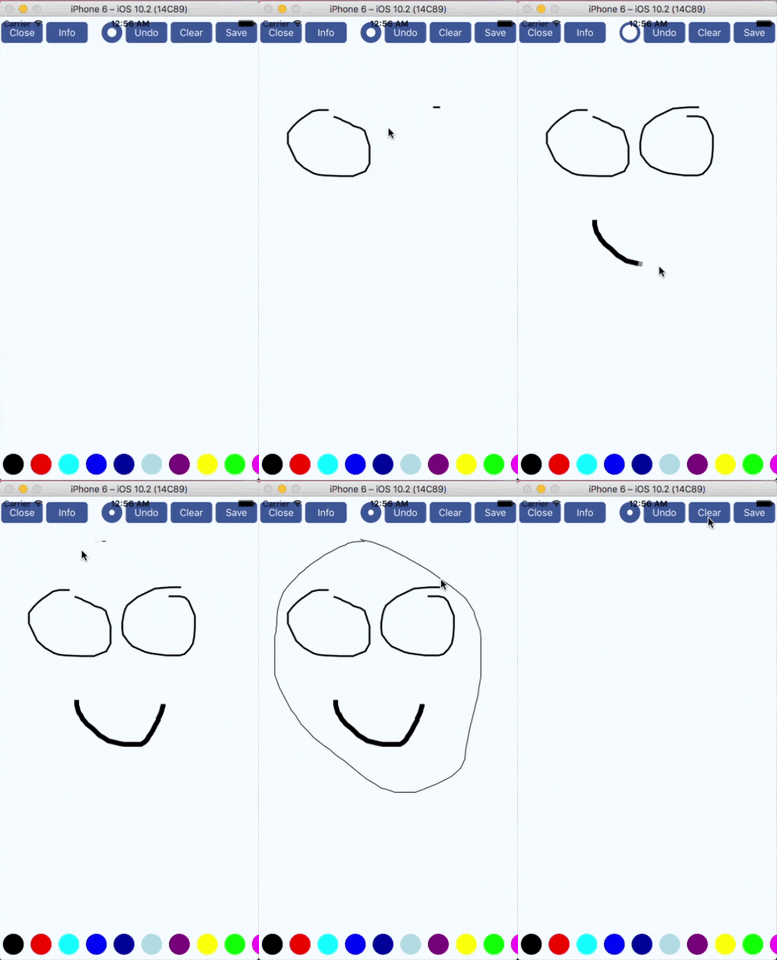
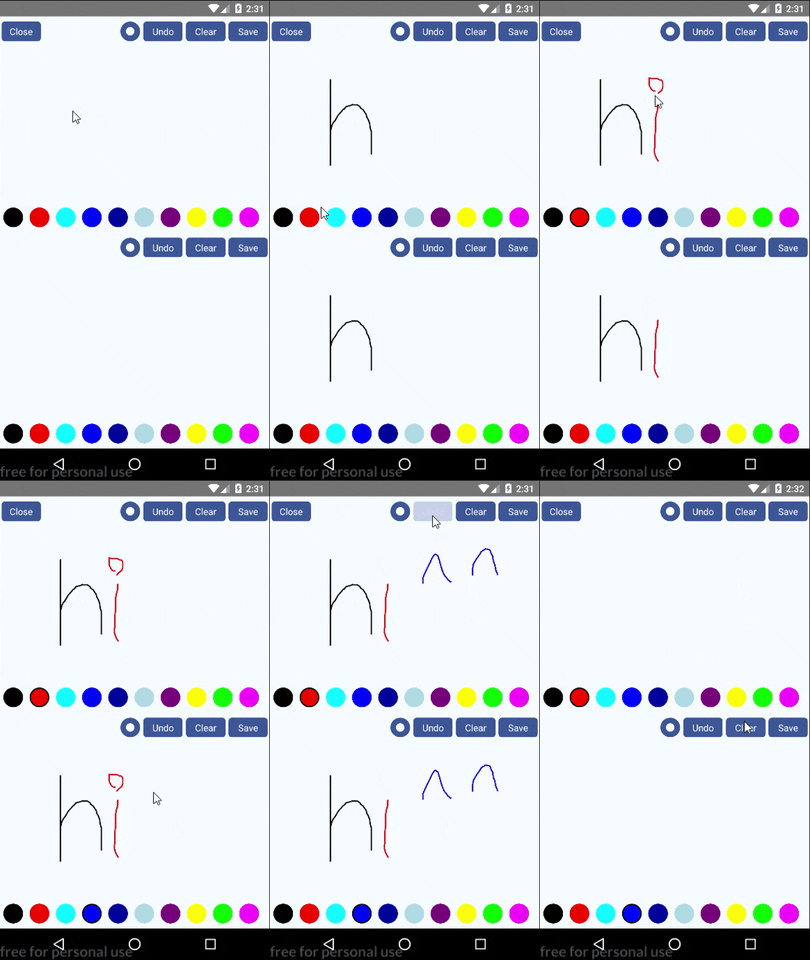

 Features
-------------
* Support iOS and Android
* Stroke thickness and color are changable while drawing.
* Can undo strokes one by one.
* Can serialize path data to JSON. So it can sync other devices or someone else and continue to edit.
* Save drawing to a non-transparent image (png or jpg) or a transparent image (png only)
* Use vector concept. So sketches won't be cropped in different sizes of canvas.
* Support translucent colors and eraser.
* Support drawing on an image (Thanks to diego-caceres-galvan)
* High performance (See [below](#Performance). Thanks to jeanregisser)
* Can draw multiple canvases in the same screen.
* Can draw multiple multiline text on canvas.
## Installation
-------------
Install from `npm` (only support RN >= 0.40)
```bash
npm install rn-sketch-canvas
## Usage
-------------
Features
-------------
* Support iOS and Android
* Stroke thickness and color are changable while drawing.
* Can undo strokes one by one.
* Can serialize path data to JSON. So it can sync other devices or someone else and continue to edit.
* Save drawing to a non-transparent image (png or jpg) or a transparent image (png only)
* Use vector concept. So sketches won't be cropped in different sizes of canvas.
* Support translucent colors and eraser.
* Support drawing on an image (Thanks to diego-caceres-galvan)
* High performance (See [below](#Performance). Thanks to jeanregisser)
* Can draw multiple canvases in the same screen.
* Can draw multiple multiline text on canvas.
## Installation
-------------
Install from `npm` (only support RN >= 0.40)
```bash
npm install rn-sketch-canvas
## Usage
-------------
 ### ● Using without UI component (for customizing UI)
```javascript
import React, { Component } from 'react';
import {
AppRegistry,
StyleSheet,
View,
} from 'react-native';
import { SketchCanvas } from 'rn-sketch-canvas';
export default class example extends Component {
render() {
return (
);
}
}
const styles = StyleSheet.create({
container: {
flex: 1, justifyContent: 'center', alignItems: 'center', backgroundColor: '#F5FCFF',
},
});
AppRegistry.registerComponent('example', () => example);
```
#### Properties
-------------
| Prop | Type | Description |
| :------------ |:---------------:| :---------------|
| style | `object` | Styles to be applied on canvas component |
| strokeColor | `string` | Set the color of stroke, which can be #RRGGBB or #RRGGBBAA. If strokeColor is set to #00000000, it will automatically become an eraser.
### ● Using without UI component (for customizing UI)
```javascript
import React, { Component } from 'react';
import {
AppRegistry,
StyleSheet,
View,
} from 'react-native';
import { SketchCanvas } from 'rn-sketch-canvas';
export default class example extends Component {
render() {
return (
);
}
}
const styles = StyleSheet.create({
container: {
flex: 1, justifyContent: 'center', alignItems: 'center', backgroundColor: '#F5FCFF',
},
});
AppRegistry.registerComponent('example', () => example);
```
#### Properties
-------------
| Prop | Type | Description |
| :------------ |:---------------:| :---------------|
| style | `object` | Styles to be applied on canvas component |
| strokeColor | `string` | Set the color of stroke, which can be #RRGGBB or #RRGGBBAA. If strokeColor is set to #00000000, it will automatically become an eraser.
NOTE: Once an eraser path is sent to Android, Android View will disable hardware acceleration automatically. It might reduce the canvas performance afterward. |
| strokeWidth | `number` | The thickness of stroke |
| onStrokeStart | `function` | An optional function which accpets 2 arguments `x` and `y`. Called when user's finger touches the canvas (starts to draw) |
| onStrokeChanged | `function` | An optional function which accpets 2 arguments `x` and `y`. Called when user's finger moves |
| onStrokeEnd | `function` | An optional function called when user's finger leaves the canvas (end drawing) |
| onPathsChange | `function` | An optional function which accpets 1 argument `pathsCount`, which indicates the number of paths. Useful for UI controls. (Thanks to toblerpwn) |
| user | `string` | An identifier to identify who draws the path. Useful when undo between two users |
| touchEnabled | `bool` | If false, disable touching. Default is true. |
| localSourceImage | `object` | Require an object (see [below](#objects)) which consists of `filename`, `directory`(optional) and `mode`(optional). If set, the image will be loaded and display as a background in canvas. (Thanks to diego-caceres-galvan))([Here](#background-image) for details) |
| permissionDialogTitle | `string` | Android Only: Provide a Dialog Title for the Image Saving PermissionDialog. Defaults to empty string if not set |
| permissionDialogMessage | `string` | Android Only: Provide a Dialog Message for the Image Saving PermissionDialog. Defaults to empty string if not set |
#### Methods
-------------
| Method | Description |
| :------------ |:---------------|
| clear() | Clear all the paths |
| undo() | Delete the latest path. Can undo multiple times. |
| addPath(path) | Add a path (see [below](#objects)) to canvas. |
| deletePath(id) | Delete a path with its `id` |
| save(imageType, transparent, folder, filename, includeImage, cropToImageSize) | Save image to camera roll or filesystem. If `localSourceImage` is set and a background image is loaded successfully, set `includeImage` to true to include background image and set `cropToImageSize` to true to crop output image to background image.
Android: Save image in `imageType` format with transparent background (if `transparent` sets to True) to **/sdcard/Pictures/`folder`/`filename`** (which is Environment.DIRECTORY_PICTURES).
iOS: Save image in `imageType` format with transparent background (if `transparent` sets to True) to camera roll or file system. If `folder` and `filename` are set, image will save to **temporary directory/`folder`/`filename`** (which is NSTemporaryDirectory()) |
| getPaths() | Get the paths that drawn on the canvas |
| getBase64(imageType, transparent, includeImage, cropToImageSize, callback) | Get the base64 of image and receive data in callback function, which called with 2 arguments. First one is error (null if no error) and second one is base64 result. |
#### Constants
-------------
| Constant | Description |
| :------------ |:---------------|
| MAIN_BUNDLE | Android: empty string, ''
iOS: equivalent to [[NSBundle mainBundle] bundlePath] |
| DOCUMENT | Android: empty string, ''
iOS: equivalent to NSDocumentDirectory |
| LIBRARY | Android: empty string, ''
iOS: equivalent to NSLibraryDirectory |
| CACHES | Android: empty string, ''
iOS: equivalent to NSCachesDirectory |
### ● Using with build-in UI components
 ```javascript
import React, { Component } from 'react';
import {
AppRegistry,
StyleSheet,
Text,
View,
Alert,
} from 'react-native';
import RNSketchCanvas from '@terrylinla/react-native-sketch-canvas';
export default class example extends Component {
render() {
return (
Close}
undoComponent={Undo}
clearComponent={Clear}
eraseComponent={Eraser}
strokeComponent={color => (
)}
strokeSelectedComponent={(color, index, changed) => {
return (
)
}}
strokeWidthComponent={(w) => {
return (
)}}
saveComponent={Save}
savePreference={() => {
return {
folder: 'RNSketchCanvas',
filename: String(Math.ceil(Math.random() * 100000000)),
transparent: false,
imageType: 'png'
}
}}
/>
);
}
}
const styles = StyleSheet.create({
container: {
flex: 1, justifyContent: 'center', alignItems: 'center', backgroundColor: '#F5FCFF',
},
strokeColorButton: {
marginHorizontal: 2.5, marginVertical: 8, width: 30, height: 30, borderRadius: 15,
},
strokeWidthButton: {
marginHorizontal: 2.5, marginVertical: 8, width: 30, height: 30, borderRadius: 15,
justifyContent: 'center', alignItems: 'center', backgroundColor: '#39579A'
},
functionButton: {
marginHorizontal: 2.5, marginVertical: 8, height: 30, width: 60,
backgroundColor: '#39579A', justifyContent: 'center', alignItems: 'center', borderRadius: 5,
}
});
AppRegistry.registerComponent('example', () => example);
```
#### Properties
-------------
| Prop | Type | Description |
| :------------ |:---------------:| :---------------|
| containerStyle | `object` | Styles to be applied on container |
| canvasStyle | `object` | Styles to be applied on canvas component |
| onStrokeStart | `function` | See [above](#properties) |
| onStrokeChanged | `function` | See [above](#properties) |
| onStrokeEnd | `function` | See [above](#properties) |
| onPathsChange | `function` | See [above](#properties) |
| onClosePressed | `function` | An optional function called when user taps closeComponent |
| onUndoPressed | `function` | An optional function that accepts a argument `id` (the deleted id of path) and is called when user taps "undo" |
| onClearPressed | `function` | An optional function called when user taps clearComponent |
| user | `string` | See [above](#properties) |
| closeComponent | `component` | An optional component for closing |
| eraseComponent | `component` | An optional component for eraser |
| undoComponent | `component` | An optional component for undoing |
| clearComponent | `component` | An optional component for clearing |
| saveComponent | `component` | An optional component for saving |
| strokeComponent | `function` | An optional function which accpets 1 argument `color` and should return a component. |
| strokeSelectedComponent | `function` | An optional function which accpets 3 arguments `color`, `selectedIndex`, `isColorChanged` and should return a component. `isColorChanged` is useful for animating when changing color. Because rerendering also calls this function, we need `isColorChanged` to determine whether the component is rerendering or the selected color is changed. |
| strokeWidthComponent | `function` | An optional function which accpets 1 argument `width` and should return a component. |
| strokeColors | `array` | An array of colors. Example: `[{ color: '#000000' }, {color: '#FF0000'}]` |
| defaultStrokeIndex | `numbber` | The default index of selected stroke color |
| defaultStrokeWidth | `number` | The default thickness of stroke |
| minStrokeWidth | `number` | The minimum value of thickness |
| maxStrokeWidth | `number` | The maximum value of thickness |
| strokeWidthStep | `number` | The step value of thickness when tapping `strokeWidthComponent`. |
| savePreference | `function` | A function which is called when saving image and should return an object (see [below](#objects)). |
| onSketchSaved | `function` | See [above](#properties) |
#### Methods
-------------
| Method | Description |
| :------------ |:---------------|
| clear() | See [above](#methods) |
| undo() | See [above](#methods) |
| addPath(path) | See [above](#methods) |
| deletePath(id) | See [above](#methods) |
| save() | |
#### Constants
-------------
| Constant | Description |
| :------------ |:---------------|
| MAIN_BUNDLE | See [above](#constants) |
| DOCUMENT | See [above](#constants) |
| LIBRARY | See [above](#constants) |
| CACHES | See [above](#constants) |
## Background Image
-------------
To use an image as background, `localSourceImage`(see [below](#background-image)) reqires an object, which consists of `filename`, `directory`(optional) and `mode`(optional).
```javascript
import React, { Component } from 'react';
import {
AppRegistry,
StyleSheet,
Text,
View,
Alert,
} from 'react-native';
import RNSketchCanvas from '@terrylinla/react-native-sketch-canvas';
export default class example extends Component {
render() {
return (
Close}
undoComponent={Undo}
clearComponent={Clear}
eraseComponent={Eraser}
strokeComponent={color => (
)}
strokeSelectedComponent={(color, index, changed) => {
return (
)
}}
strokeWidthComponent={(w) => {
return (
)}}
saveComponent={Save}
savePreference={() => {
return {
folder: 'RNSketchCanvas',
filename: String(Math.ceil(Math.random() * 100000000)),
transparent: false,
imageType: 'png'
}
}}
/>
);
}
}
const styles = StyleSheet.create({
container: {
flex: 1, justifyContent: 'center', alignItems: 'center', backgroundColor: '#F5FCFF',
},
strokeColorButton: {
marginHorizontal: 2.5, marginVertical: 8, width: 30, height: 30, borderRadius: 15,
},
strokeWidthButton: {
marginHorizontal: 2.5, marginVertical: 8, width: 30, height: 30, borderRadius: 15,
justifyContent: 'center', alignItems: 'center', backgroundColor: '#39579A'
},
functionButton: {
marginHorizontal: 2.5, marginVertical: 8, height: 30, width: 60,
backgroundColor: '#39579A', justifyContent: 'center', alignItems: 'center', borderRadius: 5,
}
});
AppRegistry.registerComponent('example', () => example);
```
#### Properties
-------------
| Prop | Type | Description |
| :------------ |:---------------:| :---------------|
| containerStyle | `object` | Styles to be applied on container |
| canvasStyle | `object` | Styles to be applied on canvas component |
| onStrokeStart | `function` | See [above](#properties) |
| onStrokeChanged | `function` | See [above](#properties) |
| onStrokeEnd | `function` | See [above](#properties) |
| onPathsChange | `function` | See [above](#properties) |
| onClosePressed | `function` | An optional function called when user taps closeComponent |
| onUndoPressed | `function` | An optional function that accepts a argument `id` (the deleted id of path) and is called when user taps "undo" |
| onClearPressed | `function` | An optional function called when user taps clearComponent |
| user | `string` | See [above](#properties) |
| closeComponent | `component` | An optional component for closing |
| eraseComponent | `component` | An optional component for eraser |
| undoComponent | `component` | An optional component for undoing |
| clearComponent | `component` | An optional component for clearing |
| saveComponent | `component` | An optional component for saving |
| strokeComponent | `function` | An optional function which accpets 1 argument `color` and should return a component. |
| strokeSelectedComponent | `function` | An optional function which accpets 3 arguments `color`, `selectedIndex`, `isColorChanged` and should return a component. `isColorChanged` is useful for animating when changing color. Because rerendering also calls this function, we need `isColorChanged` to determine whether the component is rerendering or the selected color is changed. |
| strokeWidthComponent | `function` | An optional function which accpets 1 argument `width` and should return a component. |
| strokeColors | `array` | An array of colors. Example: `[{ color: '#000000' }, {color: '#FF0000'}]` |
| defaultStrokeIndex | `numbber` | The default index of selected stroke color |
| defaultStrokeWidth | `number` | The default thickness of stroke |
| minStrokeWidth | `number` | The minimum value of thickness |
| maxStrokeWidth | `number` | The maximum value of thickness |
| strokeWidthStep | `number` | The step value of thickness when tapping `strokeWidthComponent`. |
| savePreference | `function` | A function which is called when saving image and should return an object (see [below](#objects)). |
| onSketchSaved | `function` | See [above](#properties) |
#### Methods
-------------
| Method | Description |
| :------------ |:---------------|
| clear() | See [above](#methods) |
| undo() | See [above](#methods) |
| addPath(path) | See [above](#methods) |
| deletePath(id) | See [above](#methods) |
| save() | |
#### Constants
-------------
| Constant | Description |
| :------------ |:---------------|
| MAIN_BUNDLE | See [above](#constants) |
| DOCUMENT | See [above](#constants) |
| LIBRARY | See [above](#constants) |
| CACHES | See [above](#constants) |
## Background Image
-------------
To use an image as background, `localSourceImage`(see [below](#background-image)) reqires an object, which consists of `filename`, `directory`(optional) and `mode`(optional).
Note: Because native module cannot read the file in JS bundle, file path cannot be relative to JS side. For example, '../assets/image/image.png' will fail to load image.
### Typical Usage
* Load image from app native bundle
* Android:
1. Put your images into android/app/src/main/res/drawable.
2. Set `filename` to the name of image files with or without file extension.
3. Set `directory` to ''
* iOS:
1. Open Xcode and add images to project by right clicking `Add Files to [YOUR PROJECT NAME]`.
2. Set `filename` to the name of image files with file extension.
3. Set `directory` to MAIN_BUNDLE (e.g. RNSketchCanvas.MAIN_BUNDLE or SketchCanvas.MAIN_BUNDLE)
* Load image from camera
1. Retrive photo complete path (including file extension) after snapping.
2. Set `filename` to that path.
3. Set `directory` to ''
### Content Mode
* AspectFill
 * AspectFit (default)
 * ScaleToFill
 ## Objects
-------------
### SavePreference object
```javascript
{
folder: 'RNSketchCanvas',
filename: 'image',
transparent: true,
imageType: 'jpg',
includeImage: true,
includeText: false,
cropToImageSize: true
}
```
| Property | Type | Description |
| :------------ |:---------------|:---------------|
| folder? | string | Android: the folder name in `Pictures` directory
## Objects
-------------
### SavePreference object
```javascript
{
folder: 'RNSketchCanvas',
filename: 'image',
transparent: true,
imageType: 'jpg',
includeImage: true,
includeText: false,
cropToImageSize: true
}
```
| Property | Type | Description |
| :------------ |:---------------|:---------------|
| folder? | string | Android: the folder name in `Pictures` directory
iOS: if `filename` is not null, image will save to temporary directory with folder and filename, otherwise, it will save to camera roll |
| filename? | string | the file name of image
iOS: Set to `null` to save image to camera roll. |
| transparent | boolean | save canvas with transparent background, ignored if imageType is `jpg` |
| imageType | string | image file format
Options: `png`, `jpg` |
| includeImage? | boolean | Set to `true` to include the image loaded from `LocalSourceImage`. (Default is `true`) |
| includeImage? | boolean | Set to `true` to include the text drawn from `Text`. (Default is `true`) |
| cropToImageSize? | boolean | Set to `true` to crop output image to the image loaded from `LocalSourceImage`. (Default is `false`) |
### Path object
```javascript
{
drawer: 'user1',
size: { // the size of drawer's canvas
width: 480,
height: 640
},
path: {
id: 8979841, // path id
color: '#FF000000', // ARGB or RGB
width: 5,
data: [
"296.11,281.34", // x,y
"293.52,284.64",
"290.75,289.73"
]
}
}
```
### LocalSourceImage object
```javascript
{
filename: 'image.png', // e.g. 'image.png' or '/storage/sdcard0/Pictures/image.png'
directory: '', // e.g. SketchCanvas.MAIN_BUNDLE or '/storage/sdcard0/Pictures/'
mode: 'AspectFill'
}
```
| Property | Type | Description | Default |
| :------------ |:---------------|:---------------|:---------------|
| filename | string | the fold name of the background image file (can be a full path) | |
| directory? | string | the directory of the background image file (usually used with [constants](#constants)) | '' |
| mode? | boolean | Specify how the background image resizes itself to fit or fill the canvas.
Options: `AspectFill`, `AspectFit`, `ScaleToFill` | `AspectFit` |
### CanvasText object
```javascript
{
text: 'TEXT',
font: '',
fontSize: 20,
fontColor: 'red',
overlay: 'TextOnSketch',
anchor: { x: 0, y: 1 },
position: { x: 100, y: 200 },
coordinate: 'Absolute',
alignment: 'Center',
lineHeightMultiple: 1.2
}
```
| Property | Type | Description | Default |
| :------------ |:---------------|:---------------|:---------------|
| text | string | the text to display (can be multiline by `\n`) | |
| font? | string | Android: You can set `font` to `fonts/[filename].ttf` to load font in `android/app/src/main/assets/fonts/` in your Android project
iOS: Set `font` that included with iOS | |
| fontSize? | number | font size | 12 |
| fontColor? | string | text color | black |
| overlay? | string | Set to `TextOnSketch` to overlay drawing with text, otherwise the text will be overlaid with drawing.
Options: `TextOnSketch`, `SketchOnText` | SketchOnText |
| anchor? | object | Set the origin point of the image. (0, 0) to (1, 1). (0, 0) and (1, 1) indicate the top-left and bottom-right point of the image respectively. | { x: 0, y: 0 } |
| position | object | Set the position of the image on canvas. If `coordinate` is `Ratio`, (0, 0) and (1, 1) indicate the top-left and bottom-right point of the canvas respectively. | { x: 0, y: 0 } |
| coordinate? | string | Set to `Absolute` and `Ratio` to treat `position` as absolute position (in point) and proportion respectively.
Options: `Absolute`, `Ratio` | Absolute |
| alignment? | string | Specify how the text aligns inside container. Only work when `text` is multiline text. | Left |
| lineHeightMultiple? | number | Multiply line height by this factor. Only work when `text` is multiline text. | 1.0 |
## Performance
-------------
1. For non-transparent path, both Android and iOS performances are good. Because when drawing non-transparent path, only last segment is drawn on canvas, no matter how long the path is, CPU usage is stable at about 20% and 15% in Android and iOS respectively.
2. For transparent path, CPU usage stays at around 25% in Android, however, in iOS, CPU usage grows to 100% :(.
* Android (https://youtu.be/gXdCEN6Enmk)

 * iOS (https://youtu.be/_jO4ky400Eo)

 ## Example
-------------
The source code includes 3 examples, using build-in UI components, using with only canvas, and sync between two canvases.
Check full example app in the [example](./example) folder
## Troubleshooting
-------------
Please refer [here](https://github.com/terrylinla/react-native-sketch-canvas/wiki/Troubleshooting).
## Example
-------------
The source code includes 3 examples, using build-in UI components, using with only canvas, and sync between two canvases.
Check full example app in the [example](./example) folder
## Troubleshooting
-------------
Please refer [here](https://github.com/terrylinla/react-native-sketch-canvas/wiki/Troubleshooting).