---
# react-native-red5pro
> This package was forked from offical react-native-red5pro. It's still in **BETA**.
React Native Red5 Pro Publisher & Subscriber.
* [Version Support](#support)
* [Install](#install)
* [iOS](#ios)
* [Android](#android)
* [Project Setup](#project-setup)
* [iOS](#ios-project-setup)
* [Android](#android-project-setup)
* [Project Libraries](#project-libraries)
* [R5StreamModule](#r5streammodule)
* [R5VideoView](#r5videoview)
* [R5StreamModule Usage](#r5streammodule-usage)
* [Methods](#module-methods)
* [Stream Properties](#module-stream-properties)
* [Events](#module-events)
* [Known Issues](#known-issues)
* [R5VideoView Usage](#r5videoview-usage)
* [Properties](#component-properties)
* [Methods](#component-methods)
* [Event Callbacks](#component-event-callbacks)
* [Publisher Example](#component-publisher-example)
* [Subscriber Example](#component-subscriber-example)
* [Red5 Pro Quickstart](https://www.red5pro.com/docs/#overview)
> You will need a Red5 Pro SDK License and a Red5 Pro Server in order to use this component.
[Sign up for a free trial!](https://account.red5pro.com/register)
# Version Support
This repo and the [examples](examples) have been built and tested against the following:
* React Native `v0.67.3`
* Red5 Pro Mobile SDK `v10.0.0`
# Install
Install the `react-native-red5pro` component:
```sh
$ npm i --save react-native-red5pro
```
If you intend to use the live broadcasting capabilities of the [Red5 Pro SDK](https://www.red5pro.com/docs/streaming/), install the `react-native-permissions` module that will present to the user the permissions dialogs for Camera and Microphone:
```sh
$ npm i --save react-native-permissions
```
> More information about [react-native-permissions](https://github.com/yonahforst/react-native-permissions)
Finally, run the following to link the libraries into your projects:
## iOS
## Using CocoaPods
Add the following to the `Podfile` of your React Native project:
```sh
pod 'R5VideoView', :path => '../node_modules/react-native-red5pro'
permissions_path = '../node_modules/react-native-permissions/ios'
pod 'Permission-Camera', :path => "#{permissions_path}/Camera/Permission-Camera.podspec"
pod 'Permission-Microphone', :path => "#{permissions_path}/Microphone/Permission-Microphone.podspec"
```
Then issue the following within your React Native iOS-based project directory:
```sh
$ pod install
```
## Android
## Using react-native link
```sh
$ react-native link
```
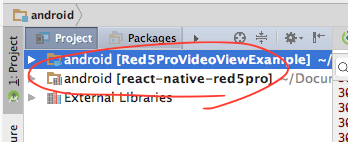
After running `react-native link`, the `react-native-red5pro` library will be added your Android project:
### Troubleshooting
If the `react-native-red5pro` library was not added using `react-naive link`, you can add them manually for Android by doing the follow in your project:
1. Locate and open the `settings.gradle` for your Android app.
2. Add `:react-native-red5pro` to the `include` and define the library project location:
```txt
rootProject.name = 'Red5ProVideoViewExample'
include ':app',
':react-native-red5pro'
project(':react-native-red5pro').projectDir = new File(rootProject.projectDir, '../../android')
```
Now locate the `build.gradle` for your Android app, and add the following to the `dependencies`:
```txt
compile project(':react-native-red5pro')
```
> Review the [Android Example](example/android) included in this repository.
# Project Setup
It is assumed that you have used the [create-react-native](https://github.com/react-community/create-react-native-app) CLI tool to bootstrap your projects. If you have used other means to set up your projects, some instructions may be different.
In addition to adding the `react-native-red5pro` library - and optionally `react-native-permissions` library - as [described above](#installation), there are additional project settings required, including the addition of the [Red5 Pro Mobile SDK](https://www.red5pro.com/docs/streaming/).
This section will describe how to setup your projects to integrate the [Red5 Pro Mobile SDK](https://www.red5pro.com/docs/streaming/) so you can use the `react-native-red5pro` library to display a video view for broadcasting and subscribing to a live stream.
> You will need a Red5 Pro SDK License and a Red5 Pro Server in order to use this component. [Sign up for a free trial!](https://account.red5pro.com/register)
## iOS Project Setup
After linking in the `react-native-red5pro` library as described in the [previous section](#installation), you will need to install the **Red5 Pro iOS SDK** and update the permissions for you project.
### Install Red5 Pro SDK
To integrate the **Red5 Pro iOS SDK**:
1. Download the latest [Red5 Pro iOS SDK](https://account.red5pro.com/download) from your account. If you don't have an account yet, [Sign up for a free trial!](https://account.red5pro.com/register).
2. Unpack the **Red5 Pro iOS SDK** into a location on your local machine. This will unzip to a `R5Streaming.framework` file; that file is the **Red5 Pro iOS SDK**.
### After CocoaPods Installation
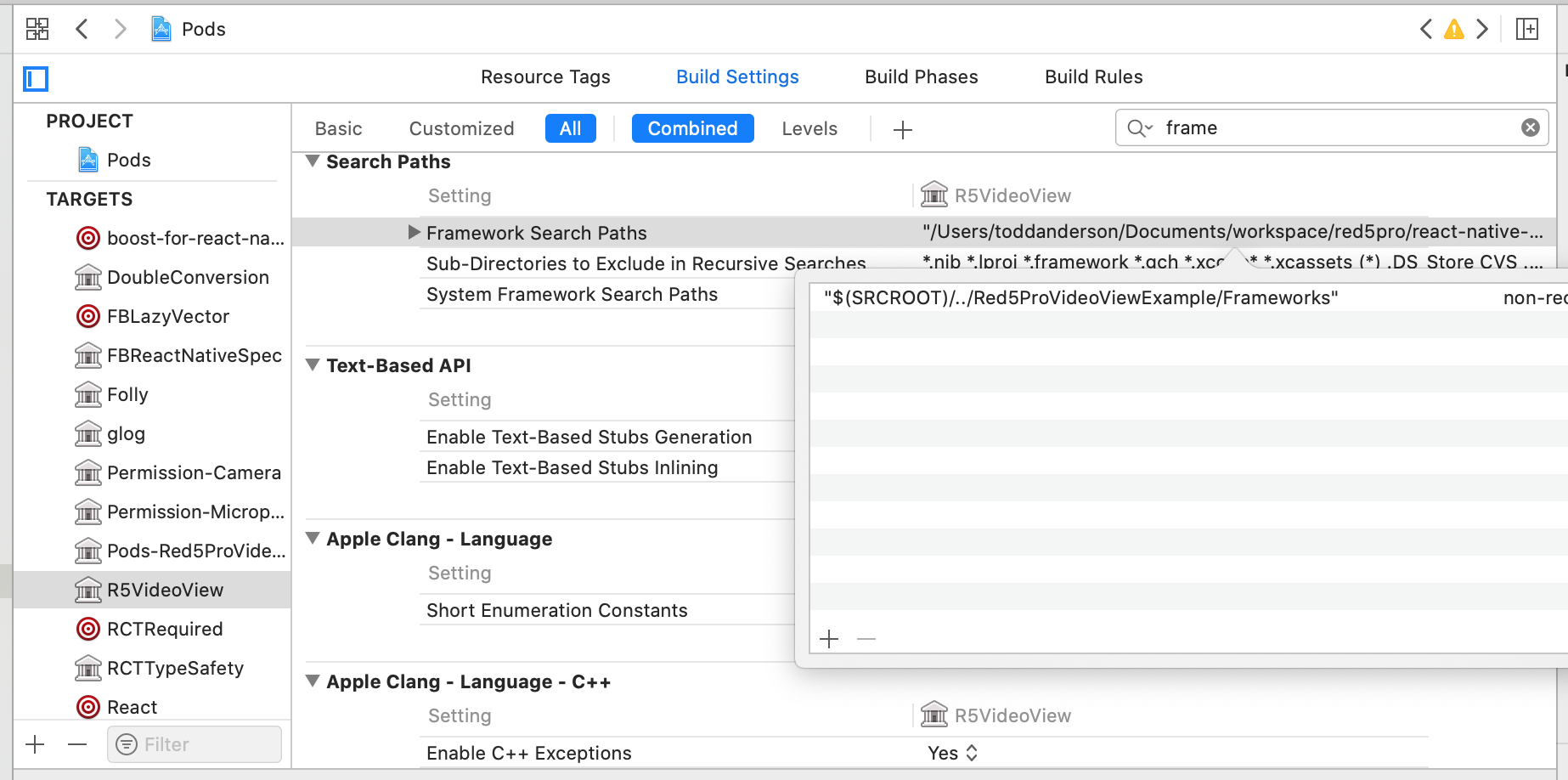
1. Locate the `Pods` project in your generated `xcworkspace` and select to open the project settings in Xcode.
2. Within the `Targets` listing, select `R5VideoView`.
3. Click on `Build Settings`
4. Search for "**frameworks**" (sans quotes), and navigate to the `Framework Search Paths`.
5. Click on the Value field and add the directory path to the `R5Streaming.framework` file (either relative or full path). _Tip: drag and drop the directory holding the framework into an entry in the modal and Xcode will fill in the relative path._
6. Do the above 5 steps again for your top level project.
### Required Dependencies
The *Red5 Pro iOS SDK* requires a few additional dependencies in order to properly broadcast and consume live streams. Add the following libraries and frameworks to your project under the *General > Linked Frameworks and Libraries* panel:
```
libc++.1.tbd
libiconv.2.4.0.tbd
libbz2.tbd
libz.tbd
GLKit
QuartzCore
OpenAL
CoreFoundation
VideoToolbox
```
### Define Permissions
#### Camera & Microphone Access
If you intend to use the `react-native-red5pro` to broadcast live streams, you will need to add Privacy permissions for Camera and Microphone access on the device. To do so:
1. Locate the `Info.plist` file for your project in Xcode.
2. Click to Add an entry (using the `+` icon), and add a `Privacy - Camera Usage Description` entry.
3. Provide a String Value of the message you want to present to your User(s) - e.g., `Camera access required for publishing.`
4. Add a similar entry and String value for `Privacy - Microphone Usage Description`.
Your app should now be available for broadcasting and subscribing to live streams!
#### Background Services
If you intend to use the `react-native-red5pro` to continue broadcasting and/or playback while the app is in the background, you will additionally need to define the ability to do so:
1. Locate the `Info.plist` file for your project in Xcode.
2. Click to Add an entry (using the `+` icon), and add a `Required background modes` entry.
3. In the generated `Item 0` entry, add a String value of `App plays audio or streams audio/video using AirPlay`.
Now you can use the `enableBackgroundStreaming` of the library to enable background streaming!
### Additional Notes
* You may be required to set the `Enable Bitcode` Build Setting to a value of `No` in order to use the SDK.
## Android Project Setup
After linking in the `react-native-red5pro` library as described in the [previous section](#installation), you will need to install the **Red5 Pro Android SDK** and update the permissions for you project.
### Install Red5 Pro SDK
To integrate the **Red5 Pro Android SDK**:
1. Download the latest [Red5 Pro Android SDK](https://account.red5pro.com/download) from your account. If you don't have an account yet, [Sing up for a free trial!](https://account.red5pro.com/register).
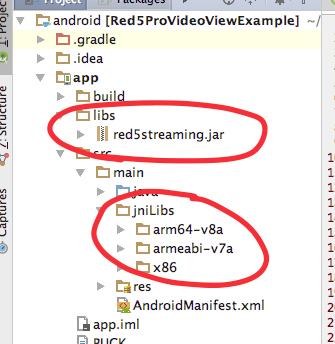
2. Unpack the **Red5 Pro Android SDK** into a location on your local machine - there will be a `red5streaming.jar` file and a folder labelled `jniLibs`. These files make up the **Red5 Pro Android SDK**.
3. Drag the `red5streaming.jar` file into the *app/libs* folder of your Android app project in Android Studio.
4. Drag the `jniLibs` holder under the *app/src/main* folder of your Android app project in Android Studio.
The `react-native-red5pro` library is not shipped with the **Red5 Pro SDK**. As such, we need to point the `react-native-red5pro` library point to the `red5streaming.jar` dependency:
1. Expand the `react-native-red5pro` library in the Project Panel of Android Studio.
2. Locate the `build.gradle` file and open it in the editor.
3. Add the path to the `red5streaming.jar` as a dependency. e.g.,
```txt
dependencies {
implementation "com.facebook.react:react-native:${safeExtGet('reactNativeVersion', '+')}"
implementation files("../example/android/app/libs/red5streaming.jar")
}
```
Now that the **Red5 Pro Android SDK** is a dependency for the `react-native-red5pro` library and is referenced from the parent project, we need to make sure we exclude it from being compiled in twice:
1. Locate the `build.gradle` for your Android **app** and open it in the editor.
2. Define the `red5sreaming.jar` as an exclusion for the **libs** dependencies.
The `dependencies` definition in the `build.gradle` of the **app** should look similar to the following:
```txt
dependencies {
implementation fileTree(dir: "libs", include: ["*.jar"], excludes: ["red5streaming.jar"])
implementation "com.facebook.react:react-native:+" // From node_modules
implementation project(':react-native-permissions')
implementation project(':react-native-red5pro')
}
```
### Add `R5Package` to your App
1. Open you main `ReactApplication` implementation file.
2. Within the `getPackages()` override, add a new instance of `R5Package` to the list, e.g.,:
```java
private final ReactNativeHost mReactNativeHost = new ReactNativeHost(this) {
@Override
public boolean getUseDeveloperSupport() {
return BuildConfig.DEBUG;
}
@Override
protected List getPackages() {
return Arrays.asList(
new MainReactPackage(),
new RNPermissionsPackage(),
new R5Package()
);
}
@Override
protected String getJSMainModuleName() {
return "index.android";
}
};
```
### Define Permissions
#### Camera, Microphone and Network
If you intend to use the `react-native-red5pro` to broadcast live streams, you will need to add Privacy permissions for Camera and Microphone access on the device. To do so:
1. Open the `AndroidManifest.xml` file and add the following to the `uses-permissions`:
```xml
```
1. With the `AndroidManifest.xml` still open, under the `uses-permissions`, add the following `uses-feature`s:
```xml
```
Your app should now be available for broadcasting and subscribing to live streams!
#### Background Services
The librayr provides background services for broadcasting and/or playback of stream while the app is in the background. You will need to add the following to your `AndroidManifest.xml` file in order to enable these services:
```
```
# Available Libraries
Included in the `react-native-red5pro` project are two libraries that can be used (together, no less!) in your React Native App:
* `R5StreamModule`
* `R5VideoView`
## R5StreamModule
The `R5StreamModule` is a Native Module.
The `R5StreamModule` is used to establish a streaming session without requiring a corresponding view to display and render the stream in your App on a UI View. This can be useful when the App only requires playing back the audio of a stream, or not requiring a publisher preview view, along with other feature scenarios.
The original reason for developing and including the `R5StreamModule` was to allow a previously established stream to be detached and reattached to `R5VideoView` instance when the UI state of the App requires a change in your project. By using the `R5StreamModule` you can maintain the previously established publisher or subscriber session while updating the view state - all while not interrupting the stream.
To initialize a stream session, from which you can start a publisher or subscriber stream, you initilize/register the configuration using the `R5StreamModule.init` method which returns a `Promise` and can be used with `async/await`:
```
const streamId = await R5StreamModule.init('', configuration)
```
For publishers, the `` can be the stream name you will publish with. For subscriber, the `` will be a unique subscriper id.
> To Learn more about the `R5StreamModule` Usage, see [Module Usage](#r5streammodule-usage)
## R5VideoView
The `R5VideoView` is a Native Component.
The `R5VideoView` is used to declare a UI view instance that a stream will be shown - either the Publisher preview or the Subscriber stream playback.
The `R5VideoView` is declared similar to the following and is recommended to retain a reference for other node handling and interaction:
```js
const [subscriberRef, setSubscriberRef] = useState(null)
...
return (
setSubscriberRef(ref)}
/>
)
}
```
> To Learn more about the `R5VideoView` Usage, see [Component Usage](#component-usage)
# R5StreamModule Usage
The following describe the API available for the `react-native-red5pro` Native Module library, `R5StreamModule`.
## Module Methods
The methods available on the `R5StreamModule` require the retention of a `stream id` established during initialization in order to access the associated stream instance to interact with.
| Name | Arguments | Description | Publisher | Subscriber |
| :-- | :-- | :-- | :--: | :--: |
| init | ``, `configuration` | Request to intialize a configuration for a stream with an associated, unique stream id. | x | x |
| publish | ``, `streamType`, `streamProps` | Request to start broadcasting stream with unique name and type (0: `live`, 1: `record`, `2`: append) and additional properties to use in broadcast. _See [Module Stream Properties](#module-stream-properties)._ | x | |
| unpublish | `` | Request to stop broadcast. | x | |
| subscribe | ``, `streamProps` | Request to start playback of stream with additional properties to use in playback. _See [Module Stream Properties](#module-stream-properties)._ | | x |
| unsubscribe | `` | Request to stop playback. | | x |
| swapCamera | `` | Request to swap camera on device, from front-facing to back-facing and vice-versa. | x | |
| muteAudio | `` | Request to not send audio on broadcast during a publish session. | x | |
| unmuteAudio | `` | Request to send audio on broadcast during a publish session. | x | |
| muteVideo | `` | Request to not send video on broadcast during a publish session. | x | |
| unmuteVideo | `` | Request to send video on broadcast during a publish session. | x | |
| setPlaybackVolume | `` | Request to set playback volume. _From `0` to `100`._ | | x |
It should be noted that the following methods return a `Promise` object:
* `init`
* `publish`
* `unpublish`
* `subscribe`
* `unsubscribe`
## Module Stream Properties
The following stream properties are available for a `R5StreamModule`:
| Key | Type | Default | Description | Publisher | Subscriber |
| :-- | :-- | :-- | :-- | :--: | :--: |
| showDebugView | boolean | false | Displays the debug information for a broadcast and playback stream. | x | x |
| logLevel | int | 3 | Enumerated value of [R5LogLevel](src/enum/R5VideoView.loglevel.js). | x | x |
| scaleMode | int | 0 | Enumerated value of [R5ScaleMode](src/enum/R5VideoView.scalemode.js). | x | x |
| publishVideo | boolean | true | Flag to include video in broadcast. | x | |
| publishAudio | boolean | true | Flag to include audio in broadcast. | x | |
| subscribeVideo | boolean | true | Flag to include video in subscription. | x | |
| cameraWidth | int | 640 | Width dimension of Camera to use in broadcast. | x | |
| cameraHeight | int | 360 | Height dimension of Camera to use in broadcast. | x | |
| bitrate | int | 750 | The video bitrate to broadcast at. | x | |
| framerate | int | 15 | The video framerate to broadcast at. | x | |
| audioBitrate | int | 32 | The audio bitrate to broadcast at (kb/s). | x | |
| audioSampleRate | int | iOS: `16000`, Android: `44100` | The audio sample rate to broadcast at (hz). | x | |
| useAdaptiveBitrateController | boolean | false | Use of adaptive bitrate streaming for broadcasting. | x | |
| useBackfacingCamera | boolean | false | Use the backfacing camera of the device to start broadcasting. | x | |
| audioMode | int | 0 | Enumerated value of [R5AudioMode](src/enum/R5VideoView.audiomode.js). | x | x |
| enableBackgroundStreaming | boolean | false | Turns on ability to continue to publish or subscribe to audio while app is in the background. | x | x |
These properties represent the settings for a Publisher and Subscriber session that do not necessarily rely on a corresponding UI view (such as the `R5VideoView` component).
## Module Events
In addition to the `Promise` objects returned on the `init`, `publish`, `unpublish`, `subscribe` and `unsubscribe` methods, there are events on the `R5StreamModule` that can listened to using the `NativeEventEmitter` from React Native.
The following events are available:
| Name | Event Object | Description | Publisher | Subscriber |
| :-- | :-- | :-- | :--: | :--: |
| onConfigured | {`key`: ``} | Notification of configuration being completed. | x | x |
| onMetaDataEvent | {`metadata`: ``} | Notification of stream metadata. | | x |
| onPublisherStreamStatus | {`status`: [refer to status section](#status-callback-objects)} | Notification of stream status for a Publisher. | x | |
| onSubscriberStreamStatus | {`status`: [refer to status section](#status-callback-objects)} | Notification of stream status for a Subscriber. | | x |
| onUnsubscribeNotification | none | Notification of stop of playback. | | x |
| onUnpublishNotification | none | Notification of stop of broadcast. | x | |
To establish a listener for these events, you must first establish a `NativeEventEmiiter` instance using the `R5StreamModule`:
```js
import { useRef } from 'react'
import { NativeEventEmiiter } from 'react-native'
import { R5StreamModule } from 'react-native-red5pro'
...
const emitter = useRef(new NativeEventEmitter(R5StreamModule))
```
Once an emitter is established, use the `addListener` method, e.g,:
```js
useEffect(() => {
const eventEmitter = emitter.current
if (eventEmitter) {
eventEmitter.addListener('onMetaDataEvent', onMetaData)
eventEmitter.addListener('onConfigured', onConfigured)
eventEmitter.addListener('onSubscriberStreamStatus', onSubscriberStreamStatus)
eventEmitter.addListener('onUnsubscribeNotification', onUnsubscribeNotification)
}
return () => {
if (eventEmitter) {
eventEmitter.removeAllListeners('onMetaDataEvent')
eventEmitter.removeAllListeners('onConfigured')
eventEmitter.removeAllListeners('onSubscriberStreamStatus')
eventEmitter.removeAllListeners('onUnsubscribeNotification')
}
}
}, [])
```
## Known Issues
### Issue 1.0 - Android Publisher
The Android SDK requires reading data from the camera previous display in order to send video data to the server. As such, when there is no associated "attached" `R5VideoView` to the publisher stream, no video data will be delivered to subscribers.
# R5VideoView Usage
The following describe the API available for the `react-native-red5pro` Native Component library, `R5VideoView`.
## Component Properties
| Key | Type | Default | Description | Publisher | Subscriber |
| :-- | :-- | :-- | :-- | :--: | :--: |
| showDebugView | boolean | false | Displays the debug information for a broadcast and playback stream. | x | x |
| logLevel | int | 3 | Enumerated value of [R5LogLevel](src/enum/R5VideoView.loglevel.js). | x | x |
| scaleMode | int | 0 | Enumerated value of [R5ScaleMode](src/enum/R5VideoView.scalemode.js). | x | x |
| streamType | int | 0 | Enumerated value of [R5PublishType](src/enum/R5VideoView.publishtype.js). | x | |
| publishVideo | boolean | true | Flag to include video in broadcast. | x | |
| publishAudio | boolean | true | Flag to include audio in broadcast. | x | |
| subscribeVideo | boolean | true | Flag to include video in subscription. | x | |
| cameraWidth | int | 640 | Width dimension of Camera to use in broadcast. | x | |
| cameraHeight | int | 360 | Height dimension of Camera to use in broadcast. | x | |
| bitrate | int | 750 | The video bitrate to broadcast at. | x | |
| framerate | int | 15 | The video framerate to broadcast at. | x | |
| audioBitrate | int | 32 | The audio bitrate to broadcast at (kb/s). | x | |
| audioSampleRate | int | iOS: `16000`, Android: `44100` | The audio sample rate to broadcast at (hz). | x | |
| useAdaptiveBitrateController | boolean | false | Use of adaptive bitrate streaming for broadcasting. | x | |
| useBackfacingCamera | boolean | false | Use the backfacing camera of the device to start broadcasting. | x | |
| audioMode | int | 0 | Enumerated value of [R5AudioMode](src/enum/R5VideoView.audiomode.js). | x | x |
| enableBackgroundStreaming | boolean | false | Turns on ability to continue to publish or subscribe to audio while app is in the background. | x | x |
| zOrderOnTop | boolean | false | Setting of layout order of stream view. _Android only._ | x | x |
| zOrderMediaOverlay | boolean | false | Setting of layout order of stream view. _Android only._ | x | x |
| configuration | shape | `REQUIRED` | [Refer to Configuration Properties](#component-configuration-properties). | x | x |
## Component Configuration Properties
The following are the `configuration` properties of the Properties of the `react-native-red5pro` library. This is required to properly setup a broadcasting or playback session of a stream on the *Red5 Pro Server*.
These properties are required for **both** Publishers and Subscribers.
| Key | Type | Default | Description |
| :-- | :-- | :-- | :-- |
| host | string | `REQUIRED` | The IP or Fully Qualified Domain Name of where the *Red5 Pro Server* is deployed. |
| port | int | `REQUIRED` | The port number that is exposed on the *Red5 Pro Server* to access RTSP connections. |
| streamName | string | `REQUIRED` | The unique name of the stream to broadcast on or subscribe to. |
| contextName | string | `REQUIRED` | The target *webapp* to stream to or access streams from. _Typically, `live`._ |
| licenseKey | string | `REQUIRED` | The SDK license key provided with your registered *Red5 Pro* account. |
| bundleID | string | `REQUIRED` | A unique (typically inversed domain name) descriptor for you app. _Required for some stores._ |
| bufferTime | number | 0.5 | Default buffer. |
| streamBufferTime | number | 4 | Default buffer for subscribers to allow on the server in sending packets. |
| parameters | string | none | Optional connection parameters. Often used for authentication. ***[See Note Below](#parameters-configuration-property)** |
| autoAttachView | boolean | `true` | A flag to also attach the view component to a stream upon setup. |
| key | string | `REQUIRED` | Unique key to be used internally to access the configuration object. |
### Component Parameters Configuration Property
The `parameters` configuration provides the ability to pass in additional properties to be used by the target application accepting the RTSP connection from a publisher or subscriber.
Typically, this is used for authentication purposes and requires custom modifications on the server.
The structure is key/value pairs delimited by a `;`. For example:
```js
let auth = 'username=foo;password=bar;'
```
> See [iOS Example](https://github.com/red5pro/streaming-ios/blob/master/R5ProTestbed/Tests/PublishAuth/PublishAuthTest.swift) and [Android Example](https://github.com/red5pro/streaming-android/blob/master/app/src/main/java/red5pro/org/testandroidproject/tests/PublishAuthTest/PublishAuthTest.java).
## Component Methods
The following methods are available:
```js
import { subscribe,
unsubscribe,
publish,
unpublish,
swapCamera,
updateScaleMode,
setPlaybackVolume,
muteAudio,
unmuteAudio,
muteVideo,
unmuteVideo,
attach,
detach
} from 'react-native-red5pro'
```
| Name | Arguments | Description | Publisher | Subscriber |
| :-- | :-- | :-- | :--: | :--: |
| subscribe | ``, `streamName` | Request to start subscribing to stream. | | x |
| unsubscribe | `` | Request to stop playback of stream. | | x |
| publish | ``, `streamName`, `streamType` | Request to start broadcasting stream with unique name and type (0: `live`, 1: `record`, `2`: append). | x | |
| unpublish | `` | Request to stop broadcast. | x | |
| swapCamera | `` | Request to swap camera on device, from front-facing to back-facing and vice-versa. | x | |
| updateScaleMode | ``, `mode` | Request to change playback scalemode (0: `fill with aspect ratio`, 1: `fit, with letterboxing`, 2: `fill to view`). | | x |
| setPlaybackVolume | ``, `int` | Request to set playback volume. _From `0` to `100`._ | | | x |
| muteAudio | `` | Request to not send audio on broadcast during a publish session. | x | |
| unmuteAudio | `` | Request to send audio on broadcast during a publish session. | x | |
| muteVideo | `` | Request to not send video on broadcast during a publish session. | x | |
| unmuteVideo | `` | Request to send video on broadcast during a publish session. | x | |
| attach | ``, `stream-id` | Request to attach a stream to the view. | x | x |
| detach | ``, `stream-id` | Request to detach a stream from the view. | x | x |
> In the case of the `attach` and `detach` methods, a previously established stream will need to be available in the app which is associated with the `stream id`. As such, a previous call to `subscribe` or `publish` is required to register the stream for a Subscriber or Publisher client, respectively.
## Component Event Callbacks
The following callbacks are available:
| Name | Event Object | Description | Publisher | Subscriber |
| :-- | :-- | :-- | :--: | :--: |
| onConfigured | {`key`: ``} | Notification of configuration being completed. | x | x |
| onMetaData | {`metadata`: ``} | Notification of stream metadata. | | x |
| onPublisherStreamStatus | {`status`: [refer to status section](#status-callback-objects)} | Notification of stream status for a Publisher. | x | |
| onSubscriberStreamStatus | {`status`: [refer to status section](#status-callback-objects)} | Notification of stream status for a Subscriber. | | x |
| onUnsubscribeNotification | none | Notification of stop of playback. | | x |
| onUnpublishNotification | none | Notification of stop of broadcast. | x | |
### Component Status Callback Objects
The Publishers and Subscribers receive status events during the lifecycle of broadcasting and consuming a stream, respectively. The following properties are available in the status object:
| Key | Description |
| :-- | :-- |
| code | The enumerated code of the event. |
| name | The associated name of the event. |
| message | The human readable, optional, message associated with the event. |
| streamName | The associated stream. |
* The enumerated list of statuses on iOS [https://www.red5pro.com/docs/static/ios-streaming/protocol_r5_stream_delegate-p.html](https://www.red5pro.com/docs/static/ios-streaming/protocol_r5_stream_delegate-p.html)
* The enumerated list of statuses on Android [https://www.red5pro.com/docs/static/android-streaming/enumcom_1_1red5pro_1_1streaming_1_1event_1_1_r5_connection_event.html](https://www.red5pro.com/docs/static/android-streaming/enumcom_1_1red5pro_1_1streaming_1_1event_1_1_r5_connection_event.html)
## Component Publisher Example
You will need to have a Red5 Pro SDK license and access to a reployed Red5 Pro Server in order to use the following example.
> [Sign up for a free trial of Red5 Pro!](https://account.red5pro.com/register)
```js
import React, { useState } from 'react'
import { findNodeHandle, View, Button, StyleSheet } from 'react-native'
import { R5VideoView } from 'react-native-red5pro'
import { R5LogLevel } from 'react-native-red5pro'
import {
publish,
unpublish,
swapCamera
} from 'react-native-red5pro'
const streamConfig = {
configuration: {
host: 'your.red5pro.deploy', // IP or Fully Qualified Domain Name
port: 8554,
contextName: 'live',
bufferTime: 0.5,
streamBufferTime: 2,
key: Math.floor(Math.random() * 0x10000).toString(16),
bundleID: 'com.red5pro.example',
licenseKey: 'YOUR-LICENSE-KEY',
streamName: 'mystream'
},
showDebugView: true,
logLevel: R5LogLevel.DEBUG
}
export default App = () => {
const [publisherRef, setPublisherRef] = useState(null)
const onMetaData = event => {
const { nativeEvent: { metadata } } = event
console.log(`Publisher:onMetadata :: ${metadata}`)
}
const onConfigured = event => {
const { configuration: { streamName } } = streamConfig
const { nativeEvent: { key } } = event
console.log(`Publisher:onConfigured :: ${key}`)
publish(findNodeHandle(publisherRef), streamName)
}
const onStop = () => {
unpublish(findNodeHandle(publisherRef))
}
const onSwapCamera = () => {
swapCamera(findNodeHandle(publisherRef))
}
return (
setPublisherRef(ref)}
style={styles.videoView}
onMetaData={onMetaData}
onConfigured={onConfigured}
/>
)
}
const styles = StyleSheet.create({
container: {
flex: 1,
backgroundColor: 'white',
justifyContent: 'center'
},
video: {
flex: 1,
flexDirection: 'row',
backgroundColor: 'black'
},
button: {
position: 'absolute',
left: 0,
right: 0,
bottom: 0,
height: 40,
backgroundColor: 'blue',
color: 'white'
}
})
```
## Component Subscriber Example
You will need to have a Red5 Pro SDK license and access to a deployed Red5 Pro Server in order to use the following example.
> [Sign up for a free trial of Red5 Pro!](https://account.red5pro.com/register)
```js
import React, { useState } from 'react'
import { findNodeHandle, View, Button, StyleSheet } from 'react-native'
import { R5VideoView } from 'react-native-red5pro'
import { R5LogLevel, R5ScaleMode } from 'react-native-red5pro'
import {
subscribe,
unsubscribe,
updateScaleMode
} from 'react-native-red5pro'
const streamConfig = {
configuration: {
host: 'your.red5pro.deploy', // IP or Fully Qualified Domain Name
port: 8554,
contextName: 'live',
bufferTime: 0.5,
streamBufferTime: 2,
key: Math.floor(Math.random() * 0x10000).toString(16),
bundleID: 'com.red5pro.example',
licenseKey: 'YOUR-LICENSE-KEY',
streamName: 'mystream'
},
showDebugView: true,
logLevel: R5LogLevel.DEBUG,
scaleMode: R5ScaleMode.SCALE_TO_FILL
}
export default App = () => {
const [subscriberRef, setSubscriberRef] = useState(null)
const [scaleMode, setScaleMode] = useState(R5ScaleMode.SCALE_TO_FILL)
const onMetaData = event => {
const { nativeEvent: { metadata } } = event
console.log(`Subscriber:onMetadata :: ${metadata}`)
}
const onConfigured = event => {
const { configuration: { streamName } } = streamConfig
const { nativeEvent: { key } } = event
console.log(`Subscriber:onConfigured :: ${key}`)
subscribe(findNodeHandle(subscriberRef), streamName)
}
const onStop = () => {
unsubscribe(findNodeHandle(subscriberRef))
}
const onSwapScaleMode = () => {
let scale = scaleMode + 1
if (scale > 2) {
scale = 0
}
updateScaleMode(findNodeHandle(subscriberRef), scale)
setScaleMode(scale)
}
return (
setSubscriberRef(ref)}
style={styles.videoView}
onMetaData={onMetaData}
onConfigured={onConfigured}
/>
)
}
const styles = StyleSheet.create({
container: {
flex: 1,
backgroundColor: 'white',
justifyContent: 'center'
},
video: {
flex: 1,
flexDirection: 'row',
backgroundColor: 'black'
},
button: {
position: 'absolute',
left: 0,
right: 0,
bottom: 0,
height: 40,
backgroundColor: 'blue',
color: 'white'
}
})
```
> For more in-depth examples, please refer to the [example](example) included in this repository.
