# React Shopping Cart Starter Kit
This component comes with no batteries included, but allows for a great deal of flexibility. It was initially designed for shopping cart type of functionality and product collections (i.e., creating and editing orders), but is likely to be applicable in other contexts where a selection of some kind is involved.
## Installation
```
$ npm install react-shopping-cart-starter-kit
```
## Examples
* [Unstyled cart with initial selection](http://principle-systems.github.io/react-shopping-cart-starter-kit/examples/index-unstyled.html)
* [All examples](https://github.com/principle-systems/react-shopping-cart-starter-kit/tree/master/examples)
* [Sample data](https://github.com/principle-systems/react-shopping-cart-starter-kit/blob/master/examples/sampledata.js)
The following third-party components and assets are used in the examples: [React-Bootstrap](http://react-bootstrap.github.io/), [Bootstrap](http://getbootstrap.com/), [Griddle](http://griddlegriddle.github.io/Griddle/) (griddle-react), [React DnD](https://gaearon.github.io/react-dnd/), [Font Awesome](https://fortawesome.github.io/Font-Awesome/), and the [Lato Font](https://www.google.com/fonts/specimen/Lato).
#### Bootstrap + Griddle example
This example also shows how to implement notifications using the various `onItem*` callbacks.
[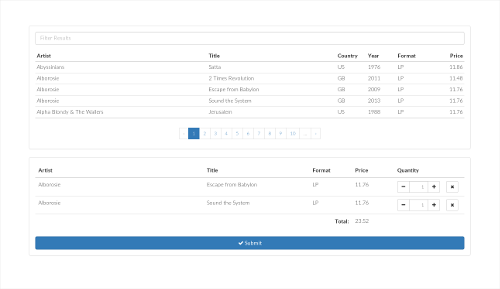](http://principle-systems.github.io/react-shopping-cart-starter-kit/examples/index-bootstrap.html)
* [View example](http://principle-systems.github.io/react-shopping-cart-starter-kit/examples/index-bootstrap.html)
#### Drag and Drop example
Add products to the cart by dragging the product thumbnail to the drop area.
[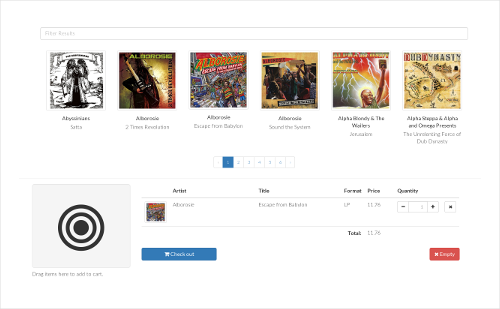](http://principle-systems.github.io/react-shopping-cart-starter-kit/examples/index-drag-drop.html)
* [View example](http://principle-systems.github.io/react-shopping-cart-starter-kit/examples/index-drag-drop.html)
## How to use this component
### Preparation
Assign a unique id to each item used in your application. For demonstration, we will use the following key-value object with a catalog of five products in subsequent examples.
```javascript
const myProducts = {
"product-1" : { "Name" : "Canned Unicorn Meat", "Price" : "9.99" },
"product-2" : { "Name" : "Disappearing Ink Pen", "Price" : "14.99" },
"product-3" : { "Name" : "USB Rocket Launcher", "Price" : "29.99" },
"product-4" : { "Name" : "Airzooka Air Gun", "Price" : "29.99" },
"product-5" : { "Name" : "Star Trek Paper Clips", "Price" : "19.99" }
}
```
### Hello, World!
To get started, we print out the products in a list, pass the column names to the cart component, and implement an `onClick` handler which adds the selected item to the cart by calling `addItem`.
```javascript
import React from 'react'
import Cart from 'react-shopping-cart-starter-kit'
const myProducts = {
"product-1" : { "Name" : "Canned Unicorn Meat", "Price" : "9.99" },
"product-2" : { "Name" : "Disappearing Ink Pen", "Price" : "14.99" },
"product-3" : { "Name" : "USB Rocket Launcher", "Price" : "29.99" },
"product-4" : { "Name" : "Airzooka Air Gun", "Price" : "29.99" },
"product-5" : { "Name" : "Star Trek Paper Clips", "Price" : "19.99" }
}
const MyComponent = React.createClass({
submit() {
const selection = this.refs.cart.getSelection()
alert(JSON.stringify(selection))
},
addItem(key) {
this.refs.cart.addItem(key, 1, this.props.products[key])
},
render() {
const products = this.props.products
return (
)
}
})
React.render(
,
document.getElementById('main')
)
```
### Improvements to Hello, World!
Next, we'll implement a row iterator to sum up the order total. It will appear in the table footer (See 'Customization' for details).
```javascript
```
This function is first called once to allow initialization, and then for each item in the cart. The object we return is being passed on as an argument to the subsequent call, together with the row item.
```javascript
rowIterator(context, row) {
if (!context) {
/* Initialization call */
return {
total : 0
}
} else {
/* Invoked once for each row */
const price = Number(row.data['Price'])
return {
total : context.total + row.quantity * price
}
}
},
```
Finally, we'd like to have the submit button disappear when nothing is present in the cart. To achieve this, we introduce a `canSubmit` flag.
```javascript
{this.state.canSubmit && (
)}
```
Here are the implementations for `cartChanged` and `getInitialState`, which we add to `MyComponent`.
```javascript
getInitialState() {
return {
canSubmit : false
}
},
cartChanged() {
this.setState({
canSubmit : !this.refs.cart.isEmpty()
})
},
```
### Editing an existing selection of items
Up to this point, we have assumed that the cart is initially empty. When working with an existing order or selection, we can provide an array of items to the cart's `selection` prop.
```javascript
Undo changes
```
To make the submit button appear in edit mode, we add a call to `cartChanged` after the component has mounted.
```javascript
undoChanges() {
this.refs.cart.reset()
},
componentDidMount() {
this.cartChanged()
},
```
> To change how the component renders the cart's contents, implement the `containerComponent` and/or `rowComponent` props. (See Customization)
## Props
### Required
| Property | Type | Description |
| ---------------- | ------------------------ | -------------------------------------------------------- |
| columns | Array | The columns used in the table of items currently in the cart. Items added to the cart should have keys matching the entries of this array. |
### Optional
| Property | Type | Description | Default |
| ---------------- | ------------------------ | ---------------------------------------------------------------------------------- | ----------------------- |
| items | Object | Normally, you pass an item's data with the call to `addItem`. As an alternative, you can provide an object here, mapping each key to an object with the item's attributes. |
| selection | Array | Initial selection. (Used when editing an existing order or selection of items). | `[]` |
| onItemAdded | Function | Called when an item is added to the cart. | `() => {}` |
| onItemRemoved | Function | Called when an item is removed from the cart. | `() => {}` |
| onItemQtyChanged | Function | Called when an item's quantity has changed. | `() => {}` |
| onChange | Function | Called when the state of the component changes. (You may want to implement this callback to toggle the visibility of a submit button, based on whether the cart is empty or not.) | `() => {}` |
| iterator | Function | A function used to pass state between rows. The real raison d'être for this function is to sum up the price of each product in an order and output a total in the footer. | `() => { ... }` |
| containerComponent | Component | A custom container component. | See 'Customization' |
| rowComponent | Component | A custom row component. | See 'Customization' |
| tableClassName | String | The CSS class name to apply to the table element. Whether this value is actually used or not depends on the implementation of `containerComponent`. | |
| cartEmptyMessage | Node | A message shown when the cart is empty. | 'The cart is empty.' |
## Initial data
When editing an existing selection, use the `selection` prop to pass the collection as an array in the following format.
```javascript
const orderData = [
{
"id" : "item-1",
"quantity" : 2,
"data" : { "name": "Canned Unicorn Meat", "price" : "9.99" }
},
{
"id" : "item-2",
"quantity" : 1,
"data" : { "name": "Disappearing Ink Pen", "price" : "14.99" }
}
]
```
## API
### addItem(key, quantity, item)
---
To add an item to the cart, provide its id, a quantity, and the item itself. (The third argument may not be required if you have previously supplied an object to the component's `items` props.)
```javascript
cart.addItem('product-1', 1, myProducts['product-1'])
```
If an item with the given id already exists in the cart, no new item is inserted. Instead, the quantity is adjusted accordingly for the existing entry.
```javascript
cart.addItem('product-1', 1, myProducts['product-1'])
cart.addItem('product-1', 1)
cart.getSelection()
[
{
"id" : "product-1",
"quantity" : 2,
"data" : { "name": "Canned Unicorn Meat", "price" : "9.99" }
}
]
```
### emptyCart()
---
Clears the cart.
### reset()
---
Does the same as `emptyCart()`, unless you specify the `selection` prop, in which case the initial selection will be restored. That is, when editing an existing order, this method will revert the cart back to a state consistent with the order being edited.
### getSelection()
---
Return the current selection.
```javascript
[
{
"id" : "item-1",
"quantity" : 2,
"data" : { "name": "Canned Unicorn Meat", "price" : "9.99" }
},
{
"id" : "item-2",
"quantity" : 1,
"data" : { "name": "Disappearing Ink Pen", "price" : "14.99" }
}
]
```
### isEmpty()
---
Returns `true` if the cart is empty, otherwise `false`.
### removeItem(index)
---
In a typical implementation, it is not necessary to call this method directly. Instead, use `this.props.removeItem` from within the row component.
### updateQuantity(index, quantity)
---
In a typical implementation, it is not necessary to call this method directly. Instead, use `this.props.setItemQty` from within the row component.
## Customization
To gain more control over how the cart is rendered (beyond what can be done with CSS), it is possible to implement a custom row and/or container component.
```javascript
```
### Row component
The row component renders individual rows. The default implementation uses a `
` element at the top, and thus row data appears within a `
` tag, however these could be pretty much anything, as long as the node tree follows the normal JSX rules.
#### Props
| Property | Type | Description |
| ---------------- | ------------------------ | ---------------------------------------------------------------------------------- |
| item | Object | The row item (see below).
| columns | Array | The array of column names.
| removeItem | Function | Callback to invoke to remove the item from the cart.
| setItemQty | Function | Callback to invoke to change the selected quantity of an item.
##### The `item` object
This object holds the id, current quantity of the item, and its properties (the data you specified when calling `addItem`). The format is as follows.
```
{
"id" : "item-1",
"quantity" : 2,
"data" : { "name": "Canned Unicorn Meat", "price" : "9.99" }
}
```
#### Default implementation
```javascript
const RowComponent = React.createClass({
handleChange(event) {
const value = event.target.value
if (!isNaN(value) && value > 0) {
this.props.setItemQty(value)
}
},
render() {
return (
{this.props.columns.map(column => {
return (
{this.props.item.data[column]}
)
})}
)
}
})
```
### Container component
This component is responsible for rendering the container in which the cart's contents appear. For more creative layouts, you may want to use something other than a `
` here.
#### Props
| Property | Type | Description |
| ---------------- | ------------------------ | ---------------------------------------------------------------------------------- |
| columns | Array | The array of column names.
| tableClassName | String | A CSS class name to be applied to the table element. (May be ignored by custom implementations.)
| body | Node | The node tree generated by the row component. Typically rendered in the body portion of a table.
| context | Object | A state object generated by the `rowIterator`, if one is used.
#### Default implementation
```javascript
const ContainerComponent = React.createClass({
render() {
return (
{this.props.columns.map(column => {
return (
{column}
)
})}
Quantity
{this.props.body}
{this.props.context.total && (
Total:
{this.props.context.total.toFixed(2)}
)}
)
}
})
```
### Bootstrap styles
In this example, we create a row component to "bootstrapify" the table. See [examples](https://github.com/principle-systems/react-shopping-cart-starter-kit/tree/master/examples) for a more complete implementation.
###### main.js
```javascript
const BootstrapRowComponent = React.createClass({
handleChange(event) {
const value = event.target.value
if (!isNaN(value) && value > 0) {
this.props.setItemQty(value)
}
},
increment() {
const value = this.props.item.quantity + 1
this.props.setItemQty(value)
},
decrement() {
const value = this.props.item.quantity - 1
if (value) {
this.props.setItemQty(value)
}
},
render() {
return (
{this.props.columns.map(column => {
return (
{this.props.item.data[column]}
)
})}
)
}
})
const MyComponent = React.createClass({
/*
Code left out for brevity. Copy this portion from previous examples.
*/
render() {
const products = this.props.products
return (