
react-native-scroll-track
A customizable, interactive scroll indicator for React Native. Tap or drag the track to jump, with an animated thumb and auto-hide behavior.
npm
·
Try in Snack
·
Demo app
·
Changelog





---
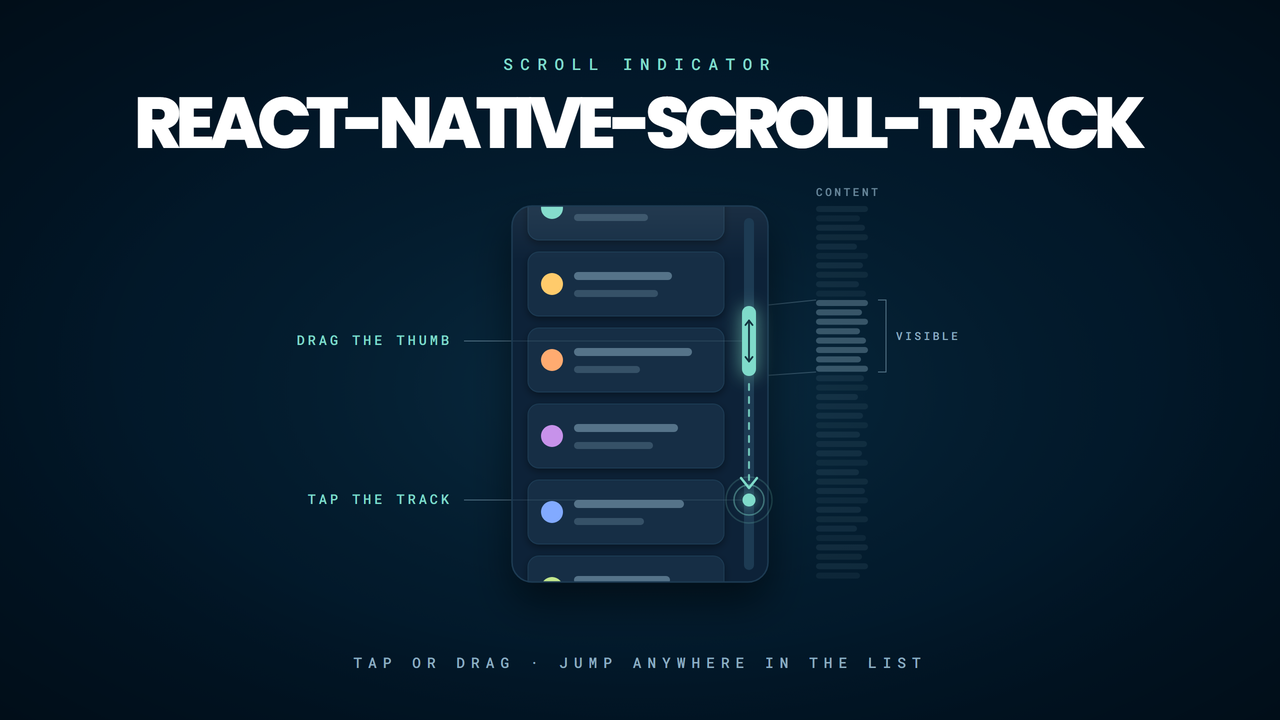
The track is a scale model of your list: the thumb is sized to how much of the content fits on screen, and it moves as you scroll. Drag it to move through the content directly, or tap anywhere on the track to jump straight there.
## 🚀 Features
- 🧭 **Drag or tap the scroll track** to jump to content
- 💡 **Auto-hide logic** with optional persistent mode
- 📏 **Dynamic thumb height** based on content size
- 🎨 **Customizable colors, shadows, sizes**
- 🔄 **Inverted list support** for chat-style interfaces
- ⚡ **Optimized performance** with native animations
- 🎯 **Callback functions** for haptic feedback and interaction handling
- ✅ **Supports** `ScrollView`, `FlatList`, `SectionList`, `FlashList`, `DraggableFlatList`, etc.
- 🆕 **Ref forwarding support** – integrate cleanly with parent gestures and carousels
---
## 🧪 Live Demo
Two ways to try it, whichever suits you:
- 🌐 **[Open in Expo Snack](https://snack.expo.dev/@dangervalentine/scrolltrackdemo)** — runs in the browser, nothing to
install. Needs an Expo Go matching the Snack's SDK if you open it on a device.
- 📱 **[ScrollTrackDemo](https://github.com/dangervalentine/ScrollTrackDemo)** — the full demo app this package is
developed against, tracking the current Expo SDK. Clone it, `npm install`, `npm start`.
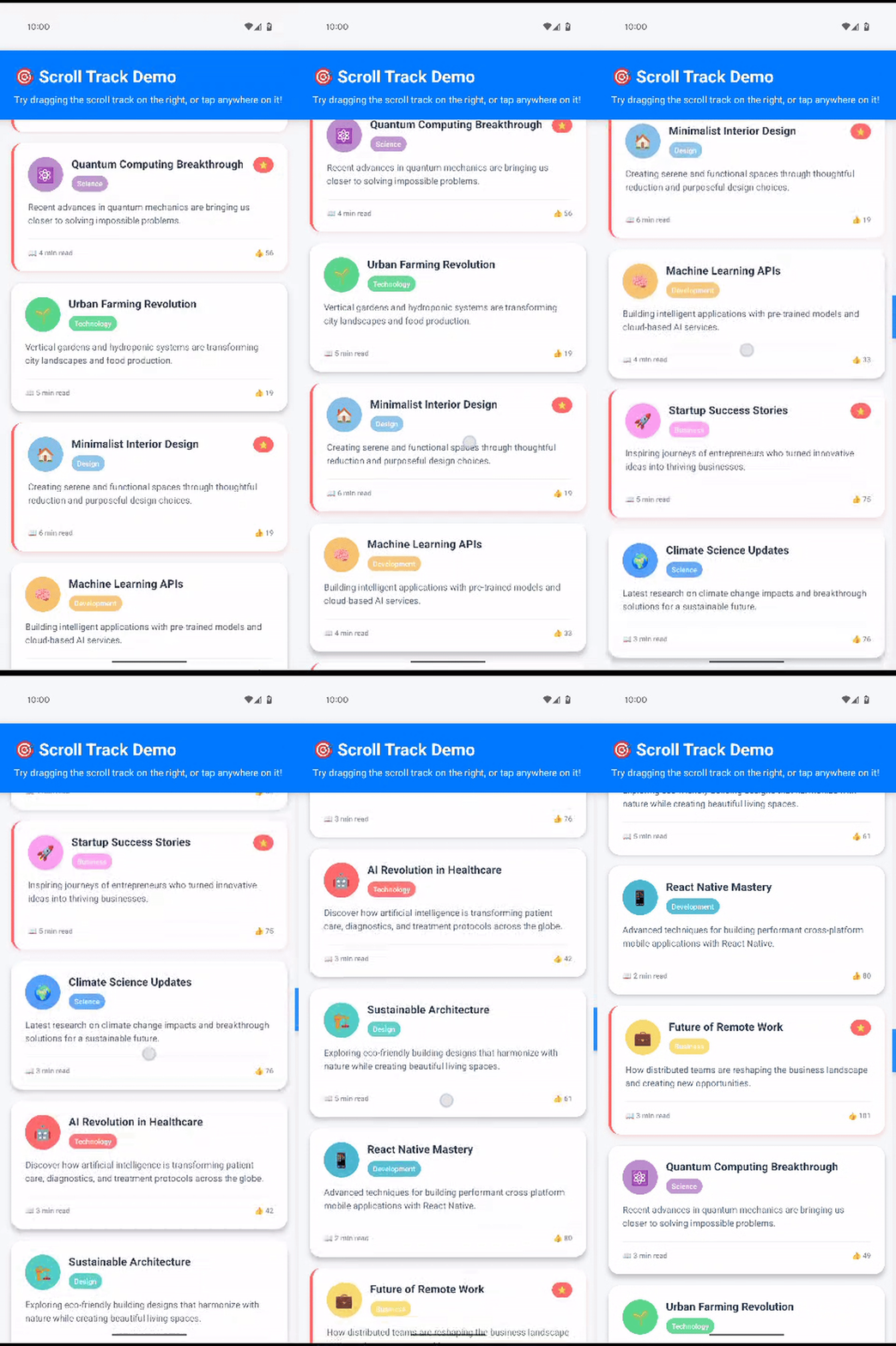
Scroll
The thumb syncs with native scrolling to reflect your position.
|
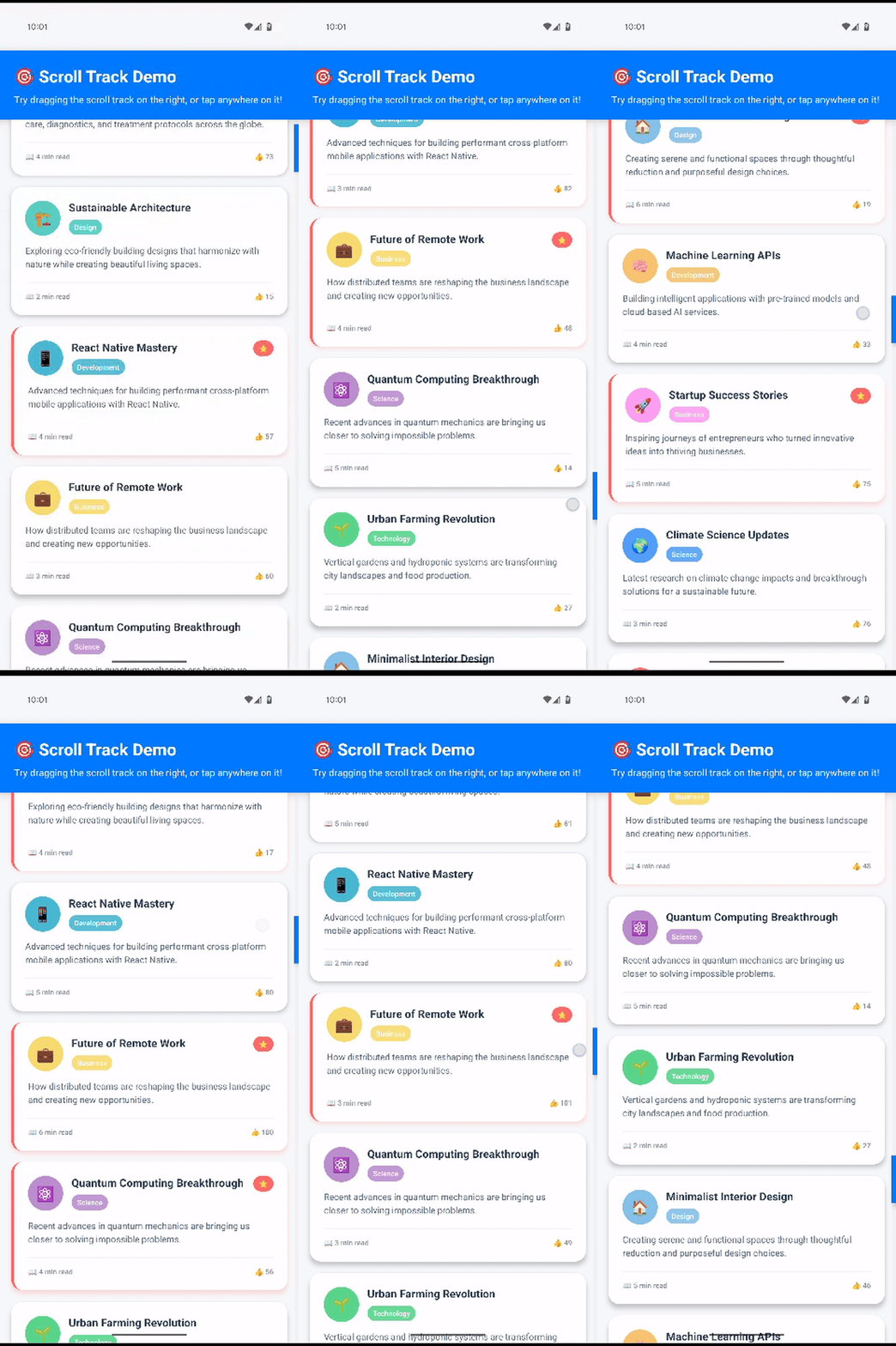
Tap
Tap anywhere on the track to jump to that part of the content.
|
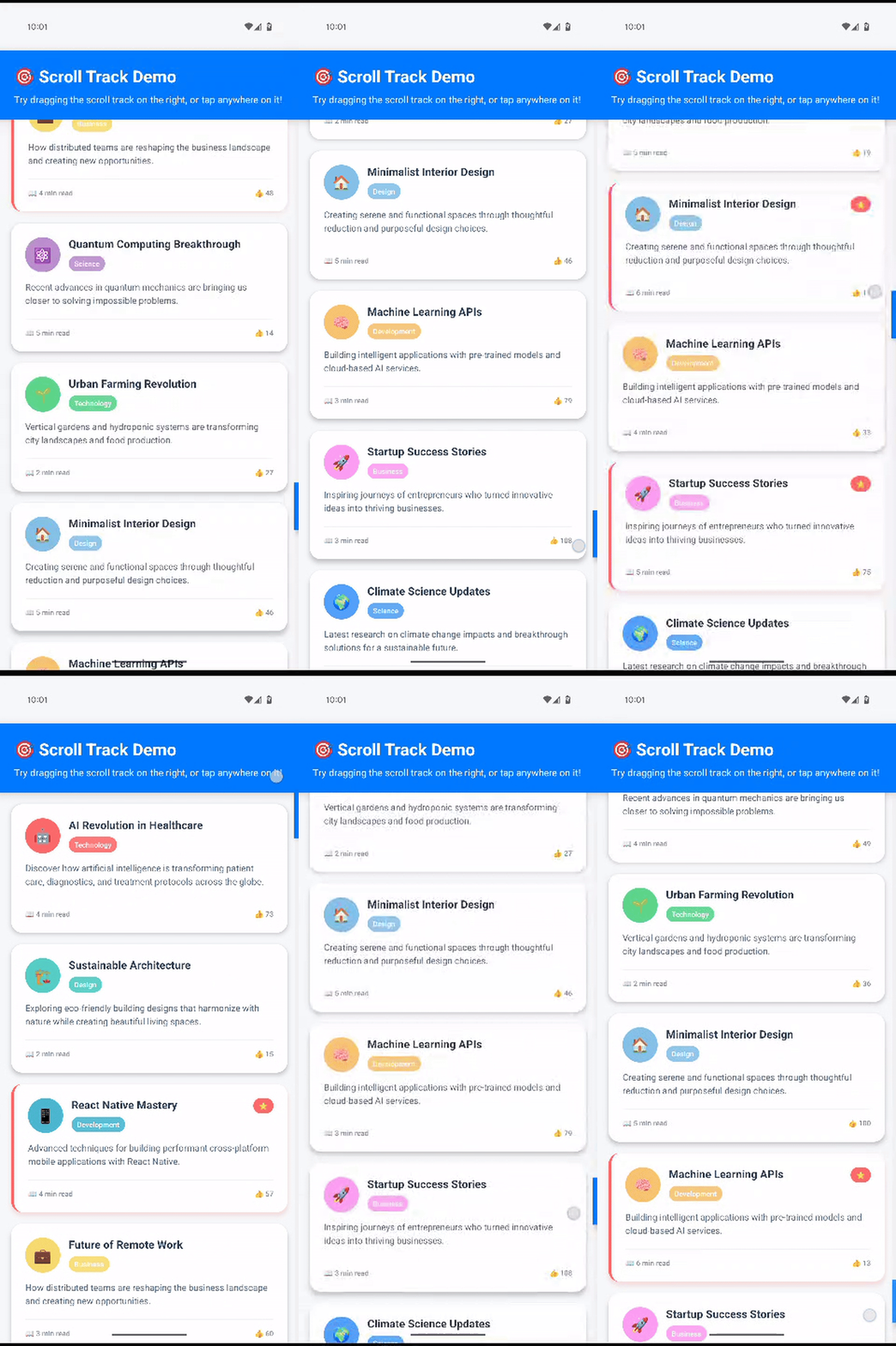
Drag
Drag the thumb to scroll smoothly through the list.
|
---
## 📦 Installation
```bash
npm install react-native-scroll-track
```
### Peer Dependencies
```bash
npm install react-native-reanimated react-native-gesture-handler
```
### Additional Setup
- Ensure `react-native-reanimated/plugin` is the **last** plugin in your `babel.config.js`
- Follow setup guides for:
- [`react-native-reanimated`](https://docs.swmansion.com/react-native-reanimated/docs/fundamentals/installation)
- [`react-native-gesture-handler`](https://docs.swmansion.com/react-native-gesture-handler/docs/installation)
**Important**: Make sure `react-native-reanimated/plugin` is the **last** plugin in your `babel.config.js`.
## ⚠️ Required Setup
**Critical**: You must wrap your app (or at least the component rendering the scroll track) with `GestureHandlerRootView` from `react-native-gesture-handler`. Without this, you'll get the error:
```
PanGestureHandler must be used as a descendant of GestureHandlerRootView
```
Wrap your app with `GestureHandlerRootView`:
```tsx
import { GestureHandlerRootView } from 'react-native-gesture-handler';
export default function App() {
return (
);
}
```
---
## ✅ Recommended Usage (Hook API)
```tsx
import { useScrollTrack } from 'react-native-scroll-track';
const MyScreen = () => {
// These are optional, displayed for illustrative purposes.
const scrollTrackOptions: ScrollTrackOptions = {
inverted: false,
styling: {
thumbColor: 'white',
trackColor: 'steelblue',
},
onPressStart: () => console.log("on press start event"),
onPressEnd: () => console.log("on press end event"),
};
const { scrollProps, ScrollTrack } = useScrollTrack(scrollTrackOptions);
return (
{ScrollTrack}
);
};
```
## 🚨 Removed in 2.0: `ScrollableContainer` and the legacy props
`ScrollableContainer` and the deprecated props on `ScrollProgressTrack` have
been **removed**. `useScrollTrack` is now the only API. See
[CHANGELOG.md](./CHANGELOG.md) for the full list.
| Removed | Replacement |
|---------|-------------|
| `ScrollableContainer` / `ScrollableContainerProps` | `useScrollTrack` |
| `ScrollProgressTrack` prop `trackWidth` | `styling.trackWidth` |
| `ScrollProgressTrack` prop `thumbHeight` | `styling.thumbHeight` |
| `styling.alwaysVisible` | the `alwaysVisible` prop |
Replace a `ScrollableContainer` render-prop tree with the hook:
```tsx
// Before
{({ scrollRef, onScroll, ...props }) => (
)}
// After
const { scrollProps, ScrollTrack } = useScrollTrack();
{ScrollTrack}
```
---
## 🎛️ `useScrollTrack` Hook Options
| Option | Type | Default | Description |
|----------------------------|------------|-------------|-------------|
| `alwaysVisible` | `boolean` | `false` | Prevents auto-hide behavior |
| `disableGestures` | `boolean` | `false` | Disables tap/drag on scrollbar |
| `fadeOutDelay` | `number` | `1000` | Delay before fading track (ms) |
| `hitSlop` | `number` | `22` | Increases the touchable area of the thumb|
| `inverted` | `boolean` | `false` | Reverses track direction (chat-style) |
| `minScrollDistanceToShow` | `number` | `20` | Min scrollable height before track appears |
| `scrollThrottle` | `number` | `1` | Throttle for scroll events |
| `styling` | `object` | `{}` | Styling for track and thumb |
| `onPressStart` | `function` | | Callback when interaction starts |
| `onPressEnd` | `function` | | Callback when interaction ends |
| `externalRef` | `ref` | | Supply your own list ref (FlatList, ScrollView, FlashList) |
#### `styling` Options
| Key | Type | Description |
|--------------------|----------|-------------|
| `thumbColor` | `string` | Thumb color |
| `trackColor` | `string` | Track background color |
| `trackVisible` | `boolean`| Show/hide track background |
| `trackOpacity` | `number` | Opacity of the track |
| `thumbOpacity` | `number` | Opacity of the thumb |
| `trackWidth` | `number` | Width of the track |
| `thumbHeight` | `number` | Fixed height for the thumb, in pixels. Overrides proportional sizing and `minThumbHeight` |
| `minThumbHeight` | `number` | Minimum height for the proportionally sized thumb, in pixels. Ignored when `thumbHeight` is set |
| `thumbBorderRadius`| `number` | Border radius of the thumb |
| `thumbShadow` | `object` | Shadow style for thumb |
| `zIndex` | `number` | z-index of the track |
##### Thumb height
By default the thumb is sized in proportion to how much of the content fits on
screen, capped at 80% of the track so there is always somewhere to drag it to.
Two options override that:
- `thumbHeight` pins the thumb to an exact height, ignoring both the proportion
and the 80% cap. It is only clamped to the height of the track.
- `minThumbHeight` keeps the proportional sizing but stops the thumb from
shrinking below the given height, which keeps it grabbable on very long lists.
```tsx
const options = {
styling: {
// Always at least 48px tall, however long the list gets.
minThumbHeight: 48,
},
};
```
Both are unset by default. If both are set, `thumbHeight` wins.
#### `thumbShadow` Options
| Key | Type | Description |
|---------|----------|-------------|
| `color`| `string` | Shadow color |
| `opacity` | `number` | Shadow opacity |
| `radius` | `number` | Blur radius |
| `offset` | `object` | `{ width, height }` offset |
---
#### Inverted Scroll Behavior
When `inverted` is set to `true`, the scroll track behavior is flipped:
- Tapping at the **bottom** of the track scrolls to the **beginning** of the content (position 0)
- Tapping at the **top** of the track scrolls to the **end** of the content
- The thumb position is also inverted to match this behavior
This is useful when working with inverted FlatLists or when you want the scroll track to behave in the opposite direction from the default.
**Note**: The `inverted` prop has currently only been tested with FlatLists. Behavior with other scrollable components may vary.
```tsx
// These are optional, displayed for illustrative purposes.
const scrollTrackOptions: ScrollTrackOptions = {
inverted: true,
};
const { scrollProps, ScrollTrack } = useScrollTrack(scrollTrackOptions);
return (
{ScrollTrack}
);
};
```
## 🎯 Haptic Feedback Example
### With Haptic Feedback
The `onPressStart` and `onPressEnd` callbacks are perfect for implementing haptic feedback to provide tactile responses when users interact with the scroll track. You can use packages like [`react-native-haptic-feedback`](https://www.npmjs.com/package/react-native-haptic-feedback) to add native haptic responses:
```tsx
import ReactNativeHapticFeedback from "react-native-haptic-feedback";
import { Platform, Vibration } from "react-native";
// Optional: Configure haptic feedback options
const hapticOptions = {
enableVibrateFallback: true,
ignoreAndroidSystemSettings: false,
};
// Custom vibration patterns for Android
const ANDROID_VIBRATION_PATTERNS: Record = {
impactLight: [0, 5], // 5ms vibration - extremely subtle
impactMedium: [0, 10], // 10ms vibration - very light
impactHeavy: [0, 20], // 20ms vibration - medium
notificationSuccess: [0, 20, 50, 20], // Success pattern
notificationWarning: [0, 30, 50, 30], // Warning pattern
notificationError: [0, 40, 50, 40], // Error pattern
selection: [0, 5], // Selection - extra light
};
// Define haptic types for different interactions
export type HapticType =
| "impactLight" // Light tap, for subtle UI interactions
| "impactMedium" // Medium tap, for more significant actions
| "impactHeavy" // Strong tap, for important or destructive actions
| "notificationSuccess" // Success notification pattern
| "notificationWarning" // Warning notification pattern
| "notificationError" // Error notification pattern
| "selection"; // Selection feedback pattern
/**
* Triggers haptic feedback using native APIs when available
* @param type The type of haptic feedback to trigger
* @param options Optional configuration for the haptic feedback
*/
export const triggerHapticFeedback = (
type: HapticType = "impactLight",
options = hapticOptions
) => {
try {
if (Platform.OS === "android") {
// Use custom vibration patterns for Android
const pattern = ANDROID_VIBRATION_PATTERNS[type];
Vibration.vibrate(pattern, false);
} else {
// Use standard haptic feedback for iOS
ReactNativeHapticFeedback.trigger(type, {
...options,
ignoreAndroidSystemSettings: false,
});
}
} catch (error) {
console.warn("Haptic feedback not available:", error);
}
};
// Helper functions for common haptic patterns
export const HapticFeedback = {
light: () => triggerHapticFeedback("impactLight"),
medium: () => triggerHapticFeedback("impactMedium"),
heavy: () => triggerHapticFeedback("impactHeavy"),
success: () => triggerHapticFeedback("notificationSuccess"),
warning: () => triggerHapticFeedback("notificationWarning"),
error: () => triggerHapticFeedback("notificationError"),
selection: () => triggerHapticFeedback("selection"),
};
import ReactNativeHapticFeedback from "react-native-haptic-feedback";
import { useScrollTrack } from "react-native-scroll-track";
const MyScreen = () => {
const { scrollProps, ScrollTrack } = useScrollTrack({
styling: { thumbColor: '#007AFF' },
onPressStart: () => triggerHapticFeedback("impactLight"),
onPressEnd: () => triggerHapticFeedback("impactMedium"),
});
return (
{ScrollTrack}
);
};
```
**Installation:**
```bash
npm install react-native-haptic-feedback
```
**Note:** Haptic feedback requires additional platform-specific setup. Follow the installation guide for [`react-native-haptic-feedback`](https://www.npmjs.com/package/react-native-haptic-feedback) to ensure proper functionality across iOS and Android.
## 🚨 Troubleshooting
### Common Issues
#### "PanGestureHandler must be used as a descendant of GestureHandlerRootView"
Make sure you've wrapped your app with `GestureHandlerRootView` as shown in the setup section.
#### Scroll track not appearing
Check that your content height is greater than the container height. The scroll track only appears when content is scrollable.
#### Jerky scrolling
Ensure `react-native-reanimated/plugin` is the **last** plugin in your `babel.config.js`.
#### TypeScript errors
The package includes TypeScript definitions. Make sure your TypeScript version is compatible with React Native.
#### Haptic feedback not working
- Ensure you've installed `react-native-haptic-feedback` correctly
- Check that haptic feedback is enabled in device settings
- Test on a physical device (haptic feedback doesn't work in simulators)
---
### Performance Optimization
The component is optimized for performance with:
- Native animations using `react-native-reanimated`
- Efficient gesture handling with `react-native-gesture-handler`
- Minimal re-renders through memoization
- Smooth scrolling with throttled updates
---
## 🛠️ Compatibility
- **React Native**: 0.60+
- **Expo**: SDK 49+
- **iOS**: 10.0+
- **Android**: API 21+
---
## 📄 License
MIT License
Permission is hereby granted, free of charge, to any person obtaining a copy of this software and associated documentation files (the "Software"), to deal in the Software without restriction...
---
## 💖 Support
If you like this package:
- ⭐ **Starring** the repository on GitHub
- 📦 **Sharing** the package with your React Native community
**Built with ❤️ for the React Native community**