# react-native-rn-videoplayer

 - 视频上下滑动调节音量、屏幕亮度、长按左右两边快进退、左右滑动以及拖动进度条调节视频进度,视频控件锁定,全屏切换,缓冲进度,双击视频暂停,等功能,基于react-native-video
- ps:Android改变亮度无需获取高级权限,只改变当前active也就是当前页面的亮度,改变亮度后,返回进入到其他页面会恢复到原来的亮度。
- 如果你的视频全屏后尺寸没发生改变,参考[全屏尺寸问题18](https://github.com/A-ANing/react-native-rn-videoplayer/issues/18)
- Version 2.x requires react-native >= 0.60.0
- Version 1.3.2 requires react-native <= 0.59.9
## gif预览 [ios](https://vkceyugu.cdn.bspapp.com/VKCEYUGU-imgbed/43621fcd-e016-4f94-967e-47000082529c.gif) 和 [android](https://vkceyugu.cdn.bspapp.com/VKCEYUGU-imgbed/683885c8-fcfd-4434-88b3-f52e90ccfc7f.gif) 不是最新版
- 视频上下滑动调节音量、屏幕亮度、长按左右两边快进退、左右滑动以及拖动进度条调节视频进度,视频控件锁定,全屏切换,缓冲进度,双击视频暂停,等功能,基于react-native-video
- ps:Android改变亮度无需获取高级权限,只改变当前active也就是当前页面的亮度,改变亮度后,返回进入到其他页面会恢复到原来的亮度。
- 如果你的视频全屏后尺寸没发生改变,参考[全屏尺寸问题18](https://github.com/A-ANing/react-native-rn-videoplayer/issues/18)
- Version 2.x requires react-native >= 0.60.0
- Version 1.3.2 requires react-native <= 0.59.9
## gif预览 [ios](https://vkceyugu.cdn.bspapp.com/VKCEYUGU-imgbed/43621fcd-e016-4f94-967e-47000082529c.gif) 和 [android](https://vkceyugu.cdn.bspapp.com/VKCEYUGU-imgbed/683885c8-fcfd-4434-88b3-f52e90ccfc7f.gif) 不是最新版

 # 增加功能
- v2.2.10 支持左右两边长按快进退,返回按钮右边显示视频名字、自定义缓冲提示图标和文字、暂停文字、快进退的文字!
# 增加功能
- v2.2.10 支持左右两边长按快进退,返回按钮右边显示视频名字、自定义缓冲提示图标和文字、暂停文字、快进退的文字!

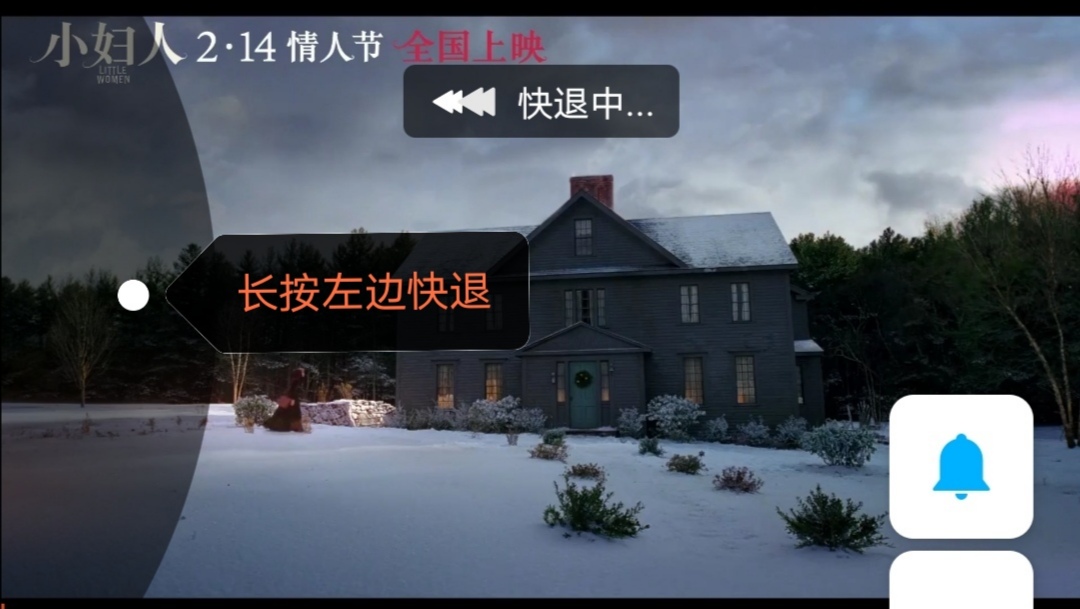 - v2.2.9 showSmallCont={false}小屏是否显示返回按钮,默认为true; 自定义进度条颜色(见api)
- v2.2.8 当ios设备为iPhone X以上,全屏时隐藏底部小横条
- v2.2.5 autoPlay={false}是否自动播放,默认为true
- v2.2.1 增加手势左右滑动视频区域(非进度条上的点)来调整视频进度
- v2.0.8 自定义小屏状态栏 类型fun
默认状态栏为沉浸式,黑底白字,有状态栏高度,可查看view/index.js 的Header组件
```
null}//不使用默认状态栏 跟当前app保持一致
statusBar={()=>}//自定义
/>
```
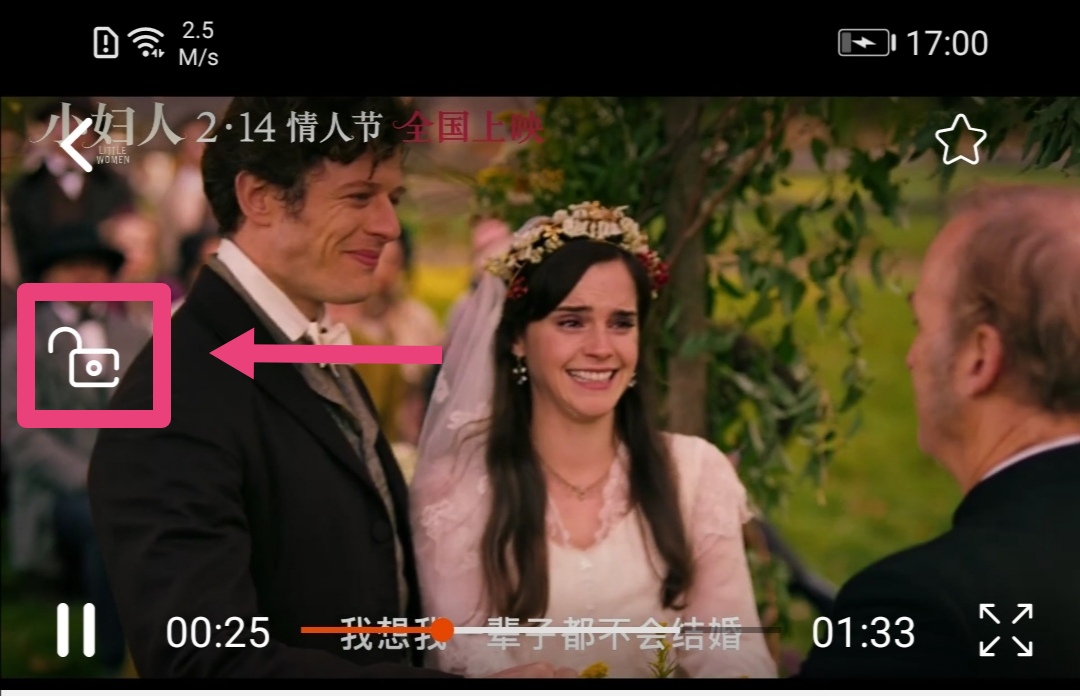
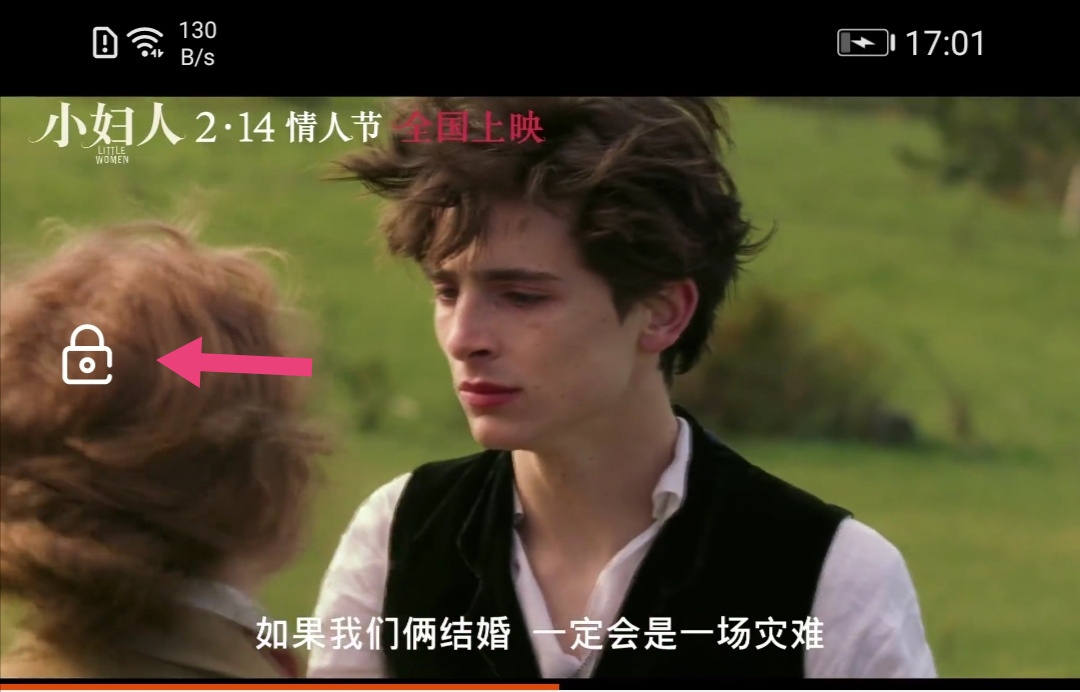
- v2.0.6 增加锁定视频控件,锁定用户操作(调节音量/亮度,展示隐藏控件)
`
lockControl (true/false 默认关闭)
`
- v2.2.9 showSmallCont={false}小屏是否显示返回按钮,默认为true; 自定义进度条颜色(见api)
- v2.2.8 当ios设备为iPhone X以上,全屏时隐藏底部小横条
- v2.2.5 autoPlay={false}是否自动播放,默认为true
- v2.2.1 增加手势左右滑动视频区域(非进度条上的点)来调整视频进度
- v2.0.8 自定义小屏状态栏 类型fun
默认状态栏为沉浸式,黑底白字,有状态栏高度,可查看view/index.js 的Header组件
```
null}//不使用默认状态栏 跟当前app保持一致
statusBar={()=>}//自定义
/>
```
- v2.0.6 增加锁定视频控件,锁定用户操作(调节音量/亮度,展示隐藏控件)
`
lockControl (true/false 默认关闭)
`
 ## Getting started
1.
```shell
npm install react-native-rn-videoplayer --save
```
2.
## - - android
Open up `android/app/src/main/java/[...]/MainActivity.java`
```diff
+import android.content.Intent;
+import android.content.res.Configuration;
public class MainActivity extends ReactActivity {
...
+ @Override
+ public void onConfigurationChanged(Configuration newConfig) {
+ super.onConfigurationChanged(newConfig);
+ Intent intent = new Intent("onConfigurationChanged");
+ intent.putExtra("newConfig", newConfig);
+ this.sendBroadcast(intent);
+ }
...
}
```
## - - iOS
Add the following to your project's `AppDelegate.m`:
```diff
+#import "Orientation.h"
+#import
@implementation AppDelegate
// ...
+- (UIInterfaceOrientationMask)application:(UIApplication *)application supportedInterfaceOrientationsForWindow:(UIWindow *)window {
+ return [Orientation getOrientation];
+}
//找到这行
UIViewController *rootViewController = [UIViewController new];
//改为
UIViewController *rootViewController = [HomeIndicatorView new];
@end
```
## RN >= 0.60
### ios
```
cd ios
pod install
```
### Android.
#### Most of them are automatically linked. If you can’t find XX, you should link manually
- settings.gradle
```diff
rootProject.name = 'TestPack622'
apply from: file("../node_modules/@react-native-community/cli-platform-android/native_modules.gradle"); applyNativeModulesSettingsGradle(settings)
+ include ':react-native-linear-gradient'
+ project(':react-native-linear-gradient').projectDir = new File(rootProject.projectDir, '../node_modules/react-native-linear-gradient/android')
+ include ':react-native-svg'
+ project(':react-native-svg').projectDir = new File(rootProject.projectDir, '../node_modules/react-native-svg/android')
+ include ':react-native-orientation-locker'
+ project(':react-native-orientation-locker').projectDir = new File(rootProject.projectDir, '../node_modules/react-native-orientation-locker/android')
+ include ':react-native-video'
+ project(':react-native-video').projectDir = new File(rootProject.projectDir, '../node_modules/react-native-video/android-exoplayer')
+ include ':react-native-system-setting'
+ project(':react-native-system-setting').projectDir = new File(rootProject.projectDir, '../node_modules/react-native-system-setting/android')
include ':app'
```
- MainApplication.java
```diff
+ import com.horcrux.svg.SvgPackage;
+ import com.BV.LinearGradient.LinearGradientPackage; // <--- This!
+ import org.wonday.orientation.OrientationPackage;
+ import com.ninty.system.setting.SystemSettingPackage;
+ import com.brentvatne.react.ReactVideoPackage;
···
@Override
protected List getPackages() {
@SuppressWarnings("UnnecessaryLocalVariable")
List packages = new PackageList(this).getPackages();
// Packages that cannot be autolinked yet can be added manually here, for example:
+ packages.add(new LinearGradientPackage());
+ packages.add(new SvgPackage());
+ packages.add(new OrientationPackage());
+ packages.add(new SystemSettingPackage());
+ packages.add(new ReactVideoPackage());
return packages;
}
···
```
- app/build.gradle
```diff
dependencies {
+ implementation project(':react-native-svg')
+ implementation project(':react-native-linear-gradient')
+ implementation project(':react-native-orientation-locker')
+ implementation project(':react-native-system-setting')
+ implementation project(':react-native-video')
}
```
## RN <= 0.59
```shell
react-native link react-native-linear-gradient
react-native link react-native-orientation-locker
react-native link react-native-svg
react-native link react-native-system-setting
react-native link react-native-video
```
#### Android
1. Append the following lines to `android/settings.gradle`:
``` javascript
include ':react-native-rn-videoplayer'
project(':react-native-rn-videoplayer').projectDir = new File(rootProject.projectDir, '../node_modules/react-native-rn-videoplayer/android')
```
2. Insert the following lines inside the dependencies block in `android/app/build.gradle`:
```
compile project(':react-native-rn-videoplayer')
```
3. Open up `android/app/src/main/java/[...]/MainApplication.java`
- Add
```java
import com.ngxu.videoplayer.RNVideoplayerPackage;
new RNVideoplayerPackage() //to the list returned by the `getPackages()` method
```
## Usage
```javascript
import VideoPlayer from 'react-native-rn-videoplayer';
this.player=ref}
lockControl={true}//控件锁定功能 v2.0.6增加
moreSetting={() => null}//右上角更多按钮 输出null则不显示
onSmallBack={()=>{this.props.navigation.goBack()}}
/>
```
# api
- url 视频地址
- showSmallCont={bool} 小屏是否隐藏返回按钮 默认false;
- changeWindows() 切换全屏或者小屏
changeWindows(boolean) true 全屏, false 小屏
Example:
```javascript
this.player=ref}/>
this.player.changeWindows(true); // 全屏
```
- storeComponent 右上角收藏按钮的图标
```javascript
storeComponent={()=>}
```
- moreSetting 右上角更多按钮的图标
```javascript
moreSetting={()=>}
```
- speedColor 当前播放进度条颜色 "#e54602"
- dotColor 进度条上的圆点颜色 "#e54602"
- dotBorderColor 进度条上的圆点被按下时的边框颜色 "rgba(255,255,255,0.3)"
- bottomSpeedColor 最底部播放进度的颜色 "#e54602"
- cachColor 缓冲进度条颜色 "#ffffff"
- allSpeedColor 整个进度条颜色 "rgba(0,0,0,0.4)
- backVideoName 返回按钮旁的文字 string
- pausedTipText 已暂停的文字 string
- loadingText 正在缓冲的文字 string
- loadingIcon 加载的图标 loadingIcon={<>}
- solText 快退中的文字 string
- fastText 快进中的文字 string
- setPaused 播放暂停
```javascript
this.player.setPaused(true)//true暂停;false播放;
this.player=ref}
>
```
- reLoad 重新加载
```javascript
this.player.reLoad()
this.player=ref}
>
```
- rePlay 重置进度为0
```javascript
this.player.reLoad(false)
//false 不自动播放
//默认为true 自动播放
```
- onSmallBack 当视频是小窗口时 点击返回按钮的回调 可以在此添加返回上个页面的功能 func
- onStore 点击右上角收藏按钮的回调 func
- onMoreFun 点击右上角更多按钮的回调 func
- onWindowChange 窗口改变的回调 func
```javascript
{}}//e:"full"全屏 "small"小屏
>
```
- continuous 是否开启全屏时的选集功能 适合连续剧 默认 false
```js
continuous={true}
```
- renderAllSeenList 点击选集后显示的集数列表
```js
···
this.player=ref}
renderAllSeenList={this.renderAllSeenList}
/>
···
renderAllSeenList = () => (
)
```
- nextBtnFun 全屏时下一集按钮的方法 当是最后一集的时候应将值变为false,将按钮置灰
```js
const {data} = this.state
//data.index为集数
//当当前播放的集数和总集数相同时,将nextBtnFun重置为false
nextBtnFun={
data.index == data.datalist[data.datalist.length - 1].num - 1 ? false : this.nextBtnFun
}
```
- onLoad 视频加载成功可以开始播放的回调 继承react-native-veideo
- onSeek 调整进度后的回调 继承react-native-video的onSeek
- onEnd 播放完的回调 继承react-native-video的onSeek
- onBuffer 是否处于等待加载时 这里可以取到视频卡住展示loading或者是视频可以播放隐藏loading的回调 继承react-native-video的onBuffer
- poster 视频封面图 视频还不能播放的时候展示的封面图 并不是loading框 继承react-native-video的poster eg:poster={"http://xudaxianer.cn/artcover/2020-12-11/1607675992959.jpg"}
- ..... 继承全部的react-native-video的方法及属性
# 暴露方法
`import {NgxuSetting} from 'react-native-rn-videoplayer'`
## 显示或者隐藏安卓底部虚拟按键
```javascript
const Setting = new NgxuSetting()
Setting.hideAndroidBottom()
Setting.showAndroidBottom()
```
## 获取手机系统亮度
```javascript
const Setting = new NgxuSetting()
Setting.getBrightness((e)=>{consoloe.log(e)})
```
## 改变ios系统亮度 android 当前app亮度
- android仅仅只改变当前active亮度,不会修改系统亮度,修改系统亮度是非常麻烦的事情,需要用户手动打开手机设置,app权限设置,手动打开“允许修改系统设置“的高级权限
- ios则是改变系统亮度你可以
```javascript
const Setting = new NgxuSetting()
Setting.SetBrightness(1)//0-1之间
```
## Getting started
1.
```shell
npm install react-native-rn-videoplayer --save
```
2.
## - - android
Open up `android/app/src/main/java/[...]/MainActivity.java`
```diff
+import android.content.Intent;
+import android.content.res.Configuration;
public class MainActivity extends ReactActivity {
...
+ @Override
+ public void onConfigurationChanged(Configuration newConfig) {
+ super.onConfigurationChanged(newConfig);
+ Intent intent = new Intent("onConfigurationChanged");
+ intent.putExtra("newConfig", newConfig);
+ this.sendBroadcast(intent);
+ }
...
}
```
## - - iOS
Add the following to your project's `AppDelegate.m`:
```diff
+#import "Orientation.h"
+#import
@implementation AppDelegate
// ...
+- (UIInterfaceOrientationMask)application:(UIApplication *)application supportedInterfaceOrientationsForWindow:(UIWindow *)window {
+ return [Orientation getOrientation];
+}
//找到这行
UIViewController *rootViewController = [UIViewController new];
//改为
UIViewController *rootViewController = [HomeIndicatorView new];
@end
```
## RN >= 0.60
### ios
```
cd ios
pod install
```
### Android.
#### Most of them are automatically linked. If you can’t find XX, you should link manually
- settings.gradle
```diff
rootProject.name = 'TestPack622'
apply from: file("../node_modules/@react-native-community/cli-platform-android/native_modules.gradle"); applyNativeModulesSettingsGradle(settings)
+ include ':react-native-linear-gradient'
+ project(':react-native-linear-gradient').projectDir = new File(rootProject.projectDir, '../node_modules/react-native-linear-gradient/android')
+ include ':react-native-svg'
+ project(':react-native-svg').projectDir = new File(rootProject.projectDir, '../node_modules/react-native-svg/android')
+ include ':react-native-orientation-locker'
+ project(':react-native-orientation-locker').projectDir = new File(rootProject.projectDir, '../node_modules/react-native-orientation-locker/android')
+ include ':react-native-video'
+ project(':react-native-video').projectDir = new File(rootProject.projectDir, '../node_modules/react-native-video/android-exoplayer')
+ include ':react-native-system-setting'
+ project(':react-native-system-setting').projectDir = new File(rootProject.projectDir, '../node_modules/react-native-system-setting/android')
include ':app'
```
- MainApplication.java
```diff
+ import com.horcrux.svg.SvgPackage;
+ import com.BV.LinearGradient.LinearGradientPackage; // <--- This!
+ import org.wonday.orientation.OrientationPackage;
+ import com.ninty.system.setting.SystemSettingPackage;
+ import com.brentvatne.react.ReactVideoPackage;
···
@Override
protected List getPackages() {
@SuppressWarnings("UnnecessaryLocalVariable")
List packages = new PackageList(this).getPackages();
// Packages that cannot be autolinked yet can be added manually here, for example:
+ packages.add(new LinearGradientPackage());
+ packages.add(new SvgPackage());
+ packages.add(new OrientationPackage());
+ packages.add(new SystemSettingPackage());
+ packages.add(new ReactVideoPackage());
return packages;
}
···
```
- app/build.gradle
```diff
dependencies {
+ implementation project(':react-native-svg')
+ implementation project(':react-native-linear-gradient')
+ implementation project(':react-native-orientation-locker')
+ implementation project(':react-native-system-setting')
+ implementation project(':react-native-video')
}
```
## RN <= 0.59
```shell
react-native link react-native-linear-gradient
react-native link react-native-orientation-locker
react-native link react-native-svg
react-native link react-native-system-setting
react-native link react-native-video
```
#### Android
1. Append the following lines to `android/settings.gradle`:
``` javascript
include ':react-native-rn-videoplayer'
project(':react-native-rn-videoplayer').projectDir = new File(rootProject.projectDir, '../node_modules/react-native-rn-videoplayer/android')
```
2. Insert the following lines inside the dependencies block in `android/app/build.gradle`:
```
compile project(':react-native-rn-videoplayer')
```
3. Open up `android/app/src/main/java/[...]/MainApplication.java`
- Add
```java
import com.ngxu.videoplayer.RNVideoplayerPackage;
new RNVideoplayerPackage() //to the list returned by the `getPackages()` method
```
## Usage
```javascript
import VideoPlayer from 'react-native-rn-videoplayer';
this.player=ref}
lockControl={true}//控件锁定功能 v2.0.6增加
moreSetting={() => null}//右上角更多按钮 输出null则不显示
onSmallBack={()=>{this.props.navigation.goBack()}}
/>
```
# api
- url 视频地址
- showSmallCont={bool} 小屏是否隐藏返回按钮 默认false;
- changeWindows() 切换全屏或者小屏
changeWindows(boolean) true 全屏, false 小屏
Example:
```javascript
this.player=ref}/>
this.player.changeWindows(true); // 全屏
```
- storeComponent 右上角收藏按钮的图标
```javascript
storeComponent={()=>}
```
- moreSetting 右上角更多按钮的图标
```javascript
moreSetting={()=>}
```
- speedColor 当前播放进度条颜色 "#e54602"
- dotColor 进度条上的圆点颜色 "#e54602"
- dotBorderColor 进度条上的圆点被按下时的边框颜色 "rgba(255,255,255,0.3)"
- bottomSpeedColor 最底部播放进度的颜色 "#e54602"
- cachColor 缓冲进度条颜色 "#ffffff"
- allSpeedColor 整个进度条颜色 "rgba(0,0,0,0.4)
- backVideoName 返回按钮旁的文字 string
- pausedTipText 已暂停的文字 string
- loadingText 正在缓冲的文字 string
- loadingIcon 加载的图标 loadingIcon={<>}
- solText 快退中的文字 string
- fastText 快进中的文字 string
- setPaused 播放暂停
```javascript
this.player.setPaused(true)//true暂停;false播放;
this.player=ref}
>
```
- reLoad 重新加载
```javascript
this.player.reLoad()
this.player=ref}
>
```
- rePlay 重置进度为0
```javascript
this.player.reLoad(false)
//false 不自动播放
//默认为true 自动播放
```
- onSmallBack 当视频是小窗口时 点击返回按钮的回调 可以在此添加返回上个页面的功能 func
- onStore 点击右上角收藏按钮的回调 func
- onMoreFun 点击右上角更多按钮的回调 func
- onWindowChange 窗口改变的回调 func
```javascript
{}}//e:"full"全屏 "small"小屏
>
```
- continuous 是否开启全屏时的选集功能 适合连续剧 默认 false
```js
continuous={true}
```
- renderAllSeenList 点击选集后显示的集数列表
```js
···
this.player=ref}
renderAllSeenList={this.renderAllSeenList}
/>
···
renderAllSeenList = () => (
)
```
- nextBtnFun 全屏时下一集按钮的方法 当是最后一集的时候应将值变为false,将按钮置灰
```js
const {data} = this.state
//data.index为集数
//当当前播放的集数和总集数相同时,将nextBtnFun重置为false
nextBtnFun={
data.index == data.datalist[data.datalist.length - 1].num - 1 ? false : this.nextBtnFun
}
```
- onLoad 视频加载成功可以开始播放的回调 继承react-native-veideo
- onSeek 调整进度后的回调 继承react-native-video的onSeek
- onEnd 播放完的回调 继承react-native-video的onSeek
- onBuffer 是否处于等待加载时 这里可以取到视频卡住展示loading或者是视频可以播放隐藏loading的回调 继承react-native-video的onBuffer
- poster 视频封面图 视频还不能播放的时候展示的封面图 并不是loading框 继承react-native-video的poster eg:poster={"http://xudaxianer.cn/artcover/2020-12-11/1607675992959.jpg"}
- ..... 继承全部的react-native-video的方法及属性
# 暴露方法
`import {NgxuSetting} from 'react-native-rn-videoplayer'`
## 显示或者隐藏安卓底部虚拟按键
```javascript
const Setting = new NgxuSetting()
Setting.hideAndroidBottom()
Setting.showAndroidBottom()
```
## 获取手机系统亮度
```javascript
const Setting = new NgxuSetting()
Setting.getBrightness((e)=>{consoloe.log(e)})
```
## 改变ios系统亮度 android 当前app亮度
- android仅仅只改变当前active亮度,不会修改系统亮度,修改系统亮度是非常麻烦的事情,需要用户手动打开手机设置,app权限设置,手动打开“允许修改系统设置“的高级权限
- ios则是改变系统亮度你可以
```javascript
const Setting = new NgxuSetting()
Setting.SetBrightness(1)//0-1之间
```