# React Native Rich Text Editor
[](https://www.npmjs.com/package/react-native-pell-rich-editor)
------
> A fully functional Rich Text Editor for both Android and iOS (macOS and windows)?
> If you want to use **flutter**, you can check [here](https://github.com/wxik/flutter-rich-editor) to add **flutter_rich_editor**
```
yarn add react-native-pell-rich-editor
or
npm i react-native-pell-rich-editor
```
Also, follow instructions [here](https://github.com/react-native-community/react-native-webview) to add the native `react-native-webview` dependency.
* [Online Preview](https://wxik.github.io/react-native-rich-editor/web) (Some functions)
* [Example](./examples) Hooks Rewrite
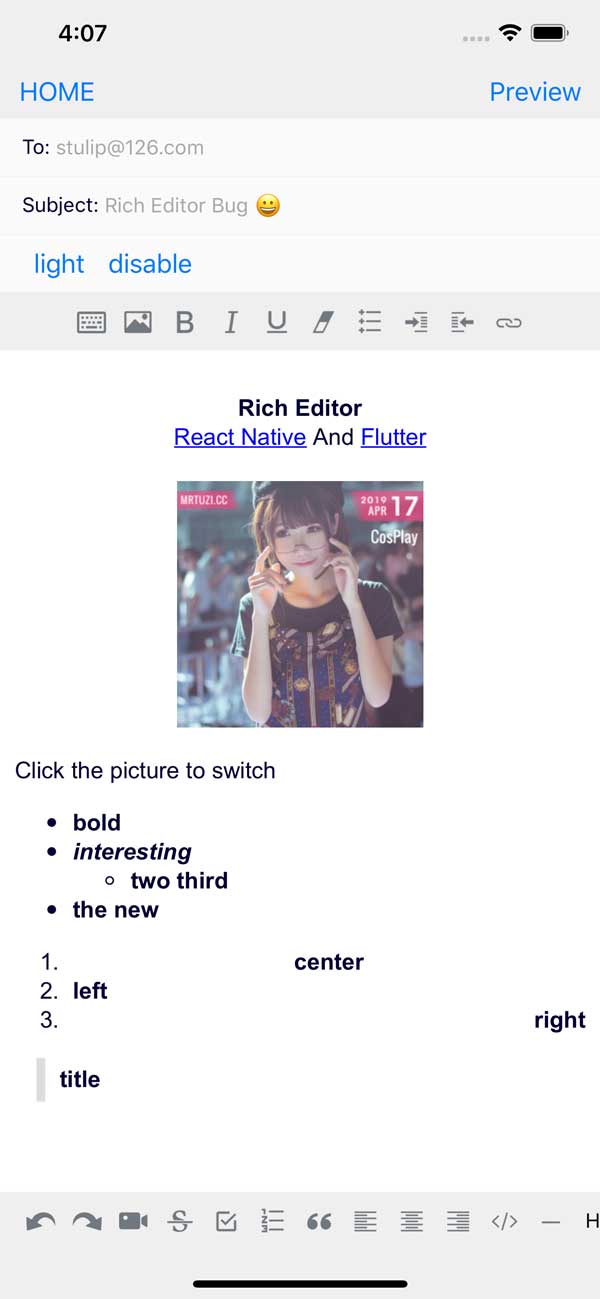
---
## Scroll problem
###`usecontainer = {true}` Need to be placed in ScrolView and add a callback method `oncursorPosition` to handle scroll bar positioning, refer to Examples
```this.scrollRef.current.scrollTo({y: scrollY - 30, animated: true});```
---
## `RichEditor`
The editor component. Simply place this component in your view hierarchy to receive a fully functional Rich text Editor.
`RichEditor` takes the following optional props:
* `html`
Accepts custom HTML, allowing you to make your own customizations
* `placeholder`
Wrap the editor content placeholder
* `initialContentHTML`
HTML that will be rendered in the content section on load.
* `initialFocus`
* Boolean value to Initial content request focus. The default value is `false`.
* `disabled`
* Boolean value to disable editor. The default value is `false`.
* `enterKeyHint`
* String value to set return key type - [returnKeyType](https://reactnative.dev/docs/textinput#returnkeytype)
* `editorInitializedCallback `
A function that will be called when the editor has been initialized.
* `editorStyle`
Styling for container or for Rich Editor more dark or light settings. Object containing the following options:
- `backgroundColor`: Editor background color
- `color`: Editor text color
- `caretColor` cursor/selection color
- `placeholderColor`: Editor placeholder text color
- `contentCSSText`: editor content css text(initial valid)
- `cssText`: editor global css text(initial valid)
- `initialCSSText`: injects CSS at the beginning of the inline stylesheet. Useful for incorporating custom fonts (see below).
* `onChange`
Callback after editor data modification
* `onHeightChange`
Callback after height change
* `onMessage`
Callback outside postMessage internal type processing
```html
![]() ```
* `command`
Execute JS in the editor
```js
// $ = document
this.richText.current?.commandDOM('$.execCommand('insertHTML', false, "
```
* `command`
Execute JS in the editor
```js
// $ = document
this.richText.current?.commandDOM('$.execCommand('insertHTML', false, "
")');
```
* `commandDOM`
Manipulate the DOM in the editor
```js
// $ = document.querySelector
this.richText.current?.commandDOM(`$('#title').style.color='${color}'`);
```
* `useContainer`
A boolean value that determines if a View container is wrapped around the WebView. The default value is true. If you are using your own View to wrap this library around, set this value to false.
* `styleWithCSS`
When true, style attribute of tags are modified. Otherwise dedicated tags are created. The default value is false
* `initialHeight`
useContainer is false by inline view of initial height
* `pasteAsPlainText`
A boolean value (false as default) that determines if the clipboard paste will keep its format or it will be done as plain text
* `useCharacter`
The option to disable Chinese characters allows you to support English characters without errors on Android. Set to `true` by default for backwards compatibility.
* `defaultHttps`
A boolean value (true as default) that prepends https:// to the start of links
* `onPaste`
Callback clipboard paste value
* `onKeyUp`
Callback Keyup event (Android 229 bug)
* `onKeyDown`
Callback Keydown event (Android 229 bug)
* `onInput`
Callback input value
* `onLink`
Callback link click
* `onFocus`
Callback editor focus
* `onBlur`
Callback editor blur
* `onCursorPosition`
Callback Enter the position of the cursor
```this.scrollRef.current.scrollTo({y: scrollY - 30, duration: 100, animated: true});```
`RichEditor` also has methods that can be used on its `ref` to set:
* `setContentHTML(html: string)`
* `insertImage(url: string, style?: string) `
* `insertLink(title: string, url: string) `
* `insertText(text: string)`
* `insertHTML(html: string)`
* `insertVideo(url: string, style?: string)`
* `setContentFocusHandler(handler: Function)`
* `blurContentEditor()`
* `focusContentEditor()`
This method registers a function that will get called whenver the cursor position changes or a change is made to the styling of the editor at the cursor's position., The callback will be called with an array of `actions` that are active at the cusor position, allowing a toolbar to respond to changes.
* `registerToolbar(listener: Function)`
### Example Usage:
```javascript
this.richtext = r}
initialContentHTML={'Hello World this is a new paragraph
this is another new paragraph
'}
editorInitializedCallback={() => this.onEditorInitialized()}
/>
```
### Using Custom Fonts
In order to use custom fonts, you need to use `initialCSSText` from the `editorStyle` prop.
1. Upload your font files to https://transfonter.org and check the 'base64' option. When you download the zip file, there will be a stylesheet.css file there.
2. Take your stylesheet.css file and create a `stylesheet.js` file.
3. Create an export and paste the contents of the css file there. e.g.:
```javascript
const FontFamilyStylesheet = `
@font-face {
font-family: 'Your Font Family';
src: url('data:font/ttf;charset=utf-8;base64,...............'); // You can also use a web url here
font-weight: normal;
}
`;
export default FontFamilyStylesheet;
```
4. Where you've incorporated your `RichEditor` component, import the file and utilize it.
```javascript
import FontFamilyStylesheet from 'stylesheet.js';
const fontFamily = 'Your_Font_Family';
const initialCSSText = { initialCSSText: `${FontFamilyStylesheet}`, contentCSSText: `font-family: ${fontFamily}` }
```
5. Reload the app. You should now be seeing your Rich Editor content in your custom font face!
For more info on how `initialCSSText` works, check out the PR [here](https://github.com/wxik/react-native-rich-editor/pull/111).
Also, credit to [this](https://github.com/wxik/react-native-rich-editor/issues/70#issuecomment-759441101) issue comment and [his fork](https://github.com/FloMueh/react-native-rich-editor) that describes how to use the base64 encoded font file.
## `RichToolbar`
This is a Component that provides a toolbar for easily controlling an editor. It is designed to be used together with a `RichEditor` component.
The `RichToolbar` has one required property:
* `getEditor()`
Which must provide a **function** that returns a `ref` to a `RichEditor` component.
This is because the `ref` is not created until after the first render, before which the toolbar is rendered. This means that any `ref` passed directly will inevitably be passed as `undefined`.
Other props supported by the `RichToolbar` component are:
* `actions`
An `array` of `actions` to be provided by this toolbar. The default actions are:
* `actions.insertImage`
* `actions.setBold`
* `actions.setItalic`
* `actions.insertBulletsList`
* `actions.insertOrderedList`
* `actions.insertLink`
* `actions.keyboard`
* `actions.setStrikethrough`
* `actions.setUnderline`
* `actions.removeFormat`
* `actions.insertVideo`
* `actions.checkboxList`
* `actions.undo`
* `actions.redo`
* `onPressAddImage`
Functions called when the `addImage` actions are tapped.
* `onInsertLink`
Logic for what happens when you press on the add insert link button
* `disabled`
* Boolean value to disable editor. The default value is `false`.
* `iconTint`
* `unselectedButtonStyle`
* `selectedIconTint`
* `selectedButtonStyle`
* `disabledIconTint`
* `disabledButtonStyle`
These provide options for styling action buttons.
* `iconSize`
Defines the size of the icon in pixels. Default is 50.
* `renderAction`
Altenatively, you can provide a render function that will be used instead of the default, so you can fully control the tollbar design.
* `iconMap`
`RichTextToolbar` comes with default icons for the default actions it renders. To override those, or to add icons for non-default actions, provide them in a dictionary to this prop.
### Example Usage:
```javascript
const richText = React.createRef() || useRef();
```
#### With Custom Action:
To define your own custom action:
- Send your action name as string in the `actions` array.
- Include an icon for it with the `iconMap`
- Add a function prop with the same action name to be called on tap
```javascript
```
#### A Complete Example Using a Functional Component
```javascript
import React from "react";
import { Text, Platform, KeyboardAvoidingView, SafeAreaView, ScrollView } from "react-native";
import {actions, RichEditor, RichToolbar} from "react-native-pell-rich-editor";
const handleHead = ({tintColor}) => H1
const TempScreen = () => {
const richText = React.useRef();
return (
Description:
{
console.log("descriptionText:", descriptionText);
}}
/>
);
};
export default TempScreen;
```
---
### Thank you very much for the support of [JetBrains](https://jb.gg/OpenSource)