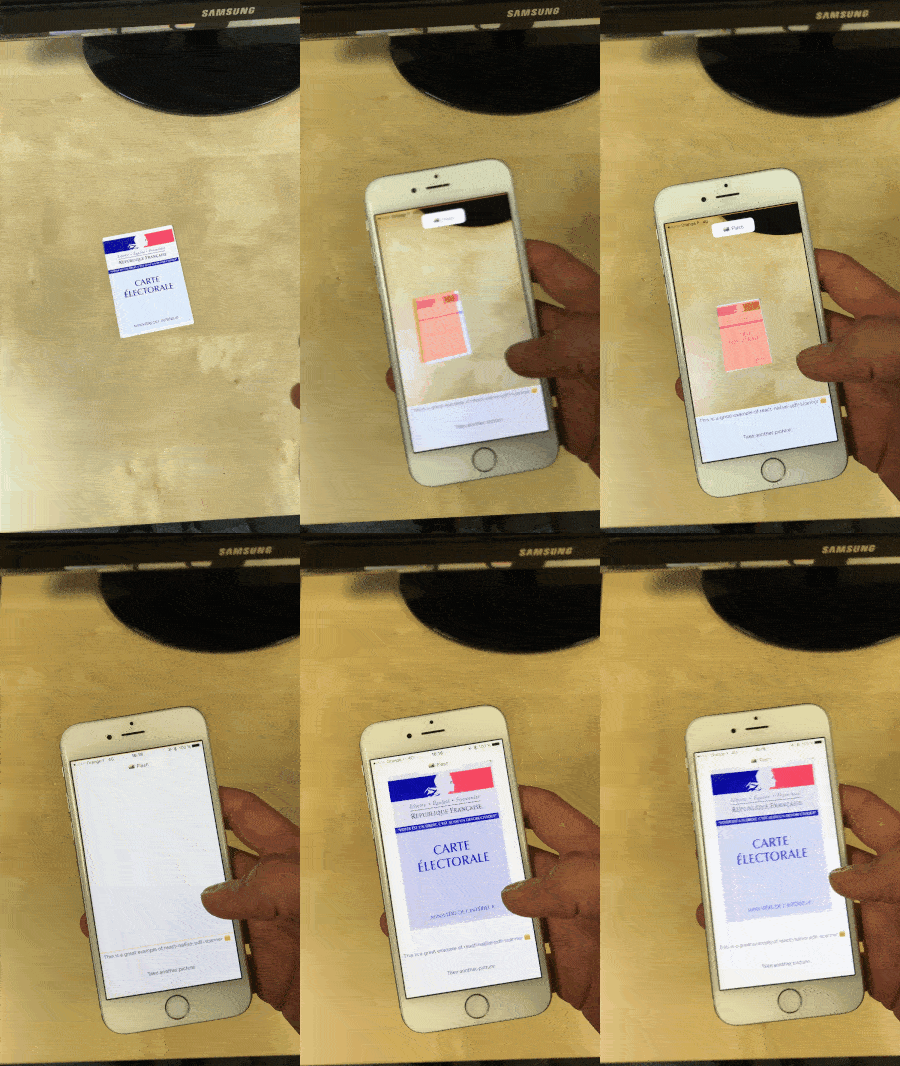
# React Native Document Scanner (iOS only)
Live document detection library. Returns either a URI or a base64 encoded string of the captured image, allowing you to easily store it or use it as you wish !
Features :
- Live detection
- Perspective correction and crop of the image
- Live camera filters (brightness, saturation, contrast)
- Flash
- Easy to use base64 image
#### Can be easily plugged with [react-native-perspective-image-cropper](https://github.com/Michaelvilleneuve/react-native-perspective-image-cropper)

## Getting started
Use version >=1.4.1 if you are using react-native 0.48+
`$ npm install react-native-document-scanner --save`
`$ react-native link react-native-document-scanner`
Edit the `info.plist` file in XCode and add the following permission : `NSCameraUsageDescription`
Remember, this library uses your device camera, you can't run it on a simulator.
### With Cocoapods
If you want to use Cocoapods insteads of `react-native link`, add the following to your Podfile
```
pod 'RNPdfScanner', :path => '../node_modules/react-native-document-scanner/ios'
```
## Usage
```javascript
import React,{ Component } from 'react';
import { View, Image } from 'react-native';
import DocumentScanner from 'react-native-document-scanner';
class YourComponent extends Component {
render() {
return (
this.setState({
image: data.croppedImage,
initialImage: data.initialImage,
rectangleCoordinates: data.rectangleCoordinates,
})}
overlayColor="rgba(255,130,0, 0.7)"
enableTorch={false}
brightness={0.3}
saturation={1}
contrast={1.1}
quality={0.5}
onRectangleDetect={({ stableCounter, lastDetectionType }) => this.setState({ stableCounter, lastDetectionType })}
detectionCountBeforeCapture={5}
detectionRefreshRateInMS={50}
/>
);
}
}
```
## Properties
| Prop | Default | Type | Description |
| :-------- |:----:| :--------:| :----------|
| overlayColor | `none` | `string` | Color of the detected rectangle : rgba recommended |
| detectionCountBeforeCapture | `5` | `integer` | Number of correct rectangle to detect before capture |
| detectionRefreshRateInMS | `50` | `integer` | Time between two rectangle detection attempt |
| enableTorch | `false` | `bool` | Allows to active or deactivate flash during document detection |
| useFrontCam | `false` | `bool` | Allows you to switch between front and back camera |
| brightness | `0` | `float` | Increase or decrease camera brightness. Normal as default. |
| saturation | `1` | `float` | Increase or decrease camera saturation. Set `0` for black & white |
| contrast | `1` | `float` | Increase or decrease camera contrast. Normal as default |
| quality | `0.8` | `float` | Image compression. Reduces both image size and quality |
| useBase64 | `false` | `bool` | If base64 representation should be passed instead of image uri's |
| captureMultiple | `false` | `bool` | Keeps the scanner on after a successful capture |
## Manual capture
- First get component ref
```javascript
this.scanner = ref} />
```
- Then call :
```javascript
this.scanner.capture();
```
## Each rectangle detection
| Props | Params | Type | Description |
|-------------------|----------------------------------------|----------|-------------|
| onRectangleDetect | `{ stableCounter, lastDetectionType }` | `object` | See below |
The returned object includes the following keys :
- `stableCounter`
Number of correctly formated rectangle found (this number triggers capture once it goes above `detectionCountBeforeCapture`)
- `lastDetectionType`
Enum (0, 1 or 2) corresponding to the type of rectangle found
0. Correctly formated rectangle
1. Wrong perspective, bad angle
2. Too far
## Returned image
| Prop | Params | Type | Description |
| :----------- |:-------:| :--------:| :----------|
| onPictureTaken | `data` | `object` | Returns the captured image in an object `{ croppedImage: ('URI or BASE64 string'), initialImage: 'URI or BASE64 string', rectangleCoordinates: 'object of coordinates' }` |
### If you prefer manual installation
1. In XCode, in the project navigator, right click `Libraries` ➜ `Add Files to [your project's name]`
2. Go to `node_modules` ➜ `react-native-pdf-scanner` and add `RNPdfScanner.xcodeproj`
3. In XCode, in the project navigator, select your project. Add `libRNPdfScanner.a` to your project's `Build Phases` ➜ `Link Binary With Libraries`
4. Run your project (`Cmd+R`)<
## Credits
This repo is a React Native implementation of the following native library : https://github.com/mmackh/IPDFCameraViewController
Special thank to Mark Peysale :)