# card.io component for React Native
A fully featured implementation of [card.io](https://www.card.io/) for iOS and Android.
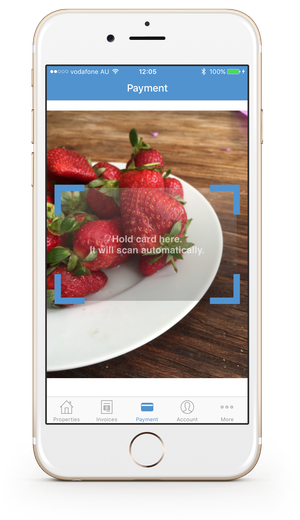
## Installation iOS
1. Run `npm install react-native-card-io --save` in your project directory.
1. Open your project in XCode (make sure to open `.xcworkspace` NOT `.xcproject`), right click on `Libraries` and click `Add Files to "Your Project Name"`.
1. Within `node_modules`, find `react-native-card-io/ios` and add `RCTCardIO.xcodeproj` to your project.
1. Add `libRCTCardIO.a` to `Build Phases -> Link Binary With Libraries`.
1. Add the `-lc++` flag to `Build Settings -> Other Linker Flags`.
## Installation Android
TODO: Currently building a react-native app for iOS and Android, so this will be done soon :)
## Usage
``` javascript
import {CardIOView, CardIOUtilities} from 'react-native-card-io'
...
componentDidMount() {
// The preload method prepares card.io to launch faster. Calling preload is optional but suggested.
// On an iPhone 5S, for example, preloading makes card.io launch ~400ms faster.
// The best time to call preload is when displaying a view from which card.io might be launched;
// e.g., inside your view controller's componentDidMount method.
// preload works in the background; the call to preload returns immediately.
CardIOUtilities.preload();
},
render() {
if (CardIOUtilities.canReadCardWithCamera) {
return (
console.log(result)} />
);
}
return (
card.io requires a camera
);
}
```
## CardIOView
### props
See `card_io_view.js` for all `React.PropTypes`.
All props are optional and the view can be used with simply:
``` javascript
```
### didScanCard
The `didScanCard` function returns the following object:
``` Javascript
{
cardNumber: string,
redactedCardNumber: string,
expiryMonth: number, // January == 1
expiryYear: number,
cvv: string,
postalCode: string,
scanned: boolean,
cardImage: string, // base64
cardType: string,
logoForCardType: string, // base64
}
```
To display the images returned by `didScanCard` use the following:
``` javascript
```
## TODO
- [ ] Android implementation
- [ ] implement `CardIOPaymentViewController`
- [ ] add rotation notifications
## Secure
card.io does not store or transmit credit card numbers.
Recommend using the [Privacy Snapshot react-native component](https://github.com/kayla-tech/react-native-privacy-snapshot) if using with iOS to blur the screen when the app is backgrounded.