---
title: Introduction to Using Properties
lastUpdate: "2015-05-29"
tags:
---
Before we start with the real fun stuff, let's spend a chapter or some minutes to understand the basic principles behind defining and using properties in Qlik Sense _Visualization Extensions_.
This chapter only focuses on the basic concept of properties, a detailed overview of all possibilities will be added later on in one of the advanced chapters.
## The Idea Behind Properties
The main idea behind properties is to offer users a way to customize the behavior of _visualization extensions_ in the same way as they would control Qlik Sense' native objects. Therefore an extension developer can use a programmatic interface to define properties which are then displayed in the right property panel the exactly same way as it is the case with native objects.
## The property panel
If you have a look at the property panel accordion you'll recognize that properties are structured in a hierarchy as follows:
* **Accordion**
* Accordion **sections**
* Section **headers**
* Property **items**

## Property panel definition in your JavaScript file
As already mentioned in the previous chapter, properties can be added by defining them in the `definition` property of the extension's JavaScript file:
## Built-in vs. custom properties
There are two main approaches how you can define properties:
1. **Re-use existing** (built-in) **properties**
2. Create **custom properties**
### Re-use existing properties
If you have spent some time with Qlik Sense, you already know the concept of typical properties used for the most common native objects:
* Every native object has a section called "Appearance" and a section header called "General"
* Most of the native objects allow "Dimensions" and "Measures" to be defined
If you create a visualization extension without specifying any specific properties to be shown in the property panel you'll get the following:
**Code:**
```javascript
define( [
'jquery'
],
function ( $ ) {
'use strict';
return {
paint: function ( $element /*, layout*/ ) {
$element.empty();
var $msg = $( document.createElement( 'div' ) );
$msg.html( 'Just demonstrating default behavior of the property panel"' );
$element.append( $msg );
}
};
} );
```
**Result:**
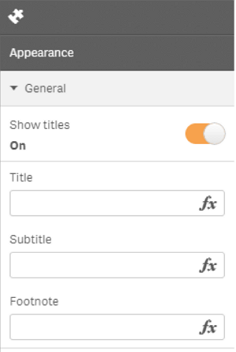
So getting the "Appearance" section is the default behavior.
You'll get the same result by telling Qlik Sense to re-use the section "settings" (which is the internal name for the "Appearance" section.
```javascript
define( [
'jquery'
],
function ( $ ) {
'use strict';
return {
definition: {
type: "items",
component: "accordion",
items: {
appearance: {
uses: "settings"
}
}
},
paint: function ( $element /*, layout*/ ) {
$element.empty();
var $msg = $( document.createElement( 'div' ) );
$msg.html( 'Just demonstrating default behavior of the property panel"' );
$element.append( $msg );
}
};
} );
```
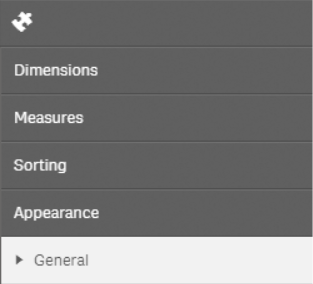
Based on this example we can now extend `definition` to re-use other built-in sections.
**Code:**
```javascript
// --
// Reuse the following sections
// - dimensions
// - measures
// - sorting
// - settings ("Appearance" section)
// --
definition: {
type: "items",
component: "accordion",
items: {
dimensions: {
uses: "dimensions"
},
measures: {
uses: "measures"
},
sorting: {
uses: "sorting"
},
appearance: {
uses: "settings"
}
}
}
```
**Result:**
#### Referencing properties
As we have now defined some properties to use in our extension, let's have a look how to reference the properties in our code.
We haven't covered this so far: A second parameter called `layout` will be passed to the `paint` method, which includes the current scope the extension object, also "holding" the properties we have defined.
```javascript
// Make sure to add some dimensions and measures to your extension first
// (This will give you a better picture what layout can contain ...)
paint: function ( $element, layout ) {
console.info('paint >> layout >> ', layout);
}
```
If you have a look at the console output of e.g. Chrome's Dev Tools, you can easily find what you are looking for:
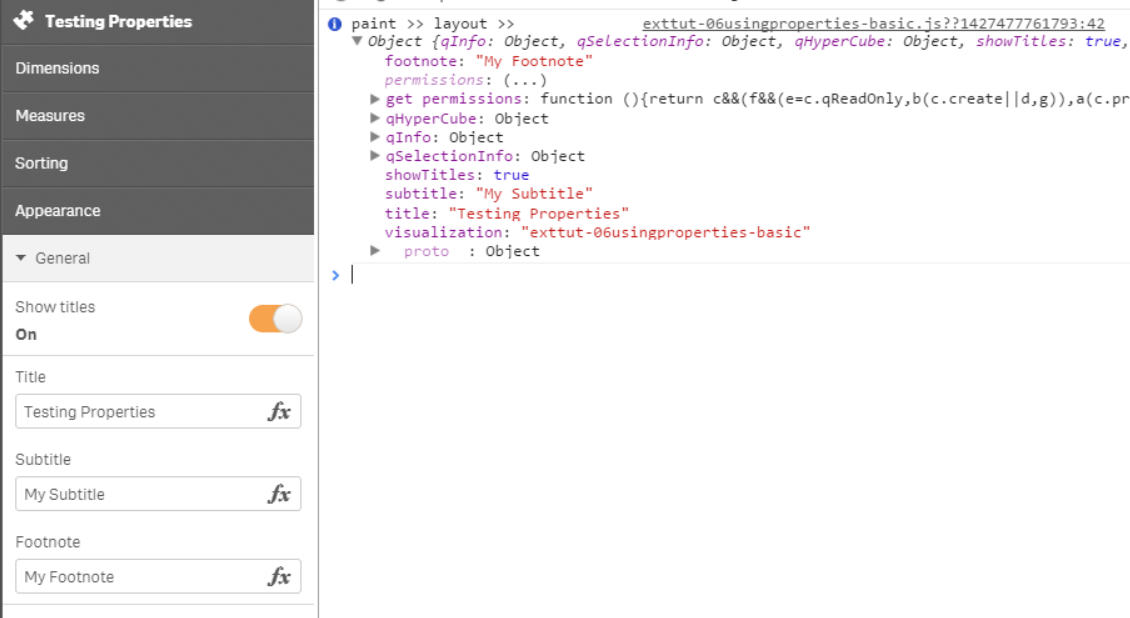
So let's output some values in our `paint` method:
```javascript
paint: function ( $element, layout ) {
// Output values from the property panel
$element.empty();
// Our output container
var $msg = $( document.createElement( 'div' ) );
// Variable holding the output
var html = 'Property values:
';
html += 'Title: ' + layout.title + '
';
html += 'SubTitle: ' + layout.subtitle + '
';
// Assigning the variable to our output container
$msg.html( html );
// Adding the output container to the current element
$element.append( $msg );
}
```
Great, you now can use built-in properties in your _visualization extension_ in the next chapter we'll explore how to customize the property panel to get our very custom properties into there to allow users to configure the behavior of your _visualization extension_.