# pyz-knowledge-graph-vue
#### Vue 3 知识图谱可视化组件,基于 AntV G6。
[](https://github.com/tj/commander.js/actions?query=workflow%3A%22build%22)
[](https://www.npmjs.org/package/pyz-knowledge-graph-vue)
[](https://npmcharts.com/compare/pyz-knowledge-graph-vue?minimal=true)
[](https://packagephobia.now.sh/result?p=pyz-knowledge-graph-vue)
## 安装
```bash
npm install pyz-knowledge-graph-vue
```
### 必须引入样式
组件样式单独打包在 `dist/style.css`。**若不引入该文件,图谱容器、工具栏(含编辑模式下左侧 `GraphEditorToolbar`)都会没有样式**,有时还会被 G6 画布层盖住。
在应用入口(如 `main.ts` / `main.js`)增加一行:
```ts
import 'pyz-knowledge-graph-vue/dist/style.css'
```
若使用按需引入组件,也请在任意会加载到图谱页面的入口中保证上述 CSS 至少被加载一次。
## 依赖
- Vue 3.2+
- @antv/g6 ^4.8.0
## 快速开始
```vue
```
## 组件
### GraphVisualization
知识图谱可视化组件。
#### Props
| 属性 | 类型 | 默认值 | 说明 |
|------|------|--------|------|
| nodes | `GraphNode[]` | `[]` | 节点数据 |
| edges | `GraphEdge[]` | `[]` | 边数据 |
| width | `number` | `0` | 画布宽度,0 表示自适应容器 |
| height | `number` | `0` | 画布高度,0 表示自适应容器 |
#### 节点数据类型 (GraphNode)
```typescript
interface GraphNode {
id: string // 唯一标识
label: string // 显示文本
type?: string // 节点类型(用于配色)
size?: number // 节点大小
style?: {
fill?: string // 填充色
stroke?: string // 边框色
lineWidth?: number // 边框宽度
}
x?: number // 初始 X 坐标
y?: number // 初始 Y 坐标
}
```
#### 边数据类型 (GraphEdge)
```typescript
interface GraphEdge {
id: string // 唯一标识
source: string // 源节点 ID
target: string // 目标节点 ID
label?: string // 关系标签
relation_type?: string // 关系类型(用于配色)
style?: {
stroke?: string // 线条颜色
lineWidth?: number // 线条宽度
}
}
```
#### 事件 / 方法
通过 `ref` 调用:
```vue
```
### GraphToolbar
图谱工具栏组件,提供布局切换、画布适应及展开/收起等功能。
#### Props
| 属性 | 类型 | 默认值 | 说明 |
|------|------|--------|------|
| layoutType | `'force' \| 'circular'` | `'force'` | 当前布局类型,用于高亮当前选中按钮 |
#### Events
| 事件名 | 说明 |
|--------|------|
| fitview | 点击"适应画布"时触发 |
| resetLayout | 点击"重置布局"时触发 |
| switchToForce | 切换到力导向布局时触发 |
| switchToCircular | 切换到环形布局时触发 |
#### 使用示例
```vue
```
> **注意**:工具栏支持展开/收起,点击左侧箭头按钮即可隐藏/显示工具栏按钮组。
## 交互功能
- **缩放画布**: 鼠标滚轮
- **拖拽节点**: 拖动节点可移动位置,相邻节点会跟随移动
- **拖动画布**: 右键拖动
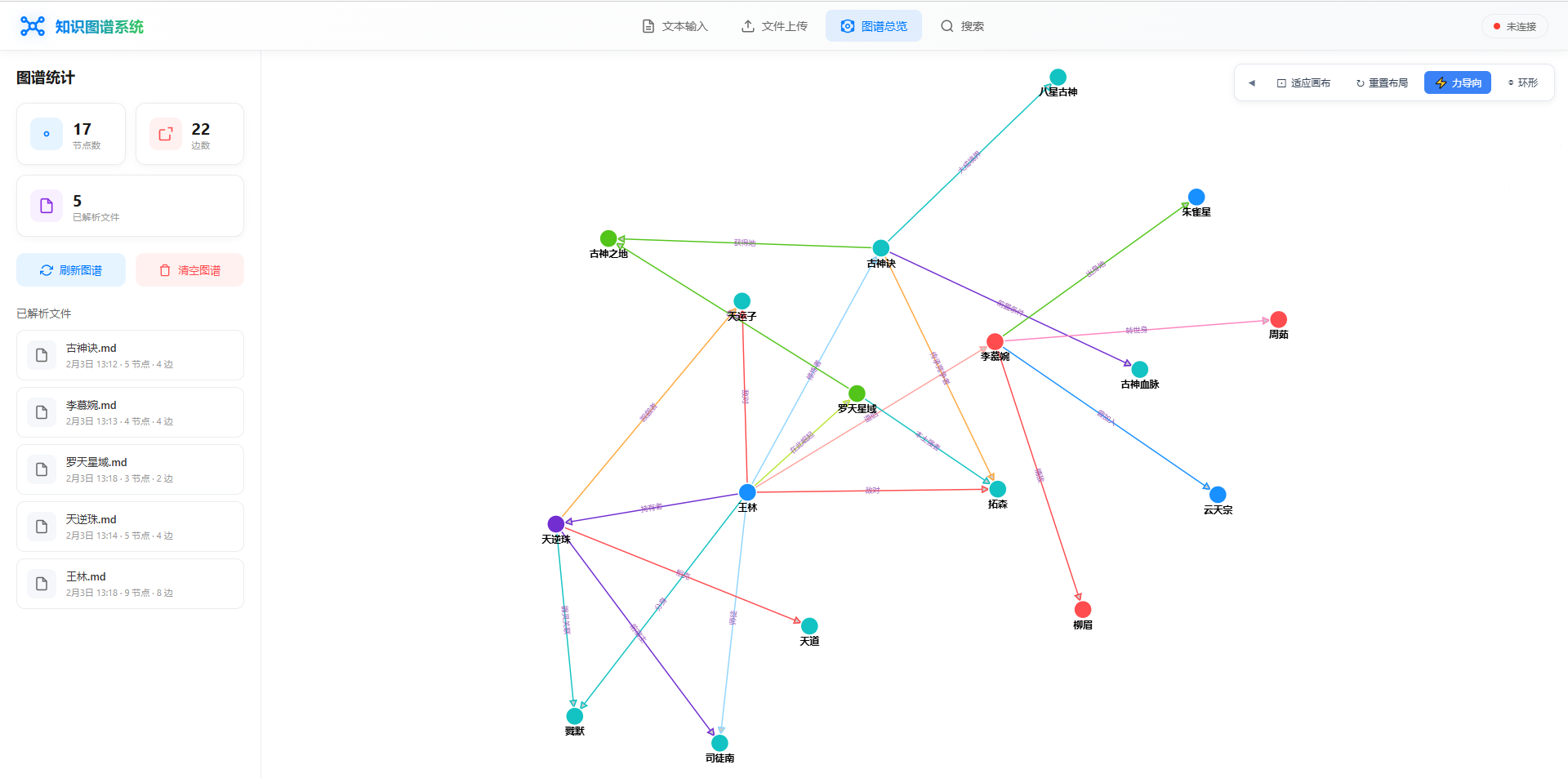
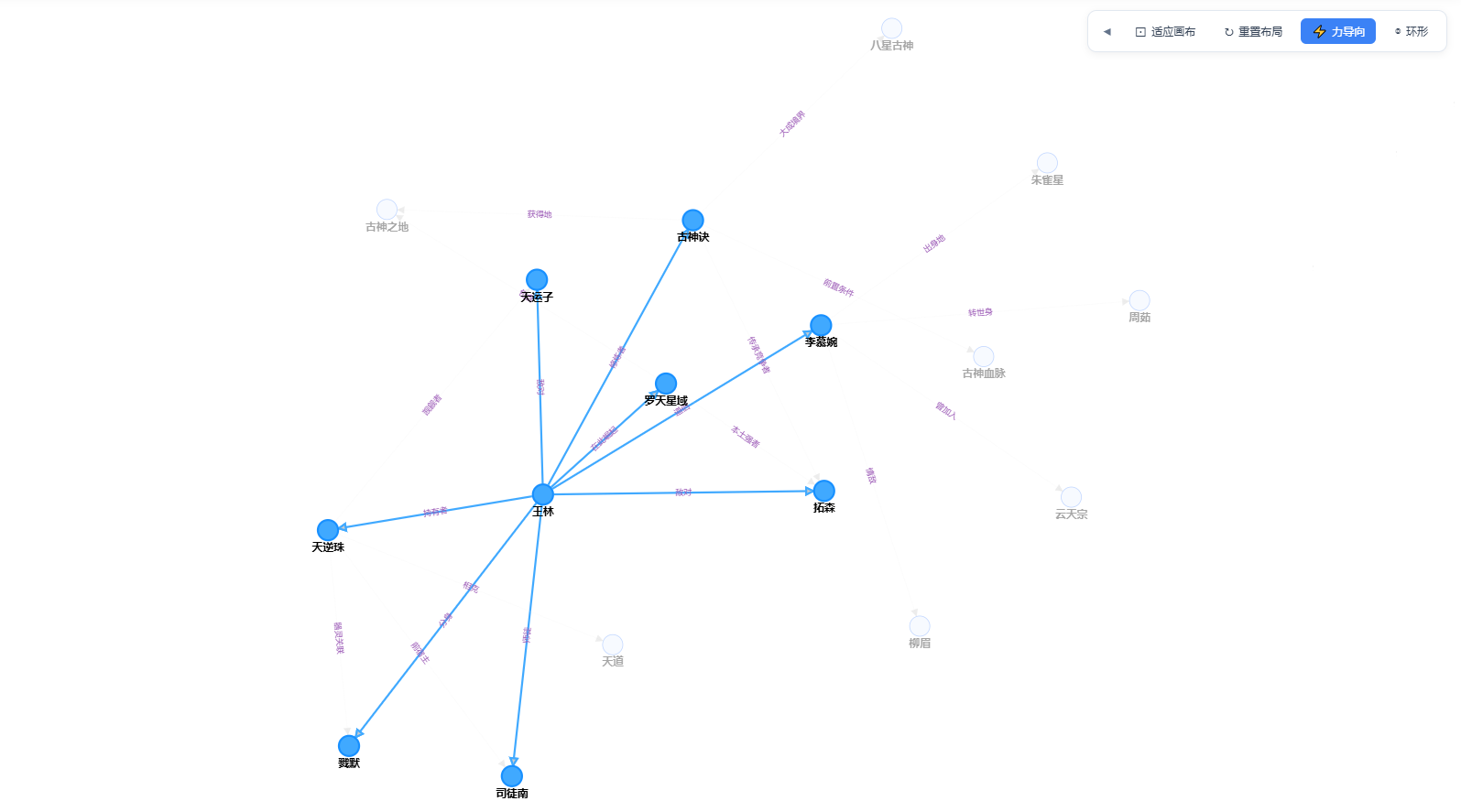
- **悬停高亮**: 鼠标悬停在节点上时,相关节点和边高亮,其他节点变暗
- **点击选中**: 点击节点选中并高亮相关节点,再次点击取消
- **点击空白**: 点击空白处取消所有高亮
## 布局说明
- **力导向布局 (force)**: 节点自然分散,适合展示复杂关系
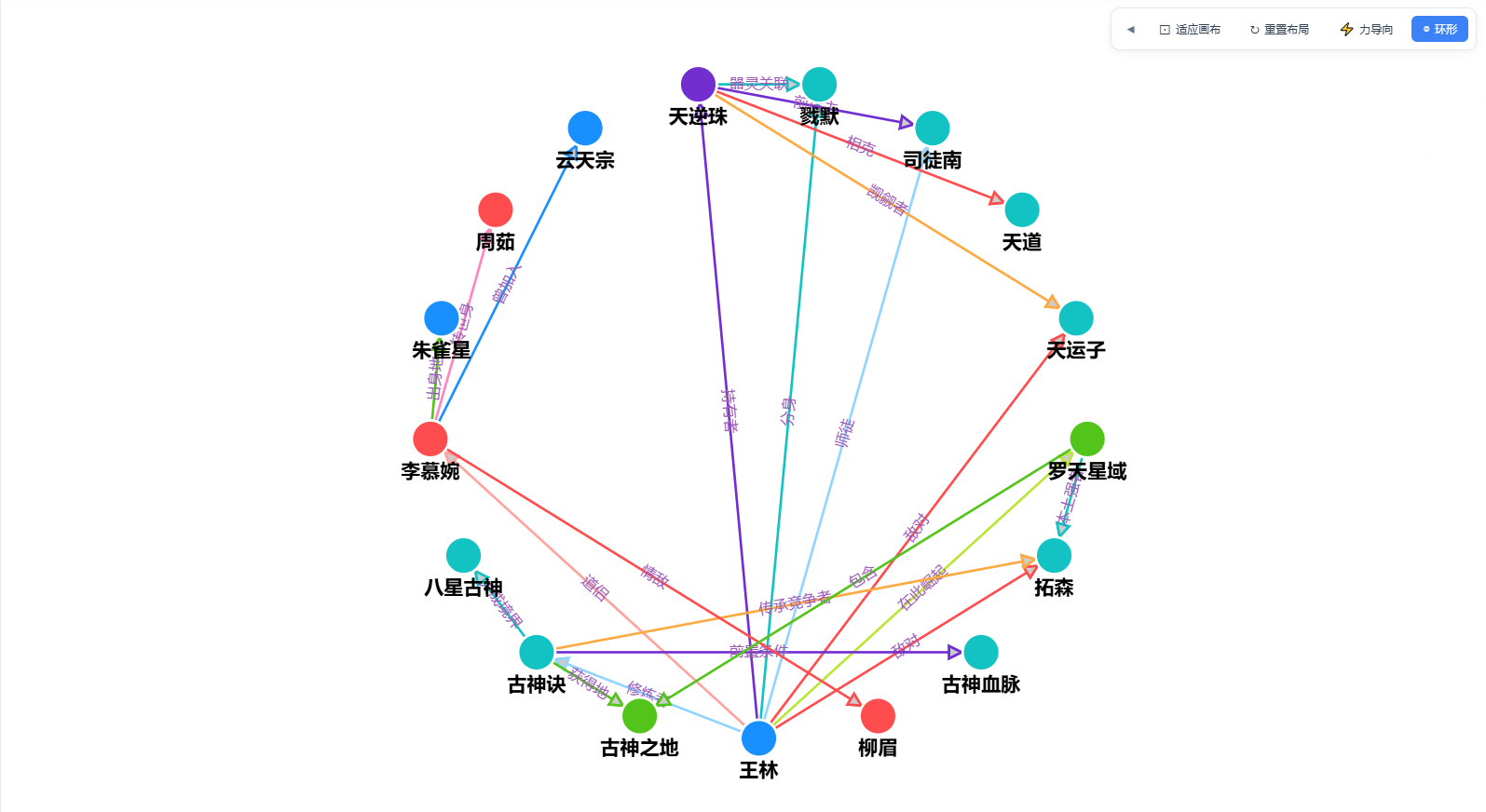
- **环形布局 (circular)**: 节点围绕中心排列,适合展示枢纽型图谱
## 节点/边颜色
根据类型自动配色:
### 节点类型颜色
| 类型 | 颜色 |
|------|------|
| 人物 | #ff4d4f |
| 地点 | #52c41a |
| 组织 | #1890ff |
| 概念 | #faad14 |
| 事件 | #722ed1 |
| 其他 | #13c2c2 |
### 关系类型颜色
| 类型 | 颜色 |
|------|------|
| 因果 | #e74c3c |
| 所属 | #2ecc71 |
| 引用 | #3498db |
| 相关 | #9b59b6 |
## 作为 Vue 插件使用
```main.js
import { createApp } from 'vue'
import PyzKnowledgeGraph from 'pyz-knowledge-graph-vue'
import 'pyz-knowledge-graph-vue/dist/style.css'
import App from './App.vue'
const app = createApp(App)
app.use(PyzKnowledgeGraph)
app.mount('#div')
```
然后在组件中直接使用:
```vue
```
## License
MIT
## 作者
彭一真-别名《小游码匠》