# Puppeteer Report
Puppeteer Report is another library for converting HTML to PDF using puppeteer, adding support of custom header, footer, and pagination.
Puppeteer has a very limited ability to customize the default header, footer, and pagination, however, it is the best tool available to convert HTML to PDF (supports the last version of CSS/HTML/JavaScript and fully Unicode characters) and make it possible to create fantastic reports using hundred of JavaScript/HTML/CSS tools, libraries, and templates.
Puppeteer Report adding support of customizing header, footer, and pagination to puppeteer. Also, it will let you use JavaScript code to apply customization in the converting process.
---
**🐱💻 Need more advanced options**?
Try the next generation of this project: [jikji](https://github.com/PejmanNik/jikji)
It supports serve-side generation with Node (like this project) and Client-side rendering with React. jikji provides a 100% customizable layout handler. you can find the documentation at [jikji.xyz](https://jikji.xyz).
## How does it work?
Puppeteer Report use [puppeteer](https://github.com/puppeteer/puppeteer) and [pdf-lib](https://github.com/Hopding/pdf-lib) under the hood to create a final PDF.
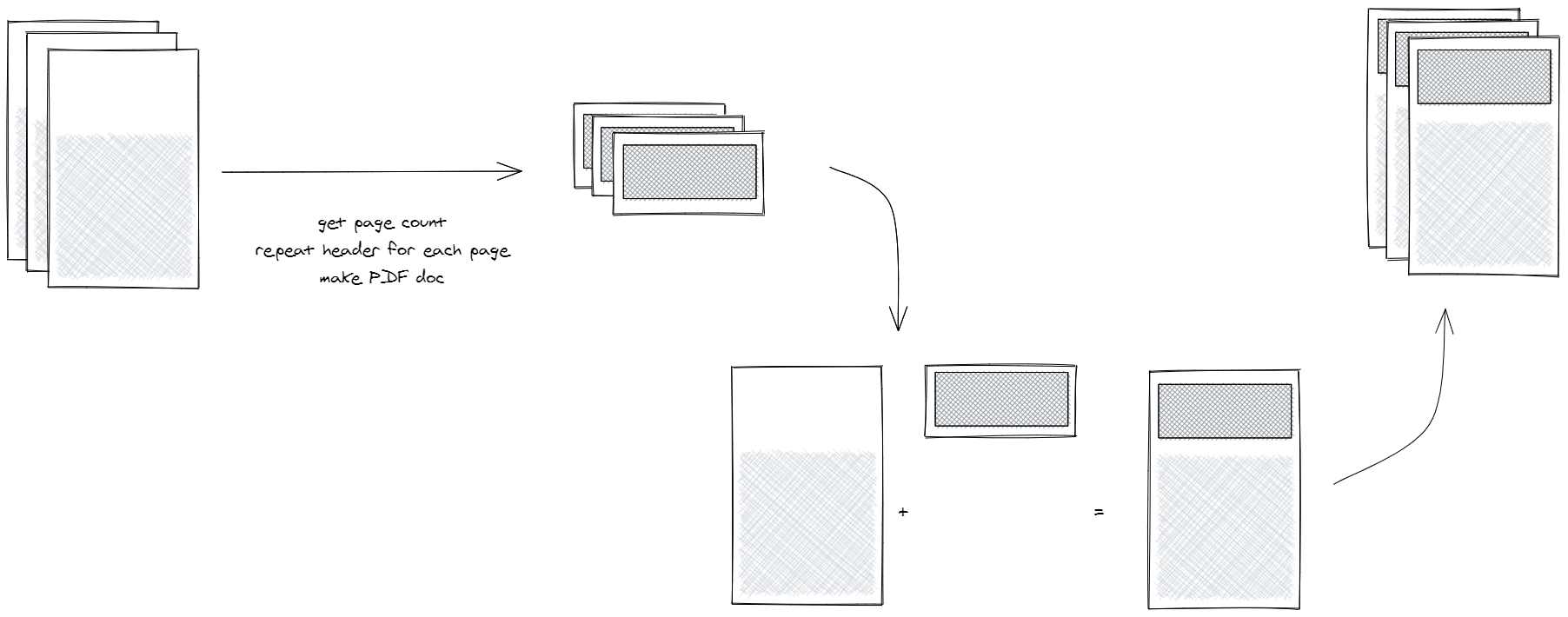
To support headers or footers, Puppeteer Report creates two PDF files. The first one is the HTML content without header and footer. And the second one is header and footer repeated based upon original content PDF pages' number, then it merges them together.
## How to Install
Using `npm`
```
npm i puppeteer-report
```
or `yarn`
```
yarn add puppeteer-report
```
## Convert To PDF
The Puppeteer Report provides two methods to convert `html` to `pdf`, both accept an option object to customize the output pdf.
The full documentation of options object is available in the [puppeteer doc](https://pptr.dev/#?product=Puppeteer&version=v7.0.4&show=api-pagepdfoptions)
### **NOTE**
This package requires `puppeteer` or `puppeteer-core` (for `chrome-aws-lambda` you can go with puppeteer-core) and you need to install it manually by the below commands.
The Puppeteer Report version 3.0.0 supports both `puppeteer` and `puppeteer-core` from version 7.0.1 until the last version.
```shell
npm i --save puppeteer
yarn add puppeteer
** OR
npm i --save puppeteer-core
yarn add puppeteer-core
```
### pdf
The `pdf` method accept 3 arguments. the first argument is `puppeteer` browser object and the second one is path to HTML in the local file system and the last one is the puppeteer PDF options object. the method returns the byte array. if you specify a `path` in the options object the output PDF will be saved in that path.
```js
import report from "puppeteer-report";
import puppeteer from "puppeteer";
const browser = await puppeteer.launch({
args: ["--no-sandbox", "--disable-setuid-sandbox", "--disable-dev-shm-usage"],
});
try {
// you must use full path `home/puppeteer/index.hmtl`
const file = path.join(__dirname, "index.html");
await report.pdf(browser, file, {
path: "report.pdf",
format: "a4",
margin: {
bottom: "10mm",
left: "10mm",
right: "10mm",
top: "10mm",
},
});
} finally {
await browser.close();
}
```
### pdfPage
The `pdfPage` method accepts a puppeteer page instance and an options object. this method lets you customize the page and even use it on non-static pages. The method returns a byte array. If you specify a `path` in the options object the output PDF will be saved in that path.
```js
import report from "puppeteer-report";
import puppeteer from "puppeteer";
const browser = await puppeteer.launch({
args: ["--no-sandbox", "--disable-setuid-sandbox", "--disable-dev-shm-usage"],
});
try {
const page = await browser.newPage();
// you can use static files only with a full path
// and `file:///` prefix like `file:///home/puppeteer/index.html`
// or a website address
await page.goto("https://google.com");
await report.pdfPage(page, {
path: "report.pdf",
format: "a4",
margin: {
bottom: "10mm",
left: "10mm",
right: "10mm",
top: "10mm",
},
});
} finally {
await browser.close();
}
```
## Customize HTML File
With Puppeteer Report you can customize the output pdf with custom HTML elements.
### Header
Add the `id="header"` to the root header element in the HTML file.
```html
```
### Footer
Add the `id="footer"` to the root footer element in the HTML file.
```html
```
### Page Number
Add the `pageNumber` class name to an element inside the header or footer in order to show the current page number inside that element.
```html
```
### Total Pages
Add the `totalPages` class name to an element inside the header or footer in order to show the total page number inside that element.
```html
```
### Title
Add the `title` class name to an element inside the header or footer in order to show the document title (HTML title tag `X`) inside that element.
```html
```
**Page number, total pages, and title can only be used in header or/and footer.**
### CSS
Styles for header/footer need to be defined in the head of the document, e.g.
```html
bar
```
### JavaScript
You can add `onChange` event handler on the header or footer elements to manipulate pagination, header or footer.
```html
```
```js
```
## Run Examples
Clone the repo and run these commands to install dependencies and build the package.
```
npm i
npm run build
```
Then, with this command you can run examples:
```
npm run example {example-folder-name}
```
For instance, to run `basicWithJs` example, you can run this command, and then the PDF result will create in the `examples\basicWithJs` directory.
```
npm run example basicWithJs
```
## FAQ
**1. What about other programming languages?**
This package includes a `bundle.js` file that opens a door to port it to every programming language with a puppeteer package. For instance, I implemented the C# port of the Puppeteer Report here:
https://github.com/PejmanNik/puppeteer-report-csharp