# The Primo New UI Customization Workflow Development Environment
## Structure
- gulp directory : holds the various build scripts for the environment and the config.js configuration file in which your target proxy-server must be defined.
- node_modules directory : holds the various third-party modules that are required to run the system. These modules are defined in the package.json file.
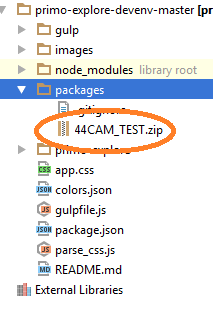
- packages directory : once your development package is ready you will be able to build it using the `gulp create-package` command that will create the zipped package file you define in this folder
- primo-explore directory : consists of 2 directories :
1. custom : - where you will place your customization packages
2. tmp : just a place to hold some of your temporary files
## Overview
The development package allows you to configure the following page components (follow the links for details):
- [CSS](https://github.com/ExLibrisGroup/primo-explore-package/tree/master/VIEW_CODE/css "css documentation")
- [HTML](https://github.com/ExLibrisGroup/primo-explore-package/tree/master/VIEW_CODE/html "html documentation")
- [Images](https://github.com/ExLibrisGroup/primo-explore-package/tree/master/VIEW_CODE/img "images documentation")
- [JavaScript](https://github.com/ExLibrisGroup/primo-explore-package/tree/master/VIEW_CODE/js "javascript documentation")
For each configuration-type, or for every different Primo View, there should be a specified folder named after the View (which adheres to the established directory structure) in the `primo-explore/custom` package folder.
This custom View folder can be downloaded from your Primo Back Office, by following `Primo Home > Primo Utilities > UI customization Package Manager`, or started fresh from the [primo-explore-package GitHub repository](https://github.com/ExLibrisGroup/primo-explore-package "primo-explore-package repository"). (The benefit of using this repository is that in each folder you will find a specific README.md file containing recipes and examples.)
## Installation
1. Download the project from this repository and place it on your computer
2. Unzip the file you downloaded to a preferred development project folder location
3. Download and install the [latest LTS version of Node](https://nodejs.org/en/download/)
4. From command line, run the command : `npm install npm@3.3.12 -g`
5. Restart your computer
6. From command line, run the command : `npm install -g gulp`
7. In a new command line window, navigate to the project base directory (`cd \path\to\your\project\folder\primo-explore-devenv`)
8. From command line, run the command : `npm install` (This should install all node modules needed for gulp.)

9. Edit Gulp configuration file's proxy server setting, found at gulp/config.js : `var PROXY_SERVER = http://your-server:your-port` (Make sure to use your real Sandbox or Production Primo Front-End URL.) Note that for SSL environments (HTTPS) define the server as: `var PROXY_SERVER = https://your-server:443`
10. Populate your custom View package folder in the custom package folder ("...primo-explore\custom"), by either downloading the view code files from your Primo Back Office or using the [primo-explore-package GitHub repository](https://github.com/ExLibrisGroup/primo-explore-package "primo-explore-package repository")) to start a new package folder. (if you have already defined a view package and loaded it to the BO - make sure you download it or else you will not see, and may overwrite, your previous changes.)
- If your custom view package folder were to be called "Auto1" then your development environment directory tree should look similar to this:
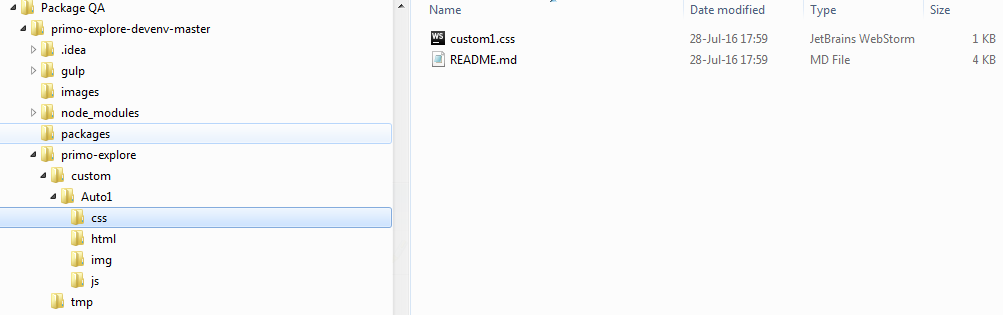
- IMPORTANT: The name of your custom view package folder must match an existing view on the proxy server being referenced or the Gulp server will not function properly. For development from scratch, be sure to first create (or copy) a view using the Primo Back Office View Wizard; then you can accomplish your customizations locally using this document.
11. Start your code customizations :
- From command line, go to your custom view package folder : `cd primo-explore\custom\VIEW_CODE`
- From command line, run the command : `gulp run --view ` (This will start your local server.)
(For example, running `gulp run --view Auto1` will start the environment taking the customizations from the Auto1 folder.)
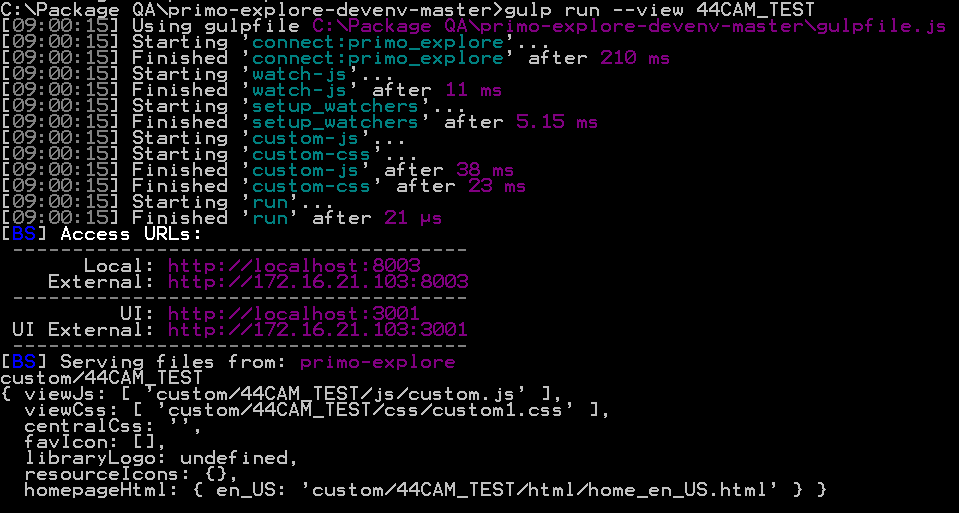
- Open a browser and type in the following URL : `localhost:8003/primo-explore/?vid=your-view-code` (Example: http://localhost:8003/primo-explore/search?vid=Auto1)
- Now you should be able to to your customizations with real searches and results, from your previously defined proxy-server. Note: once you start working with this environment, you will discover that the best results are achieved by working in your browser's incognito mode; or you can clear your browser cache before you start the Gulp server.
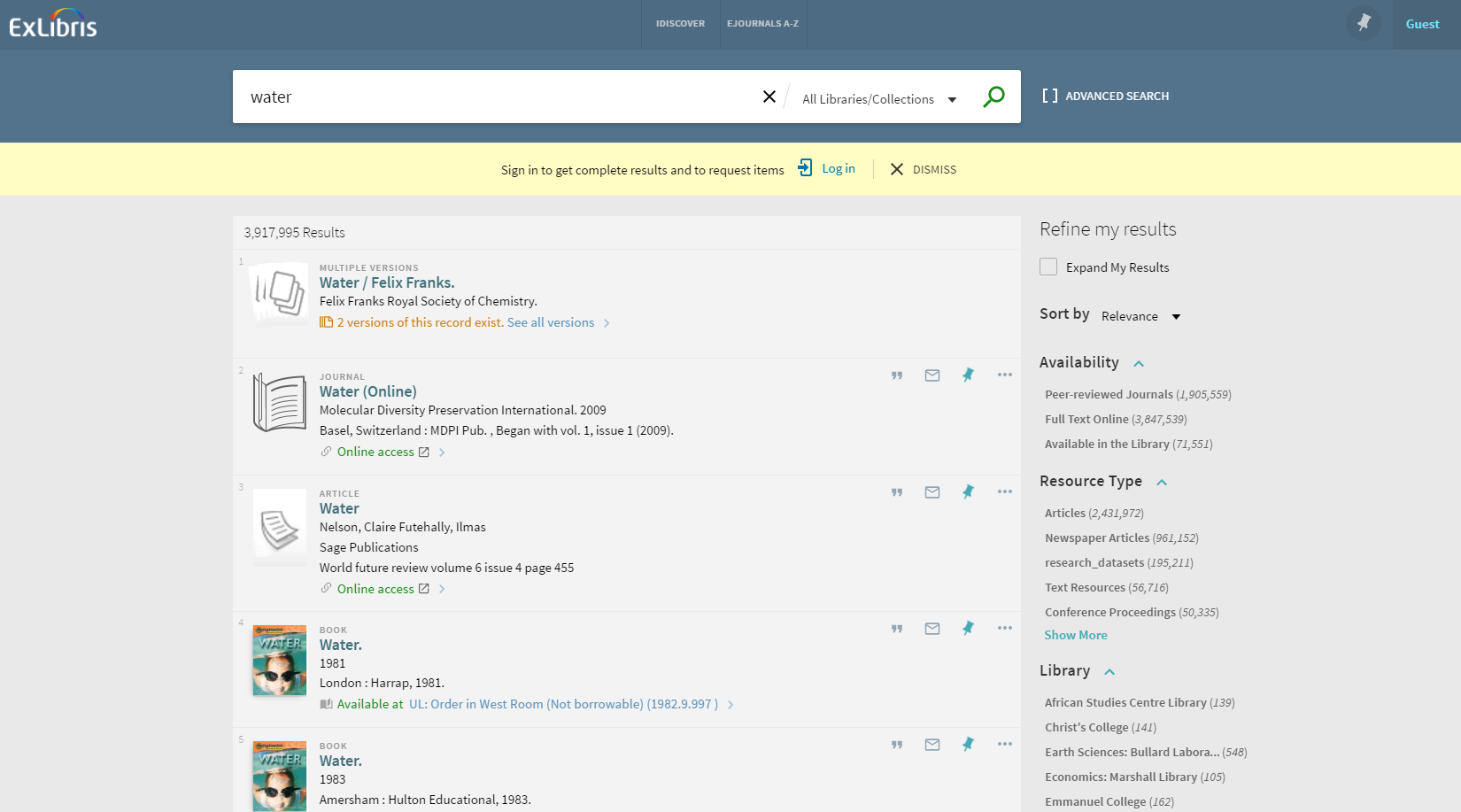
- You can get immediate feedback on your code changes by refreshing the browser.
- Perform your changes according to the documentation/examples in:
- [CSS](https://github.com/ExLibrisGroup/primo-explore-package/tree/master/VIEW_CODE/css "css documentation")
- [HTML](https://github.com/ExLibrisGroup/primo-explore-package/tree/master/VIEW_CODE/html "html documentation")
- [Images](https://github.com/ExLibrisGroup/primo-explore-package/tree/master/VIEW_CODE/img "images documentation")
- [JavaScript](https://github.com/ExLibrisGroup/primo-explore-package/tree/master/VIEW_CODE/js "javascript documentation")
## Publishing packages
Once you finish customizing the package, you can zip up that directory and upload it using the Primo BackOffice.
1. In a command line window, navigate to the project base directory : `cd \path\to\your\project\folder\primo-explore-devenv`
2. From command line, run the command : `gulp create-package` You will be prompted with a menu specifying all of the possible packages you can build, such as :
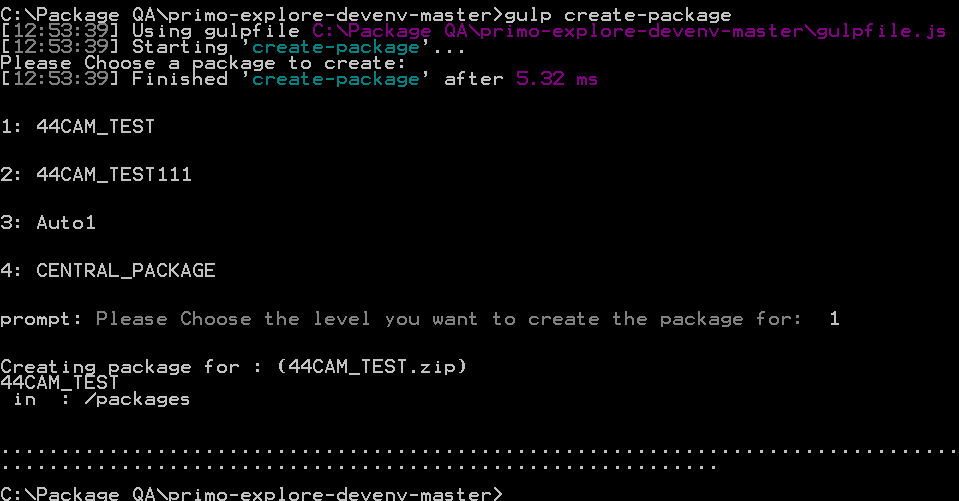
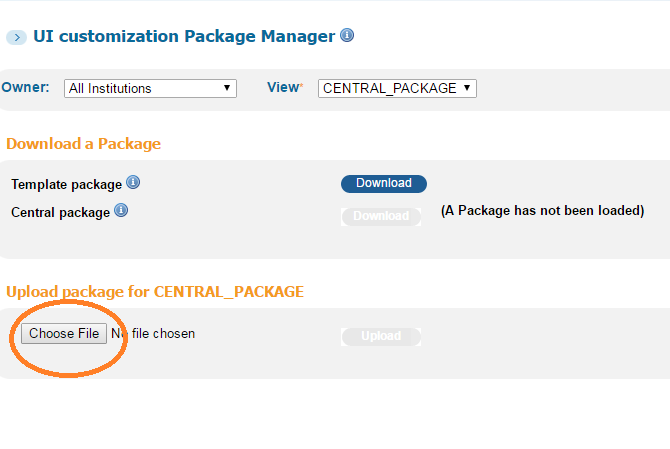
3. Log into Primo Back Office and navigate to the UI customization Package manager section : `Primo Home > Primo Utilities > UI customization Package Manager`
4. Use the file browse button to find and upload the new zipped package file. (Located in the "\path\to\your\project\folder\primo-explore-devenv\package" directory.)
5. Don't forget to deploy your changes