# pi-cursor-style
[English](README.md) | [简体中文](README.zh-CN.md)
Change how the [pi](https://github.com/earendil-works/pi) input box cursor looks — color, shape, or both.
pi draws its own cursor as a black-and-white block (a "reverse video" block) and offers no setting to change it. This extension fixes that:
| Style | Looks like | Best for |
|-------|-----------|----------|
| `block` (default) | ▮ a block over the current character, in any color | if you like the default shape but want a color |
| `bar` | ▏ a thin beam **between** characters | a lightweight marker; text stays visible |
| `underline` | character underlined | subtle; the character stays fully visible |
| `hardware` | your terminal's own caret (e.g. a VS Code-style beam) | the most native feel; characters never move |
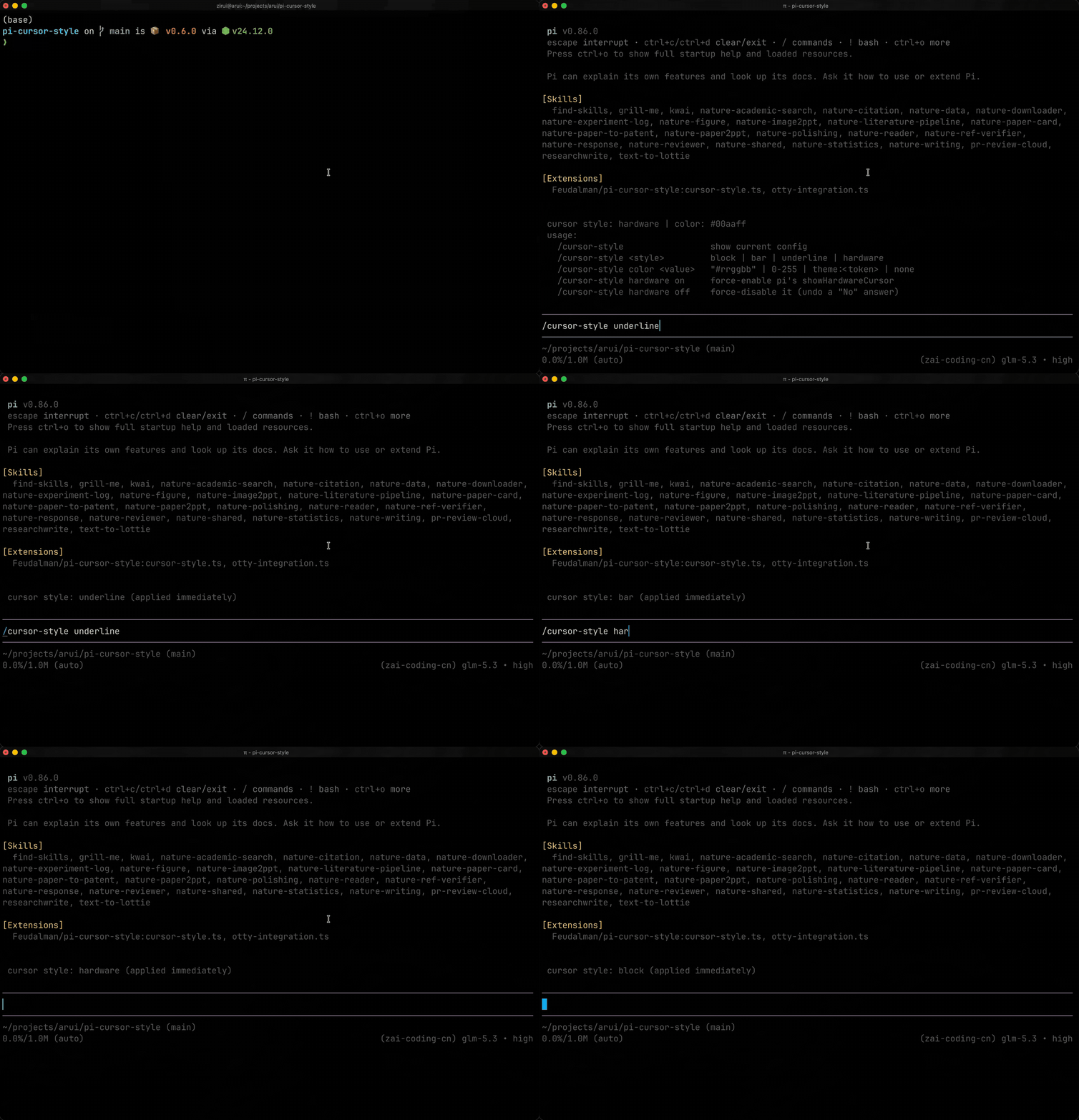
Works out of the box with a blue cursor. No config file needed to start.
## Install
```bash
pi install git:github.com/Feudalman/pi-cursor-style
```
Restart pi afterwards. Your cursor is now a blue block.
Alternative install methods:
```bash
pi install npm:pi-cursor-style # once published to npm
```
Or manually: copy [`extensions/cursor-style.ts`](extensions/cursor-style.ts) into `~/.pi/agent/extensions/`.
## Everyday use
Everything is one command: `/cursor-style`. Changes apply **immediately** — no restart, no reload — and are saved automatically.
**See what's active:**
```
/cursor-style
```
**Control the terminal caret directly** (overrides the style-is-the-switch behavior):
```
/cursor-style hardware off force-disable pi's showHardwareCursor
/cursor-style hardware on force-enable it (and let the extension manage it again)
```
**Change the shape:**
```
/cursor-style bar
/cursor-style underline
/cursor-style block
/cursor-style hardware
```
**Change the color:**
```
/cursor-style color #ff5f00 any hex color
/cursor-style color 208 an xterm 256-color index
/cursor-style color theme:accent follow your theme's accent color (tracks theme switches)
/cursor-style color none no color; use the terminal's default
```
Omitting the color entirely falls back to the built-in default `#00aaff` (blue).
**Behavior notes per style:**
- `block` — covers the character like the default, but filled with your color. The character stays readable (drawn in the inverted color).
- `bar` — inserted **between** characters, so nothing is hidden and nothing shifts on other lines. On a completely full line (rare) it momentarily falls back to the default block to avoid breaking alignment.
- `underline` — draws an underline under the character. At the end of a line it shows `▁` instead, because most terminals don't underline blank cells.
- `hardware` — see the next section; this one works differently.
## The `hardware` style (VS Code-like caret)
All software-drawn cursors must occupy a character cell — that's a terminal limitation. The `hardware` style bypasses it: it **hides pi's drawn cursor completely** and lets your terminal's own caret (pixel-rendered, cell-free) take over. Characters never move or get covered.
To use it:
```
/cursor-style hardware
```
**The style is the switch** — no dialogs: switching to `hardware` turns pi's `showHardwareCursor` on (written to `~/.pi/agent/settings.json`, applied immediately, no restart); switching to any other style turns it back off, so the terminal caret never stacks on top of a software cursor. If you need `showHardwareCursor` on permanently for other reasons (e.g. IME positioning), use `/cursor-style hardware on` and leave the style alone.
Two things to know:
1. **Shape and color come from your terminal's cursor settings**, not from this extension. For the VS Code beam look, set your terminal's cursor to a vertical bar:
- VS Code / Cursor terminal: `"terminal.integrated.cursorStyle": "line"`
- iTerm2: Preferences → Profiles → Text → Cursor → Vertical bar
- Kitty: `cursor_shape line`
- Ghostty: `cursor-style = bar`
2. `/cursor-style color ...` has **no effect** in this mode — terminals don't allow apps to recolor the hardware caret.
## Configuring by file (optional)
Prefer editing a file, or managing config via dotfiles? The command writes to `~/.pi/agent/cursor-style.json`, which you can also edit directly:
```jsonc
{
"style": "bar", // block | bar | underline | hardware
"color": "#00aaff" // "#rrggbb" | 0-255 | "theme:" | omit for default blue
}
```
File edits take effect after `/reload` or a restart (the command path applies instantly).
## Limitations
- Restyles the **main input box only**. The small search inputs inside `/model`, `/resume`, etc. are built into pi's core and cannot be restyled by any extension.
- The extension recognizes pi's cursor by its escape sequence (`\x1b[7m…\x1b[0m`). If a future pi release changes that format, this extension needs a matching update.
- Everything else keeps working as usual: working spinner, thinking-level border colors, bash mode, autocomplete, history, and IME input (the invisible cursor marker used for input-method positioning is preserved on every path).
## How it works (optional reading)
pi renders the input box every frame with the cursor drawn as a reverse-video block. On `session_start` this extension swaps in a wrapper editor (via `ctx.ui.setEditorComponent`). The wrapper calls pi's original render, then rewrites just the cursor portion of each line according to your style — colorizing it, inserting a beam with width borrowing, underlining it, or stripping it entirely (hardware mode). Cell widths are preserved so alignment never breaks.
## Compatibility
Verified against pi `0.86.0`. Uses only public extension APIs. Skips itself in print/RPC modes.
## License
[MIT](LICENSE)