What you'll learn
- How to start a new Polymer-based project using Chrome Dev Editor
- How to use elements in Polymer's iron, paper, and Google Web Component sets.
- How to use Polymer's data binding features to reduce boilerplate code.
The Google Web Components provide the <google-map> element for declaratively rendering a Google Map. To use it, you first need to install it using Bower.
Create a new project
The first time you run Chrome Dev Editor it will ask you to setup your workspace environment.
Fire up Chrome Dev Editor and start a new project:
- Click
 to start a new project.
 - Enter "PolymerMapsCodelab" as the Project name.
- In the Project type dropdown, select "JavaScript web app (using Polymer paper elements)".
- Click the Create button.
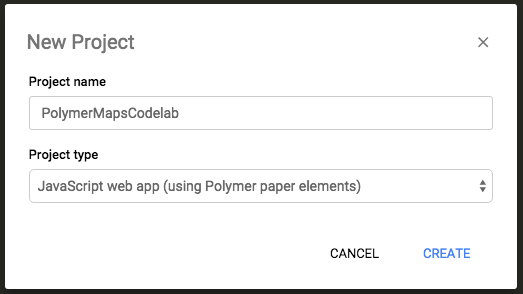
Chrome Dev Editor creates a basic scaffold for your Polymer app. In the background, it also uses Bower to download and install a list of dependencies (including the Polymer core library) into the bower_components/ folder. Fetching the components make take some time if your internet connection is slow. You'll learn more about using Bower in the next step.
bower.json
PolymerMapsCodelab/
  bower_components/ <!-- installed dependencies from Bower -->
  bower.json  <!-- Bower metadata files used for managing deps -->
  index.html  <!-- your app -->
  main.js
styles.cssInstall the element
Normally, you'd run bower install GoogleWebComponents/google-map --save on the command line to install <google-map> and save it as a dependency. However, Chrome Dev Editor does not have a command line for running Bower commands. Instead, you need to manually edit bower.json to include google-map, then run Chrome Dev Editor's Bower Update feature. Bower Update checks the dependencies in bower.json and installs any missing ones.
- Edit
bower.jsonand addgoogle-mapto thedependenciesobject:
"dependencies": {
  "iron-elements": "PolymerElements/iron-elements#^1.0.0",
  "paper-elements": "PolymerElements/paper-elements#^1.0.1",
  "google-map": "GoogleWebComponents/google-map#^1.0.3"
}- Right-click the
bower.jsonfilename in the editor. - Select Bower Update from the context menu.
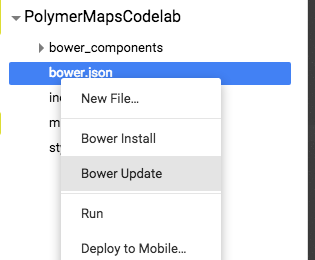
The download may take few seconds. You can verify that <google-map> (and any dependencies) were installed by checking that bower_components/google-map/ was created and populated.
Use the element
To employ <google-map>, you need to:
- Use an HTML Import to load it in
index.html. - Declare an instance of the element on the page.
In index.html, remove all other HTML imports in the <head> and replace them with a single import that loads google-map.html:
index.html
<head>
  ....
  <script src="bower_components/webcomponentsjs/webcomponents-lite.min.js"></script>
  <link rel="import" href="bower_components/google-map/google-map.html">
</head>Next, replace the contents of <body> with an instance of <google-map>:
index.html
<body unresolved>
  <google-map latitude="37.779" longitude="-122.3892" zoom="13"></google-map>
</body>Here's a pre block without code:
$ node client.js list wdfasdf asdf asdf asdf asdf asdf asdf asdf asdf asdfa sdf asdfa sdf asdfa sdfasdfasdfasdf
{ books:
   [ { id: 123,
       title: 'A Tale of Two Cities',
       author: 'Charles Dickens' } ] }
As you can see, using <google-map> is completely declarative! The map is centered using the latitude and longitude attributes and its zoom level is set by the zoom attribute.
Style the map
If you run the app right now, nothing will display. In order for the map to properly display itself, you need to set its container (in this case, <body>) to have a fixed height.
Open styles.css and replace its contents with default styling:
styles.css
body, html {
  font-family: 'Roboto', Arial, sans-serif;
  height: 100%;
  margin: 0;
}Add a marker
<google-map> supports adding map markers to the map by declaring <google-map-marker> elements as children. The marker locations are also set using latitude and longitude attributes.
Back in index.html, add a draggable <google-map-marker> to the map:
index.html
<google-map latitude="37.779" longitude="-122.3892" zoom="13" disable-default-ui>
  <google-map-marker latitude="37.779" longitude="-122.3892"
      title="Go Giants!" draggable="true"></google-map-marker>
</google-map>Notice that we've also disabled the map's controls by setting disableDefaultUi to true. Since it's a boolean property, its presence as an HTML attribute makes it truthy.
Run the app
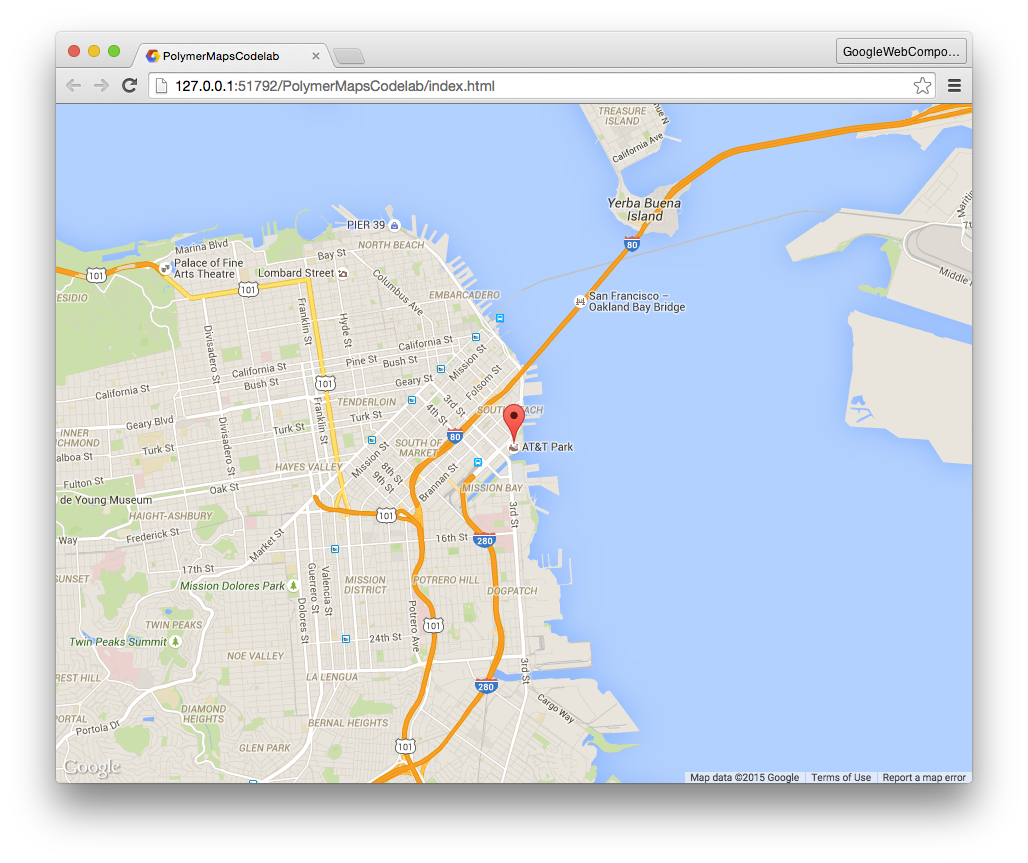
If you haven't already done so, hit the  button. At this point, you should see a map that takes up the entire viewport and has a single marker pin.
Frequently Asked Questions
- Where are the reference docs for <google-map> and <google-map>?
- A link to stackoverflow.
- A link to github.
- A link to developer.android.com.
- A link to webmasters support.