Open the exact current Oysterun Host URL supplied by its owner in a private browser profile you control. Sign in through the password-only web form, then verify both the Sessions destination and its visible connection state before you begin work.
1. Prepare the exact Host access details
You need an exact current Host URL and the current Host password from the person who owns or administers that Host. Open the URL in a browser profile that you control and do not share.
Use the complete URL you were given. Do not guess a port, replace its hostname, or switch between a Direct Host URL and a Managed Endpoint on your own.
Keep the password in a password manager or enter it directly. Do not paste it into chat, notes, terminal history, or support evidence.
Confirm that the page is the intended Oysterun Host before entering a credential. A browser security warning, unexpected origin, or unrelated page is a stop condition.
2. Confirm the password-only starting screen
Visible checkpoint: the signed-out This Host card shows Oysterun, one empty Password field (the eight bullets are its placeholder), Open Oysterun, and no username field.
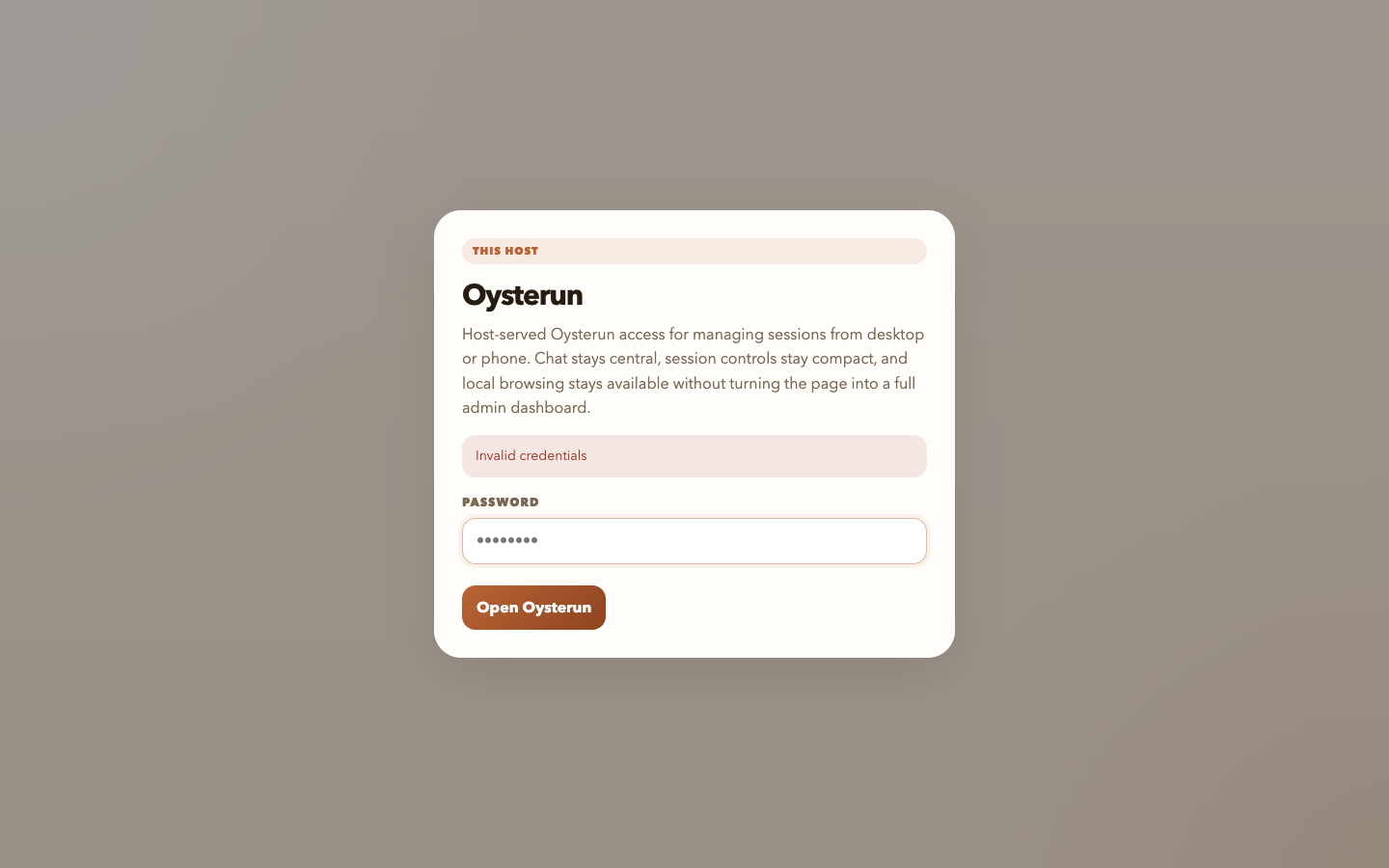
The signed-out Host screen has the eyebrow This Host, the heading Oysterun, one field labeled Password, and the action Open Oysterun.
Check the browser origin against the exact URL you intended to open.
Confirm that there is no username field. The normal public web form asks only for Password.
Before typing, make sure screen sharing and screenshot capture are off if they could expose what you enter.
Checkpoint: the visible page is the password-only Oysterun card on the expected origin. If it asks for a username, shows an unrelated identity provider, or has a different origin, do not enter the password.
3. Sign in once
Enter the current Host password in Password.
Choose Open Oysterun once.
While authentication is in progress, expect the button to read Opening…. You may also see Opening Oysterun... and then Loading sessions....
Wait for the authenticated page instead of submitting the password repeatedly.
A successful sign-in creates an authenticated session in this local browser profile. Keep the profile private: do not export its storage, copy its token, or use it in public evidence.
If the attempt is rejected, the same card shows Invalid credentials. Clear the field before the one bounded retry described below; the screenshot is a recovery checkpoint, not an instruction to reproduce a failed login.
Visible recovery checkpoint: Invalid credentials appears in the full sign-in context. The empty Password field exposes no entered credential, and Open Oysterun remains the normal action for one bounded retry.
4. Verify the Sessions destination and connection
Confirm that the authenticated page title is Sessions.
Outside an open Session chat, find the connection indicator and confirm that it reads Connected.
Read the qualifier beside it: Direct Host, Managed Endpoint, or Managed WebRTC.
Confirm that the origin and qualifier match the access path you were given. The qualifier describes the active transport; it is not a second login or a different user identity, and it does not make an unexpected origin safe.
Visible completion checkpoint: the complete Sessions surface shows its page and navigation context, an empty private-safe list, and the real Connected · Direct Host state together.
5. Understand temporary connection states
Connected
The Host is reachable through the displayed transport qualifier. This is the ready state.
Reconnecting...
The browser detected a sustained interruption and is retrying. Wait for the same indicator to return to Connected; do not sign in again while the authenticated page is still retrying.
Connection Lost. Still retrying.
The interruption has continued, but Oysterun is still attempting recovery. Use the bounded recovery below rather than changing Host settings or restarting services.
A very brief interruption can recover before a warning is shown. Connection status is event-driven, so this journey does not require an internal health URL or repeated status checks.
Recover safely and know when to stop
Invalid credentials: clear the Password field, confirm the current password and exact Host with its owner, then enter it one more time. Do not send the password as proof. Stop after the second failure and ask the Host owner to resolve access.
Invalid or expired login QR: discard the QR and its payload. If the separate bootstrap flow is actually required, ask an already authenticated Host owner to generate a fresh one; do not reuse or publish the old one.
Oysterun is restarting: wait on the visible gate. Sign in only after the page says Oysterun is ready. Sign in again. Do not restart the Host yourself as a login workaround.
Reconnecting...: allow the automatic retry to run. Continue only after the indicator returns to Connected.
Connection Lost. Still retrying.: open the Oysterun menu and choose Refresh Page once. If the page does not return to Sessions and Connected, stop and give the Host owner the time, the visible label, and whether you used a Direct Host or Managed address—never the credential or private URL.
Unexpected origin or browser security warning: close the page without entering a password and ask the Host owner for the exact current URL.
Safe stop: do not start or resume a Session until the intended Sessions page and Connected state are both visible.