Markdown helps a chat message separate headings, steps, filenames, and code without attaching another file. Start with a short representative message, send it once, and inspect the visible result before using the same structure for longer work.
1. Start in the intended Session
Starting screen: the intended Session chat with its name, timeline, and empty composer visible.
Confirm the Session name in the header.
Make sure the composer does not contain an unfinished message you need to keep.
If your Markdown characters have previously stayed literal, open Settings, choose General, and confirm Markdown Formatting is on. Then return to the same Session.
2. Write one representative message
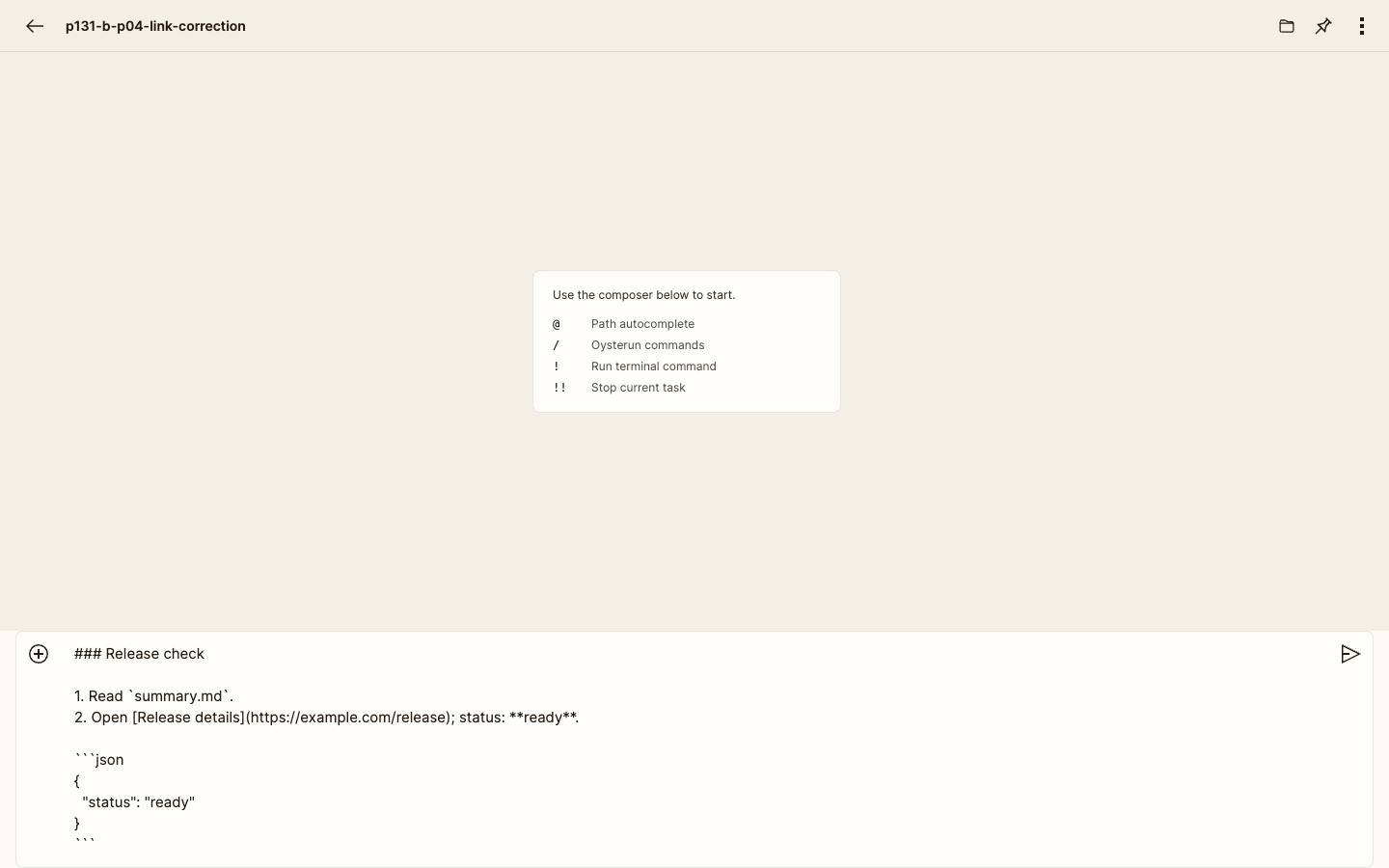
Visible checkpoint: the composer shows the complete sample, including the Markdown link syntax for Release details.
Enter this sample in the composer. Keep the blank lines and put every three-backtick fence at the start of its own line.
The sample combines a heading, a numbered list, a normal Markdown link, bold emphasis, inline code, and a fenced code block. The optional json label identifies the code language.
3. Send once and inspect the visible result
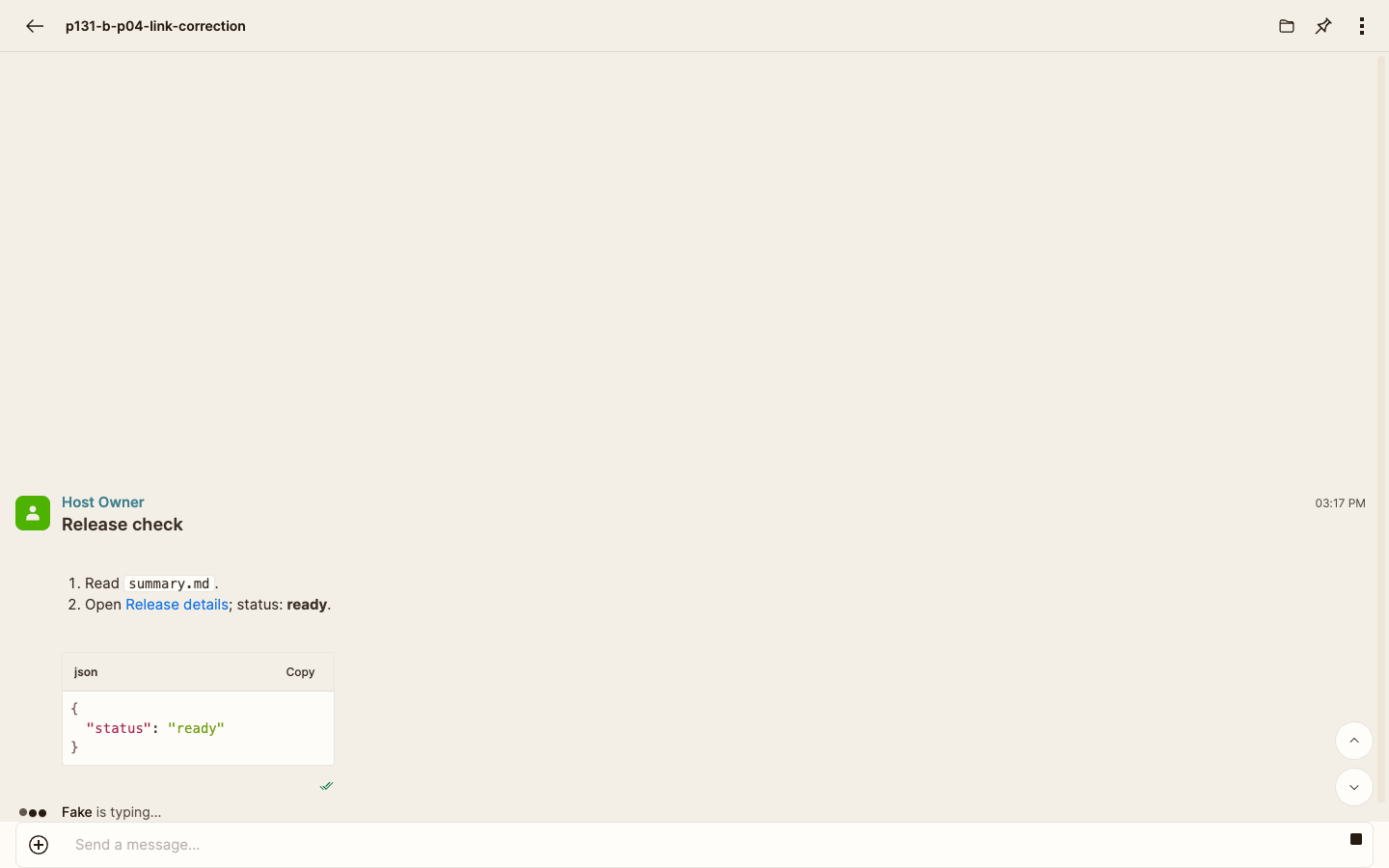
Visible checkpoint: the sent message renders the sample and shows Release details as a hyperlink.
Send the sample with your normal composer send action.
Inspect the message that appears in the timeline before composing anything else.
Compare each visible part with the checklist below.
Release check appears as a heading rather than with visible ### marks.
The two steps appear as separate numbered items, visibly marked 1. and 2.
Release details appears as a link to the public example release page.
ready is emphasized without visible pairs of asterisks.
summary.md stays inline with its sentence.
The JSON appears in a separate code block with its indentation preserved.
4. Keep code fences reliable
Use an opening and closing fence made from the same three backtick characters.
Put each fence on its own line. For the simplest result, begin at the start of the line.
A fence with one, two, or three leading spaces is also supported, but four leading spaces is not a supported fenced-code form.
Keep intentional indentation inside the block. Oysterun preserves indentation beyond the fence's own leading spacing.
Use single backticks only for a short item that should remain inline.
5. Correct malformed or unexpected rendering
Visible checkpoint: The same desktop Session timeline keeps the malformed attempt and the clearly labelled corrected message readable together.
What you see
What to check
Markdown marks remain visible throughout the message
Confirm Settings → General → Markdown Formatting is on, then try a short corrected message.
The code appears as ordinary text
Move both three-backtick fences onto their own lines and remove four-space indentation before either fence.
Text after the sample is still inside the code block
Add or correct the closing three-backtick fence on its own line.
A short filename became a large code block
Use one backtick before and after the filename, not three.
A link inside code is not clickable
Leave the example in code, then place the link again as normal Markdown outside the code region.
You need Markdown punctuation to stay literal
Place a backslash immediately before the Markdown punctuation, such as \*literal\*.
Correct a malformed message with one small, clearly labeled correction. An already-sent message is not automatically rewritten when a later correction renders properly.
6. Stop before creating duplicate work
If a minimal heading and code block still render unexpectedly after confirming the setting and correcting the fences once, stop. Keep the malformed and corrected messages visible, note which checklist item failed, and ask for help. Do not repeatedly resend a long command, configuration, or request merely to test its appearance.