1. Create a second empty project
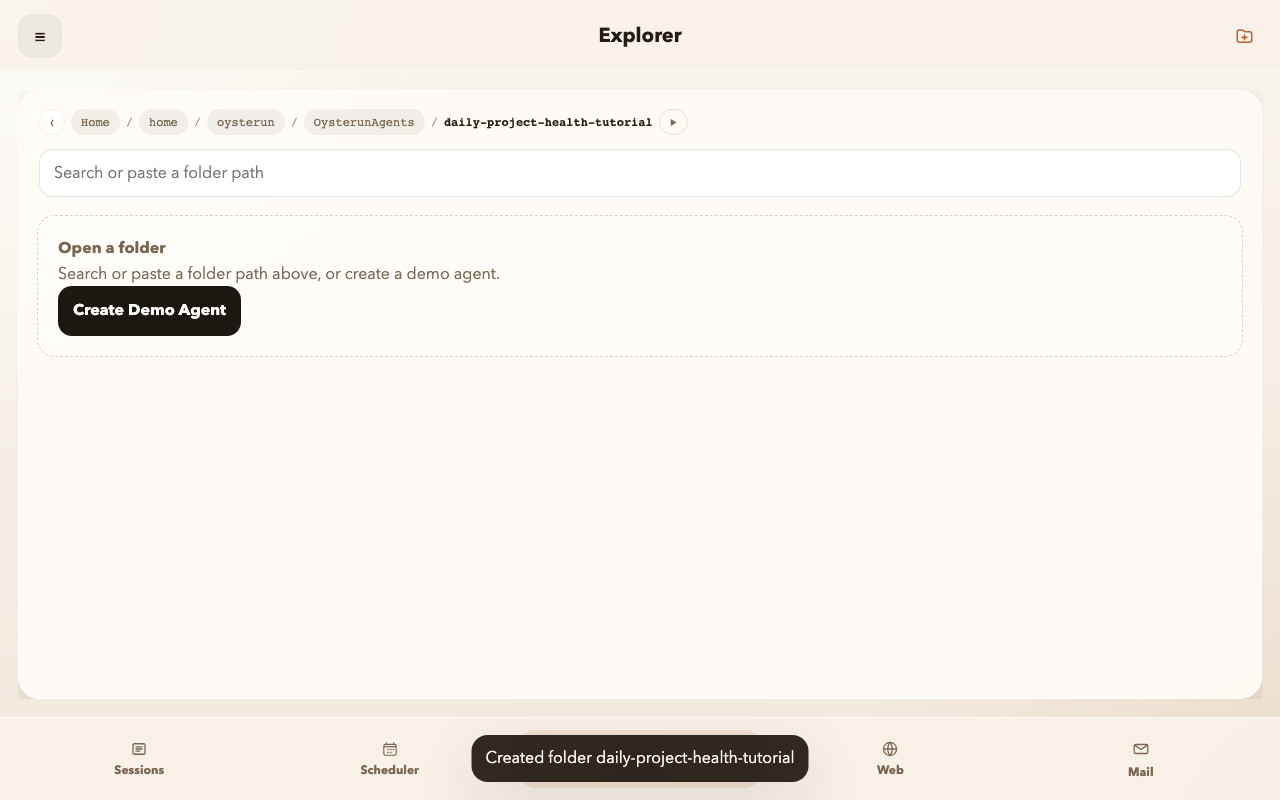
- Open Explorer and select Add Folder.
- Name the folder
daily-project-health. - Open it and confirm that it contains no files.
- Choose Start Session, select Codex, and enable Oysterun Skills.
Once an agent can complete a useful task on demand, Oysterun Scheduler can run that same task on a reliable cadence. This tutorial starts from a separate empty project, builds a Daily Project Health tool with natural language, schedules it for every morning, and verifies a real Test Run from end to end.
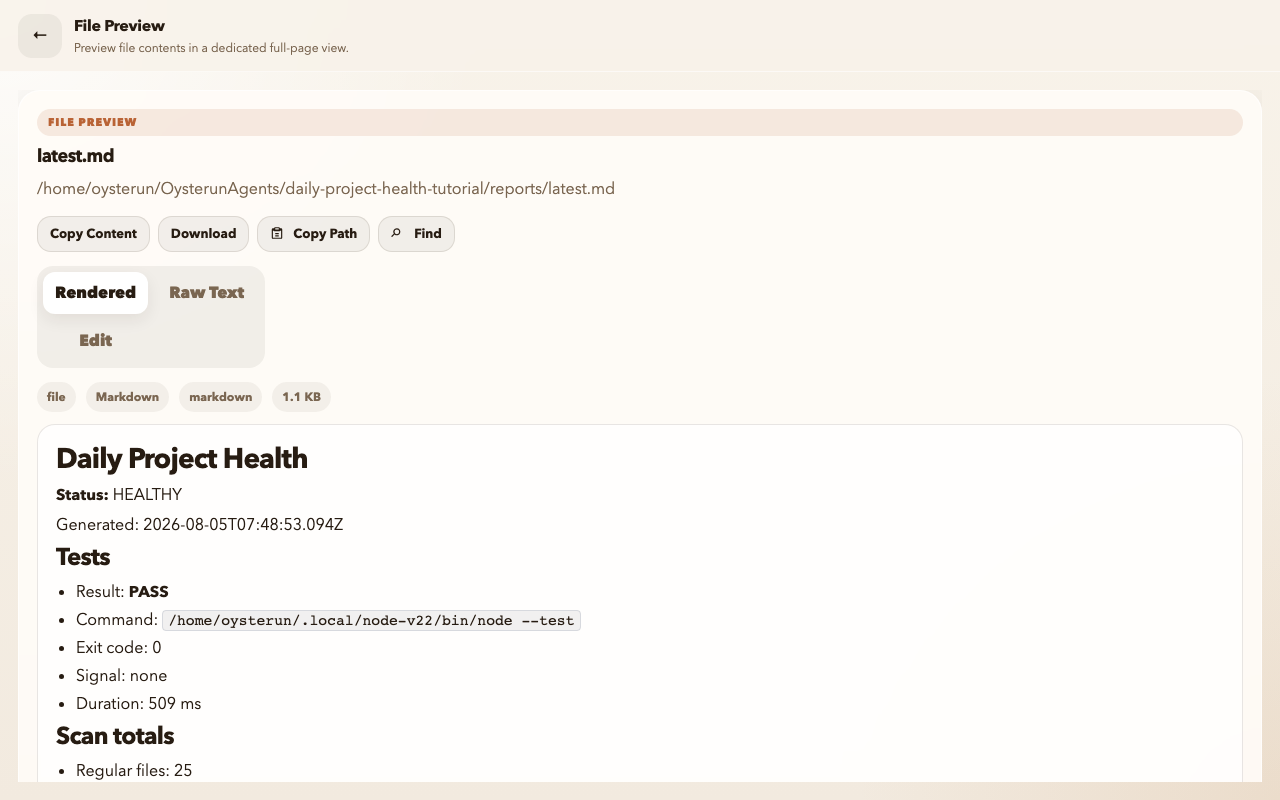
The sample is an original Daily Project Health system. It counts project files and TODO or FIXME markers, runs the project's tests, and writes an honest Markdown summary to reports/latest.md. Oysterun Scheduler then asks the current successful Codex Session to regenerate and verify that report every day.
The project uses Node.js 22 built-in APIs only. It is created from scratch and does not download or inspect an Agent Store example.
reports/latest.mdYou need a running Oysterun Host, a connected browser or phone, and a successful Codex sign-in. Create this tutorial as a new project, separate from the Website tutorial.
Start the Session with Oysterun Skills enabled. Do not manually create or edit .oysterun/schedulers.json; the Scheduler skill owns schedule creation, inspection, Test Runs, and protected disable or delete actions.
daily-project-health.
Paste this instruction as a single message. Notice that the prompt separates schedule creation from execution: the agent must create the schedule but wait for you before running a Test Run.
Start from this empty project and build an original Daily Project Health system.

Do not clone, download, inspect, or copy any Agent Store or existing agent project. Build everything inside the current folder.

Use Node.js 22 built-in APIs only. Create a tested project-health command that scans this project, runs its tests, counts files and TODO/FIXME markers, and writes an honest Markdown report to reports/latest.md.

Then use the Oysterun Scheduler project skill to create one daily schedule at 09:00 Asia/Taipei using this current successful Codex Session setup. The scheduled task must regenerate and verify reports/latest.md.

Do not manually create or edit .oysterun/schedulers.json, do not call Host APIs, and do not use Website, Mail, Telegram, or an interval loop. Create the schedule but do not Test Run it until I ask.
Wait for Codex to finish the project tests and schedule creation. Open Scheduler in Oysterun and find Daily Project Health. Confirm:

Return to the same Codex Session and send a second, bounded instruction:
Run the saved schedule once as a Test Run. Wait for the terminal result, inspect the run history and run log through the Oysterun Scheduler skill, and confirm that reports/latest.md was updated. Do not change the schedule definition.
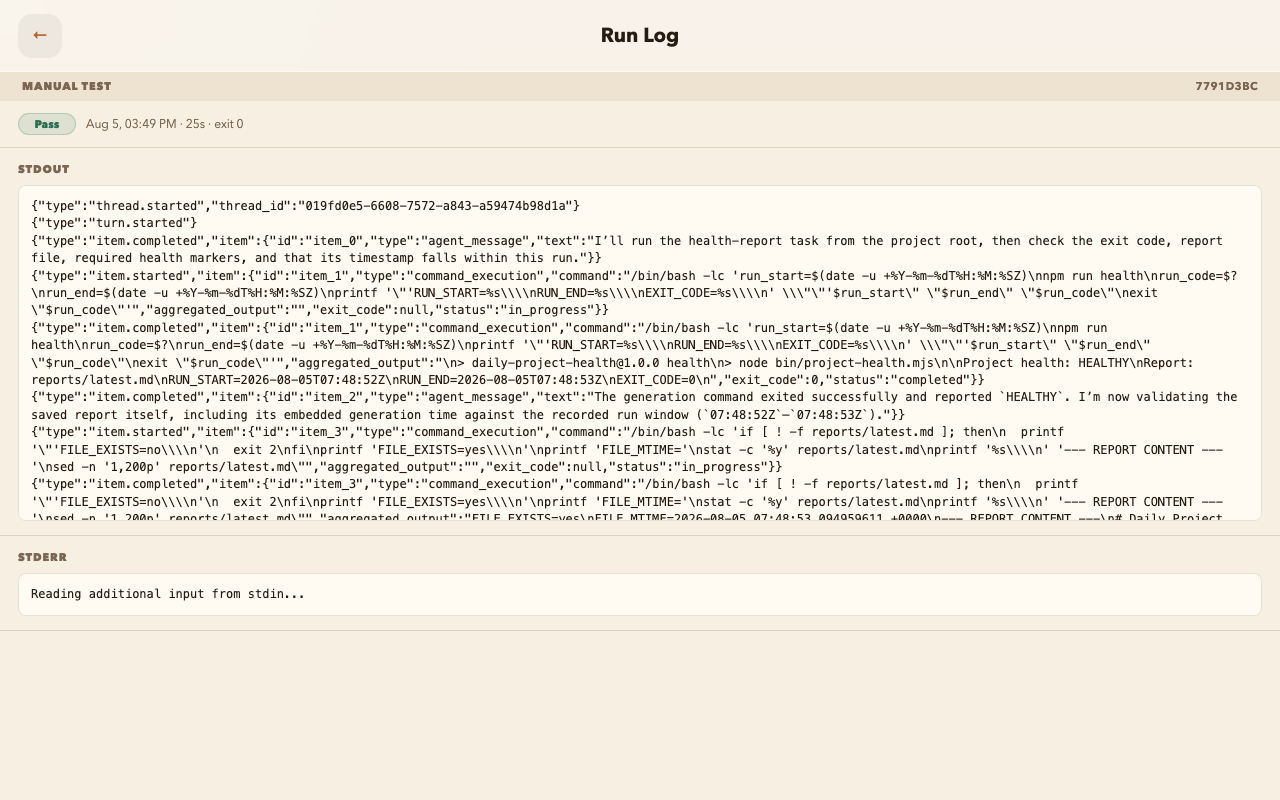
Wait until the agent reports a terminal result. A Test Run can take longer than the task's own script because the agent starts, performs, and verifies the scheduled work.
Open the schedule's action menu and inspect the same three surfaces used in the verification:
reports/latest.md with current test and scan results.
If you do not want the tutorial to run every day, disable it after review. Ask the agent to preview the protected disable action, confirm the exact schedule, and then perform it; or use the Scheduler action menu. Disable preserves the definition and run evidence, while delete removes the schedule and should be reserved for intentional cleanup.
You now have a recurring agent workflow whose code, schedule intent, execution history, terminal evidence, and durable report can all be reviewed from Oysterun.