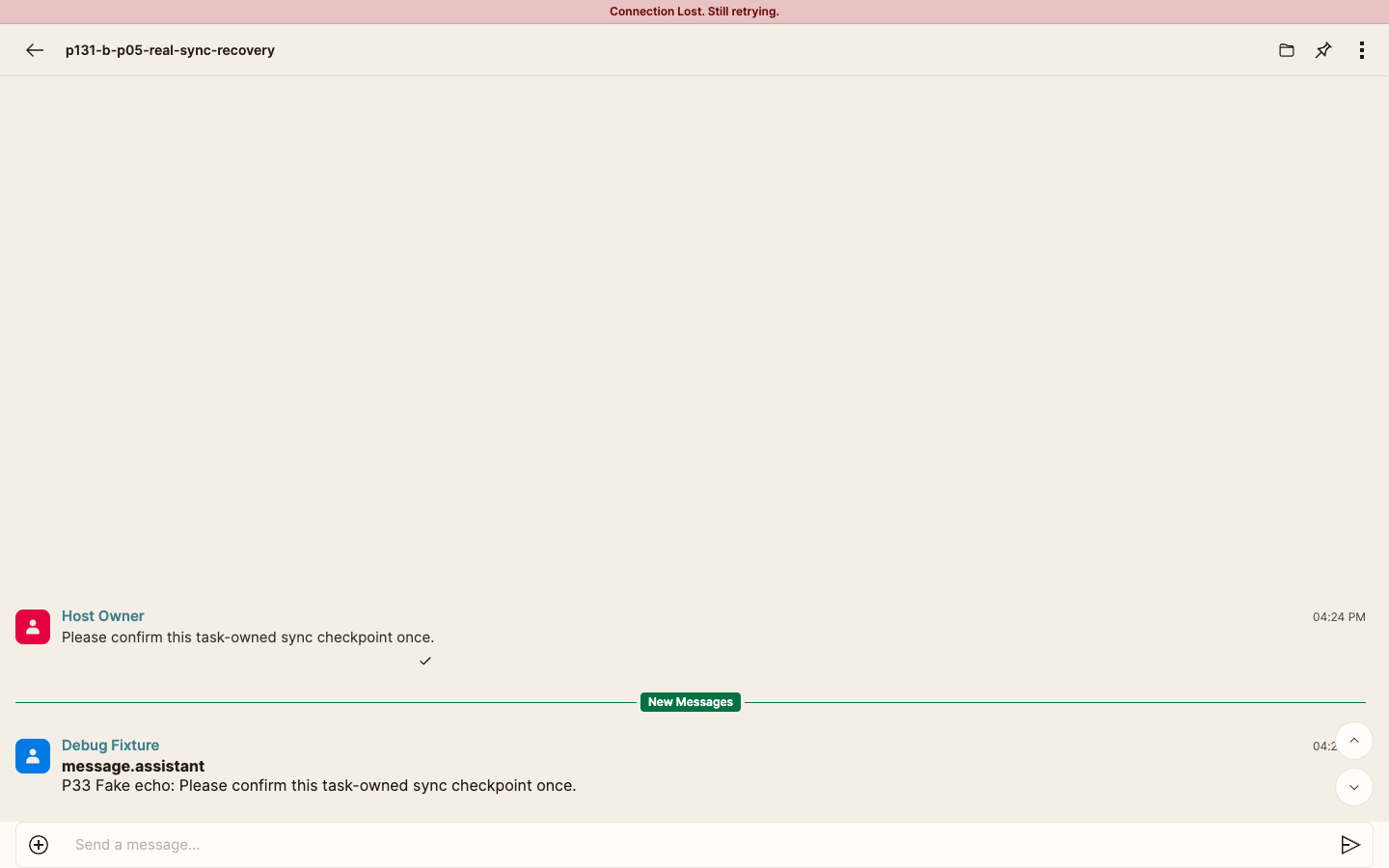
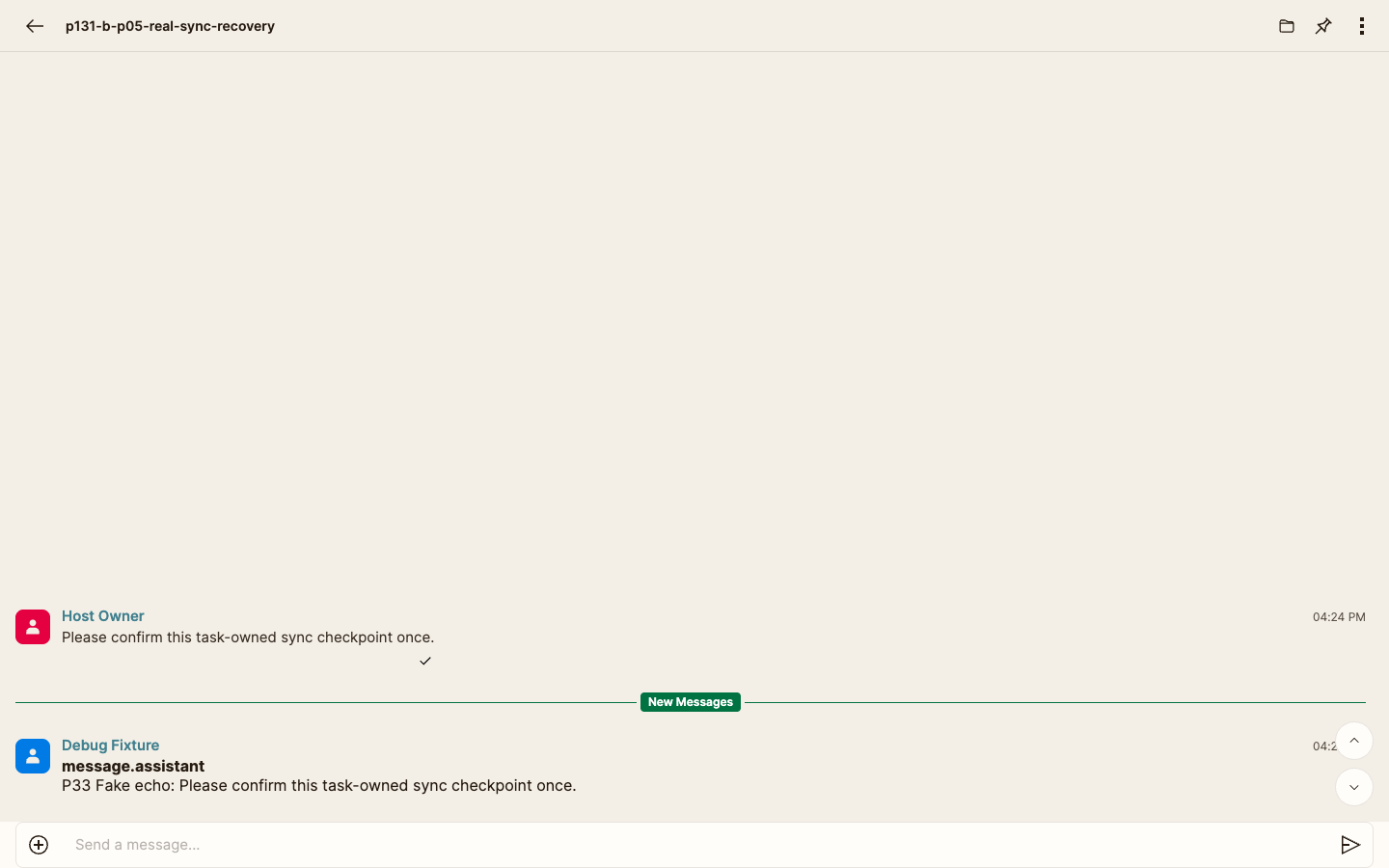
A delayed chat can make a sent message or new output appear late even though Oysterun is already retrying. Use the visible sync banner to identify the state, keep the original work unchanged, and complete one bounded recovery before deciding that the Session needs help.
1. Recognize the visible sync state
Visible checkpoint: Reconnecting... appears in the same Session without hiding the original message, result, or composer.
Starting screen: the intended Session chat with its name and timeline visible. The composer may be empty or may contain an unsent draft.
Confirm the Session name in the header.
Note the last visible message or result. If you already sent a message, note a short, nonprivate phrase from it.
Look for a banner above the chat.
Visible state
Meaning for this recovery
No sync banner
The chat is prepared or syncing normally. Initial loading or an Agent still working is not, by itself, a delayed-sync warning.
Reconnecting...
Chat recovery is underway. Keep the page open and wait.
Connection Lost. Still retrying.
The recovery has remained continuous long enough to require the bounded reachability check below.
2. Let the ordinary reconnect finish
If Reconnecting... is visible, keep the same chat open.
Wait without reloading, clearing data, or sending another message.
Watch for the banner to disappear.
If the banner changes to Connection Lost. Still retrying., continue with the reachability check.
3. Confirm Oysterun is reachable
Use another desktop tab, or return to the app's main view without discarding the affected chat.
Open the normal Oysterun dashboard or main view.
Look for the Sessions list or the normal sign-in screen.
If Sessions appears, note the affected Session name and return to its chat.
If the sign-in screen appears, sign in through that normal screen, open Sessions, and reopen the same Session.
If neither the Sessions list nor sign-in screen loads, stop this chat-sync path. The visible problem is broader reachability, so keep the evidence and ask for help without restarting anything.
4. Give the same chat one bounded recovery window
Visible checkpoint: Connection Lost. Still retrying. remains above the same Session and its unchanged message context.
After confirming reachability, keep the affected Session chat open.
Let Oysterun continue retrying automatically.
Wait no more than five minutes for Connection Lost. Still retrying. to disappear.
During this window, do not use Clear Cache and Reload, clear browser storage, restart the Host, or create a replacement Session. Those actions can remove useful context and do not prove whether the original message was already accepted.
5. Confirm recovery before doing more work
Visible checkpoint: the banner is gone from the same Session; its one original message and newest result remain visible.
Confirm the sync banner is gone.
If Jump to Latest is visible, select it once and wait.
Find the short phrase you noted from the original message, if you had already sent one.
Check the newest output and any visible working or stop state.
A missing response with no sync banner can mean the current work is still running. Wait for its visible activity or terminal result instead of repeating the request.
6. Stop safely after the bound
If the same reachable Session still shows Connection Lost. Still retrying. after five minutes, stop waiting and record only nonsecret evidence:
the visible Sessions list or normal sign-in screen that proved reachability;
the affected Session name;
the exact sync banner and how long it remained after reachability was confirmed;
whether sign-in was requested and completed; and
whether the newest message, older content, or working/stop state remained visible.