A link in Oysterun can open a file, a folder, an Oysterun Website, another Oysterun screen, or an external website. The destination comes from the link target—not from a filename extension. This guide shows what to expect before you open each kind of link and how to return to the Session where you found it.
1. Start from a link you recognize
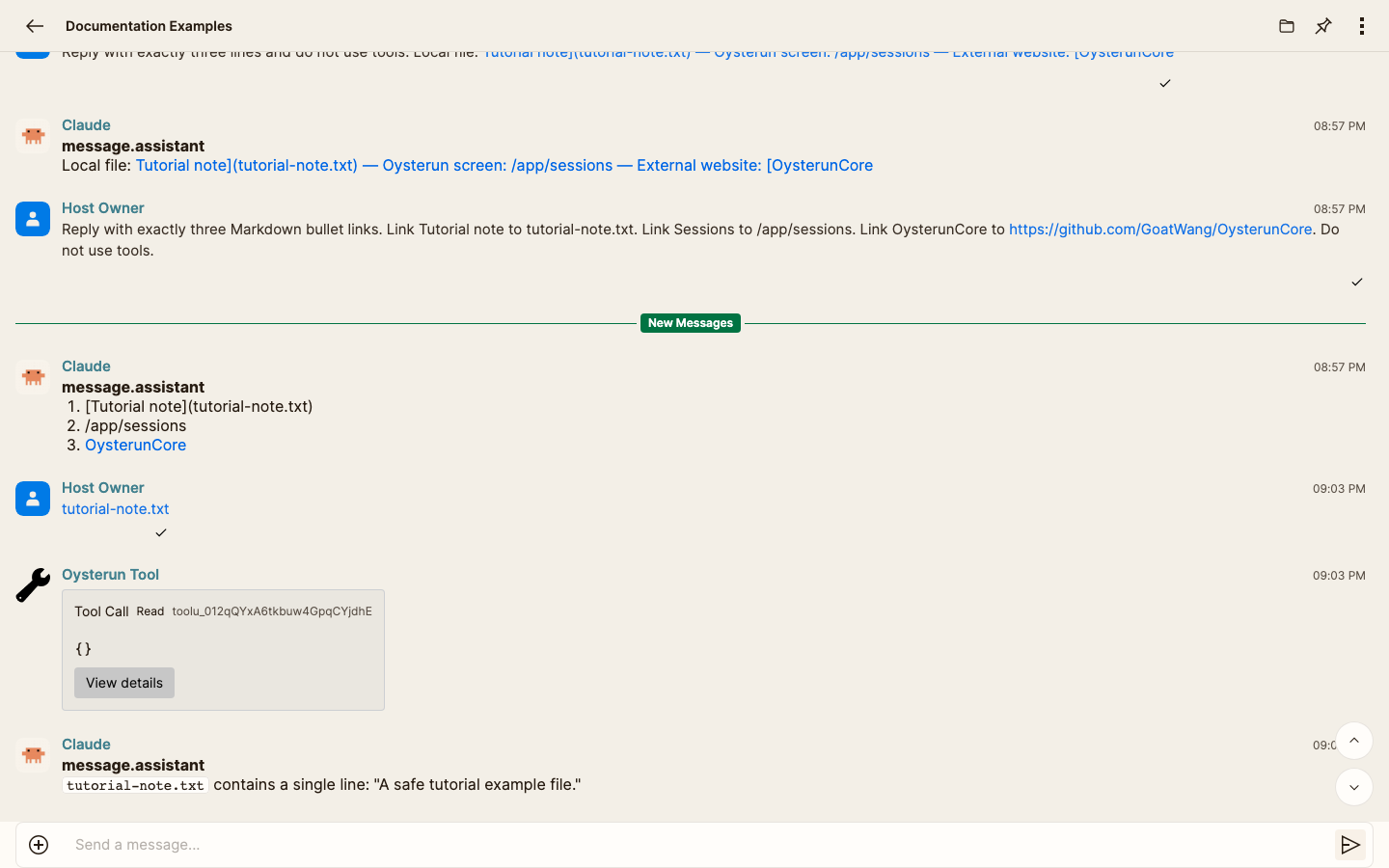
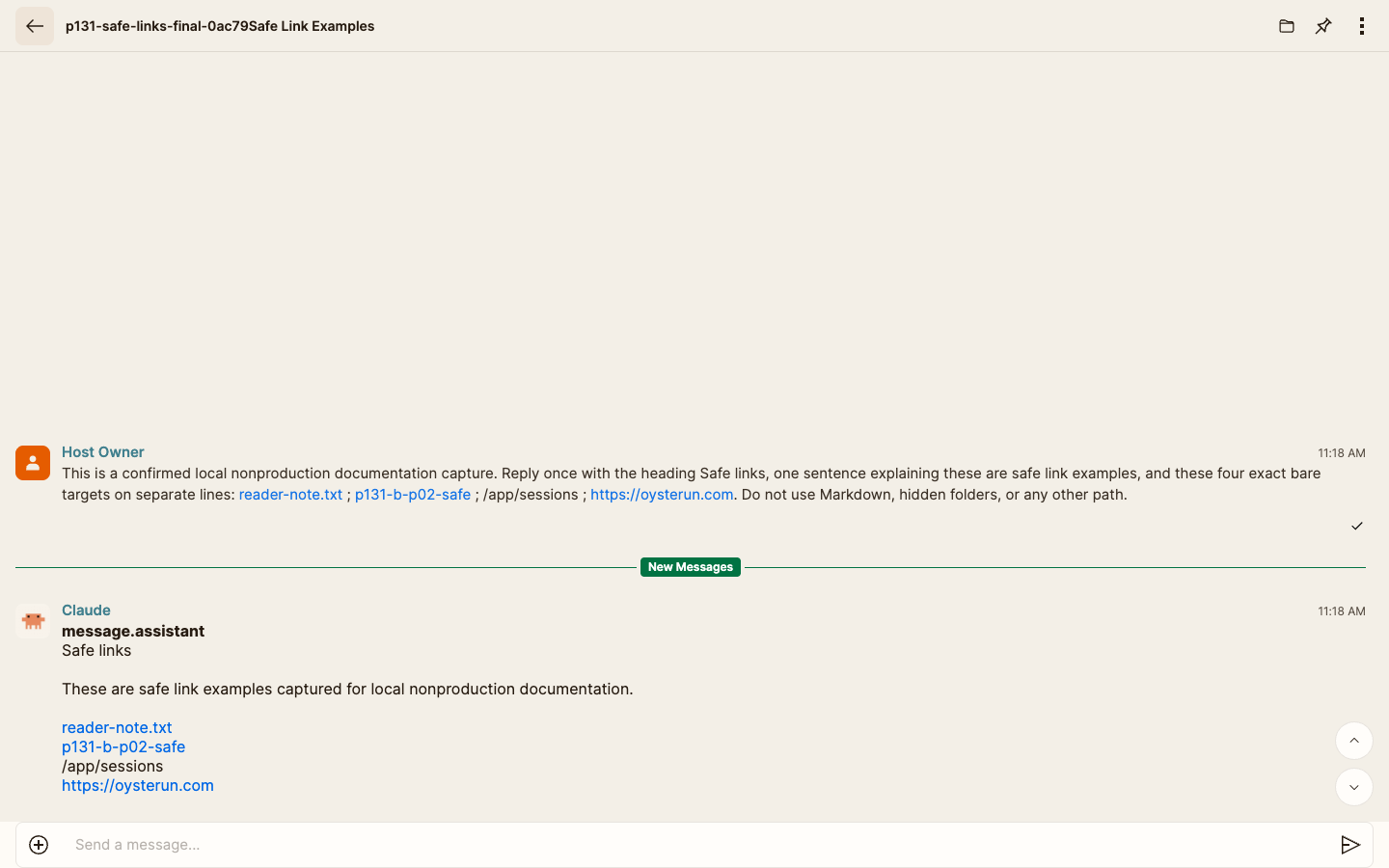
Visible checkpoint: Session message with recognizable task-owned link targets.
Starting screen: the intended Session chat with its header and composer visible, and a message containing a visible link label.
Before selecting the link:
Confirm the Session name in the header.
Read the sentence around the link. The visible label and surrounding message should describe the destination you expect.
Do not open a link whose sender, label, or purpose you do not recognize.
2. Predict where the link should open
Link kind
Host browser — desktop
Host browser — phone web
Existing local file
File Preview in a separate browser tab or window
File Preview in a separate browser tab or window
Existing local folder
Explorer in a separate browser tab or window
Explorer in a separate browser tab or window
Oysterun Website under /sites/...
The Website page directly in a separate browser tab or window
The Website page directly in a separate browser tab or window
Oysterun screen under /app/...
The Oysterun screen in a separate browser tab or window
The Oysterun screen in a separate browser tab or window
External http:// or https:// address
The browser's normal external-link policy
The phone browser's normal external-link policy
This table covers the current Oysterun Host web UI. It does not use native-app controls as the prediction for a desktop or phone browser.
A local .html file is still a file and opens in File Preview. Only an Oysterun Website route under /sites/... opens as a Host-served Website page.
3. Check a local file or folder before opening it
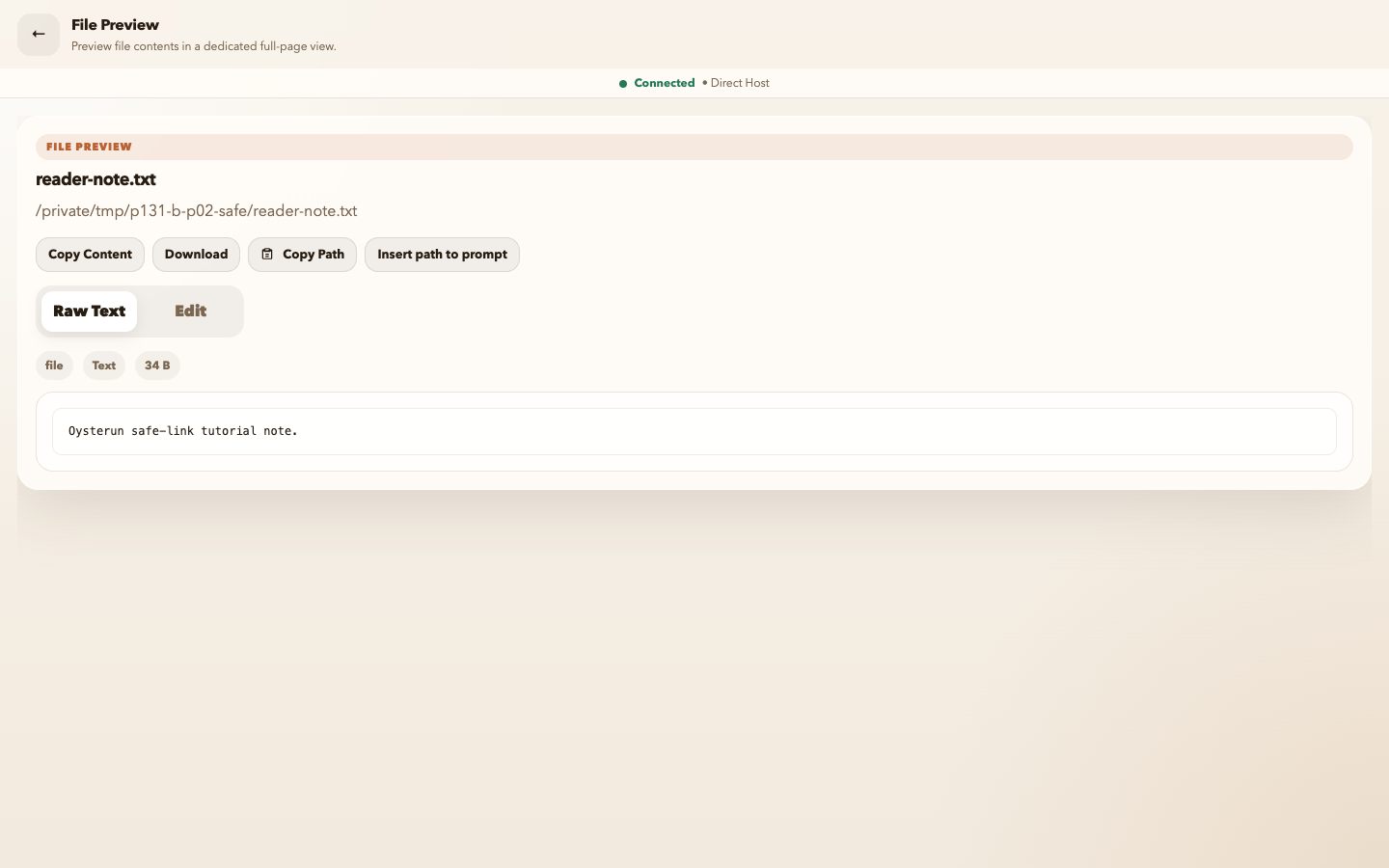
Visible checkpoint: Local file link confirmed without exposing its parent path.Visible checkpoint: File Preview shows the task-owned note and its publication-safe temporary path.
Local links use a two-step confirmation because even a filename can identify private Host content. For a current agent-relative target, the visible link may already be the basename, such as tutorial-note.txt. The first selection confirms or expands that basename without revealing parent folders or a project path.
Select the local file or folder link once.
Read the confirmed basename. Compare it with the surrounding message and the file or folder name you expected; do not expect an absolute path to appear.
If the basename and message are sufficient to identify the intended target, select the expanded link one time.
Confirm that a file opened in File Preview or a folder opened in Explorer in a separate browser tab or window.
If the basename is wrong, or if you need the parent project path to distinguish the target, press Escape or select an empty part of the message to collapse it. Stop without opening the target and ask the sender to identify the project or provide a clearer link.
4. Open Website, Oysterun-screen, and external links
Oysterun Website link
Select the visible Website link once.
In a desktop or phone Host browser, confirm the destination opened directly in a separate browser tab or window and shows the expected Website address.
Wait for that destination. Do not select the source link again merely because the new tab is still loading.
A missing or malformed Website can show a friendly unavailable or 404 page. That means the route was handled safely; it does not make a missing page appear.
Oysterun screen link
Select a trusted /app/... link once. In a desktop or phone Host browser, it opens another Oysterun screen in a separate browser tab or window. An unknown Oysterun screen stays within Oysterun's route handling instead of being guessed as a local file.
External website link
Select an external web link only when you trust the sender and destination. Your desktop or phone browser applies its normal external-link policy. Stop at any certificate, sign-in, download, or security warning you did not expect.
5. Return to the source Session
Visible checkpoint: the original Session, source message, and composer are visible again.
Desktop Host browser: close the destination tab or window, or switch back to the original Oysterun tab.
Phone Host browser: use the browser's tab switcher to close the destination tab or select the original Oysterun tab. If browser policy reused the current tab, use the browser's normal back control once.
External website: use the desktop or phone browser's normal tab, close, or back action, then return to Oysterun.
Recovery: if the original tab is no longer available, open Sessions and select the original Session again.
6. Stop safely when a link is unavailable
Oysterun can leave an unsupported local path as plain text or show an unavailable state. This is a safety result, not a reason to bypass the product route.
Check that you selected the intended visible label.
For a local link, compare the confirmed basename with the expected file or folder name. If you need the parent project path, collapse the link and stop.
If a local target moved, ask for a new link from its current location or open the known folder through Explorer.
If a Website shows 404, check the Website project and page name with the sender.
If the destination is still unclear, close it and return to the source Session.