You do not need to begin with an Agent Store template. In this tutorial, we create a completely empty project, describe an original product in plain language, and let Codex build, test, validate, and enable a phone-first Oysterun Website.
What you will build
The sample project is an original AI Launch Radar. A reusable Node.js report generator gathers public Hacker News data, ranks relevant launches, and writes a static Website designed for phones first.
The example is intentionally self-contained: it uses Node.js 22 built-in APIs, requires no API key, and does not copy or inspect either of the two systems in the Agent Store.
A tested data and report-generation command
A static Website that works on desktop and mobile
An Oysterun Website configuration validated before enablement
An owner-only Website URL opened from Oysterun's Web catalog
Before you start
You need a running Oysterun Host, a connected browser or phone, and a working Codex sign-in. If this is your first Session, complete the Oysterun getting-started tutorial first.
This walkthrough uses Codex with Oysterun Skills enabled. The Website switch is off when the Session begins; the agent will initialize, validate, and enable the Website through the Website skill.
1. Create a new empty project
Open Explorer from Oysterun.
Select Add Folder.
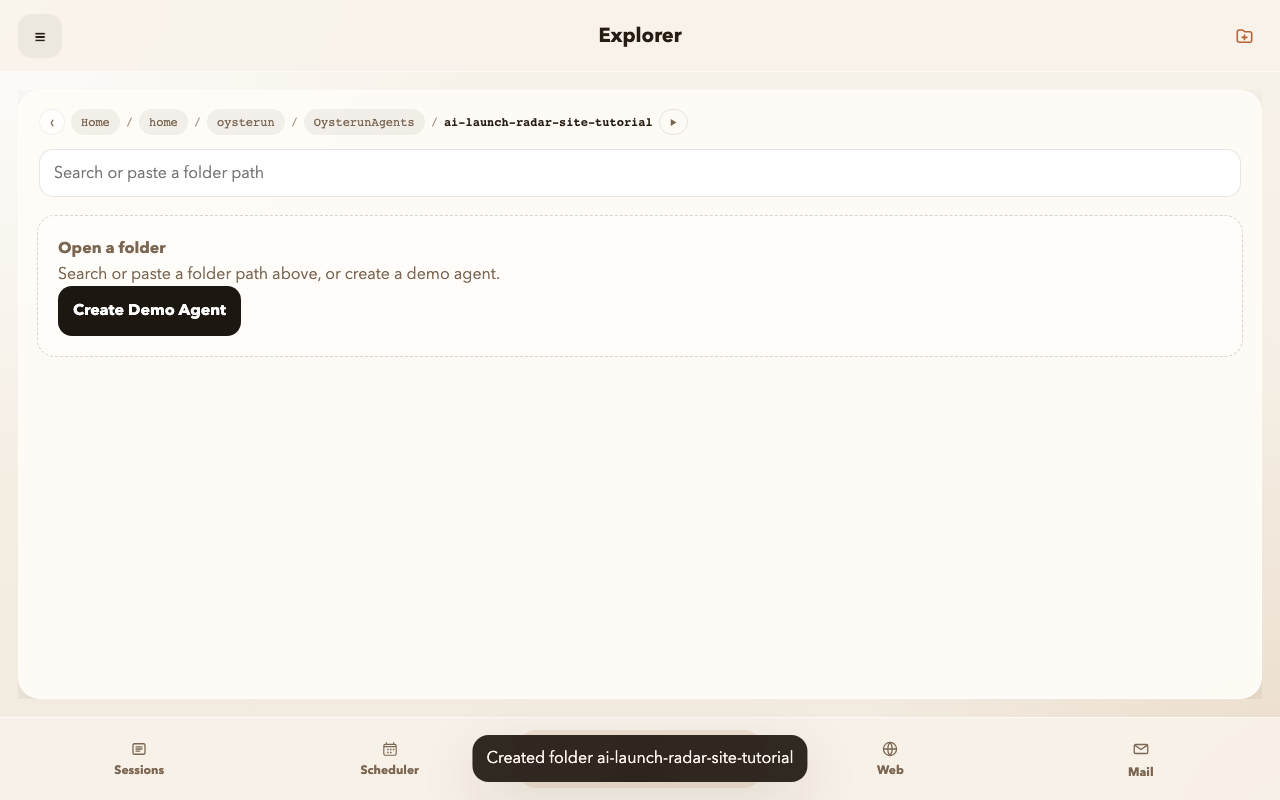
Name the folder ai-launch-radar-site and open it.
Confirm that the project contains no files before you start the Session.
Do not open or download an Agent Store example. The empty state is the point: the agent will derive the implementation from your brief.
The project begins as a visibly empty folder.
2. Start a Codex Session
Choose Start Session from the empty project.
Select Codex and enable Oysterun Skills.
Choose your preferred model and reasoning level. The verified run used gpt-5.6-sol with high reasoning.
Start the Session and wait until the chat composer is ready.
You do not need to enable Website in Session Setup. Asking the agent to use the Website skill keeps initialization, validation, access control, and enablement in the project workflow.
3. Give the agent a complete natural-language brief
Paste the following instruction as one message. It defines the outcome, data boundary, implementation constraints, Website access level, and the order of work.
Start from this empty project and build an original AI Launch Radar Website.

Do not clone, download, inspect, or copy any Agent Store or existing agent project. Build everything inside the current folder.

Use public Hacker News data without API keys. Use Node.js 22 built-in APIs only. Create tests, a reusable report generator, and a phone-first static Website.

Use the Oysterun Website project skill to initialize, validate, and enable the Website with owner_only access. Do not use a local web server, a local-file URL, a fixed IP, Scheduler, Mail, or Telegram.

Before editing, show a short plan. Then implement, test, generate the current report, validate the Website, and report its Oysterun Website URL.
A detailed outcome-oriented brief is enough; you do not need to dictate the file tree.
4. Let Codex plan, build, and verify
Codex first presents a short plan, then creates the application and tests inside the project. Let the Session finish before opening the result. A healthy completion should report all of these separately:
the test result;
the current report-generation result;
the Website validation result;
the Website access level and URL.
In the verified run, 8 tests passed and Website validation returned website_valid.
If the agent reports a failed test or validation error, ask it to fix that exact failure and run the same check again. Do not treat a generated URL by itself as proof that the Website is valid.
5. Open the Website from the Web catalog
Open Web in Oysterun.
Find AI Launch Radar.
Confirm the access badge says Owner only.
Open the Website and inspect the landing page and report view.
Resize the browser or open it on your phone to check the mobile layout.
The Web catalog exposes the enabled Website without a separate local server.The final Website is generated from the project and opens in a browser-native tab.
Finish checklist
The project started empty and no Agent Store project was copied.
Tests passed before the Website was enabled.
Website validation succeeded.
The Web catalog shows the intended access level.
The landing page and report work on desktop and mobile.
You now have a Website built from a natural-language product brief, with the implementation and Website configuration living together in one Oysterun project.