# Omi Snippets

[Try it Now!](https://marketplace.visualstudio.com/items?itemName=Wscats.omi-snippets)

Visual Studio Code syntax highlighting for single-file Omi.js components (enabled by omil).

Or [Download Vsix!](https://github.com/Wscats/omi-snippets/releases/download/0.41/omi-snippets-0.4.1.vsix) to install in Visual Studio Code

# Contributors

| [<img src="https://avatars1.githubusercontent.com/u/17243165?s=460&v=4" width="60px;"/><br /><sub>Eno Yao</sub>](https://github.com/Wscats)| [<img src="https://avatars2.githubusercontent.com/u/5805270?s=460&v=4" width="60px;"/><br /><sub>Aaron Xie</sub>](https://github.com/aaron-xie)| [<img src="https://avatars3.githubusercontent.com/u/12515367?s=460&v=4" width="60px;"/><br /><sub>DK Lan</sub>](https://github.com/dk-lan)| [<img src="https://avatars1.githubusercontent.com/u/30917929?s=460&v=4" width="60px;"/><br /><sub>Yong</sub>](https://github.com/flowerField)| [<img src="https://avatars3.githubusercontent.com/u/33544236?s=460&v=4" width="60px;"/><br /><sub>Li Ting</sub>](https://github.com/Liting1)| <img src="https://wscats.github.io/omi-snippets/images/xin.jpg" width="60px;"/><br /><sub>Xin</sub>| [<img src="https://wscats.github.io/omi-snippets/images/lemon.jpg" width="60px;"/><br /><sub>Lemon</sub>](https://github.com/lemonyyye)  |  [<img src="https://wscats.github.io/omi-snippets/images/jing.jpg" width="60px;"/><br /><sub>Jing</sub>](https://github.com/vickySC)  |  [<img src="https://wscats.github.io/omi-snippets/images/lin.jpg" width="60px;"/><br /><sub>Lin</sub>](https://github.com/shirley3790)  | [<img src="https://avatars2.githubusercontent.com/u/23230108?s=460&v=4" width="60px;"/><br /><sub>Tian Fly</sub>](https://github.com/tiantengfly)| 
| - | - | - | - | - | - | - | - | - | - |

# Quick Start

- Install [Omi Snippets](https://marketplace.visualstudio.com/items?itemName=Wscats.omi-snippets).
- Try it with [omil](https://github.com/Wscats/omil), a Omi.js components loader based on webpack.
- Via Marketplace Control: search for `Omi Snippets` and click install.
- Manual: clone this repo and install `omi-snippets.vsix` into your Visual Studio Code.
> In addition, if you want to build and install the extension from source, you need to install [vsce](https://code.visualstudio.com/api/working-with-extensions/publishing-extension), like this.

```bash
# Then, clone the repository and compile it.
git clone https://github.com/Wscats/omi-snippets
cd omi-snippets
yarn
vsce package
```
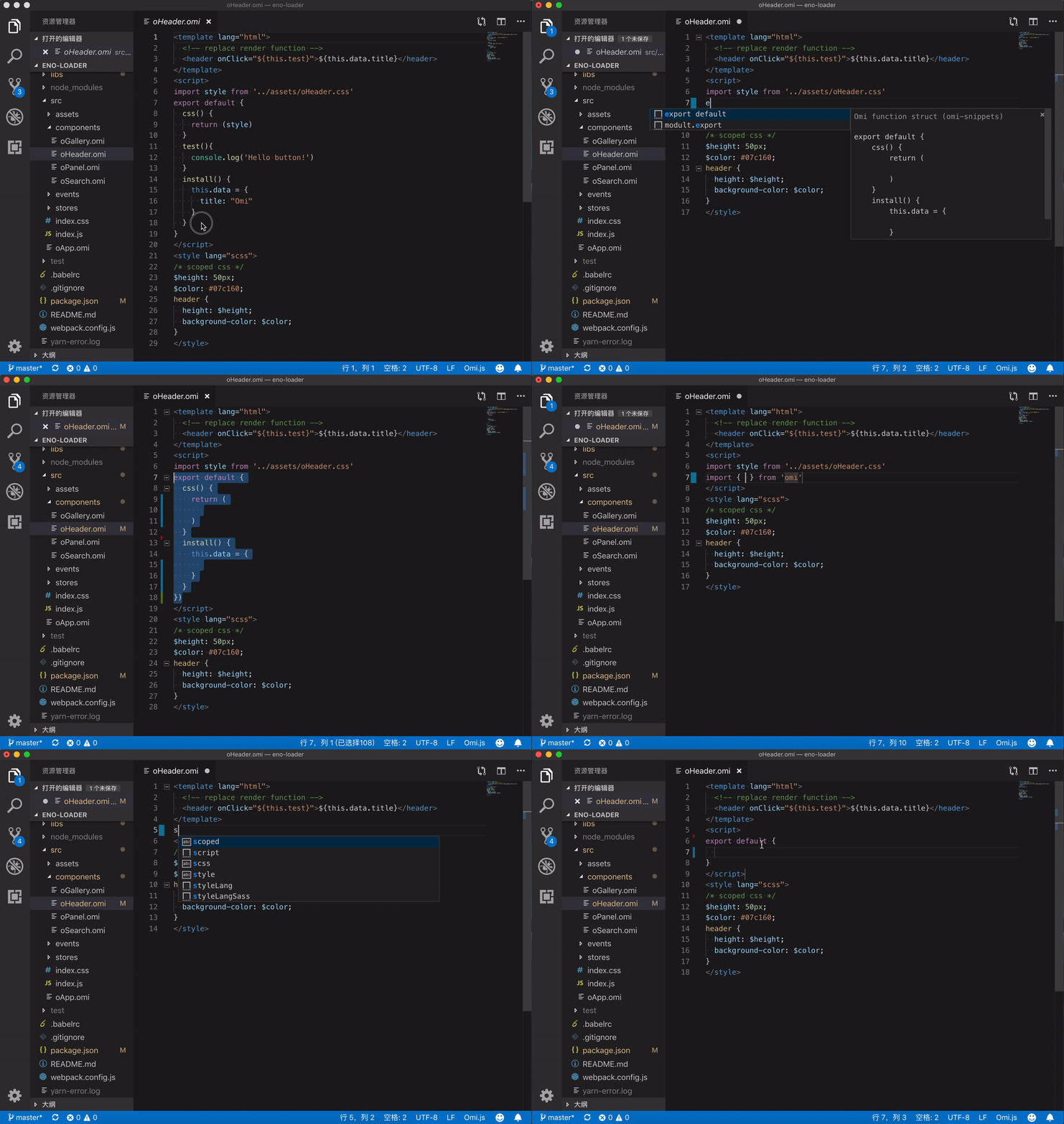
![wscats](https://wscats.github.io/omi-snippets/images/omi-snippets.gif)

This will setup a basic `webpack` + [omil](https://github.com/Wscats/omil) project for you, with `*.omi` or `*.eno` files and hot-reloading working out of the box!

For example, you can create `test.omi` in Visual Studio Code before install [Omi Snippets](https://marketplace.visualstudio.com/items?itemName=Wscats.omi-snippets)
```html
<!-- test.omi -->
<template name="component-name">
    <div>
        {this.data.name}
    </div>
</template>
<script>
import style from './style.css';
export default class {
    static css = style
    install(){
        this.data = {
            name: 'Eno Yao',
        }
    }
}
</script>
<style lang="scss">
    div{
        color:red;
    }
</style>
```

It will be converted into `test.js` and `test.html`
```jsx
// test.js
import { WeElement, define, h } from "omi";
import style from "./style.css";
const componentName = class extends WeElement {
  render() {
    return h("div", null, this.data.name);
  }
  static css =
    `
      div{
          color:red;
      }
    ` + style;
  install() {
    this.data = {
      name: "Eno Yao"
    };
  }
};
define("component-name", componentName);
```

# Code Snippets

|trigger|snippet|
|-|-|
|import|`import { * } from 'omi'`|
|export default|`export default {}`|
|modult.export"|`modult.export = {}`|
|render|`render(){}`|
|css|`css(){}`|
|template|`<template></template>`|
|templateLang|`<template lang></template>`|
|script|`<script></script>`|
|style|`<style></style>`|
|styleLang|`<style lang></style>`|
|scaffold|`<template><script><style>`|
|...|...|

**NOTE:** You still need to install corresponding packages for pre-processors (e.g. `JSX, SASS, TypeScript`) to get proper syntax highlighting for them.

# Enabling JSX Highlighting

The `<script>` block uses the syntax highlighting currently active for you normal `.js` files. To support JSX highlighting inside Omi files, just set [Babel javascript highlighting package](https://packagecontrol.io/packages/Babel), which supports JSX, as your default JS highlighting. 

> Note you may need to explicitly disable Sublime's default `JavaScript` package to make it work.


# Thanks

- [html-snippets](https://github.com/abusaidm/html-snippets)
- [vscode-javascript](https://github.com/xabikos/vscode-javascript)
- [vscode-javascript-snippets](https://github.com/nathanchapman/vscode-javascript-snippets)
- [vsc-css-snippets](https://github.com/joy-yu/vsc-css-snippets)
- [prettier](https://prettier.io/)
- [babel](https://babeljs.io/)

# License

[MIT](http://opensource.org/licenses/MIT)