# OD Support Chat
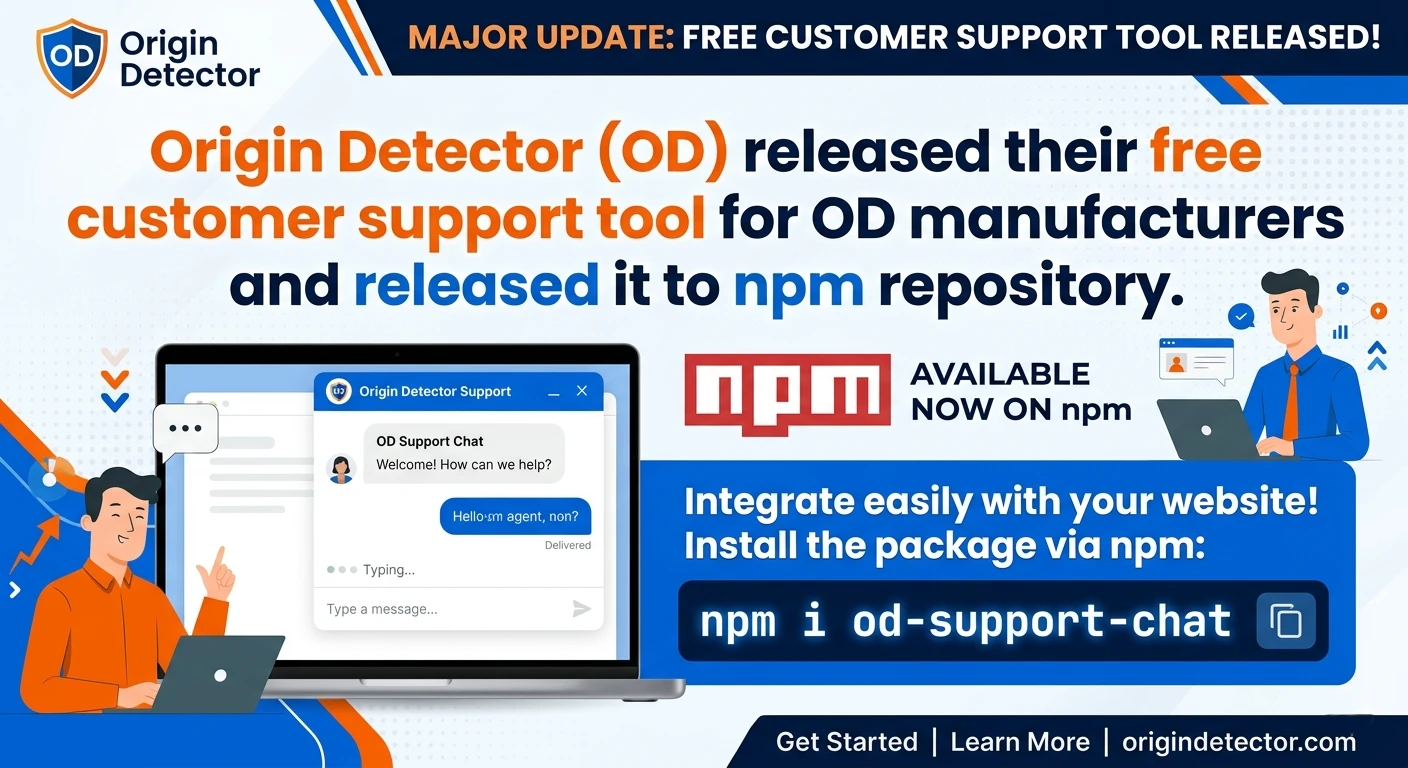
od-support-chat is a lightweight, embeddable customer support chat tool built for the Origin Detector (OD) platform. It allows companies to enable real-time communication between customers and support teams, helping improve trust, product verification, and issue resolution.
## Key Points
### Purpose:
This widget will allow live chat between your customers and your support teams directly within your website or platform.
### Core Value:
* Improves customer trust
* Helps with product authenticity verification
* Speeds up issue resolution
### Target Users:
Manufacturing companies and businesses using the Origin Detector (OD) platform
### Pricing Model:
* Free (no separate license fee)
* Only available to users with a paid OD platform subscription
* Considered a complimentary add-on, not a standalone product
### Positioning:
* Not sold independently, it is a complimentary chat widget with Origin Detector that our customer can use for their website.
* Acts as an extra support feature within the OD ecosystem
[](https://www.youtube.com/watch?v=izE81ShGlLI)
The od-support-chat is a simple, embeddable customer support chat designed for the Origin Detector (OD) platform. It
facilitates real-time communication between customers and support teams, helping to build trust, verify products, and resolve issues.
This chat tool is free for companies that already have a paid subscription to the Origin Detector platform. Essentially,
it serves as an added benefit for manufacturing companies using the platform. There are no additional licensing fees for
the od-support-chat itself, but you'll need to pay for a license for the Origin Detector platform to access this free tool.
## Development
- Install:
```bash
npm i od-support-chat
```
## How to create chat widget for your website
Login to https://origindetector.com
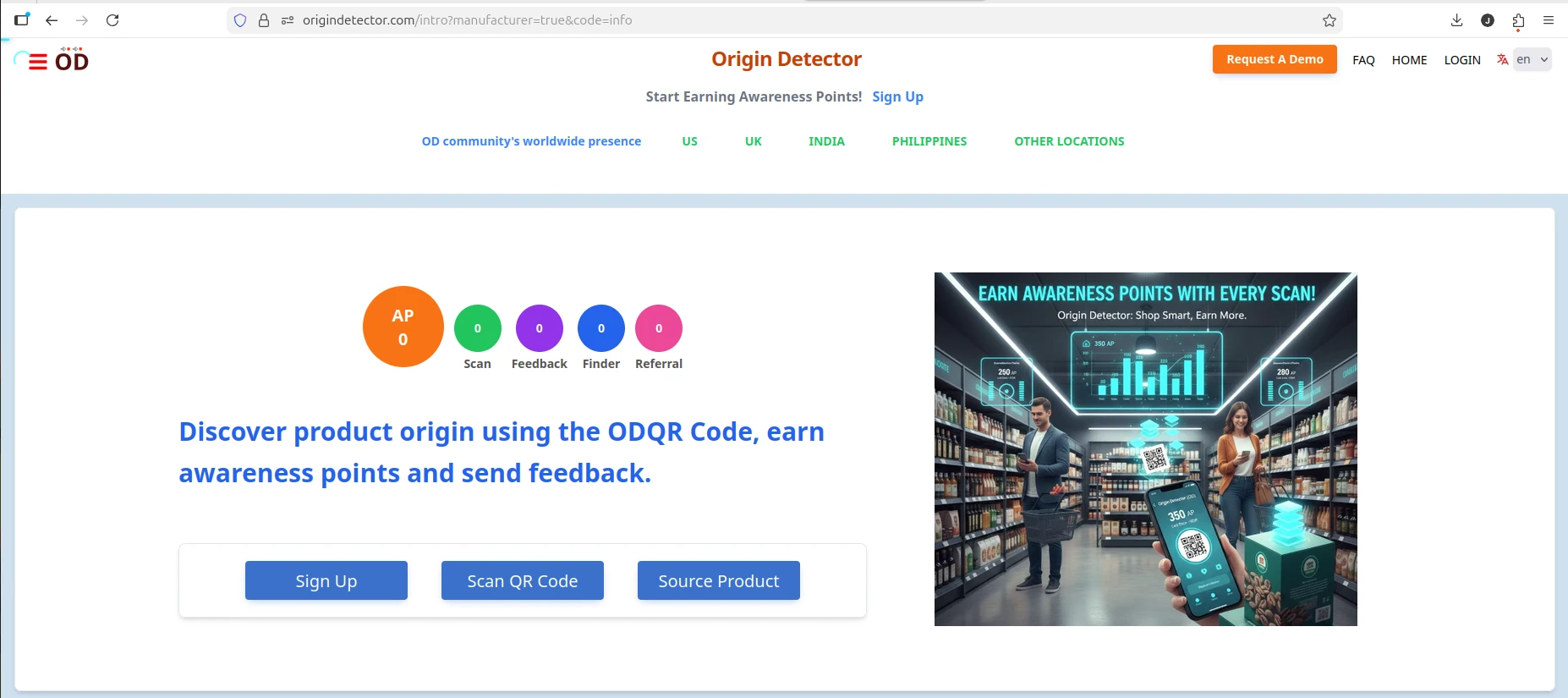 Please get the **meetingLinkKey** and **customerSupportKey** form the Origin Detector website by opening the user profile.
To obtain the meetingLinkKey and customerSupportKey from the Origin Detector website, follow these steps:
1. Open your user profile on the Origin Detector (OD) website. You can access this if you have created a company in OD.
2. Click on the "OptimizeTalk Support" menu item. This will direct you to your meeting room.
3. If this is your first time accessing this menu, you will be prompted to create a meeting room. During this process, you will need to set a password for the customer support team.
Once you've completed these steps, you will have access to the keys you need.
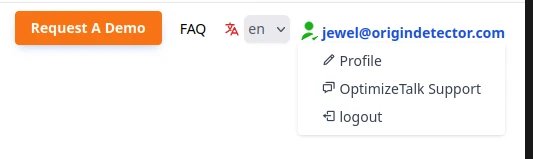
If you already created meeting room it will forward you to that meeting room in OptimizeTalk. You have to login using your meeting room
password.
Please get the **meetingLinkKey** and **customerSupportKey** form the Origin Detector website by opening the user profile.
To obtain the meetingLinkKey and customerSupportKey from the Origin Detector website, follow these steps:
1. Open your user profile on the Origin Detector (OD) website. You can access this if you have created a company in OD.
2. Click on the "OptimizeTalk Support" menu item. This will direct you to your meeting room.
3. If this is your first time accessing this menu, you will be prompted to create a meeting room. During this process, you will need to set a password for the customer support team.
Once you've completed these steps, you will have access to the keys you need.

If you already created meeting room it will forward you to that meeting room in OptimizeTalk. You have to login using your meeting room
password.
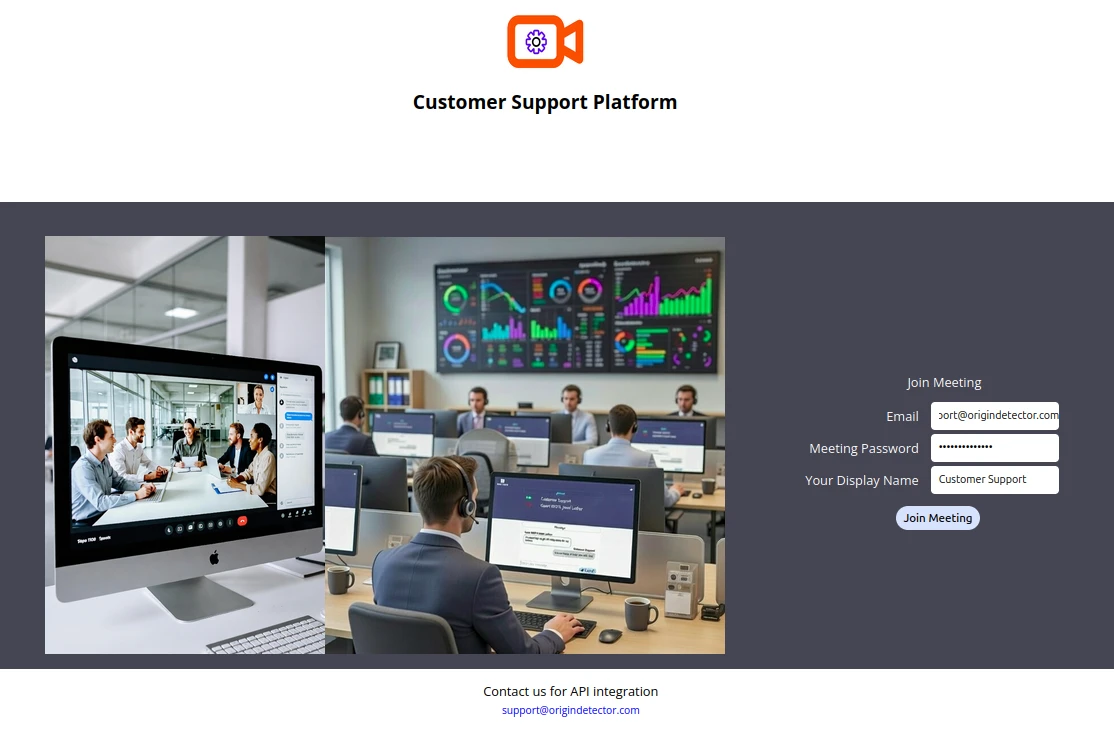 After you login there is top control bar where you can create shared link and support key.

You will need __meetingLinkKey__ and __customerSupportKey__ to use in your website to add chat option. To set up the __meetingLinkKey__
and __customerSupportKey__, you can choose to allow a maximum of one guest for customer support
purposes. This will prevent multiple guests from entering the room, which may not be ideal for support scenarios.
However, if you have a situation where you need to assist a group of guests at the same time and they should all see the
same message, you can increase the maximum number of guests allowed.
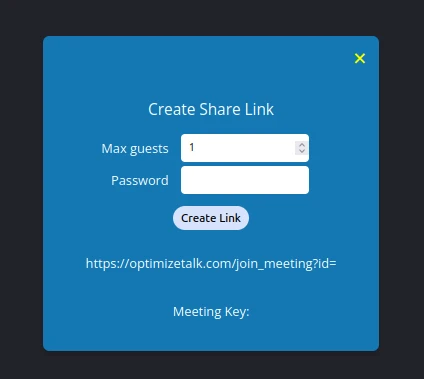
After you click on create link button, it will show the meeting link key which is the **meetingLinkKey** and the password
you provide will become **customerSupportKey** . Use these values for your chat widget parameters.
Finally you can use the Chat client for Origin Detector (OD) customer support tools for your website. Just import and use it with keys
```typescript
import { Chat, ChatMobile } from "od-support-chat";
```
```typescript
```
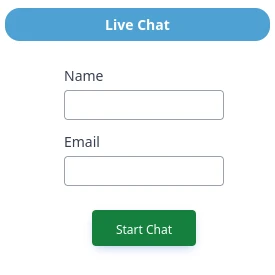
## Chat window for your customer on your website
After you login there is top control bar where you can create shared link and support key.

You will need __meetingLinkKey__ and __customerSupportKey__ to use in your website to add chat option. To set up the __meetingLinkKey__
and __customerSupportKey__, you can choose to allow a maximum of one guest for customer support
purposes. This will prevent multiple guests from entering the room, which may not be ideal for support scenarios.
However, if you have a situation where you need to assist a group of guests at the same time and they should all see the
same message, you can increase the maximum number of guests allowed.

After you click on create link button, it will show the meeting link key which is the **meetingLinkKey** and the password
you provide will become **customerSupportKey** . Use these values for your chat widget parameters.
Finally you can use the Chat client for Origin Detector (OD) customer support tools for your website. Just import and use it with keys
```typescript
import { Chat, ChatMobile } from "od-support-chat";
```
```typescript
```
## Chat window for your customer on your website
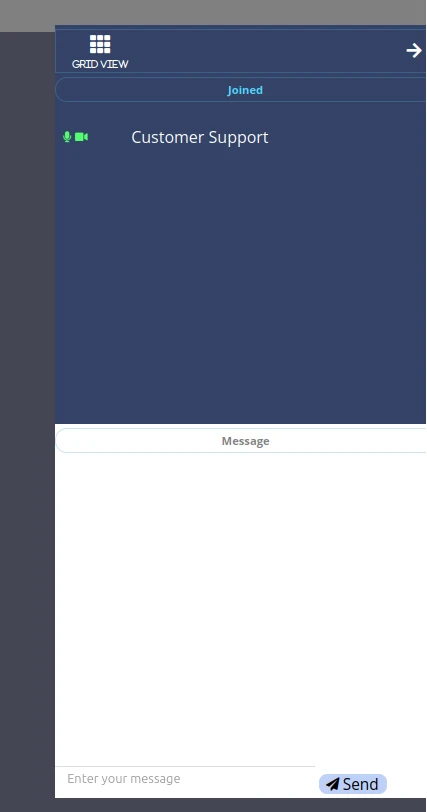
 ## Cusotmer Support team view
 ## Example React Project
### Here is one example react project. Please add your keys before running this project.
### https://github.com/jewelsub/example-od-support-chat
## If you are a manufacturer, please follow this manufacturer's onboarding guide to get used to with the Origin Detector (OD) platform.
### https://origindetector.com/user-guide/Manufacturer-Onboarding-Guide.pdf
### Alternative Mentioned:
Alternatively, you can use the OptimizeTalk.com meeting tool independently and at no cost, regardless of whether you use the od-support-chat widget.
## Example React Project
### Here is one example react project. Please add your keys before running this project.
### https://github.com/jewelsub/example-od-support-chat
## If you are a manufacturer, please follow this manufacturer's onboarding guide to get used to with the Origin Detector (OD) platform.
### https://origindetector.com/user-guide/Manufacturer-Onboarding-Guide.pdf
### Alternative Mentioned:
Alternatively, you can use the OptimizeTalk.com meeting tool independently and at no cost, regardless of whether you use the od-support-chat widget.