Minimalist script runner for npm projects, focused on dev-ergonomics.
```
__ __ __ __
/\ `./\ \ /\_\_\_\
\ \ .`.` \ \/_/\_\/_
\ \_\ `._\ /\_\/\_\
\/_/ \/_/ \/_/\/_/ npm execute
```
[](https://github.com/evnp/nx/actions)
[](https://github.com/evnp/nx/releases/latest)
[](https://www.npmjs.com/package/nx.sh)
[](https://github.com/evnp/nx/blob/master/LICENSE.md)
`nx` lets you interact with any NPM package (anything with a `package.json`) in as few keystrokes as possible.
With a default setup of `source $HOME/nx/nx.sh` in your dotfile of choice, it will add these aliases to any shell:
```sh
n ···········> show list of available nx aliases
n CMD ARGS ··> npm CMD │ npm run CMD ┐ nx intelligently adds "run"
│ only when necessary, but you
ns ····> npm run start │ may be explicit if you prefer
nb ····> npm run build └──────────────────────────────
nd ····> npm run dev
nf ····> npm run format
nl ····> npm run lint
np ····> npm run publish
nk ····> npm run link
nh ····> npm run help
nt ····> npm run test
nt w ··> npm run test -- --watch
└─ may be added to any nx command in place of --watch
ni NAME ····> npm install NAME
nu NAME ····> npm uninstall NAME
nis NAME ····> npm install --save NAME
nus NAME ····> npm uninstall --save NAME
nid NAME ····> npm install --save-dev NAME
nud NAME ····> npm uninstall --save-dev NAME
nig NAME ····> npm install --global NAME
nug NAME ····> npm uninstall --global NAME
nr ·······> npm run,
nr which prints a list of available "scripts" from package.json
└─ may be used to explicitly run any command via "npm run "
```
Of these aliases, only `nl` exists as a pre-existing Bash command (), used for prefixing file lines with line numbers. If you'd like to disable this particular `nx` alias so that the built-in `nl` is not overridden, use this configuration in your shell rc file:
```bash
export NX_ALIASES=run,install,uninstall,start,test,dev,build,format,k/link,publish,help; source "$HOME/nx/nx.sh"
```
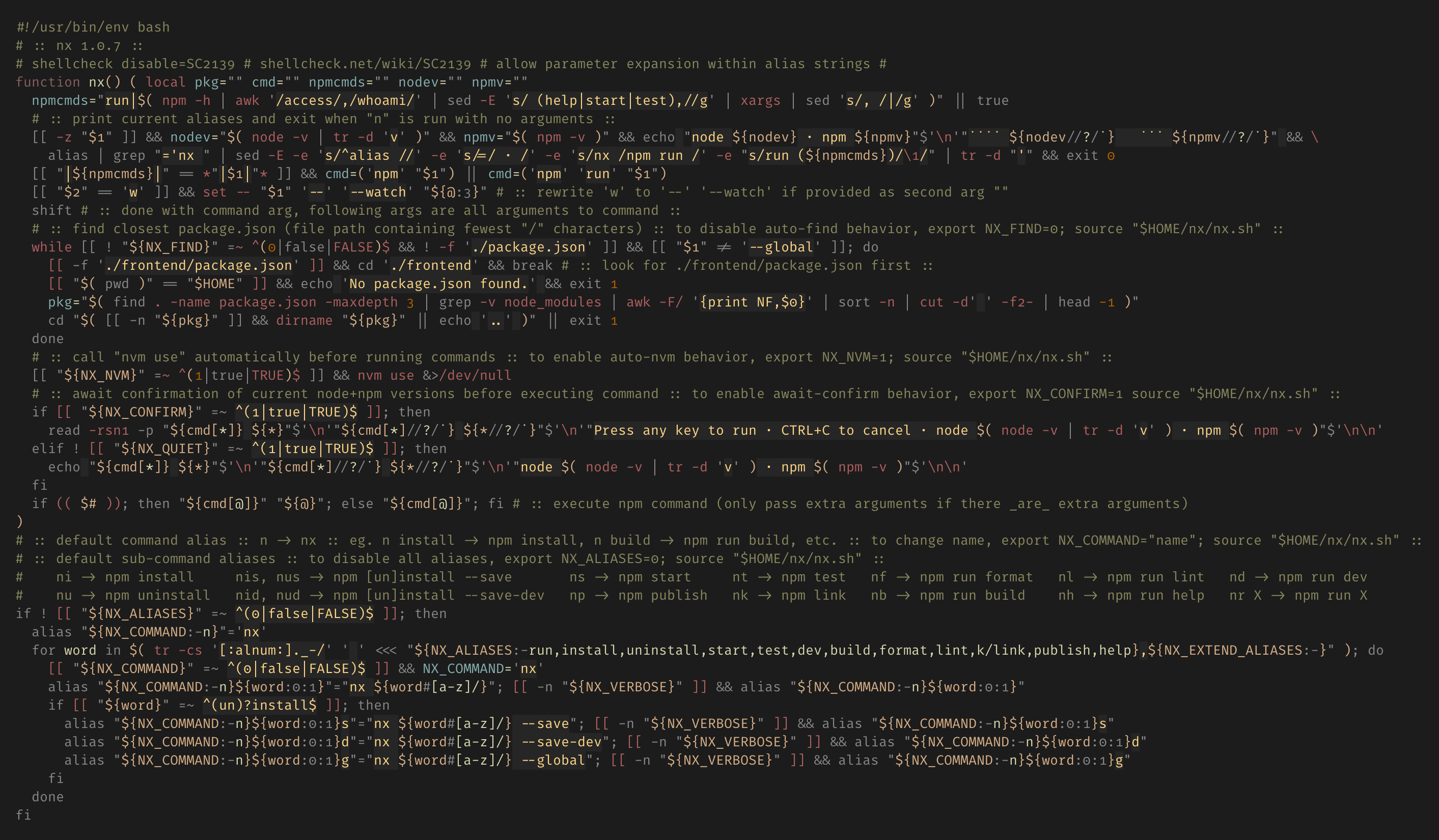
`nx` is less than 50 lines of code (with comments!) — if you're interested in knowing exactly what will be running on your system, peruse it [here](https://github.com/evnp/nx/blob/main/nx.sh). Any project with minimalism as a core tenet should strive to be understood completely within a few minutes. This is, and will remain, a goal of `nx`.
Setup
-----
**Option 1:** Install globally via NPM:
```sh
cd ~
npm install -g nx
# then add the following to your .bashrc / .zshrc / etc. ->
source "$HOME/node_modules/.bin/nx.sh"
```
**Option 2:** Install locally in a project `package.json` via NPM:
```sh
cd yourproject
npm install --save-dev nx
# then add the following to your .bashrc / .zshrc / etc. ->
source "$HOME/yourproject/node_modules/.bin/nx.sh"
```
**Option 3:** Install by checking out the repository manually:
```sh
cd ~
git clone https://github.com/evnp/nx.git
# then add the following to your .bashrc / .zshrc / etc. ->
source "$HOME/nx/nx.sh"
```
Open a new shell instance and `nx` will have initialized these aliases:
```sh
$ n # type "n" at any time to see the current list of available nx aliases
nb · npm run build
nd · npm run dev
nf · npm run format
nh · npm run help
ni · npm install
nid · npm install --save-dev
nig · npm install --global
nis · npm install --save
nk · npm link
nl · npm run lint
np · npm publish
nr · npm run
ns · npm start
nt · npm run test
nu · npm uninstall
nud · npm uninstall --save-dev
nug · npm uninstall --global
nus · npm uninstall --save
```
If you'd like to opt out of these default aliases or customize them, use env vars when initializing `nx` to configure:
```sh
# to opt out of "n" abbreviated command and instead use the full command "nx":
export NX_COMMAND=0; source "$HOME/nx/nx.sh"
# to opt out of all aliases provided by nx:
export NX_COMMAND=0; export NX_ALIASES=0; source "$HOME/nx/nx.sh"
# to use the custom command "myencmd" to invoke nx instead of "n":
export NX_COMMAND=myencmd; source "$HOME/nx/nx.sh"
> alias myencmd="nx"
# to define your own custom set of nx aliases:
export NX_ALIASES=build,push,deploy; source "$HOME/nx/nx.sh"
> alias n="nx"
> alias nb="nx build"
> alias np="nx push"
> alias nd="nx deploy"
# note: this overrides the default set of nx aliases entirely
# to define an alias whose shortcut does not match its first letter:
export NX_ALIASES=build,x/specialthing,deploy; source "$HOME/nx/nx.sh"
> alias n="nx"
> alias nb="nx build"
> alias nx="nx specialthing"
> alias nd="nx deploy"
# to extend the default set of nx aliases with your own:
export NX_EXTEND_ALIASES=deploy,x/specialthing; source "$HOME/nx/nx.sh"
> alias nd="nx deploy"
> alias nx="nx specialthing"
# ... and all other default nx aliases will also remain available
```
By default, if `nx` does not detect a `package.json` file within the directory it is being invoked from, it will search for one within directories up to 2 levels below, and an arbitrary number of levels above, exiting immediately if it reaches your home directory. This allows you to run `nx` commands from anywhere within a project with this very common directory structure, or similar project structures:
```sh
$HOME/
└─project/
├─backend/
│ └─dir/
└─frontend/
├─src/
└─dir/
```
Normally, you'd need to first navigate to the `frontend/` before invoking any `npm` command; nx handles this step invisibly for you in a subshell, so that you remain in the same directory you started in after the operation is complete.
If for any reason you prefer to skip this "auto-find" step, add the following env var to your nx configuration:
```sh
export NX_FIND=0; source "$HOME/nx/nx.sh"
```
If you use [nvm](https://github.com/nvm-sh/nvm), nx can be configured to call `nvm use` before each command invocation to ensure NodeJS and NPM versions matching the current directory's `.nvmrc` are used. To enable this behavior, add the following env var to your nx configuration:
```sh
export NX_NVM=1; source "$HOME/nx/nx.sh"
```
If you'd like nx to await confirmation of current node+npm versions before executing commands, add the following env var to your nx configuration:
```sh
export NX_CONFIRM=1; source "$HOME/nx/nx.sh"
```
While sorting out configuration, it may be useful to have nx output the complete set of aliases that are generated when a new shell session begins. To do so, add:
```sh
export NX_VERBOSE=1; source "$HOME/nx/nx.sh"
```
Why?
----
The things that spark joy most reliably for me are small tools that I've built myself, for myself, _especially_ when they end up becoming tools I use every day. This seems to be the case even when I'm the _only_ one that uses them! Each time those muscle-remembered keystrokes invoke something from the void that hadn't existed before, I feel a twinge of satisfaction.
The most effective way I've found to accomplish this comes in the form of small bash scripts, composed in traditional unix fashion. When I work on one of these scripts, I can feel the bash surface-area slowly solidifying in my mind. This has had a wonderful side-effect of bolstering my everyday shell-scripting abilities in a way nothing else has.
Keeping things small can be a satisfying challenge. The right constraints make the difference between a chore and a puzzle. With `nx`, this approach has resulted in a program that fits onto a single MacBook 13" screen at 13pt font size, without compromising on the desired featureset:
License
-------
MIT