## NODE-RED-CONTRIB-HIK-MEDIA-BUFFER
## HIK MEDIA BUFFER NODE
 The Hik Media Buffer node connects to **_NVR_** and outputs the image and the video of the event in case of alarm.
This node only detects **_"FieldDetection"_** and **_"LineDetection"_** alarms but can also receive notification of a **_failed connection_** of the cameras or NVR.
The Hik Media Buffer node connects to **_NVR_** and outputs the image and the video of the event in case of alarm.
This node only detects **_"FieldDetection"_** and **_"LineDetection"_** alarms but can also receive notification of a **_failed connection_** of the cameras or NVR.
 To configure the node you need to enter the **_IP, user and password of the NVR_**, you can also choose the **_client name_**,**_protocol_** and **_port_** to use.
This below is an example of msg output:
In case of failed connection:
```javascript
msg = {
payload: object,
tipo_messaggio: "status" //message type
stato_telecamera: "online" // Status of the camera
nome_cliente: "test" // Node name
nome_telecamera: "Camera 01" // Camera name (OSD)
ip_telecamera: "192.168.62.131" // IP of the camera
channel: "1" // Channel of the camera
msg: "Camera ripristinata"
_msgid: "45fd74589048966d"
};
```
In case of alarm:
```javascript
msg = {
payload: object,
tipo_messaggio: "evento" //message type
nome_cliente: "test" // Node name
nome_telecamera: "Camera 01" // Camera name (OSD)
ip_telecamera: "192.168.62.131" // IP of the camera
tipo_evento: "LineDetection" // Event type
timestamp_epoch: 1784877525
stato_telecamera: "ONLINE" // Status of the camera
channel: "1" // Channel of the camera
foto_base64: "/9j/2wCEAAYEBQYFBAYGBQY.." // Img in base64
video_base64: "AAAAHGZ0eXBpc29tAAACAG.." // Video in base64
_msgid: "45fd74589048966d"
};
```
## HIK SNAPSHOT NODE
To configure the node you need to enter the **_IP, user and password of the NVR_**, you can also choose the **_client name_**,**_protocol_** and **_port_** to use.
This below is an example of msg output:
In case of failed connection:
```javascript
msg = {
payload: object,
tipo_messaggio: "status" //message type
stato_telecamera: "online" // Status of the camera
nome_cliente: "test" // Node name
nome_telecamera: "Camera 01" // Camera name (OSD)
ip_telecamera: "192.168.62.131" // IP of the camera
channel: "1" // Channel of the camera
msg: "Camera ripristinata"
_msgid: "45fd74589048966d"
};
```
In case of alarm:
```javascript
msg = {
payload: object,
tipo_messaggio: "evento" //message type
nome_cliente: "test" // Node name
nome_telecamera: "Camera 01" // Camera name (OSD)
ip_telecamera: "192.168.62.131" // IP of the camera
tipo_evento: "LineDetection" // Event type
timestamp_epoch: 1784877525
stato_telecamera: "ONLINE" // Status of the camera
channel: "1" // Channel of the camera
foto_base64: "/9j/2wCEAAYEBQYFBAYGBQY.." // Img in base64
video_base64: "AAAAHGZ0eXBpc29tAAACAG.." // Video in base64
_msgid: "45fd74589048966d"
};
```
## HIK SNAPSHOT NODE
 The Hik Snapshot node connects to **_NVR_** and generates a live image for each camera when it receives **_payload = true_** as input.
This node can also report, for each camera, if there are recordings of the day this node is triggered.
The Hik Snapshot node connects to **_NVR_** and generates a live image for each camera when it receives **_payload = true_** as input.
This node can also report, for each camera, if there are recordings of the day this node is triggered.
 To configure the node you need to enter the **_IP, user and password of the NVR_**, you can also choose the **_protocol_** and **_port_** to use.
You must also enter the channels you want to get the snapshot of: if you enter "1", you will get the snapshot of the first channel of the NVR; if you enter "1,3", you will get the snapshot of channels 1 and 3 of the NVR; if you enter "1-3", you will get the snapshot from channel 1 to channel 3 of the NVR
This below is an example of msg output:
```javascript
msg = {
payload: array[5], // 5 channels
0: object,
name: "test" // Node name
channel: 1, // Channel 1 of the NVR
photo: buffer[18080], // Snapshot buffer
snapOk: true, // True if it gets the snapshot, False if not
isRecording: true, // True if the camera recorded something that day, False if not
1: object,
channel: 2,
photo: buffer[35056],
snapOk: true,
isRecording: true,
2: object,
3: object,
4: object
};
```
## HIK DOWNLOAD NODE
To configure the node you need to enter the **_IP, user and password of the NVR_**, you can also choose the **_protocol_** and **_port_** to use.
You must also enter the channels you want to get the snapshot of: if you enter "1", you will get the snapshot of the first channel of the NVR; if you enter "1,3", you will get the snapshot of channels 1 and 3 of the NVR; if you enter "1-3", you will get the snapshot from channel 1 to channel 3 of the NVR
This below is an example of msg output:
```javascript
msg = {
payload: array[5], // 5 channels
0: object,
name: "test" // Node name
channel: 1, // Channel 1 of the NVR
photo: buffer[18080], // Snapshot buffer
snapOk: true, // True if it gets the snapshot, False if not
isRecording: true, // True if the camera recorded something that day, False if not
1: object,
channel: 2,
photo: buffer[35056],
snapOk: true,
isRecording: true,
2: object,
3: object,
4: object
};
```
## HIK DOWNLOAD NODE
 The Hik Download node connects to NVR and outputs the playback video when it receives "payload = true" as input.
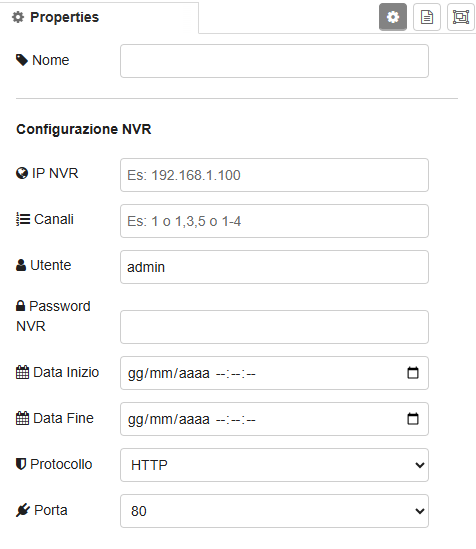 To configure the node you need to enter the IP, user and password of the NVR, you can also choose the protocol and port to use.
You must also enter the starttime, the endtime and the channels you want to get the playback of.
If you enter "1", you will get the playback of the first channel of the NVR; if you enter "1,3", you will get the playback of channels 1 and 3 of the NVR; if you enter "1-3", you will get the playback from channel 1 to channel 3 of the NVR
This below is an example of msg output:
```javascript
msg = {
payload: buffer[6058100], //Buffer of the video
localFilePath: "C:/download/2026-07-15/NVR_Cam2_085510.mp4", // Path of the video
channel: 2, // Channel of the camera
filename: "NVR_Cam2_085510.mp4" // Name of the file
};
```
To configure the node you need to enter the IP, user and password of the NVR, you can also choose the protocol and port to use.
You must also enter the starttime, the endtime and the channels you want to get the playback of.
If you enter "1", you will get the playback of the first channel of the NVR; if you enter "1,3", you will get the playback of channels 1 and 3 of the NVR; if you enter "1-3", you will get the playback from channel 1 to channel 3 of the NVR
This below is an example of msg output:
```javascript
msg = {
payload: buffer[6058100], //Buffer of the video
localFilePath: "C:/download/2026-07-15/NVR_Cam2_085510.mp4", // Path of the video
channel: 2, // Channel of the camera
filename: "NVR_Cam2_085510.mp4" // Name of the file
};
```