# GenomeGPS in Cromwell/WDL: Table of Contents
* [Objective](#objective)
* [Design principles](#design-principles)
* [Modularity](#modularity)
* [Data parallelism and scalability](#data-parallelism-and-scalability)
* [Real-time logging and monitoring, data provenance tracking](#real-time-logging-and-monitoring-data-provenance-tracking)
* [Fault tolerance and error handling](#fault-tolerance-and-error-handling)
* [Portability](#portability)
* [Development and test automation](#development-and-test-automation)
* [Implementation](#implementation)
* [Implementing modularity](#implementing-modularity)
* [Organization of the code](#organization-of-the-code)
* [Special modules](#special-modules)
* [Naming conventions](#naming-conventions)
* [Scripting peculiarities imposed by WDL](#scripting-peculiarities-imposed-by-wdl)
* [Bash](#bash)
* [Calling of tasks](#calling-of-tasks)
* [Workflows of workflows](#workflows-of-workflows)
* [Testing](#testing)
* [Unit testing](#unit-testing)
* [Pre-flight QC](#pre-flight-qc)
* [Workflow](#workflow)
* [Integration testing](#integration-testing)
* [Dependencies](#dependencies)
* [To-Dos](#to-dos)
* [7 Output Folder Structure](#7-output-folder-structure)
* [Email Notifications](#email-notifications)
* [Input Parsing and Type Validation](#input-parsing-and-type-validation)
# Objective
Recreate the GenomeGPS workflow in Cromwell/WDL instead of Bash/Perl.
# Design principles
## Modularity
This workflow is modular by design, with each bioinformatics task in its own module.
WDL makes this easy by defining "tasks" and "workflows." [Tasks](#workflow-architecture)
in our case will wrap individual bioinformatics steps comprising the workflow.
Tasks can be run individually and also strung together into workflows.
The variant calling workflow is complex, so we break it up into smaller subworkflows, or
[stages](#workflow-architecture) that are easier to develop and maintain.
Stages can be run individually and also called sequentially to execute the workflow fully or partially.
Reasons for modular design:
* flexibility: can execute any part of the workflow
* useful for testing or after failure
* can swap tools in and out for every task based on user's choice
* optimal resource utilization: can specify ideal number of nodes, walltime, etc. for every stage
* maintainability: can edit modules without breaking the rest of the workflow
* modules like QC and user notification, which serve as plug-ins for other modules, can be changed without updating multiple places in the workflow
## Data parallelism and scalability
The workflow should run as a single multi-node job, handling the placement of tasks
across the nodes using embedded parallel mechanisms. Support is required for:
* running one sample per node
* running multiple samples per node on clusters with and without node sharing.
The workflow must support repetitive fans and merges in the code (conditional on user choice in the runfile):
* splitting of the input sequencing data into chunks, performing alignment in parallel on all chunks,
and merging the aligned files per sample for sorting and deduplication
* splitting of aligned/dedupped BAMs for parallel realignment and recalibration per chromosome.
The workflow should scale well with the number of samples - although that is a function
of the Cromwell execution engine. We will be benchmarking this feature (see Testing section below).
## Real-time logging and monitoring, data provenance tracking
The workflow should have a good system for logging and monitoring progress of the jobs.
At any moment during the run, the analyst should be able to assess:
* which stage of the workflow is running for every sample batch
* which samples may have failed and why
* which nodes the analyses are running on, and their health status.
Additionally, a well-structured post-analysis record of all events
executed on each sample is necessary to ensure reproducibility of
the analysis.
## Fault tolerance and error handling
The workflow must be robust against hardware/software/data failure. It should:
* give the user the option to fail or continue the whole workflow when something goes wrong with one of the samples
* have the ability to move a task to a spare node in the event of hardware failure.
The latter is a function of Cromwell, but the workflow should support it by requesting a few extra nodes (beyond the nodes required based on user specifications).
To prevent avoidable failures and resource waste, the workflow should:
* check that all the sample files exist and have nonzero size before the workflow runs
* check that all executables exist and have the right permissions before the workflow runs
* after running each module, check that output was actualy produced and has nonzero size
* perform QC on each output file, write results into log, give user option to continue even if QC failed.
[User notification](#email-notifications) of success/failure will be implemented by capturing exit codes,
writing error messages into failure logs, and notifying the analyst of the success/failure status
via email or another notification system. We envision three levels of granularity for user
notification:
* total dump of success/failure messages at the end of the workflow
* notification at the end of a stage
* notification at the end of a task.
The level of granularity will be specified by users as an option in the runfile.
## Portability
The workflow should be able to port smoothly among the following four kinds of systems:
* grid clusters with PBS Torque
* grid clusters with OGE
* AWS
* MS Azure.
## Development and test automation
The workflow should be constructed in such a way as to support multiple levels of automated [testing](#testing):
* Unit testing on each task
* Integration testing for each codepath in each workflow stage
* Integration testing for the main (i.e. most used) codepath in the workflow
* Regression testing on all of the above.
# Implementation
## Implementing modularity
 GenomeGPS consists of five component workflows. Each workflow may contain higher-level [modules](#modularity), which we call stages. For example, in BAM cleaning we have two stages: Alignment and Realignment/Recalibration.
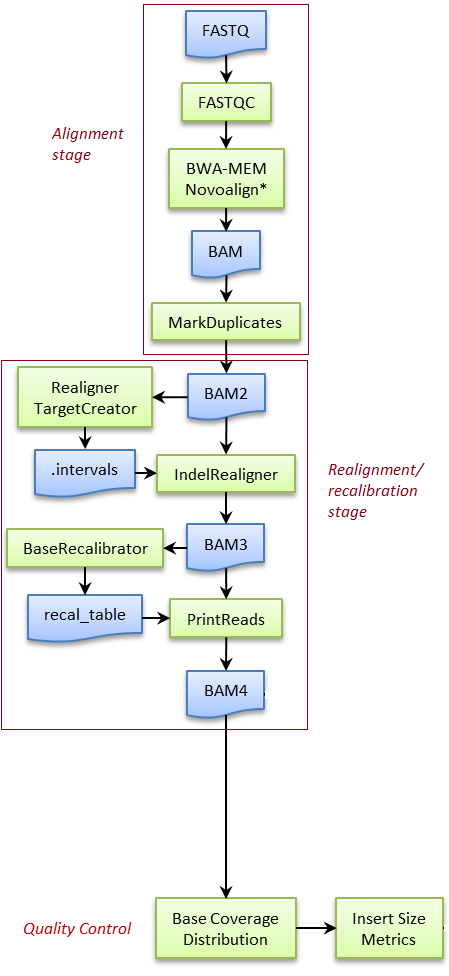 Each *stage* consists of *tasks* - lowest complexity modules that represent meaningful bioinformatics processing steps (green boxes in the [figure](https://user-images.githubusercontent.com/4040442/34805599-9179e4aa-f644-11e7-993e-c0e9ece4f015.png) on the right), such as alignment against a reference or deduplication of aligned BAMs. Tasks are written as .wdl scripts:
```WDL
#BWAMemSamtoolView.wdl
task ReadMappingTask {
# Define variables
command {
BWA mem ReferenceFasta InputRead1 InputRead2 | Samtools view -> aligned.bam
}
output {
File Aligned_Bam = "aligned.bam"
}
runtime {
continueOnReturnCode: true
}
}
```
Tasks can be called from other .wdl scripts to form workflows (such as the Alignment stage) or for testing purposes:
```WDL
#TestBWAMemSamtoolView.wdl
import "BWAMemSamtoolView.wdl" as BWAMEMSAMTOOLVIEW
workflow CallReadMappingTask {
# Define inputs
scatter(sample in inputsamples) {
call BWASAMTOOLSORT.ReadMappingTask {
input :
sampleName = sample[0]
}
}
}
```
## Organization of the code
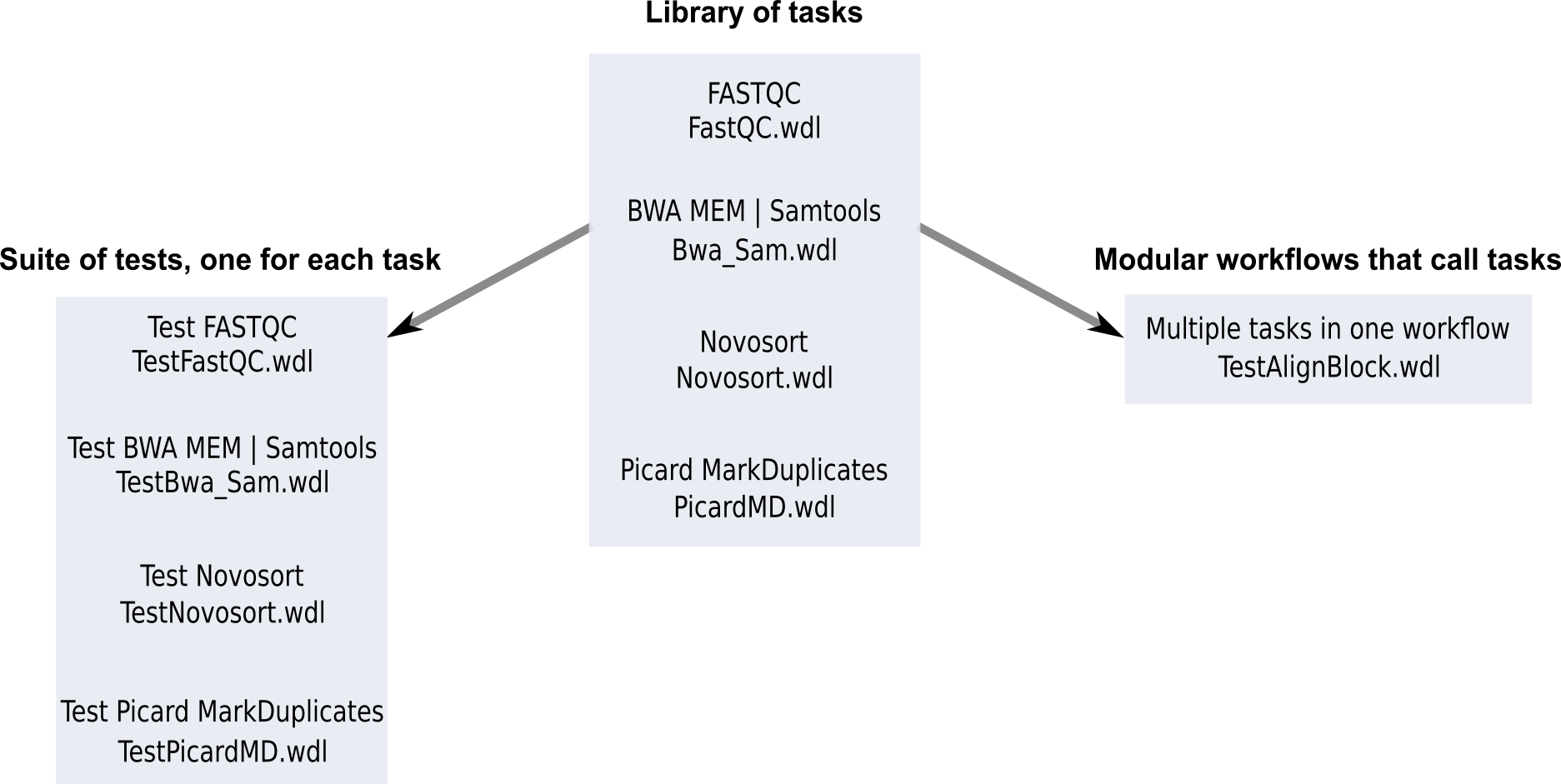
The /src folder is broken up by stages. Inside the folder for each stage (i.e. AlignmentStage_WDL/) we have three subfolders that contain: (1) the library of tasks (Tasks/), (2) the suite of unit tests, one for each task (TestTasks/), and (3) the resultant workflow stage (Workflows/), which can be used for testing the integration of individual tasks into workflows. The files are named as per the function that they perform.
 ## Special modules
We implemented the initial QC on executables and input data in a separate module that could be invoked from any workflow that is part of this package. A prototype of that module is currently here: https://github.com/ncsa/Genomics_MGC_GenomeGPS_CromwelWDL/blob/dev/src/AlignmentStage_WDL/Tasks/PreExec_QC.wdl.
Additionally, there is prototype of a module to notify the user of failure at the end of any workflow: https://github.com/ncsa/Genomics_MGC_GenomeGPS_CromwelWDL/blob/dev/src/AlignmentStage_WDL/Tasks/EndofBlock_Notify.wdl.
## Naming conventions
The naming convention used to name tasks, workflows and files is fairly straightforward. The bullets points below should provide a clear understanding how the files are named in this repository.
There are three types of files:
* Files that represent a task. These files are named in reference to the command that the script executes. Every file name represents the function of the tool/tools that are used to run the script. For example, filename "BWAMemSamtoolView.wdl" represents that this file executes BWA Mem and Samtools View commands on the input samples.
* Files that represent the testing of a task. These files are named in reference to the tasks they test. The name of the file starts with the word "Test" and then the name of the script it imports for testing. For example, filename "TestBWAMemSamtoolView.wdl" represents that this file imports the script "BWAMemSamtoolView.wdl" and checks the functionality of the Task defined therein.
* Files that represent the testing of a stage. These files are named in reference to the stage in the workflow that they run. The name of the file start with the word "Test" and then the name of stage in the workflow it executes and end with the word "Stage". For example, filename "TestAlignmentStage.wdl" shows that the Alignment stage of the workflow is being tested.
* Task Names: The task modules within a file are named with respect to their functionality followed by the word "Task" (e.g. "ReadMappingTask").
* TestTask Names: The names of workflows that only call a specific task or tasks start with the word "Call" and then have the name of the task(s) called. For example, "CallReadMappingTask" is the name of the workflow that calls the task "ReadMappingTask." If the workflow represents a stage, the name of the Stage is used after the word "Call" instead.
* Alias Names: Each task is written as an individual script and these scripts are included into workflows which either test the functionality of each task or include multiple tasks into one workflow and test the functionality of a stage. Hence when importing these tasks into workflows, aliases have to be used in order access to the variables defined inside of the task. The alias names are the same as the name of the file being imported into the workflow except that they are all in CAPS. For example, import "BWAMemSamtoolView.wdl" as BWAMEMSAMTOOLVIEW. In this example the name of the alias is all in caps and is the same as the name of the file being imported.
## Scripting peculiarities imposed by WDL
### Bash
The command block in each task specifies the series of bash commands that will be run in series on each input sample. In order to script Bash variables in legible style, we have to use two tricks:
1. The command block needs to be delimited with `<<< >>>`, not `{ }`. This is because Bash variable names are best specified as ${variable}, not $variable, for legibility and correct syntax.
2. The Bash dollar sign for variables cannot be escaped. Therefore, the "dollar" has to be defined at the top of each .wdl script: `String dollar = "$"`.
### Calling of tasks
When calling tasks from within workflows, one has to use the "import" statement and explicitly refer to the task using the specific folder path leading to it. This makes the workflow entirely un-portable. This problem may be alleviated in the server version of Cromwell by invoking the workflow with the -p flag. Running the server in an HPC cluster environment poses some security challenges (running as root, having access to all files on the filesystem without group restrictions). A udocker can be used for running the server version of Cromwell at the user level and thus circumventing the security issues.
In non-server mode, one can still invoke Cromwell with the -p option, and it will work, so long as it points to a zip archive containing the tasks that will be called from within the workflow. One should be able to zip up the entire folder tree for this code repository and supply it through this option. Then the task can be invoked in a workflow by specifying complete relative path to the task wdl script in the zip archive, i.e: `import "AlignmentStage_WDL/Tasks/Novosort.wdl" as NSORT`.
We created a zip of the entire src/ folder tree and put it at the same folder level as the src/ folder, for download with the repository (via `git pull`). We are working on implementing automatic creation of this zip archive during nightly integration tests. When running Cromwell, use the -p option and specify the full path to the zip archive on your filesystem.
### Workflows of workflows
We would prefer to implement each stage of the BAM cleaning in GenomeGPS as a separate WDL workflow, and then use a global workflow to invoke the subworkflows (Alignment and Real/Recal). Thus the outputs of the last step of the previous workflow have to feed as the input to the first step of the next workflow. This introduces complexities because Cromwell generates its own output folder structure during runtime. In order to access these folders we would need a wrapper program which will parse out the run ID from the logs, traverse the respective output folder tree, find the output files and feed them to the next block. The workflow management system should be able to do that for us, but at present we do not see how. It is a TO-DO item.
Another issue with declaring subworkflows exists when there is a dependency between two tasks that belong to two separate workflows. A workflow which is included as a subworkflow inside another workflow will have issues with accessing variables from tasks in the imported workflow.
These issues can be resolved by specifying `output` block at the end of each component workflow. Then the master workflow can use those output variables to specify inputs to the downstream components. - Testing this functionality is a TO-DO item.
The example below will help explain how workflow of workflows(WOWs) are implemented.
Consider two scripts:
1. A script which performs BWA mem and Samtools. This script has a task (Task1)
where the BWA and Samtools commands are specified. It also contains a workflow
(WorkFlow1) whose output block has the "aligned.bam" output file.
2. The second script which performs Novosort. This script also has a task (Task2)
which where the Novosort commands are spcified. This script contains a workflow
(WorkFlow2). The first script is imported into the second script and this is
how workflow of workflows are created.
There are certain constraints that are to be followed while writing workflows-of-workflows (WOWs). All the variables that were declared in Task1 have to be a part of WorkFlow1. Inside WorkFlow1 the call to Task1 is made and in the input section of the call, Workflow1 variables are equated to Task1 variables. This is done because Script1 is imported into Script2 and when Script2 is compiled, then these variables from WorkFlow1 will be listed during the creation of the input json file. Inside WorkFlow2 is where we declare the TSV file which has Input Reads and the scatter block which creates multiple instances of the tasks for every sample. Inside WorkFlow2, calls to WorkFlow1 and the Novosort Task are made. WorkFlow1 is called inside WorkFlow2 for two reasons. One, because the Input Read files and the samplename are provided as input which in turns become the input to Task1. Second, the output of WorkFlow1 is input for the Novosort Task and by calling WorkFlow1, its output variable can be accessed.
The example scripts and its json input file are in the folder `/WOWScripts`.
----------------------
# Testing
## Unit testing
### Pre-flight QC
To conduct unit tests on the Python scripts that handle pre-flight QC, cd into /path/to/MayomicsVC/src/config and run
```
python3 -m unittest discover
```
This will automatically detect all unit testing files and run their tests, but only if you are in the config directory.
### Workflow
Every task is a unit, and is tested by running as its own workflow. These unit tests can be found in `src/{Name}Stage_WDL/TestTasks`. The json runfiles that specify inputs and paths to executables are provided in `json_inputs` folder. The following steps have to be followed to perform Unit Testing on individual tasks using Cromwell:
1. Download `source.zip` and the workflow script of the task which is to be checked. The unit test scripts are located in `src/{Name}Stage_WDL/TestTasks`. For example, if the BWAMemSamtoolView task is to be checked, then we require the workflow script which calls this task inside it, namely "TestBWAMemSamtoolView.wdl."
2. To execute a wdl script using Cromwell we need two inputs:
a) The wdl script to perform Unit Testing on (e.g. "TestBWAMemSamtoolView.wdl")
b) The json input files that specify where the executables are located for the tools used. The json input files for our workflow are located in the folder `json_inputs` (e.g. json_inputs/BWAMemSamtoolView_inputs.json). If the user wants to create json input files of their own, the following link provides information on how to do so:
https://software.broadinstitute.org/wdl/documentation/article?id=6751.
3. Once the json input file is created, it will contain the list of variables to which hard-coded paths are to be provided. Hence, open the .json file using a text editor and input the paths for the executables, input file paths, output file paths, etc.
4. The Cromwell command used to execute a wdl script is as follows:-
`java -jar "Path to the cromwell jar" run "Input WDL file" -i "Corresponding json input file" -p source.zip`
`For eg: java -jar cromwell.jar run BWAMemSamtoolView.wdl -i BWAMemSamtoolView_inputs.json -p source.zip`
In the above command, "run" mode will execute a single workflow, and exit when the workflow completes (successfully or not). The "-i" is a flag which specifies the user to include a workflow input file.
The "-p" flag points to a directory or zipfile to search for workflow imports. In the case of our workflow, use of the "-p" flag is mandatory. It specifies that source.zip is where the scripts to individual tasks are located. Information on how to execute a wdl script using cromwell can be found on the following link:
https://software.broadinstitute.org/wdl/documentation/execution.
## Integration testing
Every code path through the overall workflow should be tested for integration. For example, a user may choose BWA or Novoalign for alignment, and both options must be tested within the Align stage. We provide the complete set of json files specifying the various workflow configurations here: {insert path}. Thus each integration test can be invoked with the same command, just varying the json config file.
# Dependencies
# To-Dos
* As of Oct 24, 2017: Ram will work only on the bwa-mem module, to implement fully the template that could be used for other modules
* multiple samples in parallel
* all paths and parameters coded in runfile
* loggery, user notification
* error capture
* checking inputs and executables
* checking outputs
* QC on input FASTQ
* QC on outputs
7 Output Folder Structure
=============================
Cromwell creates a nested output folder structure, one for each tool, and for each sample inside:
* After every execution of a Cromwell tool, a folder named "cromwell-executions" is created in the directory from where the cromwell execution engine is run.
* Inside the "cromwell-executions" folder, a subfolder is created and its name corresponds to the name of the workflow specified in the .wdl file. For example, if the name of the workflow in the .wdl file is BWA_Mem_Run then a subfolder is created with the same name.
* After the workflow has successfully executed, an ID for the execution is created and this ID is unique for each run. In the example below "97cbc5de-ff36-4912-aa04-395b08702c85" is a unique ID name.
```
|-cromwell-executions
| |-BWA_Mem_Run
| | |-97cbc5de-ff36-4912-aa04-395b08702c85
```
* Inside each folder with the unique ID name there are sub folders that represent the various tasks defined in the .wdl file.
* The various tasks have a "call" prefix as shown below.
```
|
|-call-Samtools
|-call-BWA-MEM
```
* Inside the individual task, every sample has an individual folder created for it. "shard-0" in the example below represents Sample 1, "shard-1" represents Sample 2, and so on.
```
|-call-Samtools
| |-shard-0
| |-shard-1
| |-shard-2
```
* Every shard folder contains an execution folder as seen below.
```
|-shard-0
| |-execution
```
* A "glob-" folder is present inside every execution folder and it is inside this folder that the output of our program exists. The example below shows the where the output of our program resides at.
```
|-execution
| |-glob-8fbfe7a84f921347caf0a4408578e296
| | | -aligned.bam
```
* The example below shows how the entire directory tree and how the folders are created every time the cromwell excution engine executes a wdl program.
```
|
|-call-Samtools
| |-shard-2
| | |-inputs
| | | |-projects
| | | | |-mgc
| | | | | |-Project_1
| | | | | | |-ram
| | | | | | | |-CromwellWDL
| | | | | | | | |-MultiSampleMultiStepVC
| | | | | | | | | |-cromwell-executions
| | | | | | | | | | |-BWA_Mem_Run
| | | | | | | | | | | |-97cbc5de-ff36-4912-aa04-395b08702c85
| | | | | | | | | | | | |-call-BWA_Mem
| | | | | | | | | | | | | |-shard-2
| | | | | | | | | | | | | | |-execution
| | | | | | | | | | | | | | | |-glob-8fbfe7a84f921347caf0a4408578e296
| | |-execution
| | | |-tmp.Jh4vIo
| | | |-glob-e04fb83eeaea0b4b8fdde6282d30506c
| |-shard-0
| | |-inputs
| | | |-projects
| | | | |-mgc
| | | | | |-Project_1
| | | | | | |-ram
| | | | | | | |-CromwellWDL
| | | | | | | | |-MultiSampleMultiStepVC
| | | | | | | | | |-cromwell-executions
| | | | | | | | | | |-BWA_Mem_Run
| | | | | | | | | | | |-97cbc5de-ff36-4912-aa04-395b08702c85
| | | | | | | | | | | | |-call-BWA_Mem
| | | | | | | | | | | | | |-shard-0
| | | | | | | | | | | | | | |-execution
| | | | | | | | | | | | | | | |-glob-e2984cba736e7acdf7c0536378232fca
| | |-execution
| | | |-tmp.JOg8Ce
| | | |-glob-e04fb83eeaea0b4b8fdde6282d30506c
| |-shard-1
| | |-inputs
| | | |-projects
| | | | |-mgc
| | | | | |-Project_1
| | | | | | |-ram
| | | | | | | |-CromwellWDL
| | | | | | | | |-MultiSampleMultiStepVC
| | | | | | | | | |-cromwell-executions
| | | | | | | | | | |-BWA_Mem_Run
| | | | | | | | | | | |-97cbc5de-ff36-4912-aa04-395b08702c85
| | | | | | | | | | | | |-call-BWA_Mem
| | | | | | | | | | | | | |-shard-1
| | | | | | | | | | | | | | |-execution
| | | | | | | | | | | | | | | |-glob-1b331778c20fad9525cbbad0d5f04486
| | |-execution
| | | |-glob-e04fb83eeaea0b4b8fdde6282d30506c
| | | |-tmp.yCh857
|-call-BWA_Mem
| |-shard-2
| | |-inputs
| | | |-projects
| | | | |-bioinformatics
| | | | | |-DataPacks
| | | | | | |-human
| | | | | | | |-EllensSyntheticData
| | | | | | | | |-WGS_chr1_5X_E0.005
| | | | | | | | | |-Chunks
| | | | | |-TestData
| | | | | | |-HG19
| | | | | | | |-gatk_bundle_2.8
| | | | | | | | |-2.8
| | | | | | | | | |-hg19
| | |-execution
| | | |-glob-8fbfe7a84f921347caf0a4408578e296
| | | |-tmp.OWyZa0
| |-shard-0
| | |-inputs
| | | |-projects
| | | | |-bioinformatics
| | | | | |-DataPacks
| | | | | | |-human
| | | | | | | |-EllensSyntheticData
| | | | | | | | |-WGS_chr1_5X_E0.005
| | | | | | | | | |-Chunks
| | | | | |-TestData
| | | | | | |-HG19
| | | | | | | |-gatk_bundle_2.8
| | | | | | | | |-2.8
| | | | | | | | | |-hg19
| | |-execution
| | | |-glob-e2984cba736e7acdf7c0536378232fca
| | | |-tmp.rrJiKx
| |-shard-1
| | |-inputs
| | | |-projects
| | | | |-bioinformatics
| | | | | |-DataPacks
| | | | | | |-human
| | | | | | | |-EllensSyntheticData
| | | | | | | | |-WGS_chr1_5X_E0.005
| | | | | | | | | |-Chunks
| | | | | |-TestData
| | | | | | |-HG19
| | | | | | | |-gatk_bundle_2.8
| | | | | | | | |-2.8
| | | | | | | | | |-hg19
| | |-execution
| | | |-tmp.kbVcdk
| | | |-glob-1b331778c20fad9525cbbad0d5f04486
```
Email Notifications
====================
It's good practice to notify the analyst of failures in the workflow. Failure notifications can be emailed to the analyst. Analysts can be notified at each step as and when a sample fails, or a list of all the samples that have failed a step can be collected at the end of the step and that information can be emailed to the user.
If notifications are sent for every sample, the analyst will be able to figure out that something is wrong and tend to the errors. On the other hand he/she ends up receiving numerous emails for all the samples that have failed a certain step. For example, if there are 1000 samples that run on a workflow and a majority of samples fail at the first step, the analyst can quickly look at the logs and figure out why the samples have failed that particular step. The disadvantage is that an email will be sent out for each sample, flooding the analyst's inbox.
A list of all the failed samples sent as one email will prevent flooding of the inbox. However, the analyst will have to wait for the end of the step to find out which samples have failed, which could take multiple hours (depending on the step of the workflow). These are some trade-offs which have to considered while designing the workflow.
Input Parsing and Type Validation
============
Although the workflow takes input in a JSON formatted file, it is more convenient to save input variables in a flat key="value" formatted file. The config_parser.py script (located in src/config) takes these flat configuration files and fills in a JSON file template provided by Cromwell/WDL.
(The template JSON file for a workflow can be created with the command `java -jar wdltool.jar inputs myWorkflow.wdl > myWorkflow_inputs.json`)
After parsing, the key_validation.py script (located in src/config) can be used to verify the types of the input arguments where possible. For example, the validator can verify that a key called "NumberOfThreads" was passed an integer as its value. The validator gets the type information for each key from a key types file (the workflow type information file is src/config/key_types.json) and confirms that the key's values match what is expected. However, for some types, such as strings, no pre-flight validation can be done.
Single Sample Workflow
======================
# Design Decision
The scripts for trimming sequences and alignment work on either single-ended or paired-end reads. Hence to eliminate complexities in the WDL workflow, the output for both the scripts include if checks for single-ended and paired-end reads. If the reads are single-ended then the right read is set to null. This helps remove branches in the workflow and keeps it simple.