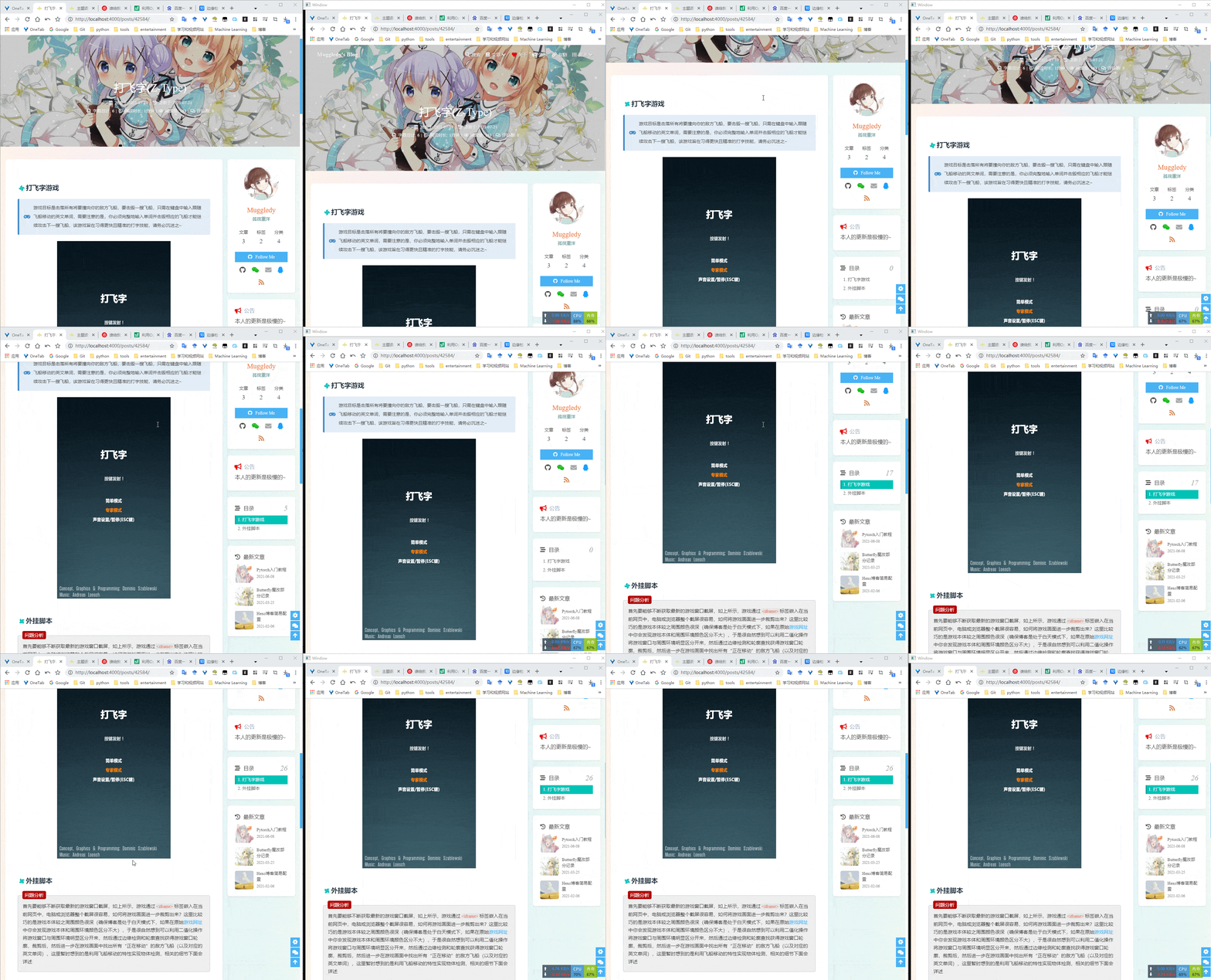
打飞字游戏

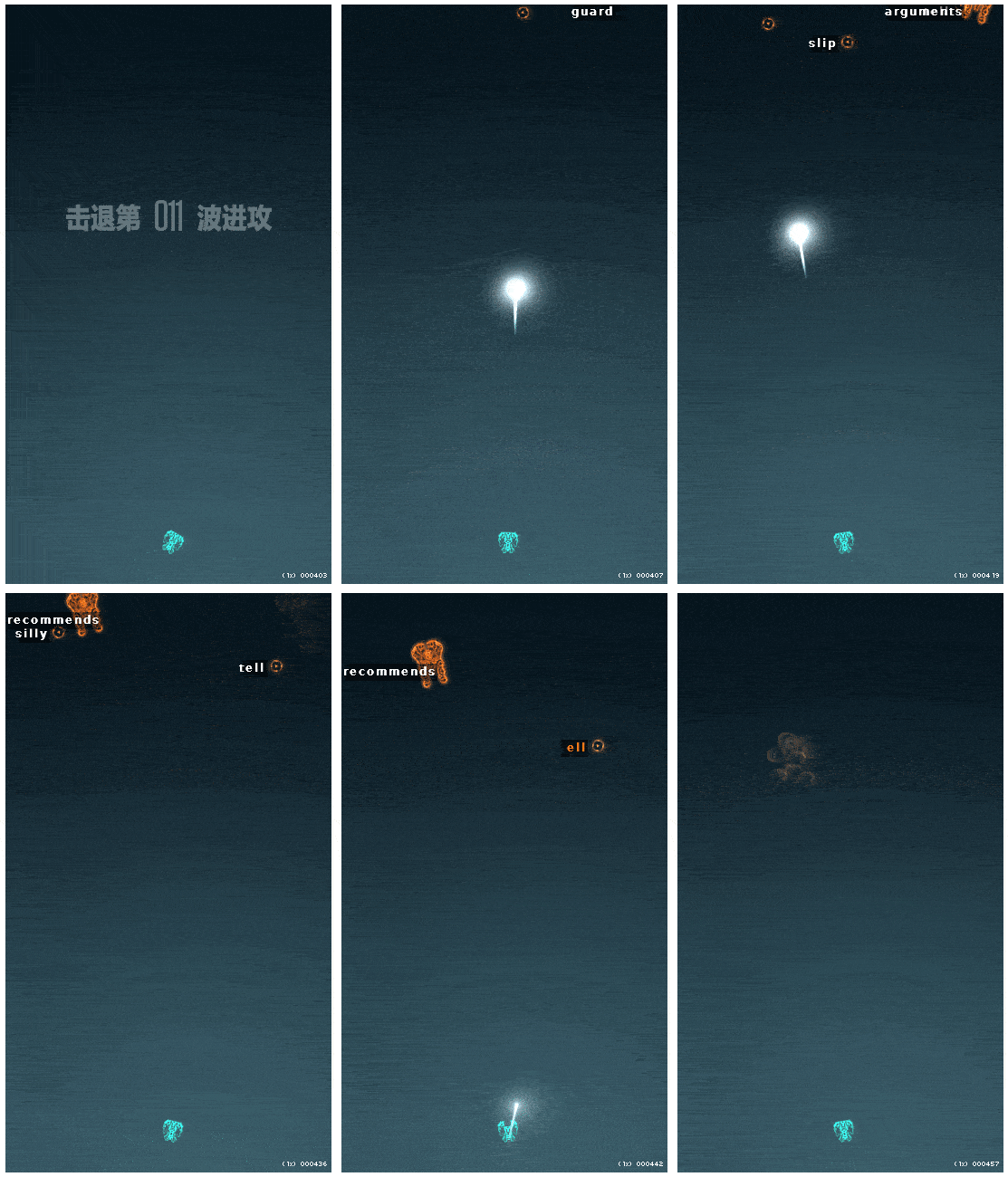
游戏目标是击落所有将要撞向你的敌方飞船,要击毁一艘飞船,只需在键盘中输入跟随飞船移动的英文单词,需要注意的是,你必须完整地输入单词并击毁相应的飞船才能继续攻击下一艘飞船,该游戏旨在习得更快且精准的打字技能,请务必沉迷之~

注:请在电脑端体验游戏!

辅助脚本

问题分析

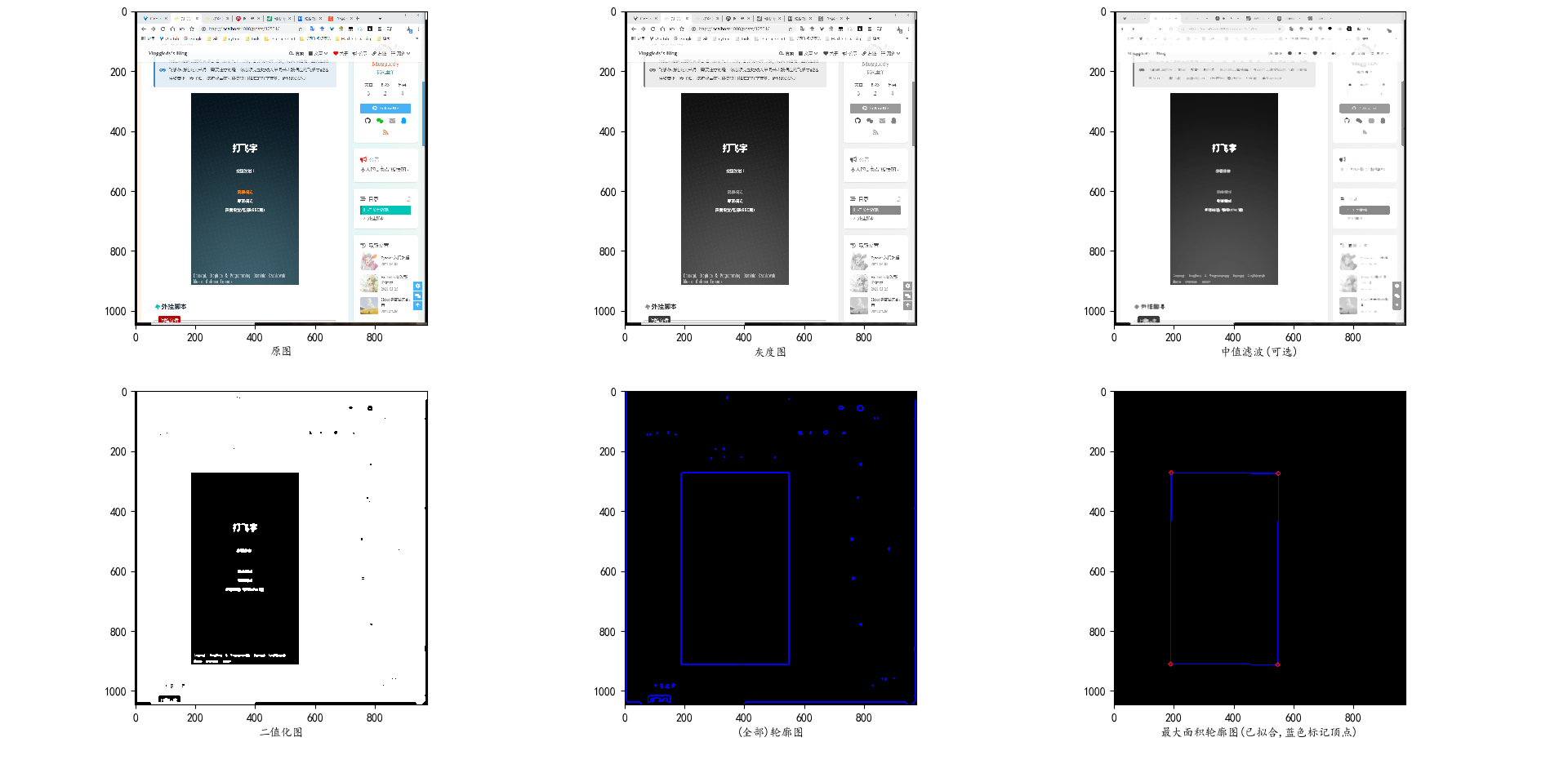
首先要能够不断获取最新的游戏窗口截屏,如上所示,游戏通过<iframe>标签嵌入在当前网页中,电脑或浏览器整个截屏很容易,如何将游戏画面进一步裁剪出来?这里比较巧的是游戏本体较之周围颜色很深(确保博客是处于白天模式下,如果在原始游戏网址中你会发现游戏本体和周围环境颜色区分不大),于是很自然想到可以利用二值化操作将游戏窗口与周围环境明显区分开来,然后通过边缘检测和轮廓查找获得游戏窗口轮廓,裁剪后,然后进一步在游戏画面中找出所有敌方飞船(以及对应的英文单词),这里暂时想到的是利用飞船移动的特性实现物体检测,相关的细节下面会详述

截取游戏画面

利用win32gui模块获取所有应用句柄,win32gui.EnumWindows(...),并从中找出游戏所在浏览器应用的句柄hwnd,然后通过PIL.ImageGrab.grab(win32gui.GetWindowRect(hwnd))获取浏览器窗口截屏(注意浏览器不能有遮挡或最小化):

1
2
3
4
5
6
7
8
9
10
11
12
13
14
15
16
17
18
19
20
21
22
23
24
25
26
27
28
29
30
31
32
33
34
35
36
37
38
39
40
41
42
import win32gui
import io
import numpy as np
import cv2
import PIL.Image as PILImage
from PIL import ImageGrab
from PyQt5.QtCore import QBuffer
from pprint import pprint

def QImage2PILImage(img): #from https://www.pythonf.cn/read/61686
buffer = QBuffer()
buffer.open(QBuffer.ReadWrite)
img.save(buffer, "PNG")
return PILImage.open(io.BytesIO(buffer.data()))

def _hwnd_callback(hwnd,container):
if win32gui.IsWindow(hwnd) and win32gui.IsWindowEnabled(hwnd) and win32gui.IsWindowVisible(hwnd):
container.update({hwnd:[win32gui.GetClassName(hwnd),win32gui.GetWindowText(hwnd)]} if win32gui.GetWindowText(hwnd)!='' else {})

def GetAllHwndAndClsTitles(): #https://cloud.tencent.com/developer/article/1741061 or https://blog.csdn.net/qq_41654225/article/details/101316154
hwnd_dict = {}
win32gui.EnumWindows(_hwnd_callback, hwnd_dict)
return hwnd_dict

def GetYourWantedHwnd():
d=GetAllHwndAndClsTitles()
pprint(d)
hwnd=int(input('Select your wanted hwnd: '))
print(d[hwnd])
return hwnd,d[hwnd]

def GetScreenshotOfApp(hwnd):
return ImageGrab.grab(win32gui.GetWindowRect(hwnd)) #note that the window of the wanted app can not be occluded or minimized

hwnd = GetYourWantedHwnd()[0] #hwnd = win32gui.FindWindow(*GetYourWantedHwnd()[1])

while cv2.waitKey(500) & 0xFF != 27: #judge if press the ESC button and then close the window, the ASCII of ESC is 27. Why &0xFF? see https://stackoverflow.com/questions/35372700/whats-0xff-for-in-cv2-waitkey1?lq=1
screenshot = GetScreenshotOfApp(hwnd)
screenshot = cv2.cvtColor(np.asarray(screenshot),cv2.COLOR_RGB2BGR)
cv2.namedWindow('Window') #open a named window
cv2.imshow('Window', screenshot) #show image in the window with name of "Window"
cv2.destroyAllWindows()

效果:

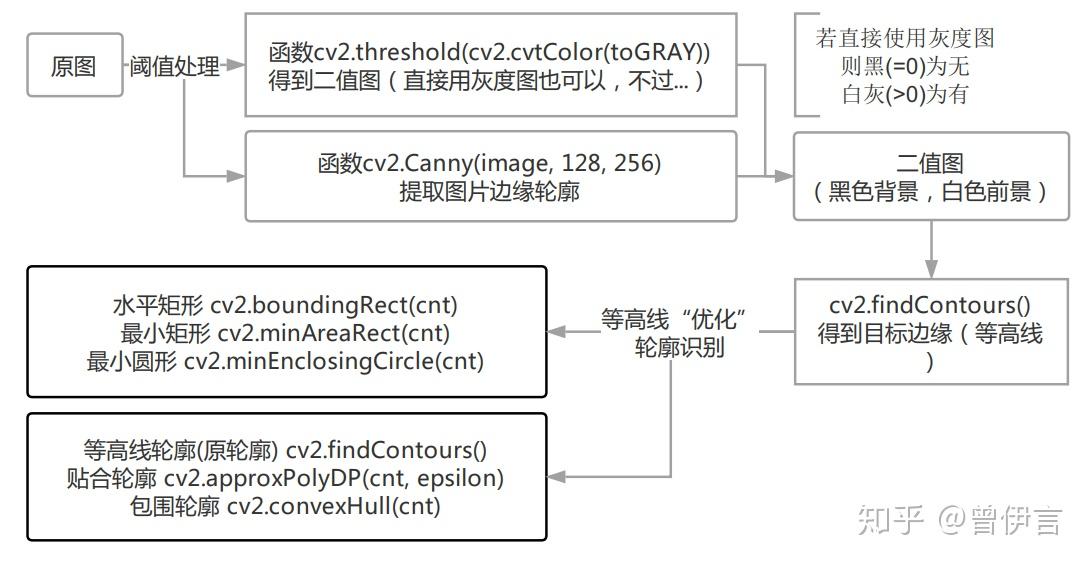
接下来就是从浏览器截屏中裁剪出游戏本体部分,需要找出其所在轮廓,也就是构成(长方形)轮廓的(四个)顶点,相关的流程参见知乎@曾伊言的教程,不再赘述,流程图和代码如下:

1
2
3
4
5
6
7
8
9
10
11
12
13
14
15
16
17
18
19
20
21
22
23
24
25
26
27
28
29
30
31
32
33
34
35
36
37
38
39
40
41
42
43
44
45
46
47
48
49
50
51
52
53
54
55
import numpy as np
import cv2
import matplotlib.pyplot as plt
import os
plt.rcParams['font.sans-serif'] = ['KaiTi']
plt.rcParams['axes.unicode_minus'] = False

#tested screenshot demo(dfzjp.png): https://i.loli.net/2021/07/21/WAbX2Dg4wyZSQpk.png

#1.read the screenshot from local disk
screenshot = cv2.imread(os.path.join(os.path.dirname(os.path.realpath(__file__)),'dfzjp.png'))

#2.convert the image from one color space(BGR) to another(gray)
screenshot_gray = cv2.cvtColor(screenshot,cv2.COLOR_BGR2GRAY)

#3.median filtering(optional), https://segmentfault.com/a/1190000013925648
screenshot_median = cv2.medianBlur(screenshot_gray, 7)

#4.do image binarization operation on the gray image to highlight the outline of the target
_,screenshot_threshold = cv2.threshold(screenshot_median, 90,255,cv2.THRESH_BINARY)

#5.edge detection
canny=cv2.Canny(screenshot_threshold,100,200) #https://blog.csdn.net/wangleixian/article/details/78250679

#6.contour detection
contours, hierarchy = cv2.findContours(canny,cv2.RETR_EXTERNAL,cv2.CHAIN_APPROX_SIMPLE) #https://blog.csdn.net/hjxu2016/article/details/77833336 or https://zhuanlan.zhihu.com/p/38739563

#7.find the target contour which has the maximum area
max_contour_ind = np.argsort([cv2.contourArea(c) for c in contours])[-1] #get the index of the contour which has the maximum area

#8.use polygons for contour fitting and get the vertex of the polygon(return value) for subsequent cropping
polyvec = cv2.approxPolyDP(contours[max_contour_ind],3,True) #https://www.jianshu.com/p/0205c963104d

#9.visualize the above operations
for i,(img,title) in enumerate([(screenshot,'原图'),(screenshot_gray,'灰度图'),(screenshot_median,'中值滤波(可选)'),(screenshot_threshold,'二值化图')],1):
plt.subplot(2,3,i)
if i==1:
plt.imshow(img[...,::-1])
else:
plt.imshow(img,cmap='gray')
plt.xlabel(title)
plt.subplot(235)
screenshot_contours=np.zeros_like(screenshot)
cv2.drawContours(screenshot_contours,contours,-1,(0,0,255),3)
plt.imshow(screenshot_contours,cmap='gray')
plt.xlabel('(全部)轮廓图')
plt.subplot(236)
screenshot_maxcontour=np.zeros_like(screenshot)
cv2.polylines(screenshot_maxcontour, [polyvec], True, (0, 0, 255), 2)
for point in polyvec.squeeze():
cv2.drawMarker(screenshot_maxcontour, tuple(point), (255,0,0), markerType=cv2.MARKER_DIAMOND, markerSize=15, thickness=2, line_type=cv2.LINE_AA)
plt.imshow(screenshot_maxcontour,cmap='gray')
plt.xlabel('最大面积轮廓图(已拟合,红色色标记顶点)')
plt.tight_layout(pad=0.5)
plt.show()

效果:

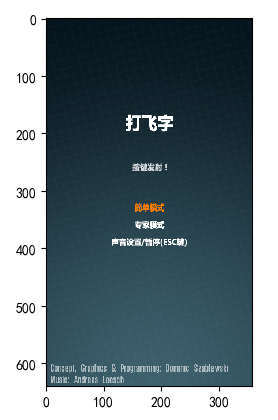
四个顶点有了,下面就可以裁剪出游戏画面了:

1
2
3
4
5
6
7
8
9
10
11
12
13
14
15
16
17
18
19
20
21
22
23
24
25
26
27
28
29
30
31
32
33
34
import numpy as np
import cv2
import matplotlib.pyplot as plt
import os
plt.rcParams['font.sans-serif'] = ['KaiTi']
plt.rcParams['axes.unicode_minus'] = False

screenshot = cv2.imread(os.path.join(os.path.dirname(os.path.realpath(__file__)),'dfzjp.png'))
screenshot_gray = cv2.cvtColor(screenshot,cv2.COLOR_BGR2GRAY)
screenshot_median = cv2.medianBlur(screenshot_gray, 7)
_,screenshot_threshold = cv2.threshold(screenshot_median, 90,255,cv2.THRESH_BINARY)
canny=cv2.Canny(screenshot_threshold,100,200)
contours, hierarchy = cv2.findContours(canny,cv2.RETR_EXTERNAL,cv2.CHAIN_APPROX_SIMPLE)
max_contour_ind = np.argsort([cv2.contourArea(c) for c in contours])[-1]
polyvec = cv2.approxPolyDP(contours[max_contour_ind],3,True)

def CutImg(img,point1,point2): #crop the image given the upper left and lower right points(no order), https://blog.csdn.net/weixin_49722641/article/details/107836681
min_x = min(point1[0], point2[0])
min_y = min(point1[1], point2[1])
max_x = max(point1[0], point2[0])
max_y = max(point1[1], point2[1])
return img[min_y:max_y , min_x:max_x]

def VecPosCal(vecs): #vecs:(n,2), determine the position of each point in vecs(the four vertices of the square), return {'position':vec_index,...}
indx=np.argsort(vecs[:,0])
indy=np.argsort(vecs[:,1])
return {'lu':(set(indx[:2])&set(indy[:2])).pop(),'rb':(set(indx[2:])&set(indy[2:])).pop(),'lb':(set(indx[:2])&set(indy[2:])).pop(),'ru':(set(indx[2:])&set(indy[:2])).pop()}

t=polyvec.squeeze()
z=VecPosCal(t)
cuttedimg = CutImg(screenshot,(min([t[z['lu']][0],t[z['lb']][0]]),min([t[z['lu']][1],t[z['ru']][1]])),(max([t[z['ru']][0],t[z['rb']][0]]),max([t[z['lb']][1],t[z['rb']][1]])))

plt.imshow(cuttedimg[...,::-1])
plt.show()

效果:

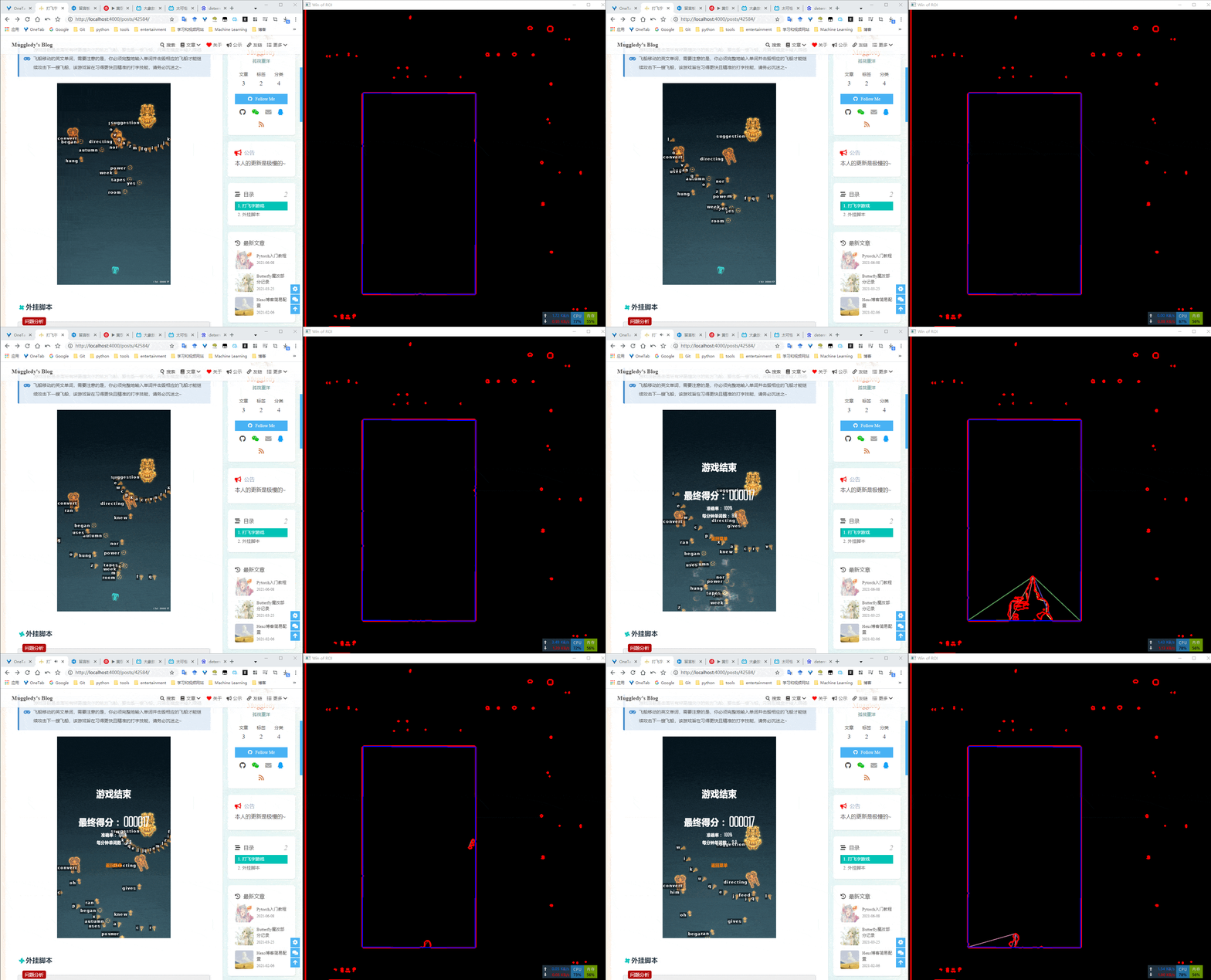
原本我想在每一次截屏的时候都通过上述办法来定位游戏画面所在长方形区域的四个顶点并相应剪裁,实测发现不可行,如下图所示,红色为所有物体轮廓,蓝色为最终检测到的游戏画面,并不总是能正确检测:

代码:

1
2
3
4
5
6
7
8
9
10
11
12
13
14
15
16
17
18
19
20
21
22
23
24
25
26
27
28
29
30
31
32
33
34
35
36
37
38
39
40
41
42
43
44
45
46
47
48
49
50
51
52
53
54
55
56
57
58
59
60
61
62
63
64
65
66
67
68
69
70
71
72
import win32gui
import sys,io
import numpy as np
import cv2
import PIL.Image as PILImage
from PIL import ImageGrab
from PyQt5.QtWidgets import QApplication
from PyQt5.QtCore import QBuffer
from pprint import pprint

def QImage2PILImage(img):
buffer = QBuffer()
buffer.open(QBuffer.ReadWrite)
img.save(buffer, "PNG")
return PILImage.open(io.BytesIO(buffer.data()))

def _hwnd_callback(hwnd,container):
if win32gui.IsWindow(hwnd) and win32gui.IsWindowEnabled(hwnd) and win32gui.IsWindowVisible(hwnd):
container.update({hwnd:[win32gui.GetClassName(hwnd),win32gui.GetWindowText(hwnd)]} if win32gui.GetWindowText(hwnd)!='' else {})

def GetAllHwndAndClsTitles():
hwnd_dict = {}
win32gui.EnumWindows(_hwnd_callback, hwnd_dict)
return hwnd_dict

def GetYourWantedHwnd():
d=GetAllHwndAndClsTitles()
pprint(d)
hwnd=int(input('Select your wanted hwnd: '))
print(d[hwnd])
return hwnd,d[hwnd]

def GetScreenshotOfApp(hwnd):
return ImageGrab.grab(win32gui.GetWindowRect(hwnd))

def CutImg(img,point1,point2):
min_x = min(point1[0], point2[0])
min_y = min(point1[1], point2[1])
max_x = max(point1[0], point2[0])
max_y = max(point1[1], point2[1])
return img[min_y:max_y , min_x:max_x]

def VecPosCal(vecs):
indx=np.argsort(vecs[:,0])
indy=np.argsort(vecs[:,1])
return {'lu':(set(indx[:2])&set(indy[:2])).pop(),'rb':(set(indx[2:])&set(indy[2:])).pop(),'lb':(set(indx[:2])&set(indy[2:])).pop(),'ru':(set(indx[2:])&set(indy[:2])).pop()}

hwnd = GetYourWantedHwnd()[0]

while cv2.waitKey(500) & 0xFF != 27:
screenshot = GetScreenshotOfApp(hwnd)
screenshot = cv2.cvtColor(np.asarray(screenshot),cv2.COLOR_RGB2BGR)

screenshot_gray = cv2.cvtColor(screenshot,cv2.COLOR_BGR2GRAY)
screenshot_median = cv2.medianBlur(screenshot_gray, 7)
_,screenshot_threshold = cv2.threshold(screenshot_median, 90,255,cv2.THRESH_BINARY)

screenshot_contours=np.zeros_like(screenshot)

canny=cv2.Canny(screenshot_threshold,100,200)
contours, hierarchy = cv2.findContours(canny,cv2.RETR_EXTERNAL,cv2.CHAIN_APPROX_SIMPLE)
max_contour_ind = np.argsort([cv2.contourArea(c) for c in contours])[-1]
polyvec = cv2.approxPolyDP(contours[max_contour_ind],8,True) #lower than 8, the finer the polygon fit
for i in range(50): #you can annotate this sentence to observe the effect
cv2.polylines(screenshot_contours, [polyvec], True, (int(np.random.rand()*255), int(np.random.rand()*255), int(np.random.rand()*255)), 2)
polyvec = cv2.approxPolyDP(polyvec,8*i if 8*i<200 else 200,True)

cv2.drawContours(screenshot_contours,contours,-1,(0,0,255),3)
cv2.polylines(screenshot_contours, [polyvec], True, (255, 0, 0), 2) #ROI(last determinated) with blue border
cv2.namedWindow('Win of ROI')
cv2.imshow('Win of ROI', screenshot_contours)
cv2.destroyAllWindows()

为了避免该问题,首次计算顶点后就不再实时检测画面区域了,这意味着脚本一旦运行就不能改变浏览器或游戏窗口的位置

敌机检测和击落

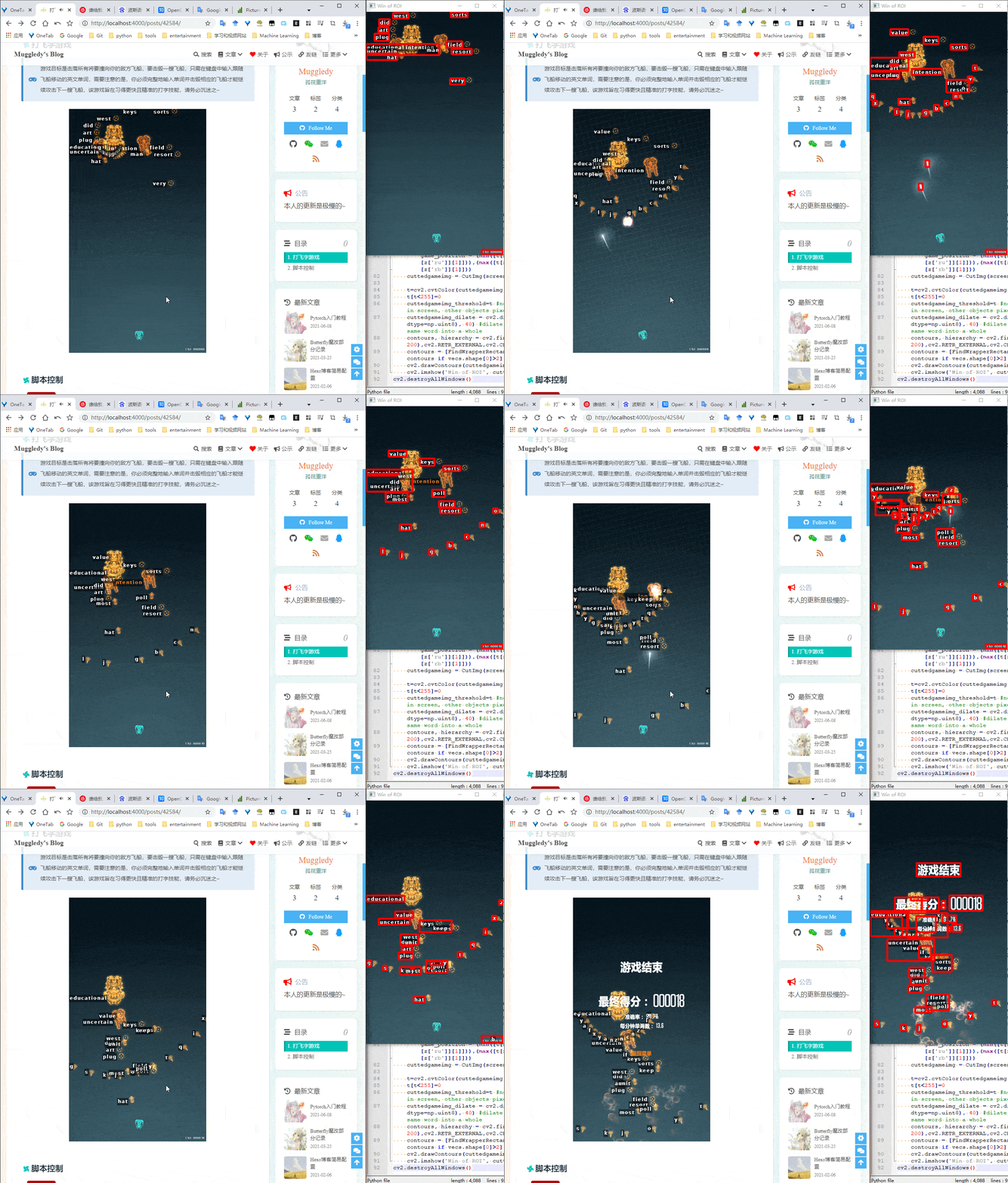
原打算参考文章[4]进行运动目标检测,发现根本没必要,因为敌机(英文单词)检测的目的是将所有的英文单词图片裁剪出来,而英文单词是白色的(灰度图对应值为255),这不又巧了嘛,问题瞬间变得十分简单,首先将灰度图中值非255的像素点全部置为0(黑色),这时候如果直接利用cv2.findContours(...)寻找轮廓最终只能裁剪出所有单个英文字母,而非整个单词,因此想到利用膨胀操作将属于同一个单词的英文字母连成一体,然后再寻找轮廓,这样就ok了,由于轮廓是不规则的多边形,因此还需要找到能够囊括该多边形区域的长方形,以方便裁剪,代码如下:

1
2
3
4
5
6
7
8
9
10
11
12
13
14
15
16
17
18
19
20
21
22
23
24
25
26
27
28
29
30
31
32
33
34
35
36
37
38
39
40
41
42
43
44
45
46
47
48
49
50
51
52
53
54
55
56
57
58
59
60
61
62
63
64
65
66
67
68
69
70
71
72
73
74
75
76
77
78
79
80
81
82
83
84
85
86
87
88
89
90
91
92
import win32gui
import sys,io
import numpy as np
import cv2
import PIL.Image as PILImage
from PIL import ImageGrab
from PyQt5.QtWidgets import QApplication
from PyQt5.QtCore import QBuffer
from pprint import pprint

def QImage2PILImage(img):
buffer = QBuffer()
buffer.open(QBuffer.ReadWrite)
img.save(buffer, "PNG")
return PILImage.open(io.BytesIO(buffer.data()))

def _hwnd_callback(hwnd,container):
if win32gui.IsWindow(hwnd) and win32gui.IsWindowEnabled(hwnd) and win32gui.IsWindowVisible(hwnd):
container.update({hwnd:[win32gui.GetClassName(hwnd),win32gui.GetWindowText(hwnd)]} if win32gui.GetWindowText(hwnd)!='' else {})

def GetAllHwndAndClsTitles():
hwnd_dict = {}
win32gui.EnumWindows(_hwnd_callback, hwnd_dict)
return hwnd_dict

def GetYourWantedHwnd():
d=GetAllHwndAndClsTitles()
pprint(d)
hwnd=int(input('Select your wanted hwnd: '))
print(d[hwnd])
return hwnd,d[hwnd]

def GetScreenshotOfApp(hwnd):
return ImageGrab.grab(win32gui.GetWindowRect(hwnd))

def CutImg(img,point1,point2):
min_x = min(point1[0], point2[0])
min_y = min(point1[1], point2[1])
max_x = max(point1[0], point2[0])
max_y = max(point1[1], point2[1])
return img[min_y:max_y , min_x:max_x]

def VecPosCal(vecs):
indx=np.argsort(vecs[:,0])
indy=np.argsort(vecs[:,1])
return {'lu':(set(indx[:2])&set(indy[:2])).pop(),'rb':(set(indx[2:])&set(indy[2:])).pop(),'lb':(set(indx[:2])&set(indy[2:])).pop(),'ru':(set(indx[2:])&set(indy[:2])).pop()}

def FindWrapperRectangle(vecs): #vecs(ndarray):(n,2), return(left upper, right upper, right bottom and left bottom,ndarray):(4,2)
min_x=vecs[:,0].min()
max_x=vecs[:,0].max()
min_y=vecs[:,1].min()
max_y=vecs[:,1].max()
return np.array([[min_x,min_y],[max_x,min_y],[max_x,max_y],[min_x,max_y]])

hwnd = GetYourWantedHwnd()[0]
game_position=None

while cv2.waitKey(500) & 0xFF != 27:
screenshot = GetScreenshotOfApp(hwnd)
screenshot = cv2.cvtColor(np.asarray(screenshot),cv2.COLOR_RGB2BGR)

cv2.namedWindow('Win of ROI')
if game_position is None:
screenshot_gray = cv2.cvtColor(screenshot,cv2.COLOR_BGR2GRAY)
screenshot_median = cv2.medianBlur(screenshot_gray, 7)
_,screenshot_threshold = cv2.threshold(screenshot_median, 90,255,cv2.THRESH_BINARY)

canny=cv2.Canny(screenshot_threshold,100,200)
contours, hierarchy = cv2.findContours(canny,cv2.RETR_EXTERNAL,cv2.CHAIN_APPROX_SIMPLE)
max_contour_ind = np.argsort([cv2.contourArea(c) for c in contours])[-1]
polyvec = cv2.approxPolyDP(contours[max_contour_ind],32,True)

t=polyvec.squeeze()
if len(t)!=4:
screenshot_contours=np.zeros_like(screenshot)
cv2.drawContours(screenshot_contours,contours,-1,(0,0,255),3)
cv2.polylines(screenshot_contours, [polyvec], True, (255, 0, 0), 2)
cv2.imshow('Win of ROI', screenshot_contours)
continue
z=VecPosCal(t)
game_position = (min([t[z['lu']][0],t[z['lb']][0]]),min([t[z['lu']][1],t[z['ru']][1]])),(max([t[z['ru']][0],t[z['rb']][0]]),max([t[z['lb']][1],t[z['rb']][1]]))
cuttedgameimg = CutImg(screenshot,*game_position)

t=cv2.cvtColor(cuttedgameimg,cv2.COLOR_BGR2GRAY)
t[t<255]=0
cuttedgameimg_threshold=t #now only English letters with white color appear in screen, other objects pixel are reset to 0(black)
cuttedgameimg_dilate = cv2.dilate(cuttedgameimg_threshold, np.ones((7, 7), dtype=np.uint8), 40) #dilate to connect English letters that belong to the same word into a whole
contours, hierarchy = cv2.findContours(cv2.Canny(cuttedgameimg_dilate,100,200),cv2.RETR_EXTERNAL,cv2.CHAIN_APPROX_SIMPLE) #search all words or letters
contours = [FindWrapperRectangle(vecs.squeeze())[:,None,...] for vecs in contours if vecs.shape[0]>2]
cv2.drawContours(cuttedgameimg,contours,-1,(0,0,255),3)
cv2.imshow('Win of ROI', cuttedgameimg)
cv2.destroyAllWindows()

效果:

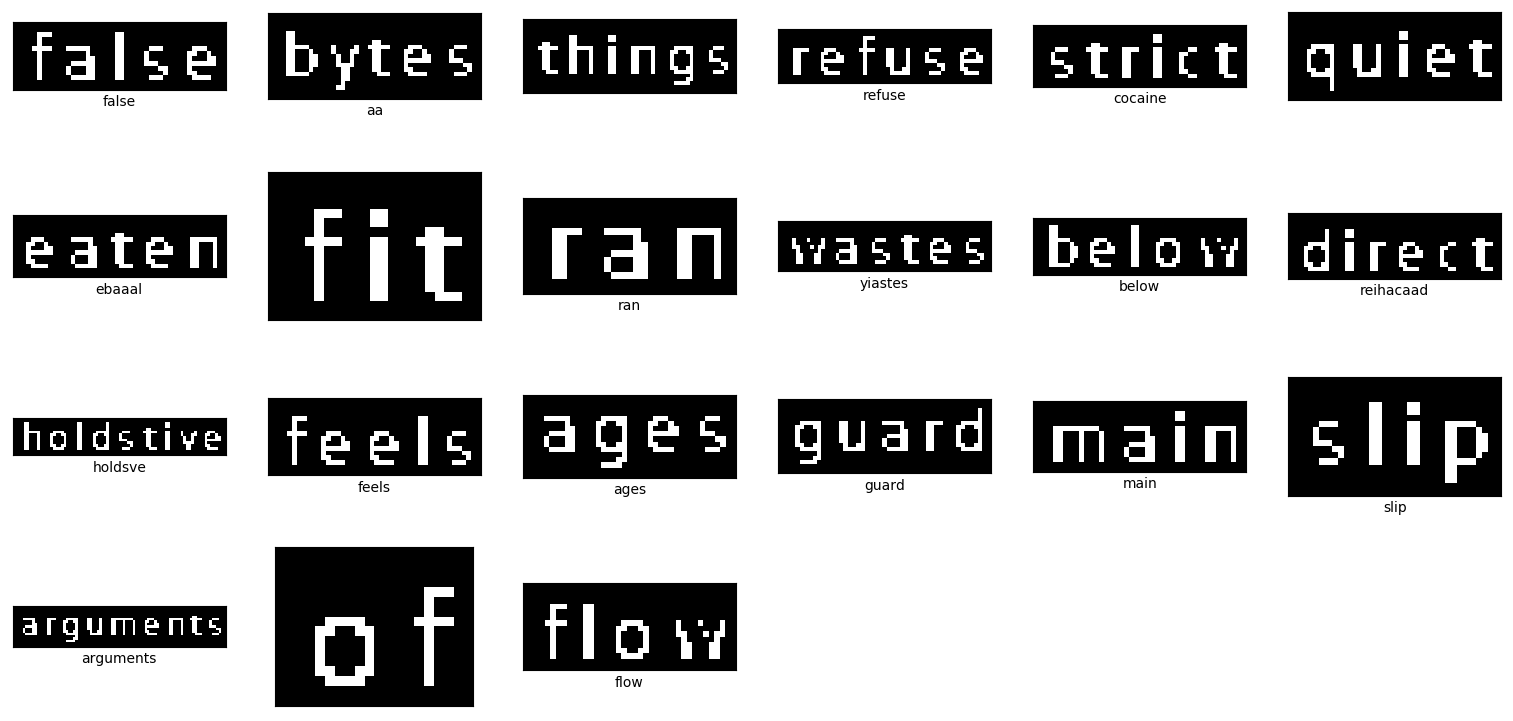
接下来就是对裁剪的英文单词图片进行文字识别,这里采用pytesseract模块,识别效果如下,目前识别准确率其实是比较低的,这也是最急需改进的地方:

1
2
3
4
5
6
7
8
9
10
11
12
13
14
15
16
17
18
19
20
21
22
23
24
25
26
27
28
29
30
31
32
33
34
35
36
37
38
import pytesseract
import os
import cv2
import numpy as np
import matplotlib.pyplot as plt
import time

#download from https://cdn.jsdelivr.net/gh/celestezj/Mirror1ImageHosting/img/words_demo.rar and unzip to the directory where the current script is located
cwd=os.path.dirname(os.path.realpath(__file__))

def contrast_plot(imgs,labels=None):
n=len(imgs)
h=int(np.sqrt(n))
w=int(np.ceil(n/h))
for i,img in enumerate(imgs,1):
plt.subplot(h,w,i)
if len(img.shape)==2:
plt.imshow(img,cmap='gray')
else:
plt.imshow(img[:,:,::-1])
if labels is not None:
plt.xlabel(labels[i-1])
plt.xticks([])
plt.yticks([])
plt.show()

def NormText(text):
return ''.join([i for i in text if (ord('a')<=ord(i)<=ord('z') or ord('A')<=ord(i)<=ord('Z'))])

all_words_imgs_labels=[]
for img_name in [i for i in os.listdir(cwd) if i.endswith(('.jpg','.png','.bmp'))]:
img=cv2.imread(os.path.join(cwd,img_name))
t0=time.time()
text = pytesseract.image_to_string(img)
print(time.time()-t0)
all_words_imgs_labels.append((img,NormText(text)))

contrast_plot(*zip(*all_words_imgs_labels))

效果:

识别出英文单词字符串,再进行模拟按键,最终,完整的辅助脚本代码如下:

1
2
3
4
5
6
7
8
9
10
11
12
13
14
15
16
17
18
19
20
21
22
23
24
25
26
27
28
29
30
31
32
33
34
35
36
37
38
39
40
41
42
43
44
45
46
47
48
49
50
51
52
53
54
55
56
57
58
59
60
61
62
63
64
65
66
67
68
69
70
71
72
73
74
75
76
77
78
79
80
81
82
83
84
85
86
87
88
89
90
91
92
93
94
95
96
97
98
99
100
101
102
103
104
105
106
107
108
109
110
111
112
113
114
115
116
117
118
119
120
121
122
123
124
125
126
127
128
129
130
131
132
133
134
135
136
137
138
139
140
141
142
143
144
145
146
147
148
149
150
151
152
153
154
155
156
157
158
'''
Author: muggledy
Date: 2021.7.19
'''

#import pyautogui
import win32gui
import sys,io,os.path,time
import cv2
import numpy as np
import PIL.Image as PILImage
import pytesseract as OCR
from PIL import ImageGrab
from PyQt5.QtWidgets import QApplication
from PyQt5.QtCore import QBuffer
from pynput.keyboard import Key,Controller
from pprint import pprint

def QImage2PILImage(img): #from https://www.pythonf.cn/read/61686
buffer = QBuffer()
buffer.open(QBuffer.ReadWrite)
img.save(buffer, "PNG")
return PILImage.open(io.BytesIO(buffer.data()))

def _hwnd_callback(hwnd,container):
if win32gui.IsWindow(hwnd) and win32gui.IsWindowEnabled(hwnd) and win32gui.IsWindowVisible(hwnd):
container.update({hwnd:[win32gui.GetClassName(hwnd),win32gui.GetWindowText(hwnd)]} if win32gui.GetWindowText(hwnd)!='' else {})

def GetAllHwndAndClsTitles(): #https://cloud.tencent.com/developer/article/1741061 or https://blog.csdn.net/qq_41654225/article/details/101316154
hwnd_dict = {}
win32gui.EnumWindows(_hwnd_callback, hwnd_dict)
return hwnd_dict

def GetYourWantedHwnd():
d=GetAllHwndAndClsTitles()
pprint(d)
hwnd=int(input('Select your wanted hwnd: '))
print(d[hwnd])
return hwnd,d[hwnd]

def GetScreenshotOfApp(hwnd):
#app = QApplication(sys.argv)
#screen = QApplication.primaryScreen().grabWindow(hwnd).toImage()
#return QImage2PILImage(screen) #do not work, i don't know why
return ImageGrab.grab(win32gui.GetWindowRect(hwnd)) #note that the window of the wanted app can not be occluded or minimized

def CutImg(img,point1,point2): #crop the image given the upper left and lower right points(no order)
min_x = min(point1[0], point2[0])
min_y = min(point1[1], point2[1])
max_x = max(point1[0], point2[0])
max_y = max(point1[1], point2[1])
return img[min_y:max_y , min_x:max_x]

def VecPosCal(vecs): #vecs:(4,2), determine the position of each point in vecs(the four vertices of the square), return {'position':vec_index,...}
indx=np.argsort(vecs[:,0])
indy=np.argsort(vecs[:,1])
return {'lu':(set(indx[:2])&set(indy[:2])).pop(),'rb':(set(indx[2:])&set(indy[2:])).pop(),'lb':(set(indx[:2])&set(indy[2:])).pop(),'ru':(set(indx[2:])&set(indy[:2])).pop()}

def FindWrapperRectangle(vecs): #vecs(ndarray):(n,2), return(left upper, right upper, right bottom and left bottom,ndarray):(4,2)
#if len(vecs.shape)!=2:
# return vecs
min_x=vecs[:,0].min()
max_x=vecs[:,0].max()
min_y=vecs[:,1].min()
max_y=vecs[:,1].max()
return np.array([[min_x,min_y],[max_x,min_y],[max_x,max_y],[min_x,max_y]])

def FilteWordContours(contours): #further filtering of objects to get english words
def rule(contour):
t=contour[2][0][1]-contour[0][0][1]
return False if t<12 or t>19 else True
return list(filter(rule,contours))

def SortWordContours(contours,game_shape): #sort according to the distance between the enemy plane and our plane. game_shape: the shape(width,height) of the game window
z=np.array([game_shape[0]/2,game_shape[1]])
def keys(contour):
t=(contour[0]+contour[2])/2
return np.sqrt(((z-t)**2).sum())
return sorted(contours,key=keys)

def KeyClick(c):
keyboard.press(c)
keyboard.release(c)

def NormText(text):
return ''.join([i for i in text if (ord('a')<=ord(i)<=ord('z') or ord('A')<=ord(i)<=ord('Z'))])

hwnd = GetYourWantedHwnd()[0] #hwnd = win32gui.FindWindow(*GetYourWantedHwnd()[1])

game_position=None #don't move the game position once the script is running

keyboard = Controller()

cv2.namedWindow('Win of ROI') #open a named window

while cv2.waitKey(300) & 0xFF != 27: #judge if press the ESC button and then close the window, the ASCII of ESC is 27. Why &0xFF? see https://stackoverflow.com/questions/35372700/whats-0xff-for-in-cv2-waitkey1?lq=1
#screenshot = pyautogui.screenshot(region=None) #you can set region=[x,y,w,h] to crop the designated area#from https://www.jb51.net/article/168609.htm
screenshot = GetScreenshotOfApp(hwnd)
screenshot = cv2.cvtColor(np.asarray(screenshot),cv2.COLOR_RGB2BGR) #cvtColor() convert from one color space to another color space

if game_position is None:
screenshot_gray = cv2.cvtColor(screenshot,cv2.COLOR_BGR2GRAY)
screenshot_median = cv2.medianBlur(screenshot_gray, 7)
_,screenshot_threshold = cv2.threshold(screenshot_median, 90,255,cv2.THRESH_BINARY)

canny=cv2.Canny(screenshot_threshold,100,200) #https://blog.csdn.net/wangleixian/article/details/78250679
contours, hierarchy = cv2.findContours(canny,cv2.RETR_EXTERNAL,cv2.CHAIN_APPROX_SIMPLE) #https://blog.csdn.net/hjxu2016/article/details/77833336 or https://zhuanlan.zhihu.com/p/38739563
max_contour_ind = np.argsort([cv2.contourArea(c) for c in contours])[-1] #get the index of the contour which has the maximum area
polyvec = cv2.approxPolyDP(contours[max_contour_ind],32,True) #https://www.jianshu.com/p/0205c963104d

t=polyvec.squeeze()
if len(t)!=4:
screenshot_contours=np.zeros_like(screenshot)
cv2.drawContours(screenshot_contours,contours,-1,(0,0,255),3)
cv2.polylines(screenshot_contours, [polyvec], True, (255, 0, 0), 2)
cv2.imshow('Win of ROI', screenshot_contours)
continue
z=VecPosCal(t)
game_position = (min([t[z['lu']][0],t[z['lb']][0]]),min([t[z['lu']][1],t[z['ru']][1]])),(max([t[z['ru']][0],t[z['rb']][0]]),max([t[z['lb']][1],t[z['rb']][1]]))
cuttedgameimg = CutImg(screenshot,*game_position)
'''
contours, hierarchy = cv2.findContours(cv2.Canny(cv2.threshold(cv2.medianBlur(cv2.cvtColor(cuttedgameimg,cv2.COLOR_BGR2GRAY), 5), 200,255,cv2.THRESH_BINARY)[1],100,200),cv2.RETR_EXTERNAL,cv2.CHAIN_APPROX_SIMPLE)
cv2.drawContours(cuttedgameimg,contours,-1,(0,0,255),3)
'''
'''
cuttedgameimg_gray=cv2.cvtColor(cuttedgameimg,cv2.COLOR_BGR2GRAY)
cuttedgameimg_median=cv2.medianBlur(cuttedgameimg_gray, 5) #must do this to alleviate noise
cuttedgameimg_median[cuttedgameimg_gray>=255]=255 #i would call this the strongest assistance, you can delete it and observe
cuttedgameimg_threshold=cv2.threshold(cuttedgameimg_median, 250,255,cv2.THRESH_BINARY)[1]
contours, hierarchy = cv2.findContours(cv2.Canny(cuttedgameimg_threshold,100,200),cv2.RETR_EXTERNAL,cv2.CHAIN_APPROX_SIMPLE)
cv2.drawContours(cuttedgameimg,contours,-1,(0,0,255),3)
'''
cuttedgameimg_gray=cv2.cvtColor(cuttedgameimg,cv2.COLOR_BGR2GRAY)
cuttedgameimg_threshold=cv2.threshold(cuttedgameimg_gray, 250,255,cv2.THRESH_BINARY)[1] #now only white english alphabet in screen
cuttedgameimg_dilate = cv2.dilate(cuttedgameimg_threshold, np.ones((7, 7), dtype=np.uint8), 40) #https://zhuanlan.zhihu.com/p/110330329
contours, hierarchy = cv2.findContours(cv2.Canny(cuttedgameimg_dilate,100,200),cv2.RETR_EXTERNAL,cv2.CHAIN_APPROX_SIMPLE)
contours = [FindWrapperRectangle(vecs.squeeze())[:,None,...] for vecs in contours if vecs.shape[0]>2]
contours = FilteWordContours(contours) #you can annotate this to observe effect
sorted_contours=SortWordContours(contours,(game_position[1][0]-game_position[0][0],game_position[1][1]-game_position[0][1]))

cv2.drawContours(cuttedgameimg,contours,-1,(0,0,255),3)
for i,contour in enumerate(sorted_contours,1): #denote attack sequence
cv2.putText(cuttedgameimg,str(i),contour[0][0],cv2.FONT_HERSHEY_SIMPLEX,0.5,(255,0,0),2)

cv2.imshow('Win of ROI', np.hstack((np.rollaxis(np.broadcast_to(cuttedgameimg_threshold,(cuttedgameimg.shape[2],*cuttedgameimg_threshold.shape)),0,3),cuttedgameimg)))

s_c=0
for contour in (np.random.permutation(sorted_contours) if np.random.rand()>0.6 else sorted_contours): #np.random.permutation(sorted_contours[:3])
if s_c>=2: #in each frame, if can identify 2 words from all sorted_contours, then break to next frame
break
t=CutImg(cuttedgameimg_threshold,contour[0][0],contour[2][0])
s=NormText(OCR.image_to_string(t))
if s!='':
s_c+=1
print(s)
[KeyClick(c) for c in s]
cv2.imwrite(os.path.join(os.path.dirname(os.path.realpath(__file__)),'words',f'{int(round(time.time()*1000000))}.png'),t) #save cropped words images into local disk(./words/)
cv2.destroyAllWindows()

效果:

如上图所示,一次性被击毁的敌机就是由脚本控制的,而其他一个英文字母一个英文字母敲掉的是由我手动按键,所以只能叫辅助脚本(另注意以上展示的GIF图都已经过压缩和部分帧删除以减小体积,所以看起来像是被加速了一样)