# Markdown to PDF
Forked from [mikewootc/md-to-pdf-ng](https://github.com/mikewootc/md-to-pdf-ng), I've fixed the mermaid support, since it did only generate very basic graphics due to obsolete dependencies.
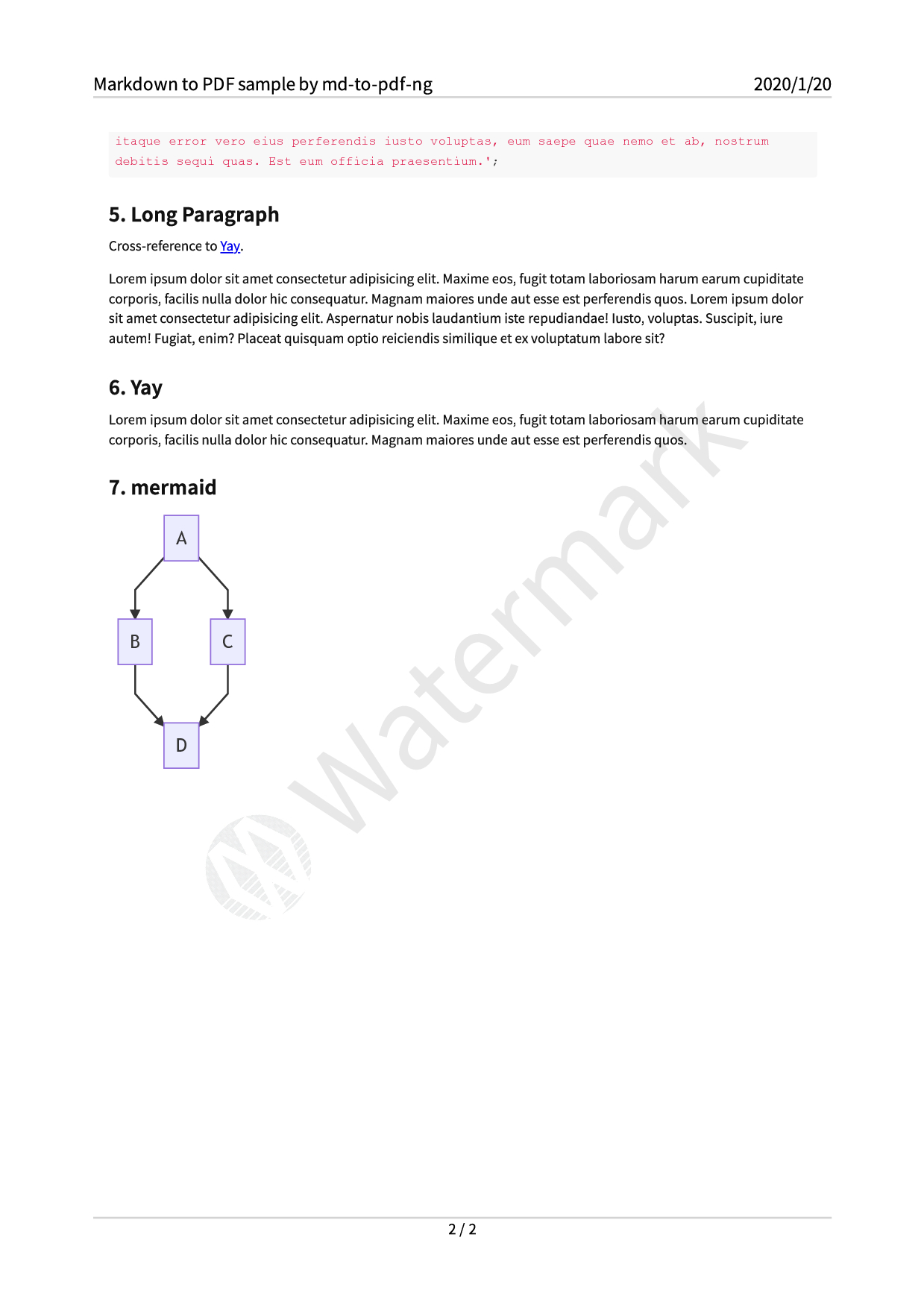
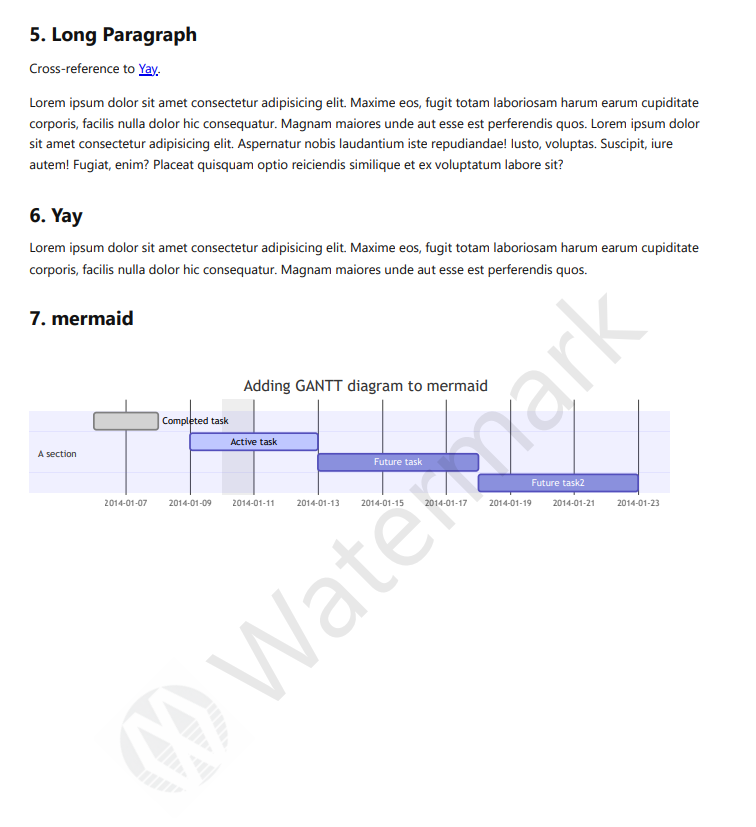
The following content is from the original project:
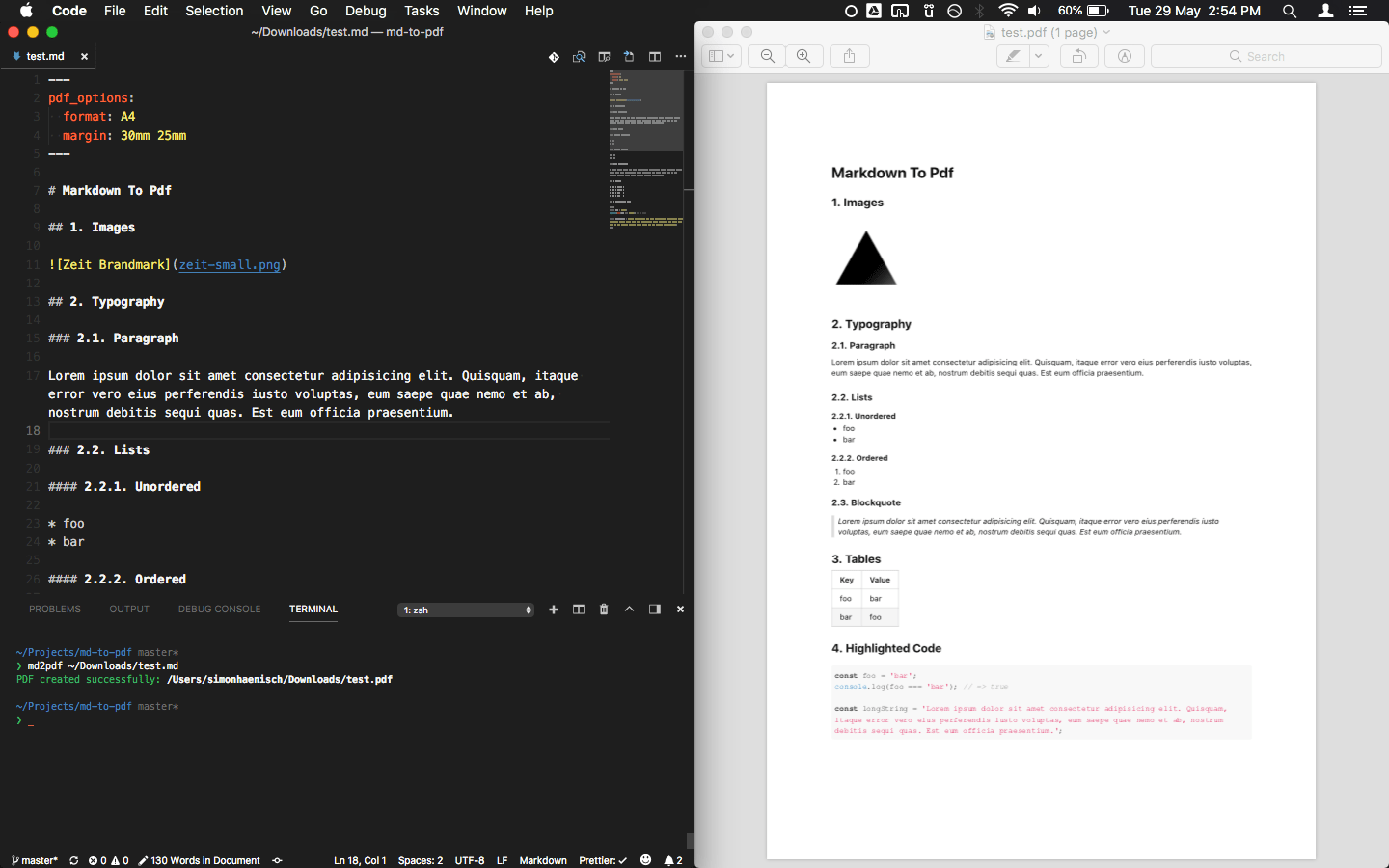
**A simple and hackable CLI tool for converting markdown to pdf**. It uses [Marked](https://github.com/markedjs/marked) to convert `markdown` to `html` and [Puppeteer](https://github.com/GoogleChrome/puppeteer) (headless Chromium) to further convert the `html` to `pdf`. It also uses [highlight.js](https://github.com/isagalaev/highlight.js) for code highlighting. The whole source code of this tool is only ~250 lines of JS and ~100 lines of CSS, so it is easy to clone and customize.
**Highlights:**
* Concurrently convert all Markdown files in the current directory
* Watch mode
* Use your own or remote stylesheets
* Front-matter for configuration
* Headers and Footers
* Page Breaks
* Syntax highlighting in code blocks
* Extend the options of the underlying tools
* Programmatic API
## Installation
**Option 1: NPM**
```sh
npm i -g md-to-pdf-ng
```
**Option 2: Git**
If you want to have your own copy to hack around with, clone the repository instead:
```sh
git clone "https://github.com/mikewootc/md-to-pdf-ng"
cd md-to-pdf-ng
npm link # or npm i -g
```
After this, the commands `md-to-pdf` and `md2pdf` (as a shorthand) are globally available in your cli.
## Update
If you installed via npm, run `npm i -g md-to-pdf@latest` in your CLI. If you cloned this repository instead, you can simply do a `git pull` to get the latest changes from the master branch. Unless there have been changes to packages, you don't need to re-install the package (because NPM 5+ uses symlinks, at least on Unix systems). There is a post-merge hook that should run the install for you automatically.
## Usage
```
$ md-to-pdf [options] [path/to/file.md] [path/to/output.pdf]
Options:
-h, --help ............... Output usage information
-v, --version ............ Output version
-w, --watch .............. Watch the current file(s) for changes
--stylesheet ............. Path to a local or remote stylesheet (can be passed multiple times)
--css .................... String of styles
--body-class ............. Classes to be added to the body tag (can be passed multiple times)
--highlight-style ........ Style to be used by highlight.js (default: github)
--marked-options ......... Set custom options for marked (as a JSON string)
--pdf-options ............ Set custom options for the generated PDF (as a JSON string)
--launch-options ......... Set custom launch options for Puppeteer
--md-file-encoding ....... Set the file encoding for the markdown file
--stylesheet-encoding .... Set the file encoding for the stylesheet
--as-html ................ Output as HTML instead
--config-file ............ Path to a JSON or JS configuration file
--devtools ............... Open the browser with devtools instead of creating PDF
--debug .................. Show more output on errors
```
If no arguments are given, all markdown files in the current directory will be converted. Otherwise, the first argument is `path/to/file.md` and the second one optionally specifies the `path/to/output.pdf`. If you omit the second argument, it will derive the pdf name from the markdown filename and save it into the same directory that contains the markdown file. Run `md2pdf --help` for examples on how to use the cli options.
Paths to local images have to be relative to the markdown file location and the files have to be within the same directory the markdown file lives in, or subdirectories of it.
#### Programmatic API
Currently the programmatic API is very simple: it only exposes one function that accepts the path to a markdown file, and an optional config object.
```js
const mdToPdf = require('md-to-pdf');
(async () => {
const pdf = await mdToPdf('readme.md', { dest: 'readme.pdf' }).catch(console.error);
if (pdf) {
console.log(pdf.filename);
}
})();
```
The function throws an error if anything goes wrong, which can be handled by catching the rejected promise.
#### Page Break
Place an element with class `page-break` to force a page break at a certain point of the document (uses the CSS rule `page-break-after: always`), e. g.:
```html
```
#### Header/Footer
Set the PDF option `displayHeaderFooter` to `true`, then use `headerTemplate` and `footerTemplate` with the provided classes to inject printing values, e. g. with front-matter (the styles in the `` tag of the header template will be applied to both header and footer):
```markdown
---
pdf_options:
format: A4
margin: 30mm 20mm
printBackground: true
displayHeaderFooter: true
headerTemplate: |-
footerTemplate: |-
---
```
Refer to the [Puppeteer docs](https://github.com/GoogleChrome/puppeteer/blob/master/docs/api.md#pagepdfoptions) for more info about headers and footers.
#### Default and Advanced Options
For markdown, GFM and tables are enabled by default (see `util/config.js` for default options). The default highlight.js styling for code blocks is `github`.
For advanced options see the following links:
* [Marked Advanced Options](https://github.com/markedjs/marked/blob/master/docs/USING_ADVANCED.md)
* [Puppeteer PDF Options](https://github.com/GoogleChrome/puppeteer/blob/master/docs/api.md#pagepdfoptions)
* [Puppeteer Launch Options](https://github.com/GoogleChrome/puppeteer/blob/master/docs/api.md#puppeteerlaunchoptions)
* [highlight.js Styles](https://github.com/isagalaev/highlight.js/tree/master/src/styles)
## Options
| Option | Examples |
| - | - |
| `--stylesheet` | `path/to/style.css`, `https://example.org/stylesheet.css` |
| `--css` | `body { color: tomato; }` |
| `--body_class` | `markdown-body` |
| `--highlight-style` | `monokai`, `solarized-light` |
| `--marked-options` | `'{ "gfm": false }'` |
| `--pdf-options` | `'{ "format": "Letter", "margin": "20mm", "printBackground": true }'` |
| `--launch-options` | `'{ "args": ["--no-sandbox"] }'` |
| `--md-file-encoding` | `utf-8`, `windows1252` |
| `--stylesheet-encoding` | `utf-8`, `windows1252` |
| `--config-file` | `path/to/config.json` |
**`margin`:** instead of an object (as stated in the Puppeteer docs), it is also possible to pass a CSS-like string, e. g. `1em` (all), `1in 2in` (top/bottom right/left), `10mm 20mm 30mm` (top right/left bottom) or `1px 2px 3px 4px` (top right bottom left).
**`highlight-style`:** if you set a highlight style with a background color, make sure that `"printBackground": true` is set in the pdf options.
The options can also be set with front-matter or a config file (except `--md-file-encoding` can't be set by front-matter). It's possible to set the output path for the PDF as `dest` in the config. In that case, remove the leading dashes (`--`) from the cli argument name and replace the hyphens (`-`) with underscores (`_`). `--stylesheet` and `--body-class` can be passed multiple times (i. e. as an array). If the same config option exists in multiple places, the priority (from low to high) is: defaults, config file, front-matter, cli arguments.
Example front-matter:
```markdown
---
dest: ./path/to/output.pdf
stylesheet:
- path/to/style.css
body_class: markdown-body
highlight_style: monokai
pdf_options:
format: A5
margin: 10mm
printBackground: true
---
# Content
```
Example `config.json` (can also be a `.js` that default exports an object):
```json
{
"stylesheet": [
"path/to/style.css",
"https://example.org/stylesheet.css"
],
"css": "body { color: tomato; }",
"body_class": "markdown-body",
"highlight_style": "monokai",
"marked_options": {
"headerIds": false,
"smartypants": true,
},
"pdf_options": {
"format": "A5",
"margin": "20mm",
"printBackground": true
},
"stylesheet_encoding": "utf-8"
}
```
#### Github Styles
Here is an example front-matter for how to get Github-like output:
```markdown
---
stylesheet: https://cdnjs.cloudflare.com/ajax/libs/github-markdown-css/2.10.0/github-markdown.min.css
body_class: markdown-body
css: |-
.page-break { page-break-after: always; }
.markdown-body { font-size: 11px; }
.markdown-body pre > code { white-space: pre-wrap; }
---
```
## Customization/Development
You can just start making changes to the files in this repository. NPM 5+ uses symlinks for local global packages, so all changes are reflected immediately without re-installing the package globally (except when there are changes to required packages, then reinstall using `npm i`). This also means that you can just do a `git pull` to get the latest version onto your machine.
Ideas, feature requests and PRs are welcome. Just keep it simple! 🤓
## Credits
Huge thanks to:
* [imcvampire](https://github.com/imcvampire) for handing over the npm package name.
* [Sindre Sorhus](https://github.com/sindresorhus) and [Zeit](https://github.com/zeit) for inspiration on how to write cli tools.
* [Josh Bruce](https://github.com/joshbruce) for [reviving Marked](https://github.com/markedjs/marked/issues/1106).
## License
[The Unlicense](/license).