# lc-tab-bar

> Weex 版本底部 tab-bar 组件

#### 规则
- 用于底部 Tab 切换页面，目前支持 **icon 和文字**形式的底栏

## [Demo](https://h5.m.taobao.com/trip/wx-detection-demo/tab-bar/index.html?_wx_tpl=https%3A%2F%2Fh5.m.taobao.com%2Ftrip%2Fwx-detection-demo%2Ftab-bar%2Findex.weex.js)
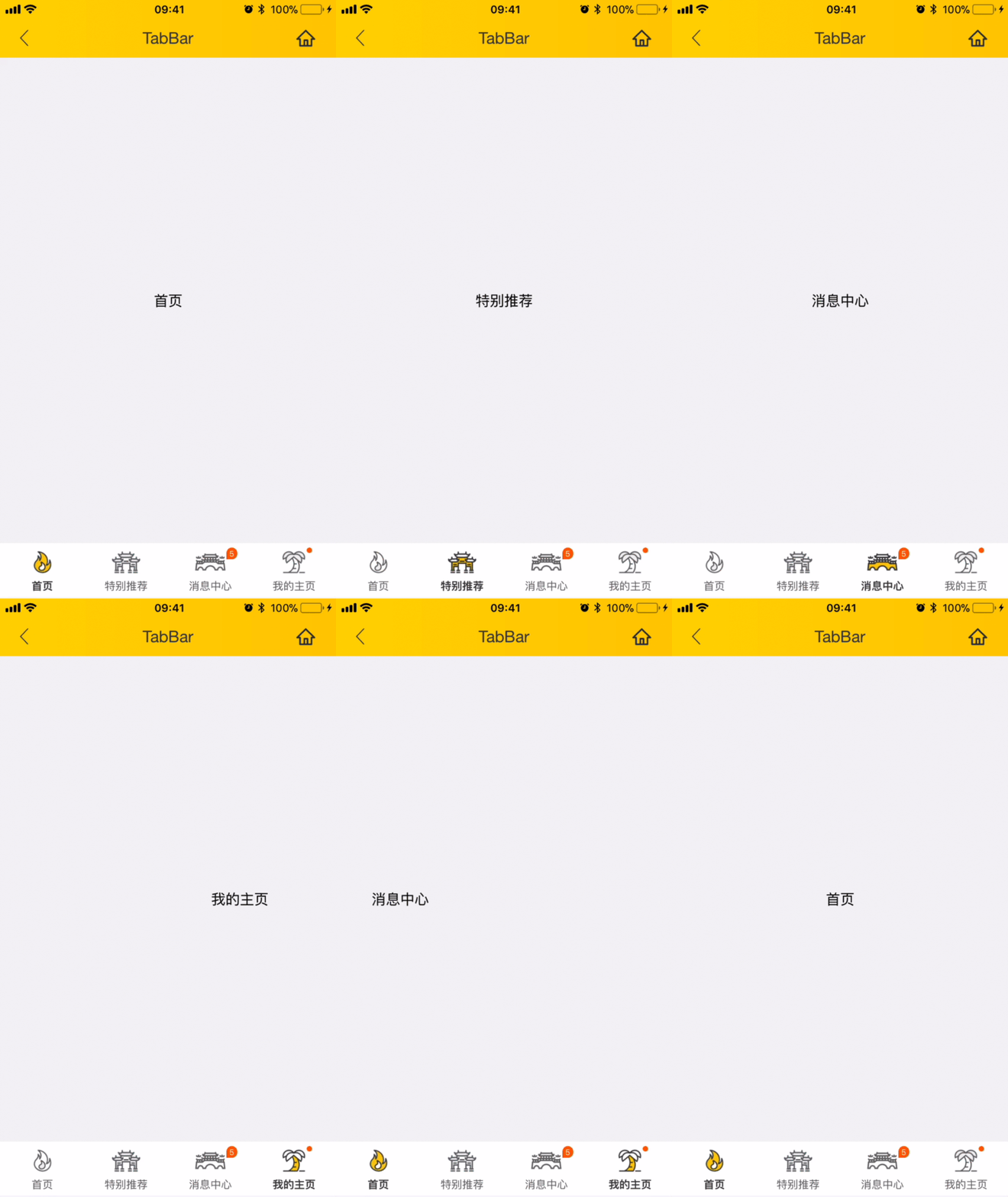

<img src="https://img.alicdn.com/tfs/TB1n6jOg3DD8KJjy0FdXXcjvXXa-562-1000.gif" width="240"/>&nbsp;&nbsp;&nbsp;&nbsp;<img src="https://img.alicdn.com/tfs/TB1AEx7gcLJ8KJjy0FnXXcFDpXa-200-200.png" width="160"/>


## 使用方法

```vue
<template>
  <lc-tab-bar :tab-titles="tabTitles"
               :tab-styles="tabStyles"
               title-type="icon"
               :tab-page-height="tabPageHeight"
               @LcTabBarCurrentTabSelected="LcTabBarCurrentTabSelected">
    <!-- 第一个页面内容-->
    <div class="item-container" :style="contentStyle"><text>首页</text></div>
    
    <!-- 第二个页面内容-->
    <div class="item-container" :style="contentStyle"><text>特别推荐</text></div>
    
    <!-- 第三个页面内容-->
    <div class="item-container" :style="contentStyle"><text>消息中心</text></div>
    
    <!-- 第四个页面内容-->
    <div class="item-container" :style="contentStyle"><text>我的主页</text></div>
  </lc-tab-bar>
</template>

<style scoped>
  .item-container {
    width: 750px;
    background-color: #f2f3f4;
    align-items: center;
    justify-content: center;
  }
</style>
<script>
  import { LcTabBar, Utils } from 'weex-ui';
 
  // https://github.com/alibaba/weex-ui/blob/master/example/tab-bar/config.js 
  import Config from './config'

  export default {
    components: { LcTabBar },
    data: () => ({
      tabTitles: Config.tabTitles,
      tabStyles: Config.tabStyles
    }),
    created () {
      this.tabPageHeight = Utils.env.getPageHeight();
      const { tabPageHeight, tabStyles } = this;
      this.contentStyle = { height: (tabPageHeight - tabStyles.height) + 'px' };
    },
    methods: {
      LcTabBarCurrentTabSelected (e) {
        const index = e.page;
        // console.log(index);
      }
    }
  };
</script>

```
更详细代码可以参考 [demo](https://github.com/alibaba/weex-ui/blob/master/example/tab-bar/index.vue)


### 可配置参数

| Prop | Type | Required | Default | Description |
|-------------|------------|--------|-----|-----|
| tab-titles | `Array` |`Y`| `[]` | Tab显示 [配置](https://github.com/alibaba/weex-ui/blob/master/example/tab-bar/config.js#L7)|
| title-type | `String` |`N`| `icon` | 类型 `icon`/`text`|
| tab-styles | `Array` |`N`| `[]` |  底部 Tab [样式配置](https://github.com/alibaba/weex-ui/blob/master/example/tab-bar/config.js)|
| tab-page-height | `Number` |`N`| `1334` |Tab page 页面的高度 |
| is-tab-view | `Boolean` |`N`| `true` |当设置为`false`，同时 tab 配置 url 参数即可跳出 |
| duration | `Number` |`N`| `300` | 页面切换动画的时间 |
| timing-function | `String` |`N`| `-` | 页面切换动画函数 |
| wrap-bg-color | `String` |`N`| `#F2F3F4` |页面背景颜色|

### 主动触发设置页面

```
// 直接在lc-tab-bar上面绑定ref="lc-tab-bar",然后调用即可
this.$refs['lc-tab-bar'].setPage(2)

// 如果想设置无动画跳转，可以这样使用(中间参数用于设置url，设置null即可)
this.$refs['lc-tab-bar'].setPage(2,null,false);

```

### 事件回调
```
//当前页面被选中的回调`@LcTabBarCurrentTabSelected="LcTabBarCurrentTabSelected"`
```

